XIAOMI REDMI
How to pin apps on a Xiaomi phone (HyperOS 3)

In short
Go to Settings, Fingerprints, face data, and screen lock, Privacy, Allow pinning apps, turn it on and tap OK. Open Recents, touch and hold the card, tap the pin, then Got it. To unpin, slide up from the bottom and pause: ours showed Unpinned app.
11 of 11 steps show a real screenshot from our Redmi Note 15 Pro 5G. Each step was checked against the maker's own instructions, linked at the end.
Steps
- 1
Find Allow pinning apps
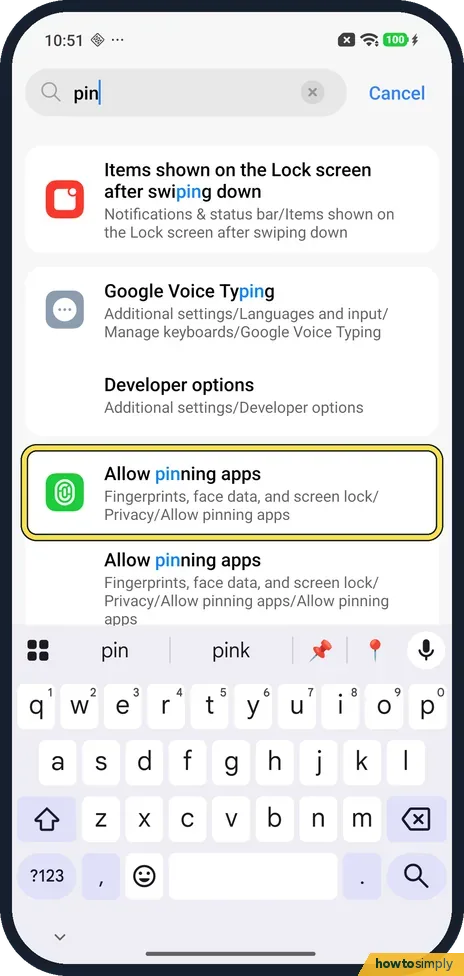
Open Settings and search for pin. Tap Allow pinning apps: the result shows its path, Fingerprints, face data, and screen lock/Privacy/Allow pinning apps.
- 2
Turn on Allow pinning apps
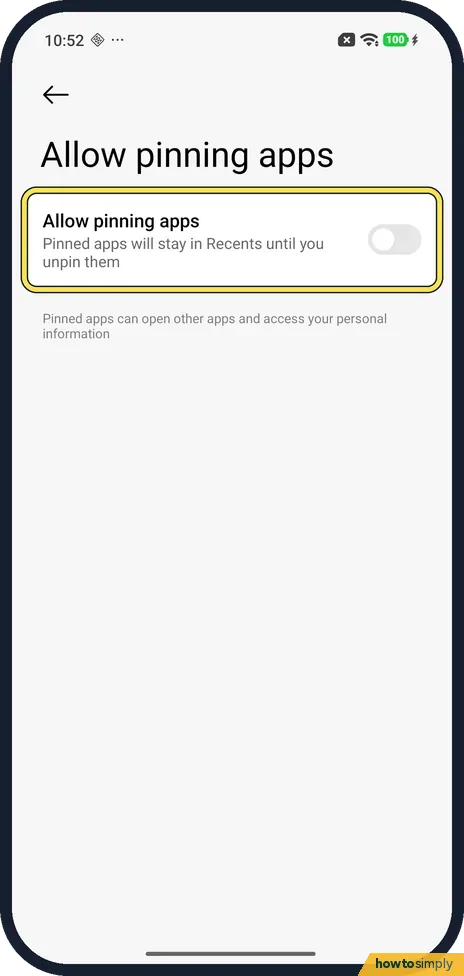
Tap the Allow pinning apps switch: Pinned apps will stay in Recents until you unpin them. It was off on ours.
- 3
Read the warning and tap OK
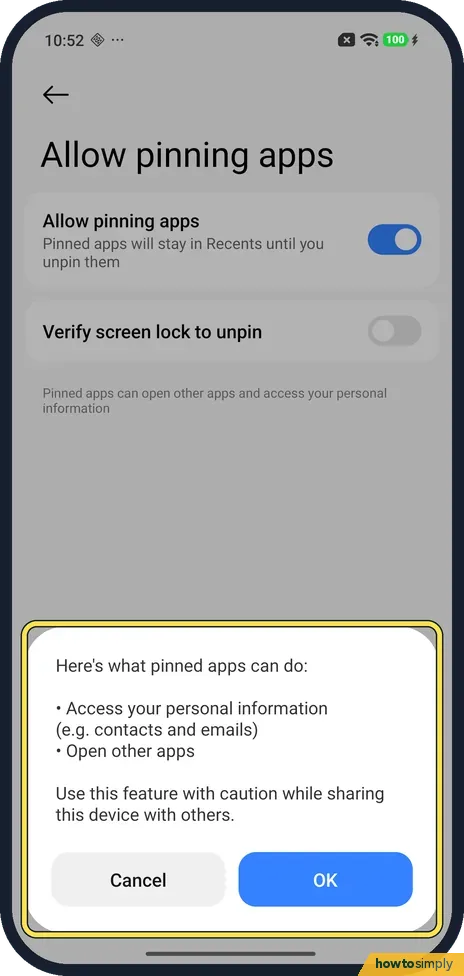
A box opens: Here's what pinned apps can do: Access your personal information (e.g. contacts and emails). Open other apps. Use this feature with caution while sharing this device with others. Tap OK, or Cancel.
- 4
Verify screen lock to unpin
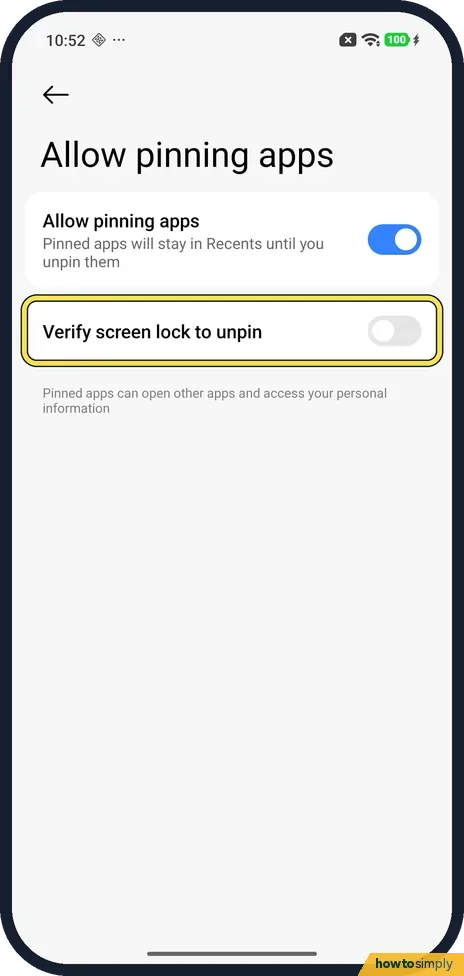
With Allow pinning apps on, a new switch appears below it: Verify screen lock to unpin. It was off on ours, and we left it off.
- 5
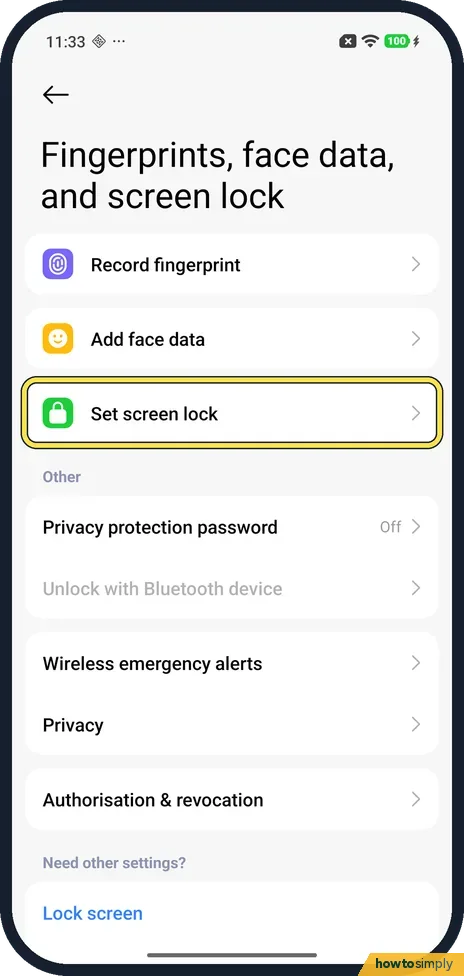
Check for a screen lock
Our phone had no screen lock: Settings, Fingerprints, face data, and screen lock showed Set screen lock. Set one there first if you want Verify screen lock to unpin.
- 6
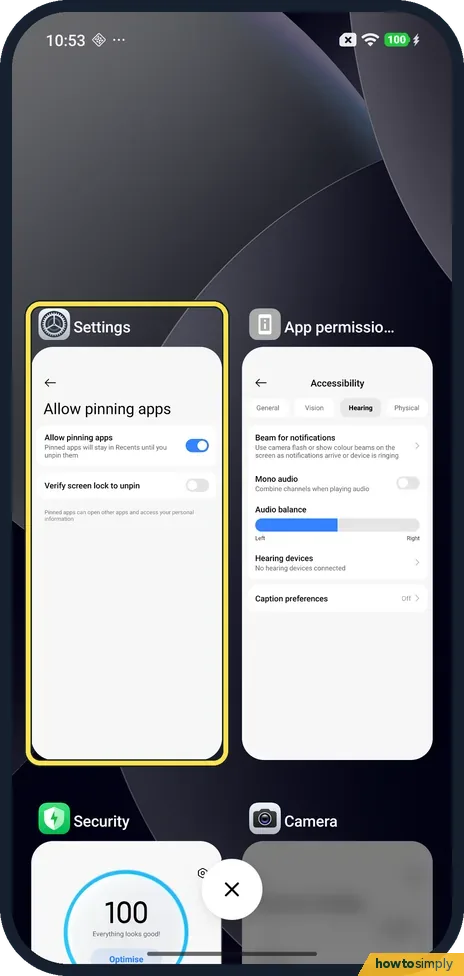
Open Recents and hold the card
Open the app you want to pin, then open Recents (swipe up from the bottom and hold). Touch and hold the app's card, here Settings.
- 7
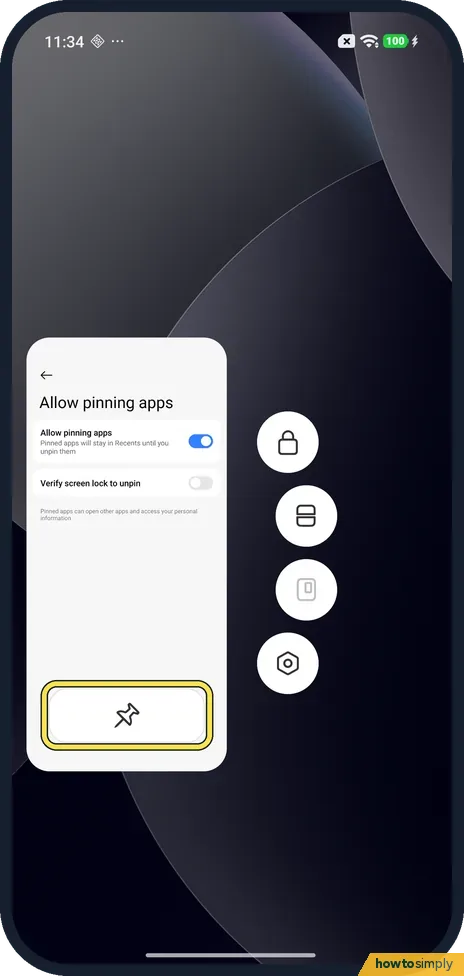
Tap the pin
Round buttons appear beside the card, with a padlock at the top, and a pushpin button at the bottom of the card. Tap the pushpin.
- 8
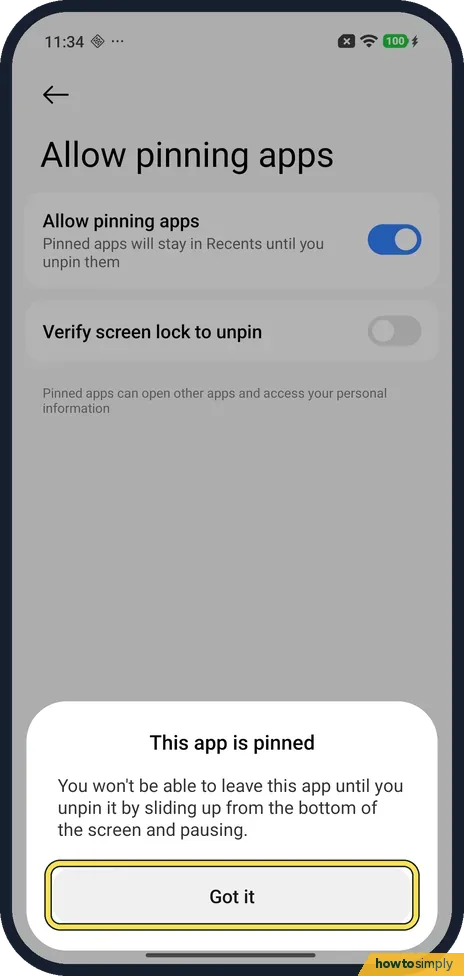
Tap Got it
A sheet opens: This app is pinned. You won't be able to leave this app until you unpin it by sliding up from the bottom of the screen and pausing. Tap Got it.
- 9
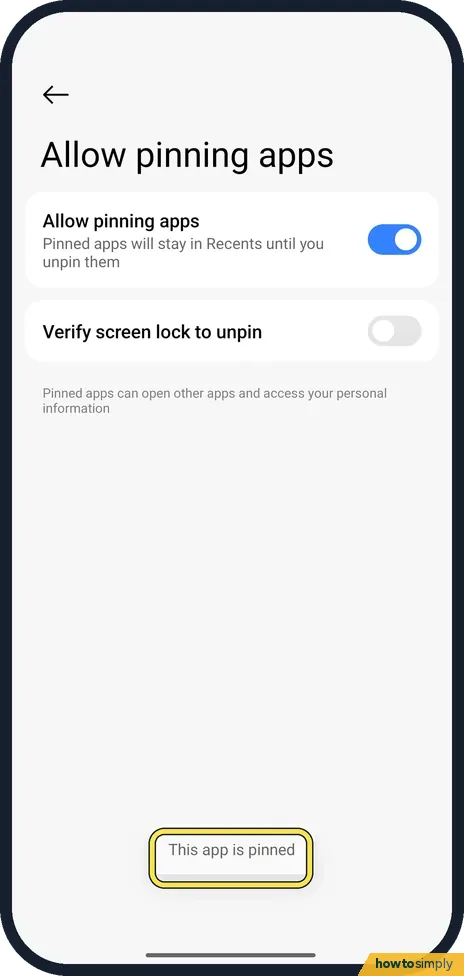
The app is pinned
A message, "This app is pinned", shows near the bottom. On ours the status bar icons at the top were gone while the app was pinned.
- 10
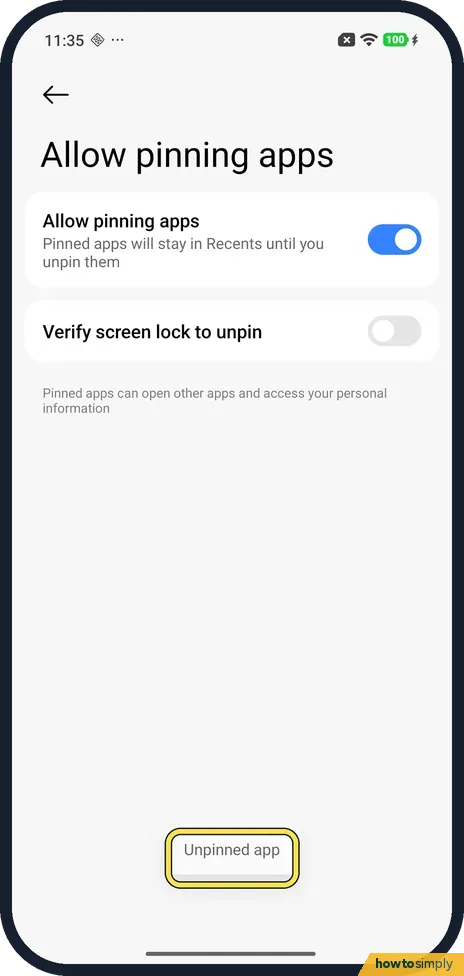
Slide up and pause to unpin
To unpin, slide up from the bottom of the screen and pause. On ours it took about 2 seconds, then "Unpinned app" showed and the status bar came back. No screen lock was asked for.
- 11
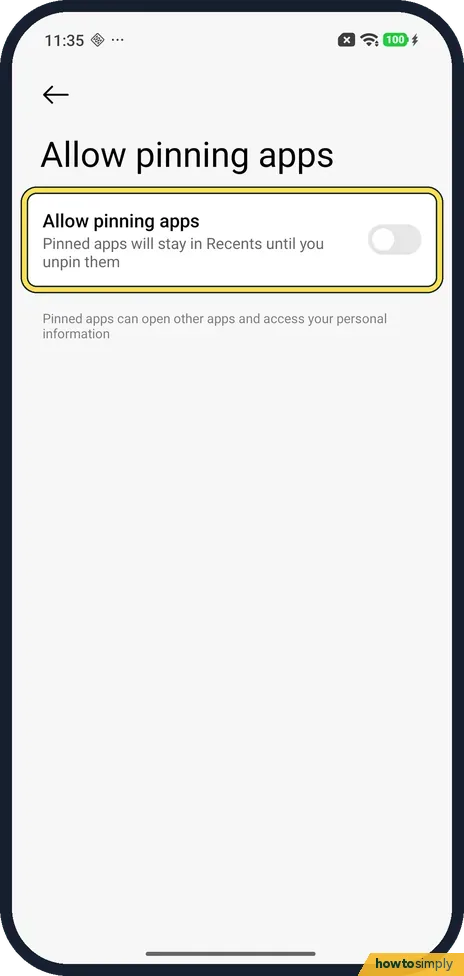
Turn it off again
To stop apps being pinned, turn the Allow pinning apps switch off. Verify screen lock to unpin disappears again.
If you do not see this option
- Can't find it in Privacy? Xiaomi's steps for the Xiaomi 14T and REDMI 13C go through Settings, Fingerprints, face data, and screen lock, Privacy, Allow pinning apps. On our Redmi Note 15 Pro 5G, searching Settings for pin found it. Sources: How to pin apps in Recents on the Xiaomi 14T?, How to pin APPs in Recents on the REDMI 13C?
- No pin beside the card? Turn on Allow pinning apps first. Xiaomi says to press and hold the app in Recents, then tap the pin icon. Source: How to pin apps in Recents on the Xiaomi 14T?
- On a Google Pixel? Google calls it App pinning, under Security settings. See our guide on how to use app pinning on a Google Pixel. Source: Pin and unpin screens
If this does not work
- Using navigation buttons? The sheet on ours says to slide up from the bottom and pause. With buttons, Xiaomi says to press and hold the back and preview buttons. See how to switch between gestures and navigation buttons.
- Want a screen lock to unpin? Turn on Verify screen lock to unpin. Ours had no screen lock set and unpinned without asking for one, so set one up first: how to set a screen lock.
- Tapped the padlock by mistake? The padlock locks the card in Recents so clearing Recents leaves it open; it doesn't pin it. See Xiaomi closing apps in the background.
Good to know
Xiaomi says to use this feature with caution while sharing this device with others. For a separate space, see Second space and Dual apps. On a Pixel: app pinning on a Google Pixel.
To keep apps out of sight instead: how to hide apps. Other Android phones: app pinning on Android.
About this guide
- Device
- Android
- Shown on
- Xiaomi Redmi Note 15 Pro 5G (25080RABDG), HyperOS 3.0.308.0, Android 16
- App
- Settings
- Path
- Settings › Fingerprints
- Real screenshots
- 11 of 11 steps
- Checked
- October 2026
- Sources
- 3 official, linked below
Sources
Links checked October 2026. Menus and features can change with updates.Spotted a mistake? Menus change with updates, and we want every step to match your screen. Email us about this page or use the contact form. We read every report, and fixes are listed on What changed.
Liked this guide?
Follow us for new guides and short how-to videos.
Did this guide work for you?
Sorry about that. What happened?