XIAOMI REDMI
How to allow installing apps from unknown sources on a Xiaomi phone (HyperOS 3)

In short
Search Settings for unknown and tap Install unknown apps. On the Special permissions page, tap Install unknown apps, pick the app you download the APK with (for example Chrome) and turn on Allow from this source. A Danger box then asks you to confirm.
6 of 6 steps show a real screenshot from our Redmi Note 15 Pro 5G. Each step was checked against the maker's own instructions, linked at the end.
Steps
- 1
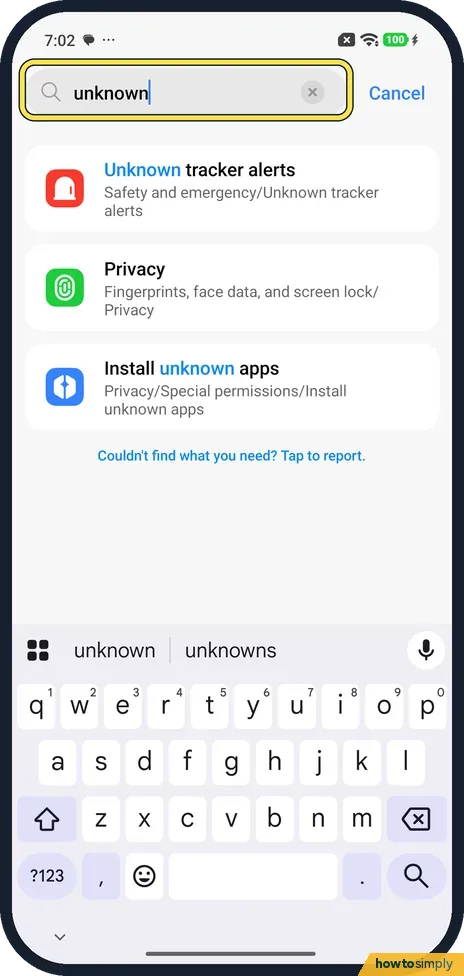
Search Settings for unknown
Open Settings, tap the search bar and type unknown.
- 2
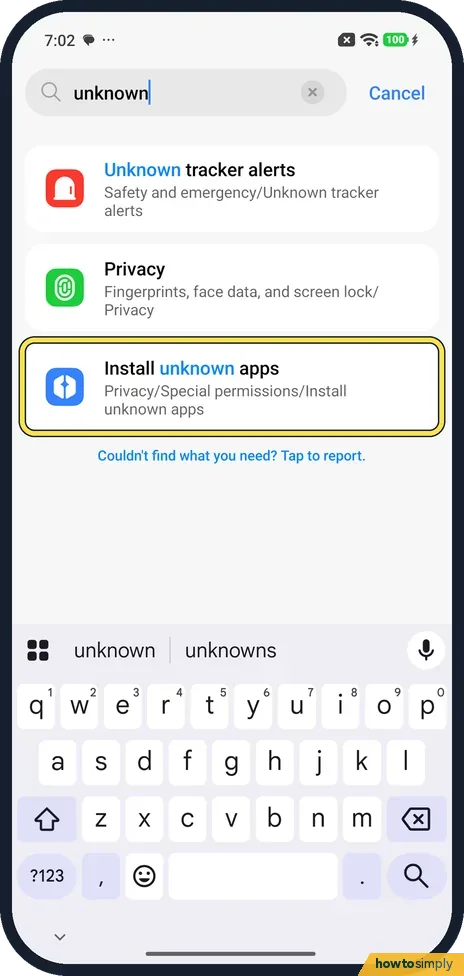
Tap Install unknown apps
The result shows its path: Privacy, Special permissions, Install unknown apps. Tap it. It opens Special permissions.
- 3
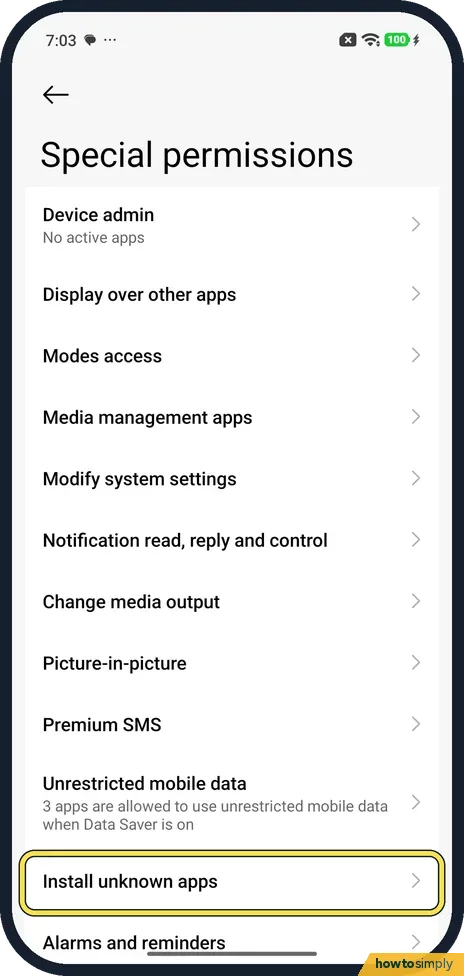
Tap Install unknown apps again
Scroll down the Special permissions list and tap Install unknown apps, below Unrestricted mobile data.
- 4
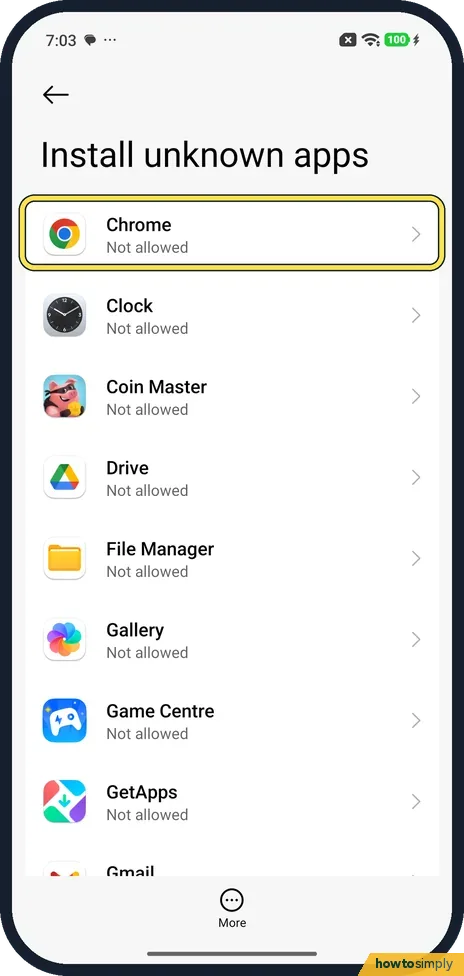
Pick the app you download with
Every app shows Not allowed. Tap the one that will open the APK: Chrome if you downloaded it in Chrome, File Manager if you open it from your files.
- 5
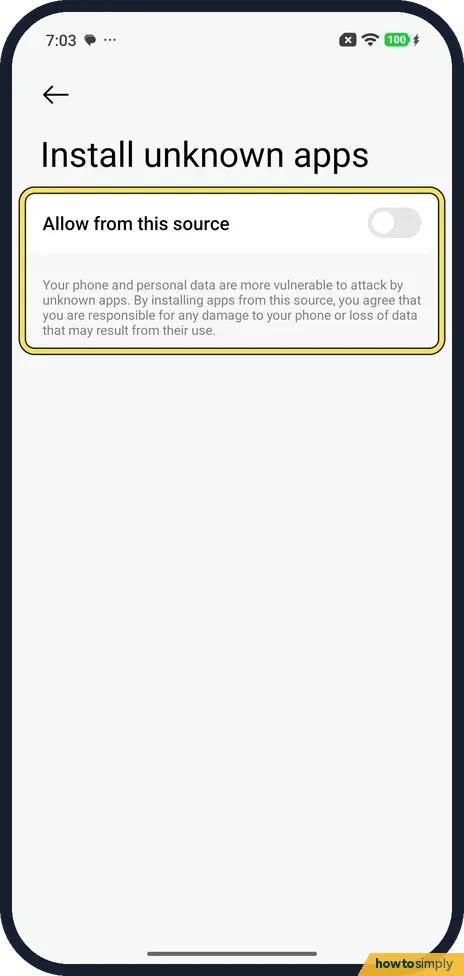
Tap Allow from this source
Tap the switch. Below it is the warning: Your phone and personal data are more vulnerable to attack by unknown apps, and you are responsible for any damage.
- 6
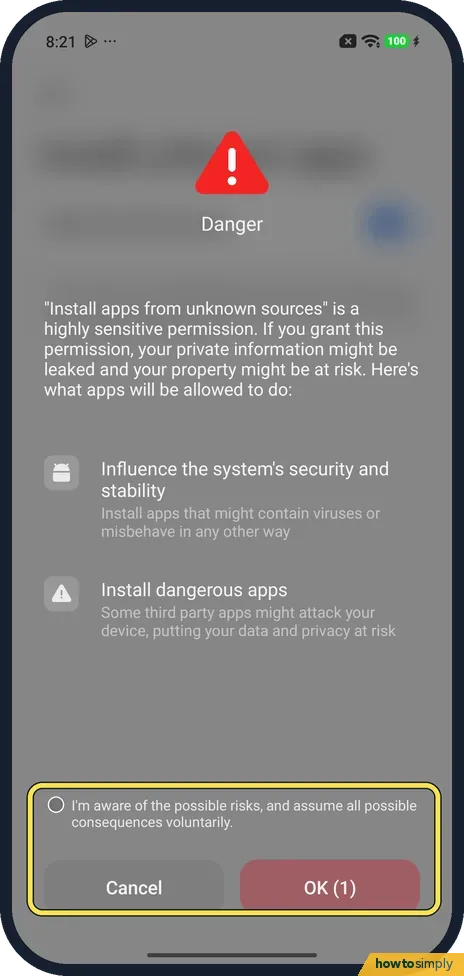
Confirm the Danger box
On ours a Danger box opened. It says this is a highly sensitive permission and lists what such apps may do. It has a tick box, I'm aware of the possible risks, and an OK button with a countdown. We tapped Cancel.
If you do not see this option
- Path different in Xiaomi's guide? Xiaomi's HyperOS 3 guide gives Settings, Security & privacy, More security & privacy, Special permissions. On our phone the search showed Privacy, Special permissions. Searching for unknown works either way. Source: Generic User Guide for HyperOS 3.0
- Under Privacy protection? Xiaomi's support page gives another route: Settings, Privacy protection, Special permissions, Install unknown apps. Source: How to download App?
- Older Xiaomi phone? Xiaomi's page about the prohibit installation message gives Settings, Additional settings, Privacy, Special app access, Install unknown apps. Source: Instructions for phone apps prompts "prohibit installation"
If this does not work
- Still blocked after allowing it? You allowed a different app. Allow the app that actually opens the APK, for example File Manager instead of Chrome. See also default apps.
- Can't tap OK in the Danger box? On ours OK showed a countdown before it could be used. Wait for it, tick I'm aware of the possible risks, then tap OK.
- Warned about an unverified developer? Google says certified Android phones need apps from verified developers. To install others you turn on Allow apps from unverified developers in Developer options, which has a 24-hour delay.
Good to know
Done installing? Go back and turn Allow from this source off again, so that app can't install anything else.
To remove apps you no longer want: uninstall or disable preinstalled apps.
The permission belongs to that one app only. Other apps stay Not allowed, and Play Store keeps installing as before without it. The downloaded APK file stays on the phone after installing. Xiaomi's guide says the Cleaner in Security scans installation packages along with other trash, so you can clear it there. To check a new app afterwards, see scan for harmful apps with Play Protect.
About this guide
- Device
- Android
- Shown on
- Xiaomi Redmi Note 15 Pro 5G (25080RABDG), HyperOS 3.0.308.0, Android 16
- App
- Settings
- Real screenshots
- 6 of 6 steps
- Checked
- October 2026
- Sources
- 4 official, linked below
Sources
Links checked October 2026. Menus and features can change with updates.Spotted a mistake? Menus change with updates, and we want every step to match your screen. Email us about this page or use the contact form. We read every report, and fixes are listed on What changed.
Liked this guide?
Follow us for new guides and short how-to videos.
Did this guide work for you?
Sorry about that. What happened?