
What changed: the screenshots are now our own iPhone 17e on iOS 27.0.1, dark mode, and the wording is checked against those screens and Apple's iOS 27 guide.
howtosimply.com/guides/how-to-reduce-transparency-and-increase-contrast-on-an-iphone/ · Checked October 2026 · iPhone 17e · iOS 27.0.1
In this guide
- Open Settings and tap Accessibility
- Tap Display & Text Size
- Switch on Reduce Transparency
- Check the effect in Control Centre
- Switch on Increase Contrast if you need more
- Consider the other aids on the page
- Switch it off again if you prefer the glass look
- If you do not see this option
- If this does not work
- Good to know
- Video demo
- Sources
Open Settings, tap Accessibility, then Display & Text Size, and switch on Reduce Transparency. Apple describes it as improving contrast by reducing transparency and blurs on some backgrounds, which makes text on them easier to read. Increase Contrast, directly below, strengthens the colours further.
7 of 7 steps with real screenshots · 5 official sources below
- Device
- iPhone
- Shown on
- iOS 27.0.1 (iPhone 17e)
- App
- Settings
- Path
- Settings › Accessibility › Display & Text Size
- Real screenshots
- 7 of 7 steps
- What we did
- Performed: we made the change on our device and show the result
- Checked
- October 2026
- Sources
- 5 official, linked below
Step by step
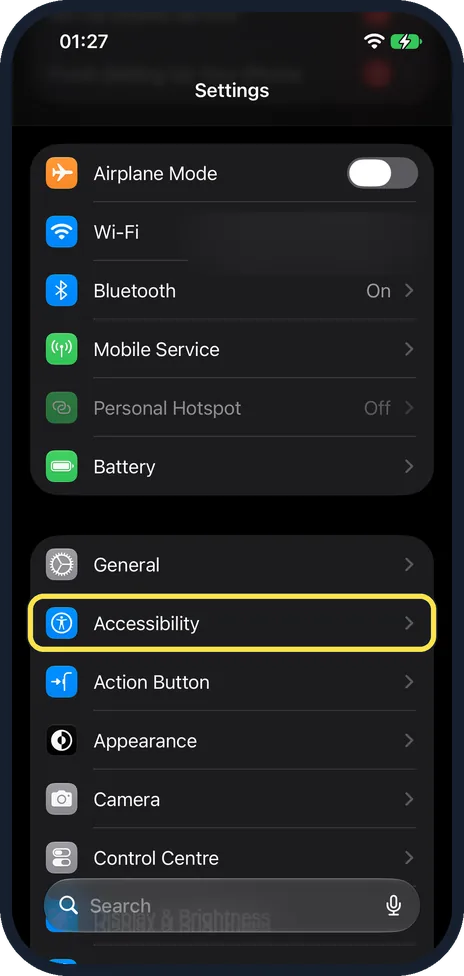
Open Settings and tap Accessibility
Settings opens with your account card, then any setup prompts, then Airplane Mode, Wi-Fi, Bluetooth, Mobile Service, Personal Hotspot and Battery. Scroll down a little to find Accessibility. It is directly below General.
Watch these steps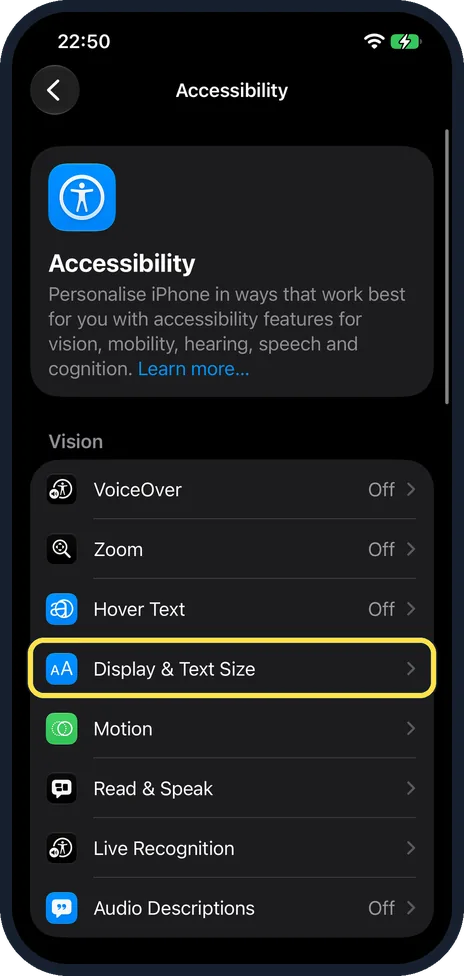
Tap Display & Text Size
It is in the Vision group at the top, below VoiceOver, Zoom and Hover Text.
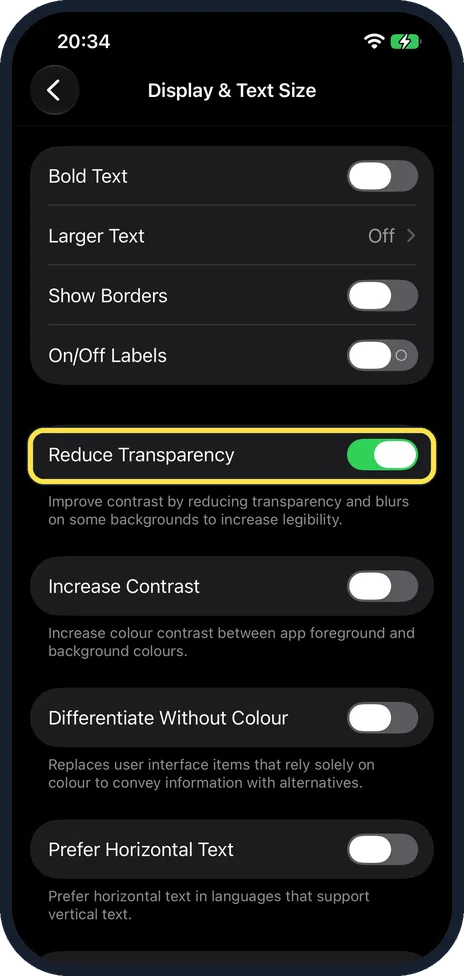
Switch on Reduce Transparency
The page describes it as improving contrast by reducing transparency and blurs on some backgrounds. On our iPhone 17e it was off. The picture shows it after we switched it on: the switch turns green.
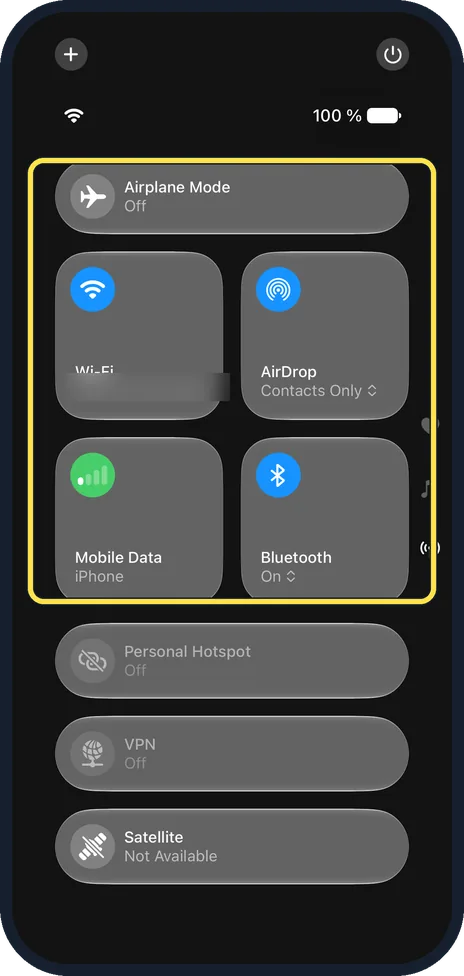
Check the effect in Control Centre
Swipe down from the top-right corner of the screen to open Control Centre. On our iPhone 17e with Reduce Transparency on, the tiles and buttons were solid grey, and the settings page behind them no longer showed through.
Switch on Increase Contrast if you need more
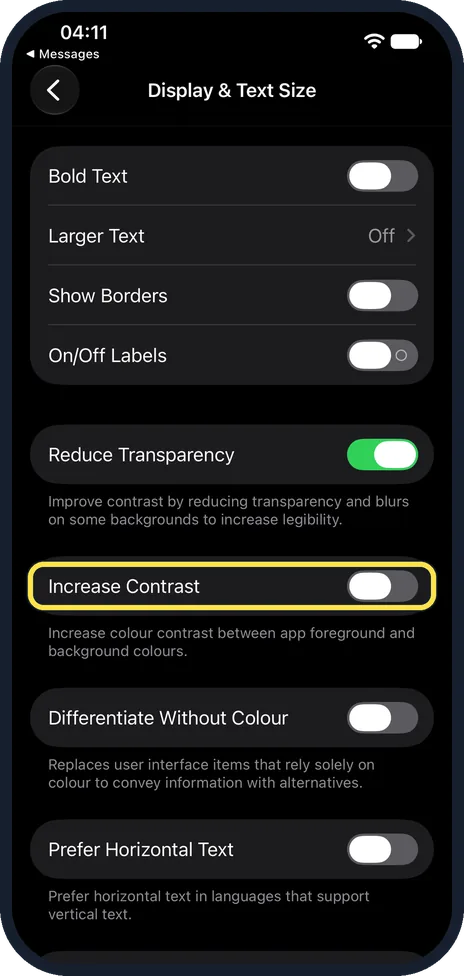
It is directly below Reduce Transparency. It increases the colour contrast between the foreground and the background of apps. Try Reduce Transparency alone first. In our picture Reduce Transparency is on and Increase Contrast is still off.
Consider the other aids on the page
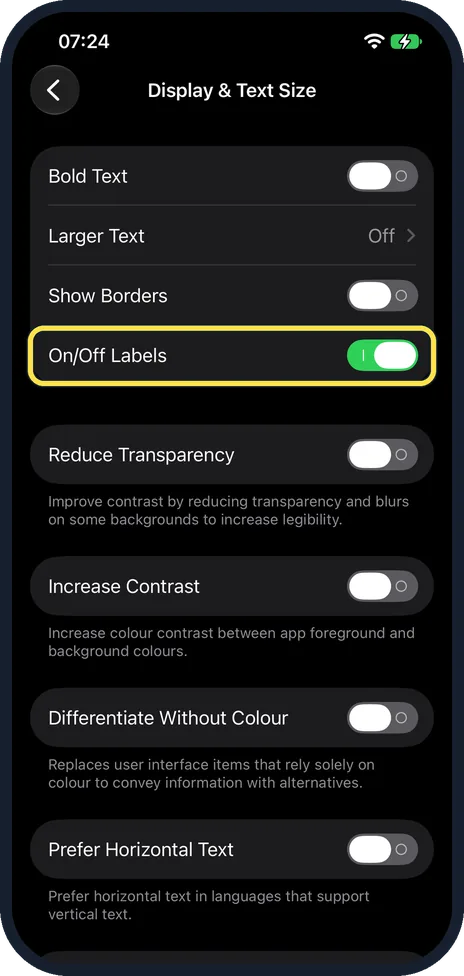
Bold Text, Show Borders and On/Off Labels are at the top of the page. Larger Text, between them, is covered in the guide to bigger text linked below. Differentiate Without Colour is below Increase Contrast. Bold Text makes all text thicker. Show Borders draws outlines around buttons. On/Off Labels adds a mark inside each switch, and Differentiate Without Colour replaces signals that rely on colour alone. Below it, Prefer Horizontal Text is for languages that support vertical text. On our iPhone 17e all of them were off. When we switched on On/Off Labels, a line showed inside the green switch and a circle inside each switch that was off. We switched it back off afterwards.
Switch it off again if you prefer the glass look
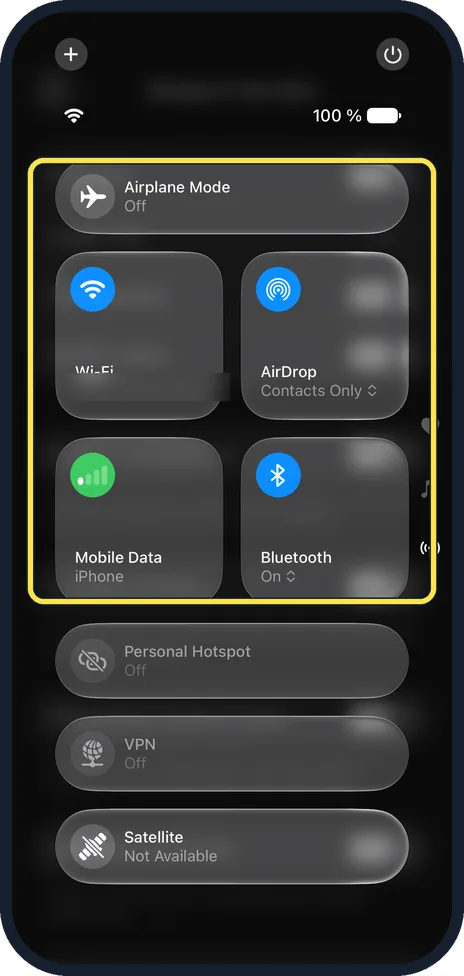
Go back to Accessibility, Display & Text Size and switch Reduce Transparency off. On our iPhone 17e, Control Centre then went back to see-through tiles, with the blurred settings page showing behind them. We left it off.
What changed: the screenshots are now our own iPhone 17e on iOS 27.0.1, dark mode, and the wording is checked against those screens and Apple's iOS 27 guide.
Watch these steps
If you do not see this option
- You are looking on the Appearance page. On iOS 27 Bold Text is also on the Appearance page, but Reduce Transparency and Increase Contrast are only under Accessibility, Display & Text Size. Source: Adjust iPhone display and text settings (iOS 27) · Source: Change display colors on iPhone to make it easier to see what’s onscreen
- You found an Increase Contrast switch under Pointer Control. That is a different switch. Apple lists it in Settings, Accessibility, Pointer Control, and it only makes the pointer easier to see when you use a mouse or trackpad. The one for the whole screen is in Accessibility, Display & Text Size. Source: Make the pointer easier to see when using a mouse or trackpad with iPhone · Source: Change display colors on iPhone to make it easier to see what’s onscreen
If this does not work
- You cannot change the Liquid Glass look. Apple says you need to turn off Reduce Transparency and Increase Contrast before you can change the Liquid Glass look. On iOS 27 the slider is in Settings, Appearance, Liquid Glass. Source: Adjust iPhone display and text settings (iOS 27)
- You are on iOS 26 and cannot find Liquid Glass under Appearance. On iOS 26 Apple puts it under Display & Brightness, Liquid Glass, with a choice of Clear or Tinted. The same rule applies: turn off Reduce Transparency and Increase Contrast first. Source: Adjust iPhone display and text settings (iOS 26)
About this guide
From iOS 26 on (iOS 27 is shown here), many menus and bars sit on see-through surfaces that let the wallpaper and the content behind shine through. It looks light, but text on top can be hard to read. Two switches in the Accessibility settings make these surfaces more solid. Both can be switched off again at any time.
Screenshots: iPhone 17e, iOS 27.0.1, dark mode.
Good to know
For larger letters: how to make text bigger on an iPhone.
If moving and zooming effects bother you as well: how to turn on Reduce Motion on an iPhone.
Smart Invert, further down the same page, reverses the colours of the display except for pictures, media and apps that are already dark.
In short: Settings, Accessibility, Display & Text Size, Reduce Transparency on. Increase Contrast for more. Control Centre turns solid grey.
- Apple Support: Use display and text size preferences on your iPhone, iPad, and iPod touch
- Apple iPhone User Guide: Adjust iPhone display and text settings (iOS 27)
- Apple iPhone User Guide: Adjust iPhone display and text settings (iOS 26)
- Apple iPhone User Guide: Change display colors on iPhone to make it easier to see what’s onscreen
- Apple iPhone User Guide: Make the pointer easier to see when using a mouse or trackpad with iPhone
Links checked in October 2026. Menus and features can change after software updates. These steps match the version named at the top.
Did this guide work for you?
Sorry about that. What happened?