
macOS 27 compared with macOS 26: We rewrote steps 2, 3, 4 and 5 to match the macOS 27 screens. The macOS 26 page keeps the steps and screenshots as they were.
howtosimply.com/guides/how-to-make-a-mac-read-selected-text-aloud/ · Checked October 2026 · MacBook Neo · macOS 27.0.1
In this guide
Open System Settings, click Accessibility, then Read & Speak, and switch on Speak selection. Then select text in any app and press Option+Esc, the shortcut shown on our Mac, to hear it read aloud.
3 of 5 steps with real screenshots · 2 official sources below
- Device
- Mac
- Shown on
- macOS 27.0.1 (MacBook Neo)
- App
- System Settings
- Real screenshots
- 3 of 5 steps
- Checked
- October 2026
- Sources
- 2 official, linked below
Step by step
Open System Settings
Click the Apple menu in the top left corner of the screen and choose System Settings.
Zoomed in on the setting. Tap to see the whole screenTap the picture to see it full size Click Accessibility, then Read & Speak
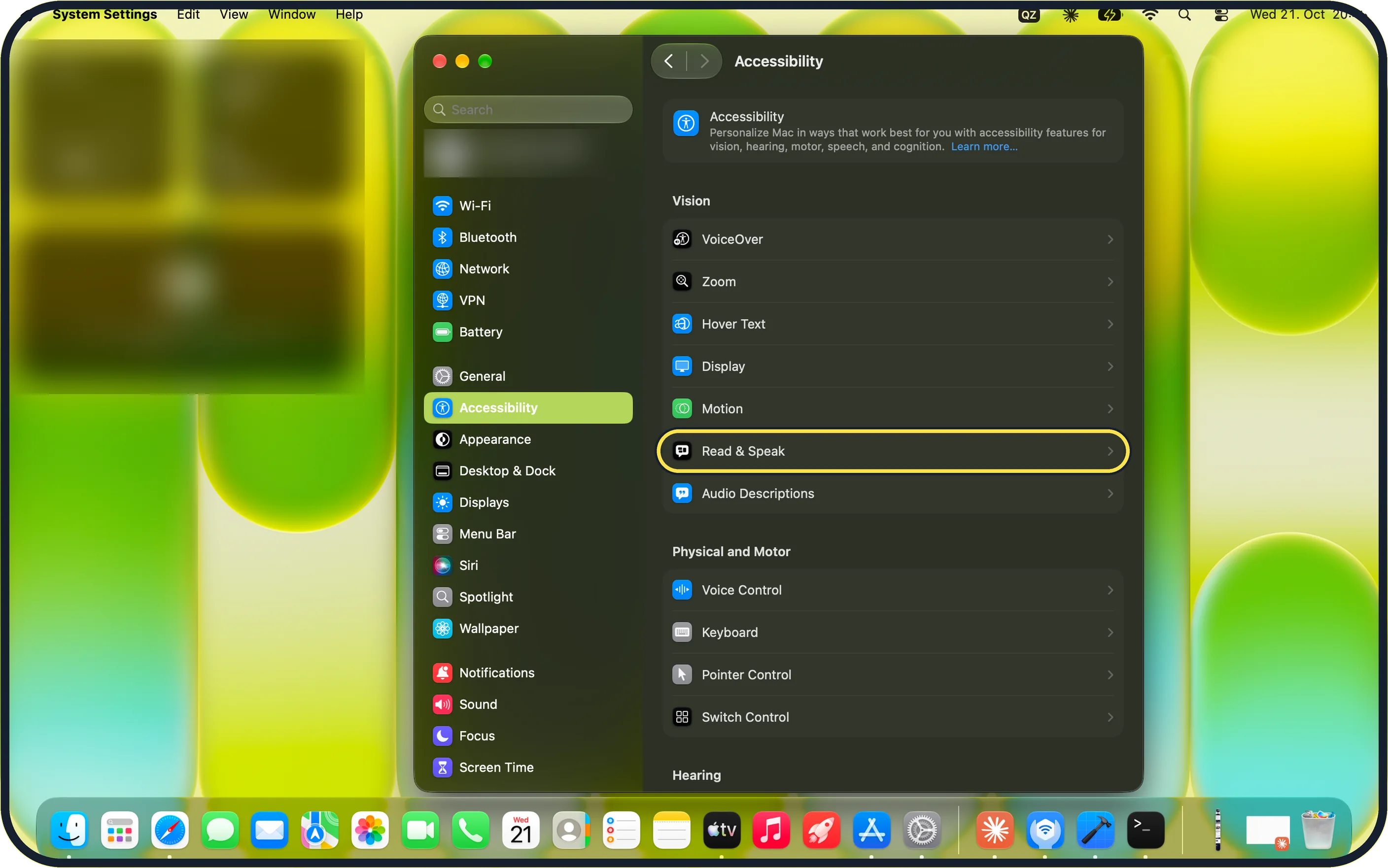
Click Accessibility in the sidebar.
On our MacBook Neo, Read & Speak is in the Vision group, between Motion and Audio Descriptions.
Zoomed in on the setting. Tap to see the whole screenTap the picture to see it full size Switch on Speak selection
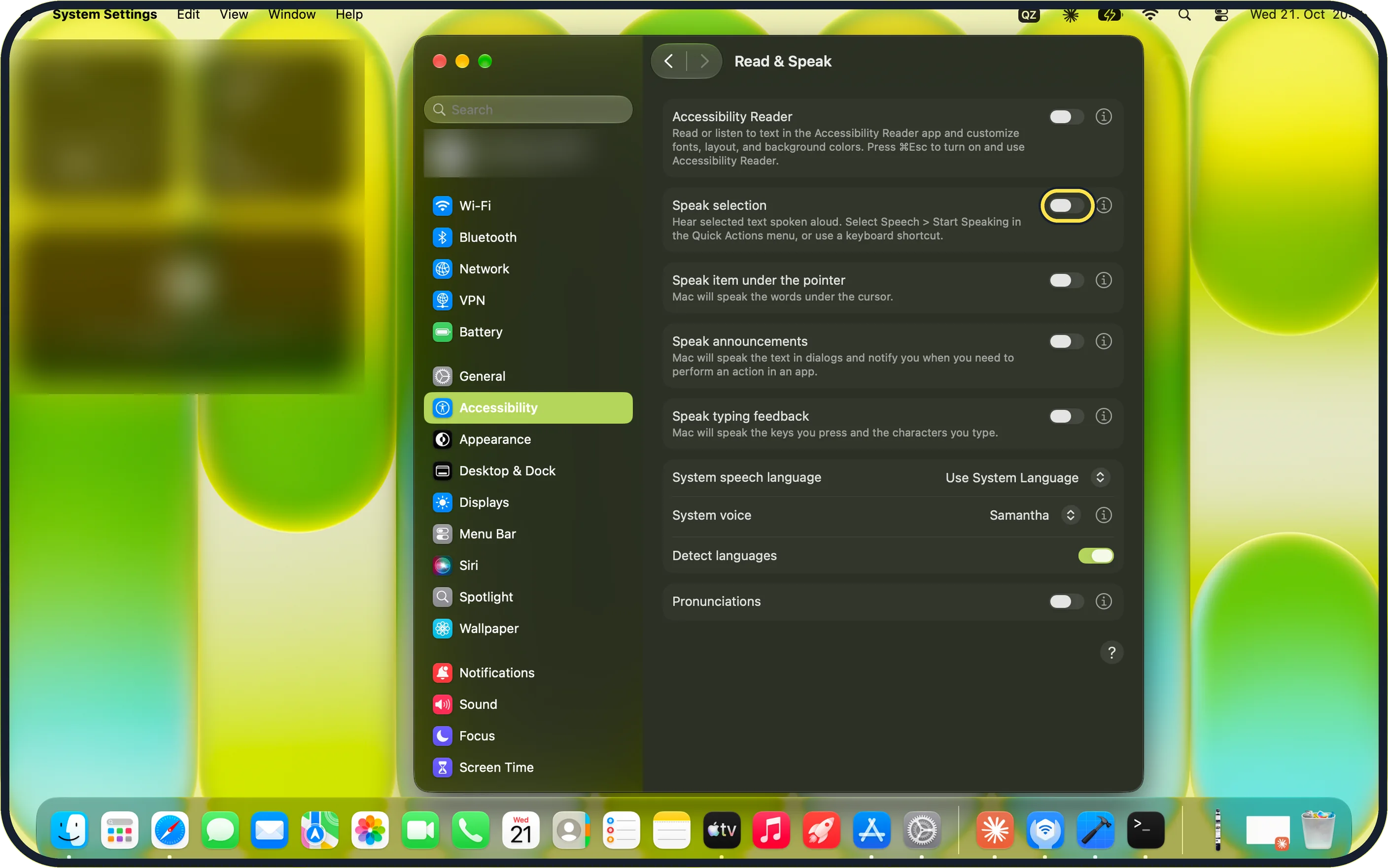
Click the switch at the right of the Speak selection row. On our MacBook Neo it was off.
The System voice row further down sets the voice. Ours was Samantha.
Zoomed in on the setting. Tap to see the whole screenTap the picture to see it full size Check the keyboard shortcut
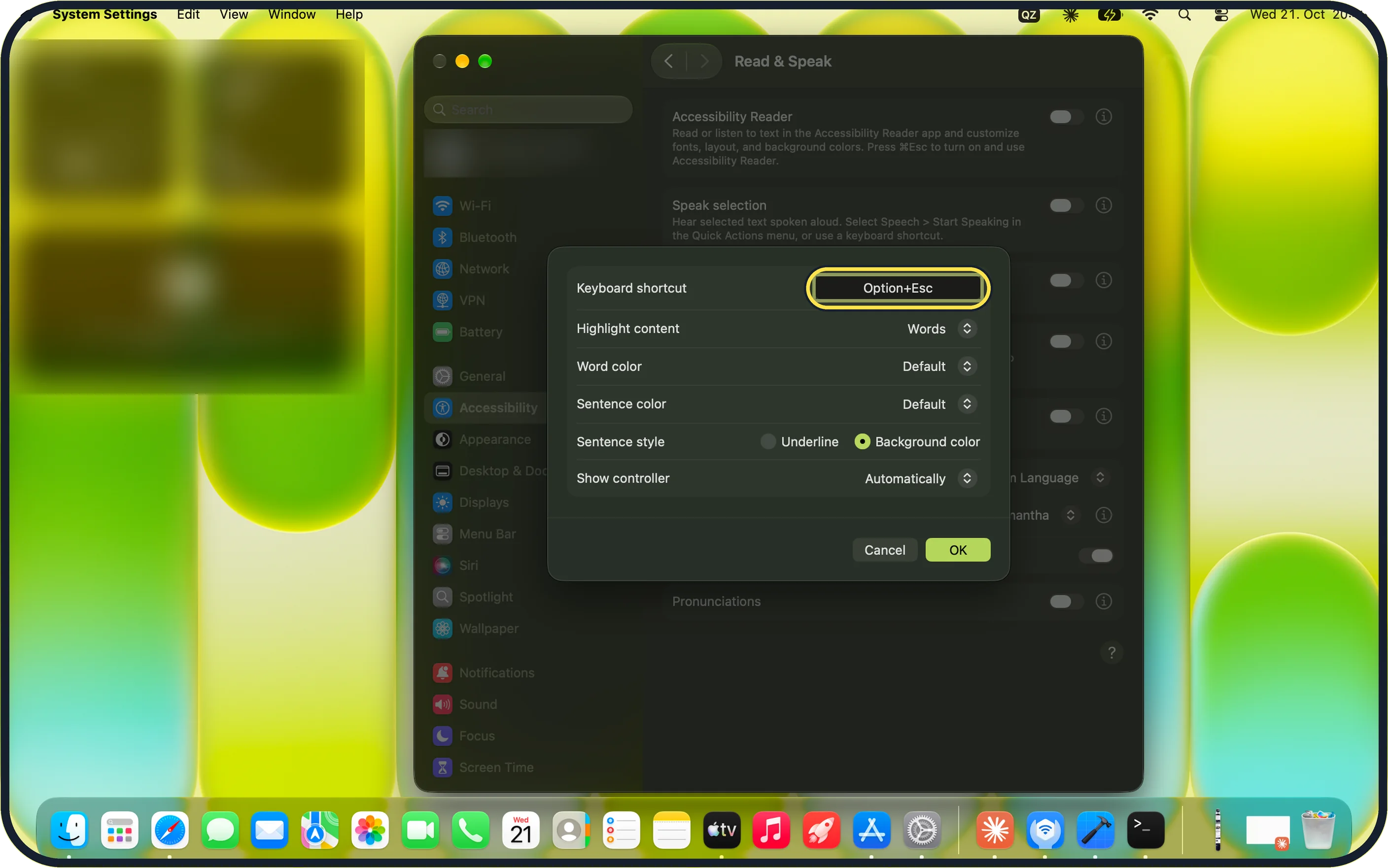
Click the info button (i) at the right of the Speak selection row.
On our MacBook Neo the sheet shows Keyboard shortcut Option+Esc, with Highlight content set to Words. Click OK to keep any changes.
Select text and press the shortcut
Select text in any app and press Option+Esc.
You can also choose Speech > Start Speaking in the Quick Actions menu, as the note under Speak selection says.
If you do not see this option
- Read & Speak is not in the list It is in the Vision group of Accessibility. You can also type Read & Speak in the Search field at the top of the sidebar.
- No shortcut setting The shortcut is not on the main page. Click the info button (i) at the right of the Speak selection row to open the sheet with Keyboard shortcut.
- You only see Accessibility Reader Accessibility Reader is the first row. Speak selection is the second row, just below it.
- There is no Read & Speak under Accessibility. Apple says that on macOS Ventura the same settings were called Spoken Content. Speak selection and its info button are there. Source: Change Spoken Content settings for accessibility on Mac
- You want a different shortcut. Apple says you set it in the info sheet: click in Keyboard shortcut and press the keys you want, for example Option and Tab together. Source: Change Read & Speak settings for accessibility on Mac
If this does not work
- Nothing is read aloud Check that the Speak selection switch is on and that text is selected before you press the shortcut. On our MacBook Neo the shortcut is Option+Esc.
- A reading window opens instead You may have pressed ⌘Esc, which the screen says turns on Accessibility Reader. Use Option+Esc for Speak selection.
- The voice reads in the wrong language Check System speech language, set to Use System Language on our MacBook Neo, and leave Detect languages switched on.
- The small controller does not appear. Apple says Show controller in the info sheet can be set to Automatically, Never or Always. Choose Always to see it every time. Source: Change Read & Speak settings for accessibility on Mac
- The voice is not available in your language. Apple says voices are not available in all languages. Source: Change Read & Speak settings for accessibility on Mac
About this guide
Your Mac can read selected text from articles and emails aloud in the system voice.
Screenshots: MacBook Neo, macOS 27.0.1, dark mode.
Good to know
Detect languages is switched on in the picture.
If your Mac speaks without you asking, VoiceOver, the screen reader, may be on. Press Command and F5 to turn it off.
On our MacBook Neo, macOS 27 shows a separate Accessibility Reader row above Speak selection. Its note says to press ⌘Esc to turn it on, which is not the same as the Speak selection shortcut.
In short: System Settings > Accessibility > Read & Speak > Speak selection on, then select text and press Option+Esc.
- Mac User Guide: Change Read & Speak settings for accessibility on Mac
- Apple Support: Change Spoken Content settings for accessibility on Mac
Links checked in October 2026. Menus and features can change after software updates. These steps match the version named at the top.
Did this guide work for you?
Sorry about that. What happened?