
What changed: the screenshots are now our own iPhone 17e on iOS 27.0.1, dark mode, and the wording is checked against those screens and Apple's iOS 27 guide.
howtosimply.com/guides/how-to-make-an-iphone-show-information-without-relying-on-colour/ · Checked October 2026 · iPhone 17e · iOS 27.0.1
In this guide
Open Settings, tap Accessibility, then Display & Text Size, and switch on Differentiate Without Colour. Screen items that rely on colour alone to convey information are then replaced with alternatives, such as shapes or text.
3 of 3 steps with real screenshots · 1 official source below
- Device
- iPhone
- Shown on
- iOS 27.0.1 (iPhone 17e)
- App
- Settings
- Path
- Settings › Accessibility › Display & Text Size
- Real screenshots
- 3 of 3 steps
- Checked
- October 2026
- Sources
- 1 official, linked below
Step by step
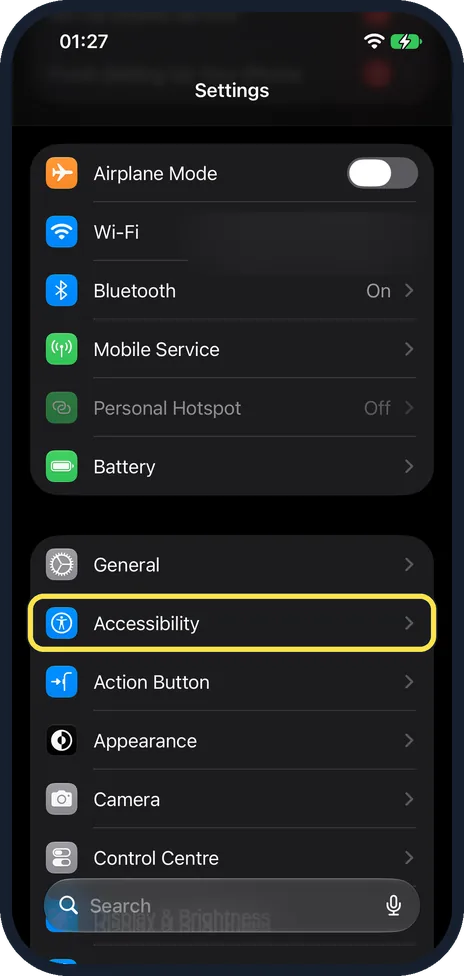
Open Settings and tap Accessibility
On our iPhone 17e with iOS 27, Accessibility was in the second group of the main Settings list, just below General.
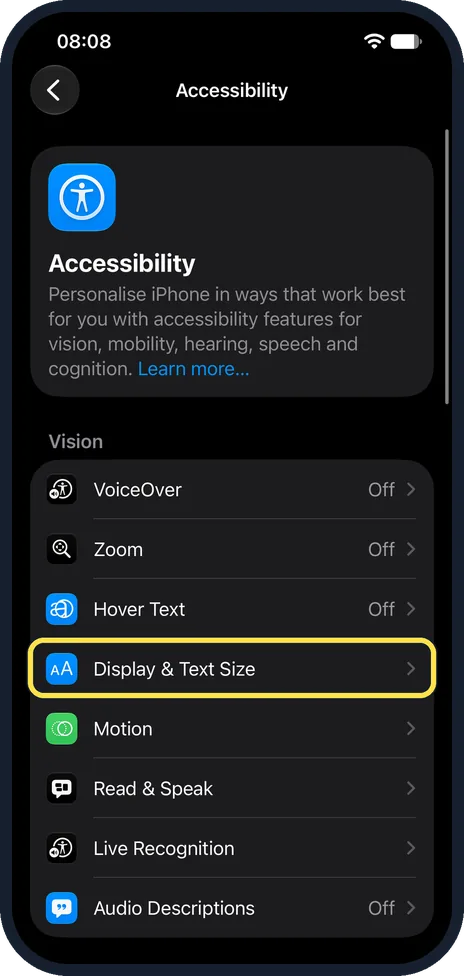
Tap Display & Text Size
On our iPhone 17e it was in the Vision group, below Hover Text.
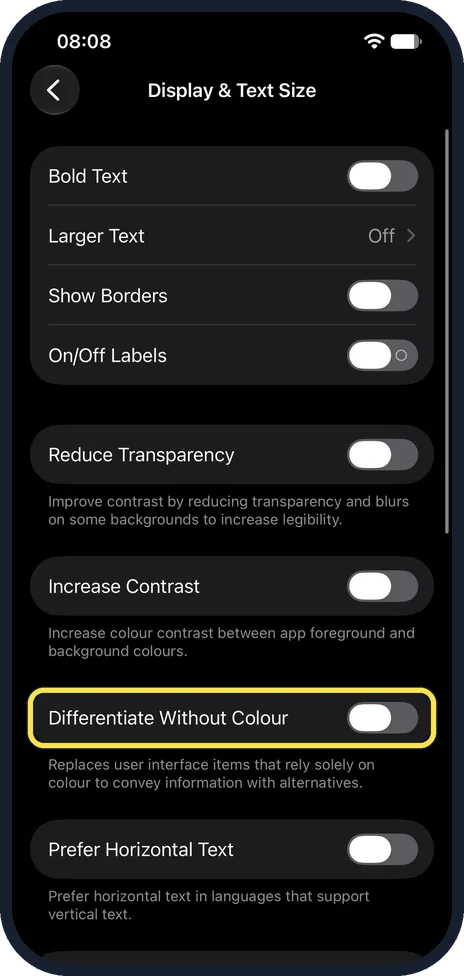
Scroll down and switch on Differentiate Without Colour
On our iPhone 17e with iOS 27 it was off, below Reduce Transparency and Increase Contrast. The note below reads: replaces user interface items that rely solely on colour to convey information with alternatives.
What changed: the screenshots are now our own iPhone 17e on iOS 27.0.1, dark mode, and the wording is checked against those screens and Apple's iOS 27 guide.
If you do not see this option
- You searched for Differentiate Without Color and found nothing. On our iPhone 17e, set to UK English, the switch is spelt Differentiate Without Colour. Apple's guide uses the US spelling Color. Source: Change display colors on iPhone to make it easier to see what's onscreen
- It is not at the top of Display & Text Size. Scroll down. On our iPhone 17e the page started with Bold Text, Larger Text, Show Borders and On/Off Labels, then Reduce Transparency and Increase Contrast, and Differentiate Without Colour came after them. Apple's path is Settings, Accessibility, Display & Text Size. Source: Change display colors on iPhone to make it easier to see what's onscreen
If this does not work
- Switches still only change colour. That is a separate switch: On/Off Labels. Apple says it makes switches use a vertical line when on and a circle when off. On our iPhone 17e it was in the first group of Display & Text Size. Source: Change display colors on iPhone to make it easier to see what's onscreen
- Colours are still hard to tell apart. Apple lists Color Filters on the same page, to view the screen in greyscale or adjust colours for colour vision deficiencies, and Increase Contrast. On our iPhone 17e Increase Contrast was just above Differentiate Without Colour. Source: Change display colors on iPhone to make it easier to see what's onscreen
About this guide
Apple says switches turn green when they are on, which is no help if you cannot tell colours apart. Some items on the iPhone screen rely on colour to convey information. One switch replaces them with other ways to tell them apart.
The screenshots are our own, taken on an iPhone 17e running iOS 27.0.1.
Good to know
Switches can get a symbol as well: how to show on and off symbols on iPhone switches.
For colour vision deficiencies, Apple also offers Color Filters on the same page of a real iPhone.
In short: Settings, Accessibility, Display & Text Size, Differentiate Without Color on.
Links checked in October 2026. Menus and features can change after software updates. These steps match the version named at the top.
Did this guide work for you?
Sorry about that. What happened?