
howtosimply.com/guides/how-to-find-apps-in-the-app-library-on-an-iphone/ · Checked October 2026 · iPhone 17e · iOS 27.0.1
In this guide
Swipe left past your last Home Screen page to reach App Library. Tap the App Library search box at the top to type a name or scroll an A to Z list of every app. To choose where new apps go, open Settings, Home Screen & App Library.
4 of 4 steps with real screenshots · 1 official source below
- Device
- iPhone
- Shown on
- iOS 27.0.1 (iPhone 17e)
- App
- Home Screen
- Path
- Home Screen › Swipe left past the last page › App Library
- Real screenshots
- 4 of 4 steps
- Checked
- October 2026
- Sources
- 1 official, linked below
Step by step
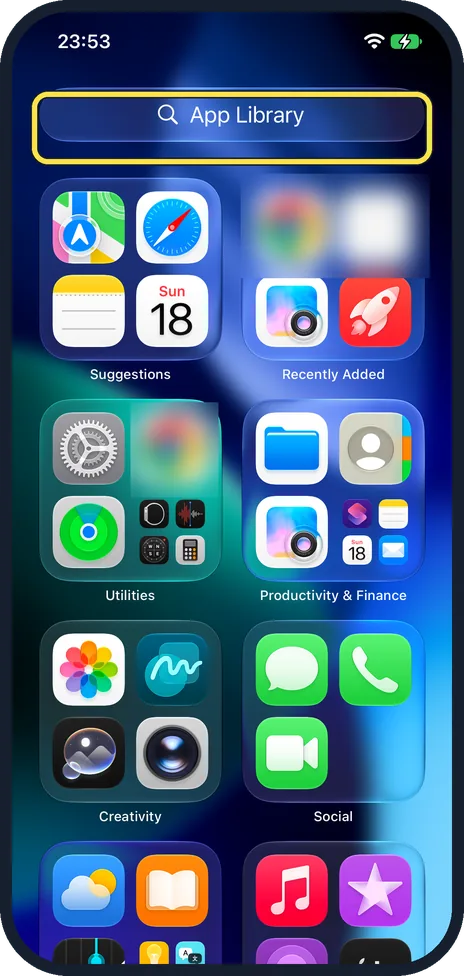
Swipe left past the last page
App Library opens with a search box at the top and groups such as Suggestions, Recently Added, Utilities and Creativity.
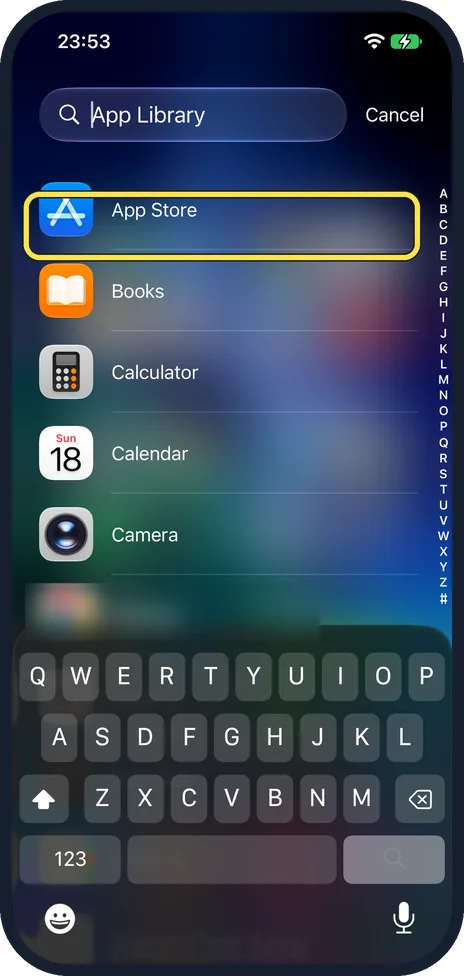
Tap the search box, then the app
A list of all apps from A to Z opens, with the letters down the right edge. Type a name or tap a letter, then tap the app to open it.
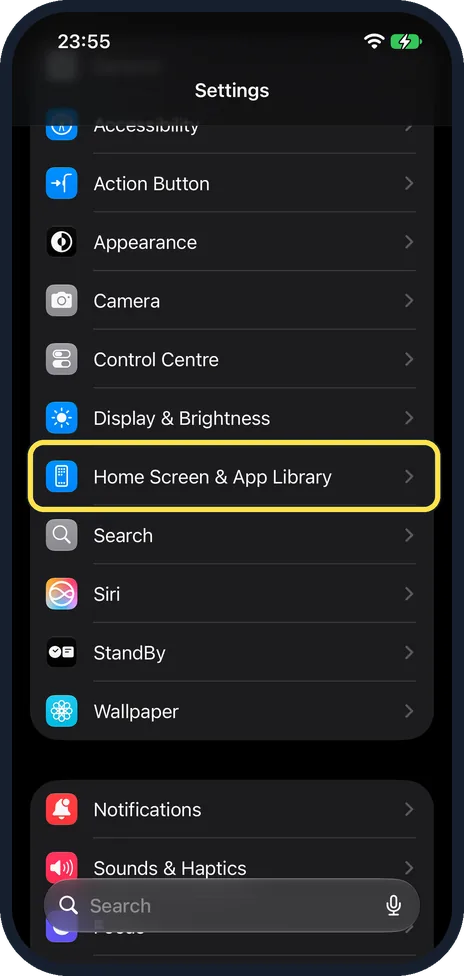
Open Home Screen & App Library in Settings
Open Settings and tap Home Screen & App Library, between Display & Brightness and Search.
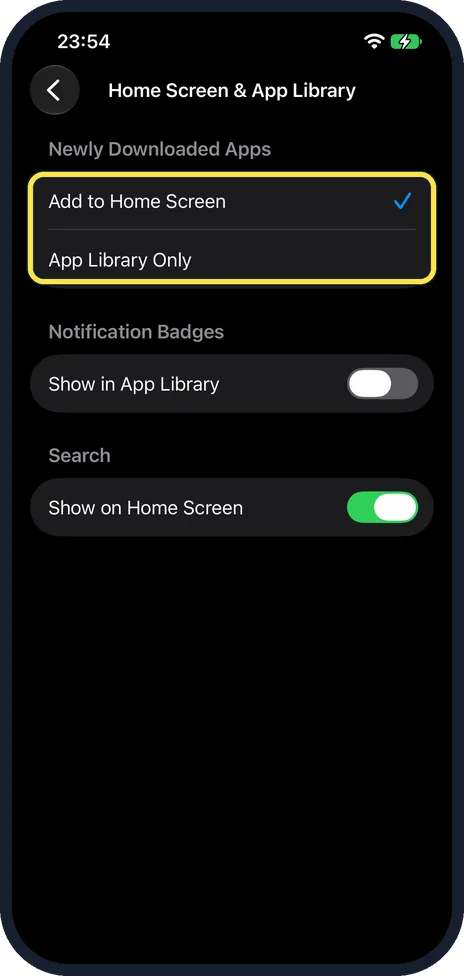
Choose where new apps go
Under Newly Downloaded Apps, Add to Home Screen was ticked on ours. Pick App Library Only to keep new apps off the Home Screen. Show in App Library turns on badges there, and Show on Home Screen adds the Search button.
If you do not see this option
- App Library is many swipes away? Apple says you can hide Home Screen pages to bring App Library closer: touch and hold the Home Screen background, tap the dots at the bottom, untick the pages to hide and confirm at the top right. Tick them again to show them. Source: Find and use your apps in App Library on iPhone
- A new app is not on the Home Screen? Apple says that when Home Screen pages are hidden, new apps from the App Store may go to App Library instead. Ours had Add to Home Screen ticked under Newly Downloaded Apps; with App Library Only, every new app goes there. Source: Find and use your apps in App Library on iPhone
- A group shows only small icons? Apple says to tap the small icons to open the whole category and see all its apps. Apple also says you cannot move an app to another category. Source: Find and use your apps in App Library on iPhone
If this does not work
- An app is missing from the list? Check the spelling in the search box, or scroll the full A to Z list. Hidden apps are not in it.
- Putting an app back on the Home Screen does not work? Apple says to touch and hold the app in App Library until it moves to the Home Screen. On ours the icons jiggled with an x on each and no Add to Home Screen item showed. Find the app with the search box and drag it instead. Source: Find and use your apps in App Library on iPhone
About this guide
App Library holds every app on the phone, including those not on any Home Screen page, sorted into groups such as Utilities and Social.
The screenshots are from our iPhone 17e with iOS 27.0.1, in Dark mode.
Good to know
To keep new apps off the Home Screen for good, see how to keep new apps off the iPhone Home Screen. To tidy the Home Screen itself, see how to make an app folder on an iPhone.
In short: Swipe left past the last page, tap the search box, find the app. Settings, Home Screen & App Library for new apps.
Links checked in October 2026. Menus and features can change after software updates. These steps match the version named at the top.
Did this guide work for you?
Sorry about that. What happened?