
howtosimply.com/guides/how-to-make-a-video-file-smaller-on-a-mac-with-handbrake/ · Checked October 2026 · macOS 27.0.1 (MacBook Neo), HandBrake 1.11.2
In this guide
- Check how big the video is now
- Install HandBrake and open the video
- Keep Fast 1080p30 and click Start
- Wait for the encode to finish
- Check the new size
- Want it even smaller? Pick H.265 Apple VideoToolbox 1080p
- Check that file too
- Compare them in Finder
- If you do not see this option
- If this does not work
- Good to know
- Sources
Open the video in the free HandBrake, keep the Fast 1080p30 preset and click Start. Our 326.4 MB 4K clip came out at 24.1 MB, 7.4% of the original, in about a minute. The H.265 Apple VideoToolbox 1080p preset made it 6.4 MB in 30 seconds.
8 of 8 steps with real screenshots · 3 official sources below
- Device
- Mac
- Shown on
- macOS 27.0.1 (MacBook Neo), HandBrake 1.11.2
- App
- HandBrake
- Real screenshots
- 8 of 8 steps
- Checked
- October 2026
- Sources
- 3 official, linked below
Step by step
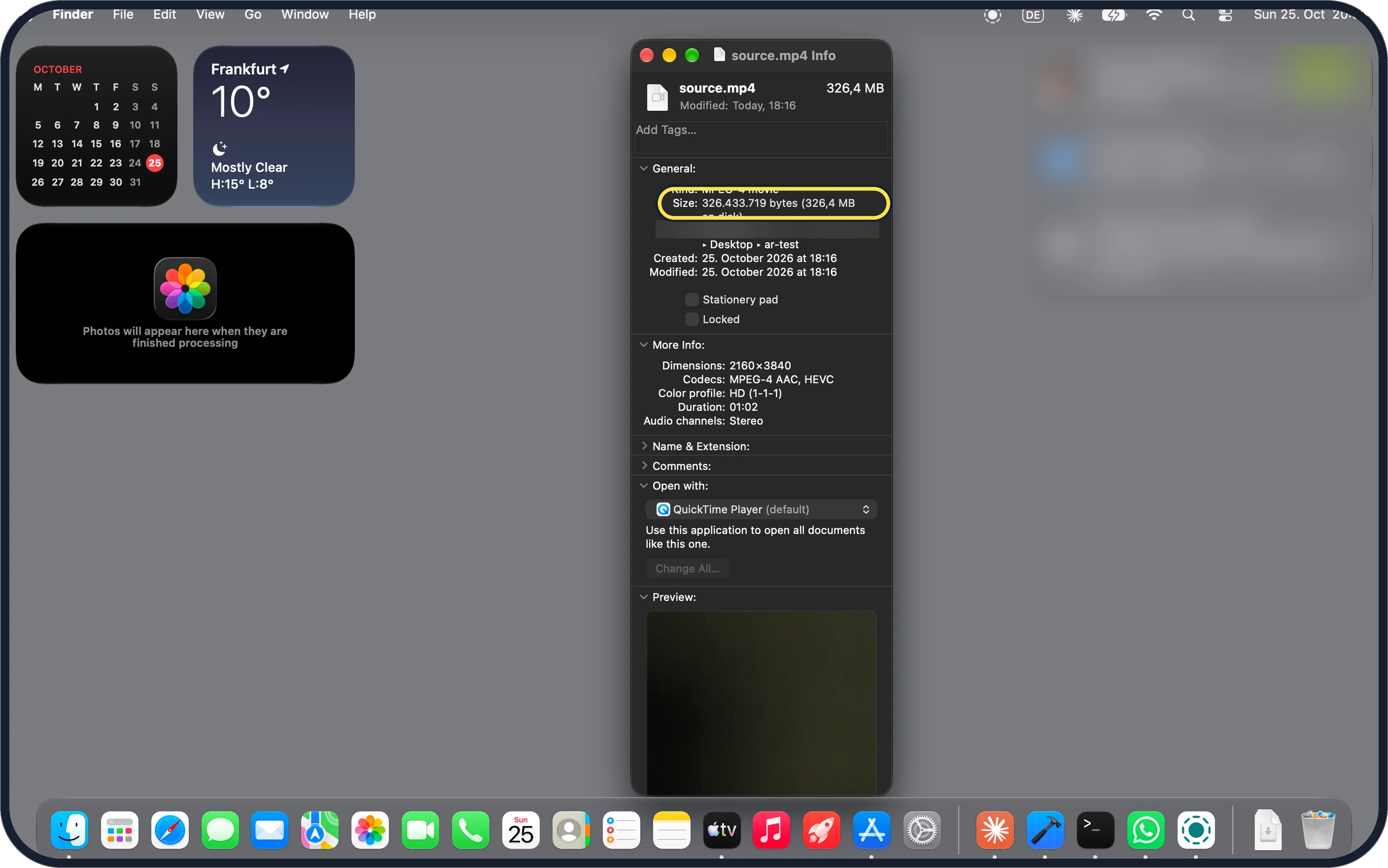
Zoomed in on the setting. Tap to see the whole screenTap the picture to see it full size Check how big the video is now
Select it in Finder and press Command + I. Ours said 326.433.719 bytes (326,4 MB) for 61.8 seconds of 4K.
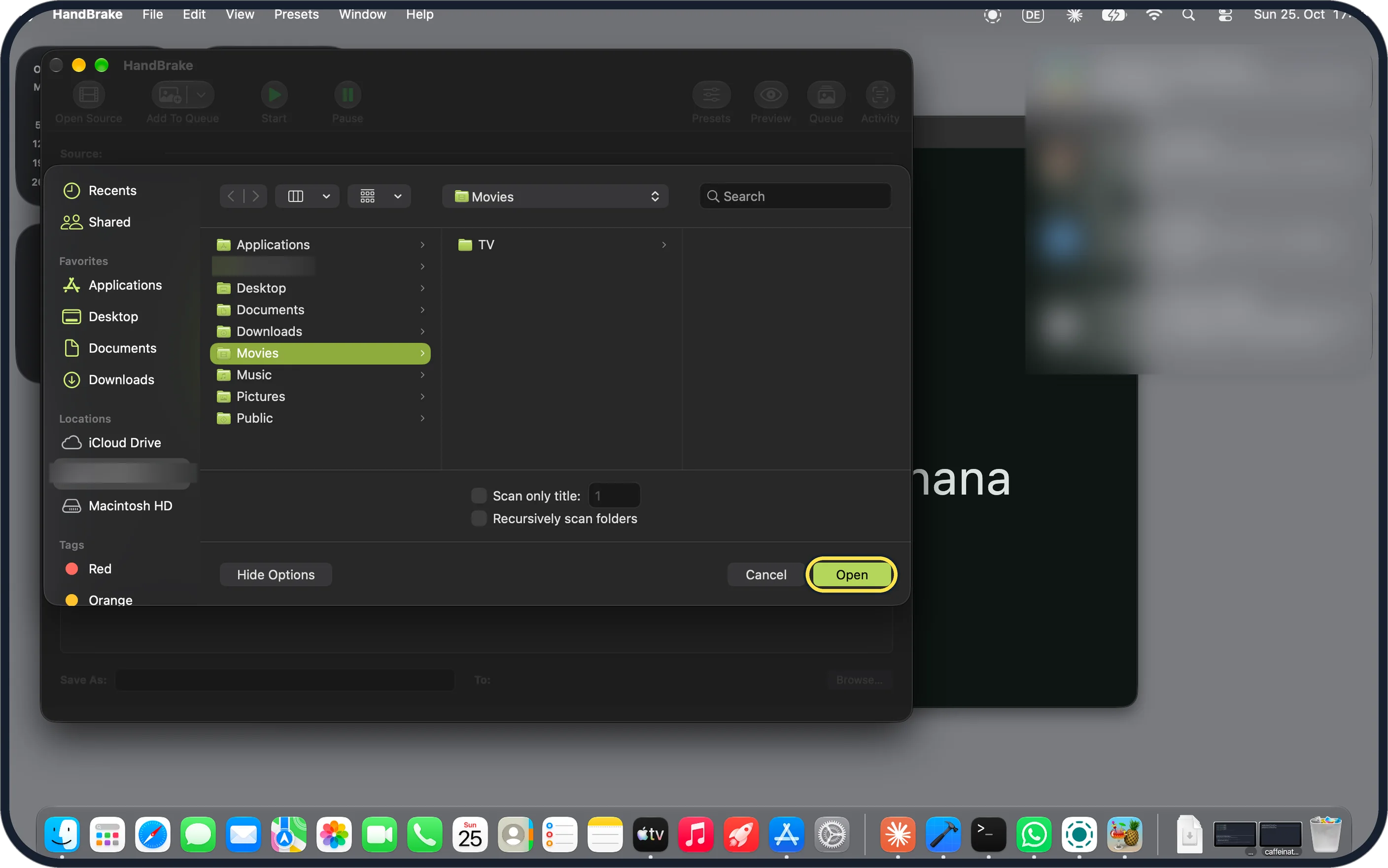
Zoomed in on the setting. Tap to see the whole screenTap the picture to see it full size Install HandBrake and open the video
Download it from handbrake.fr and drag it to Applications. On first launch ours went straight to the Open Source picker: pick the video and click Open.
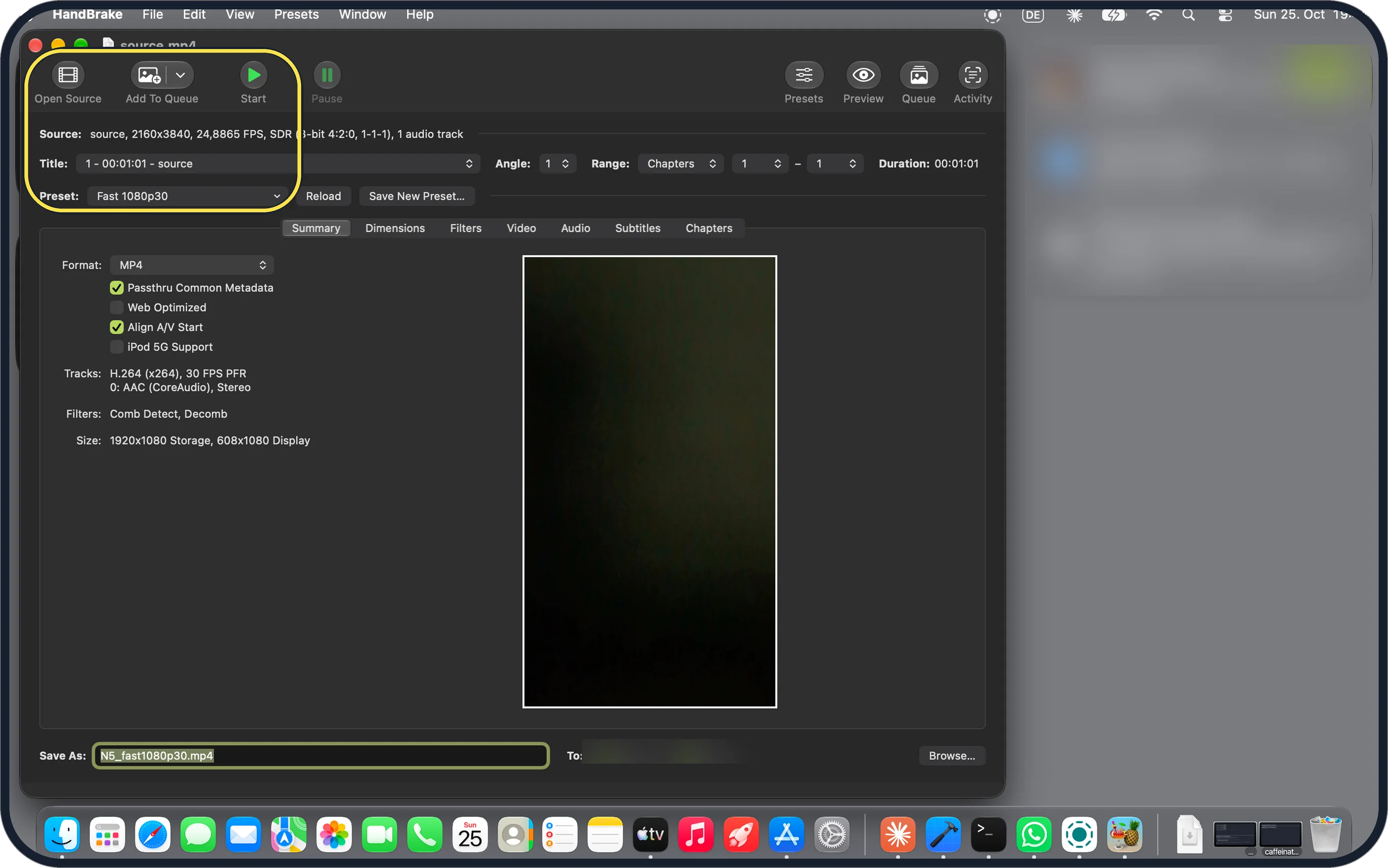
Zoomed in on the setting. Tap to see the whole screenTap the picture to see it full size Keep Fast 1080p30 and click Start
Ours had the Fast 1080p30 preset picked already; HandBrake calls it a good choice to start with. Start is the green button at the top left.
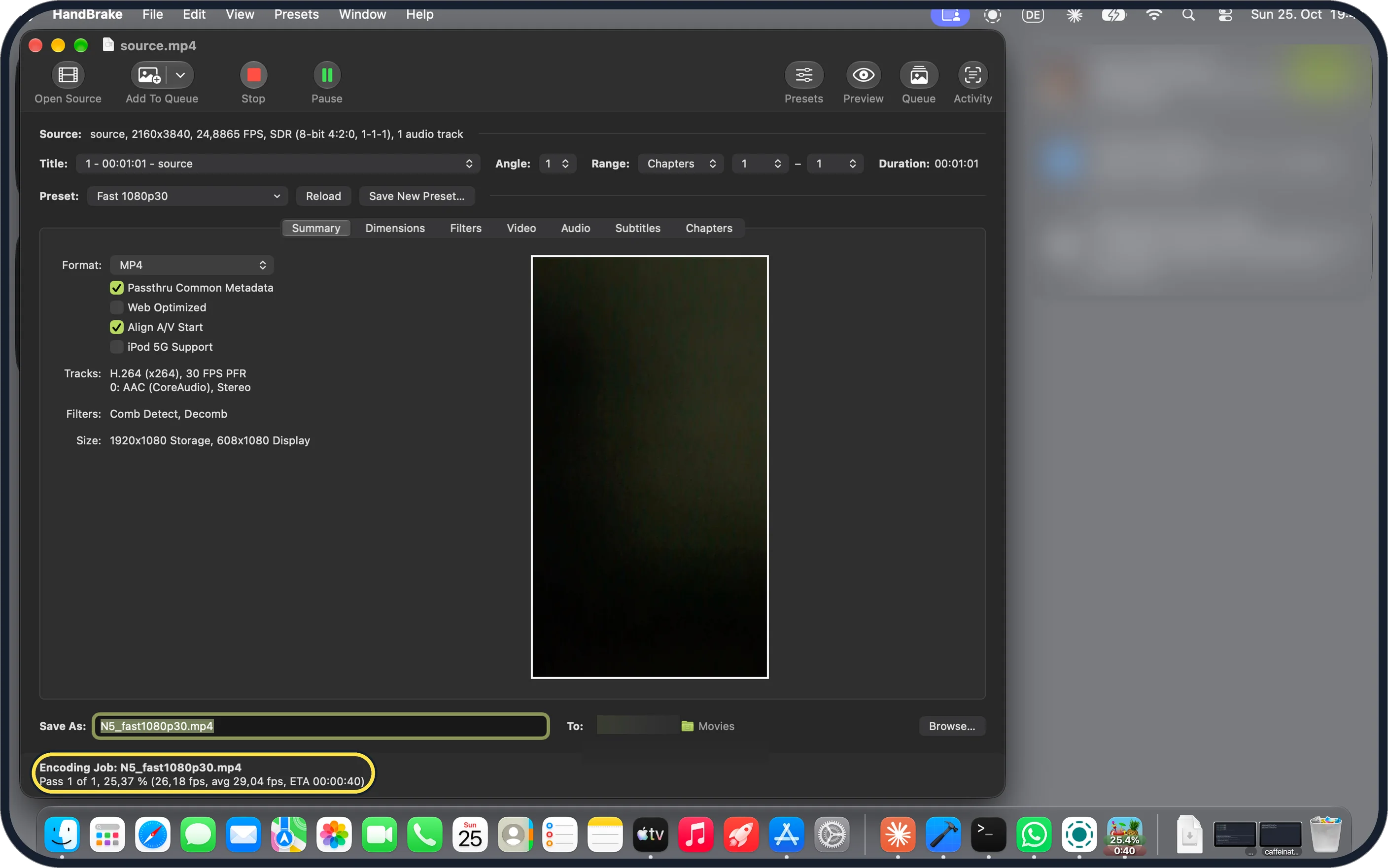
Zoomed in on the setting. Tap to see the whole screenTap the picture to see it full size Wait for the encode to finish
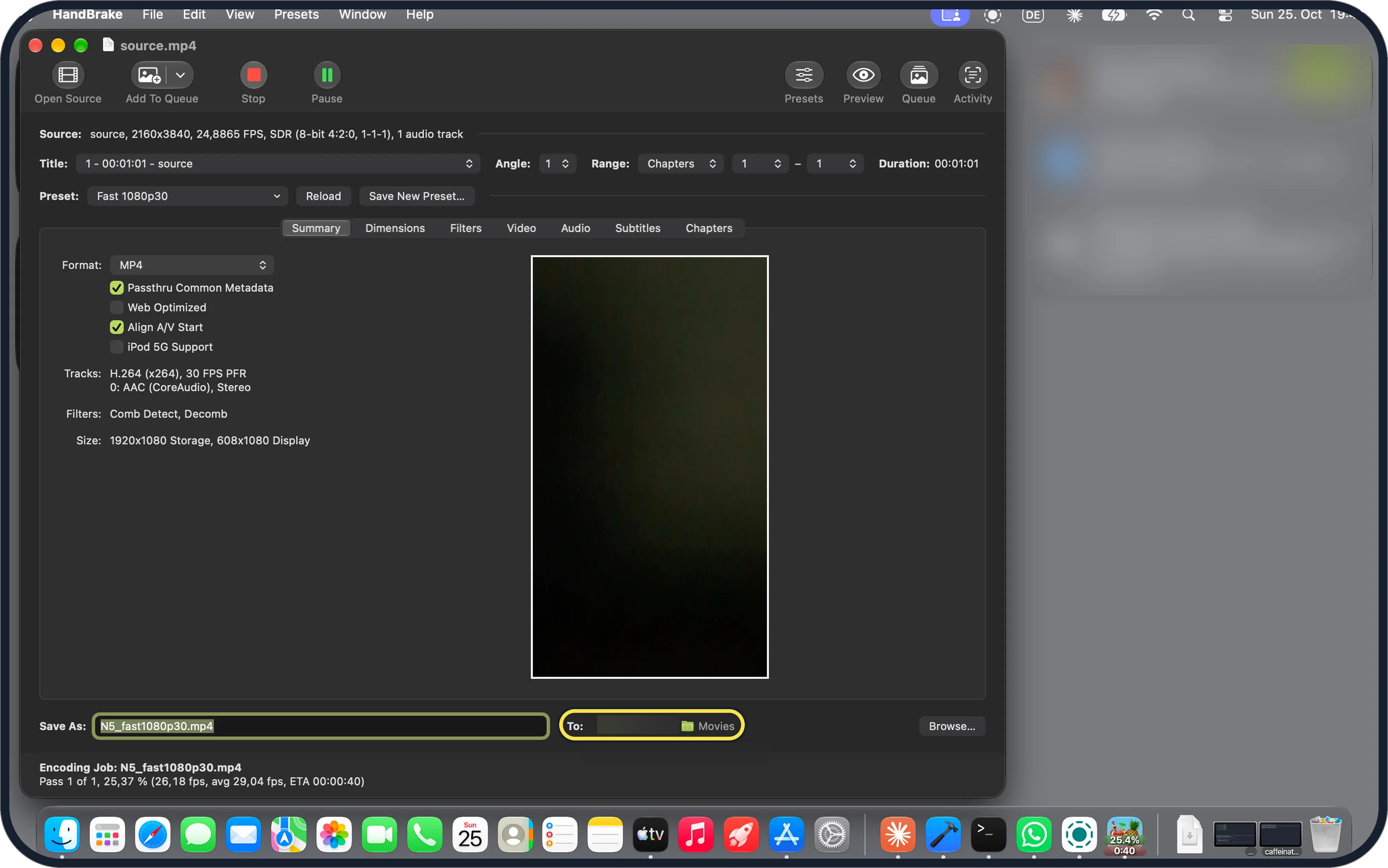
The line at the bottom shows Encoding Job, the percent done and the time left, and Start turns into Stop. Ours took about a minute and saved to Movies, the folder after To.
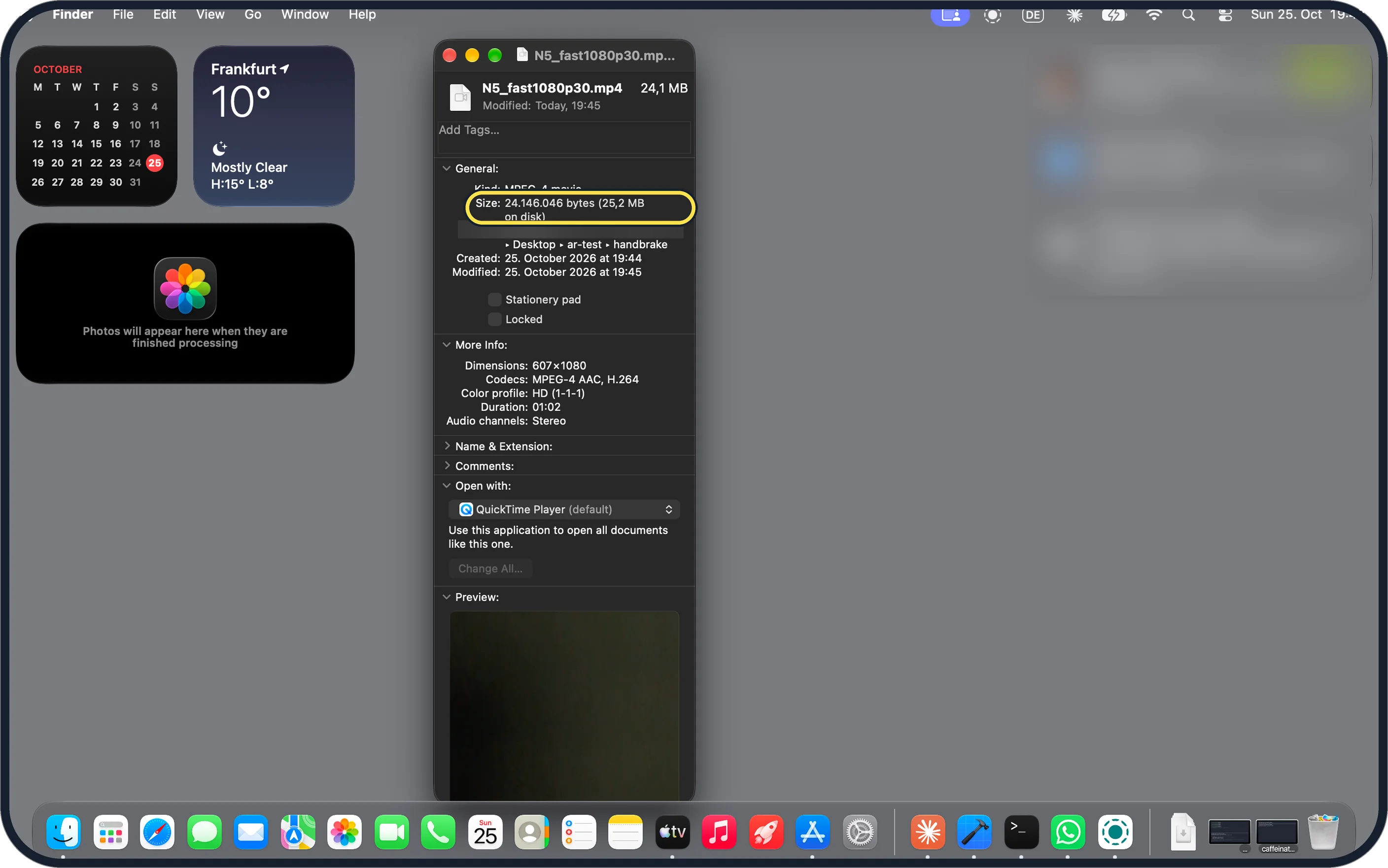
Zoomed in on the setting. Tap to see the whole screenTap the picture to see it full size Check the new size
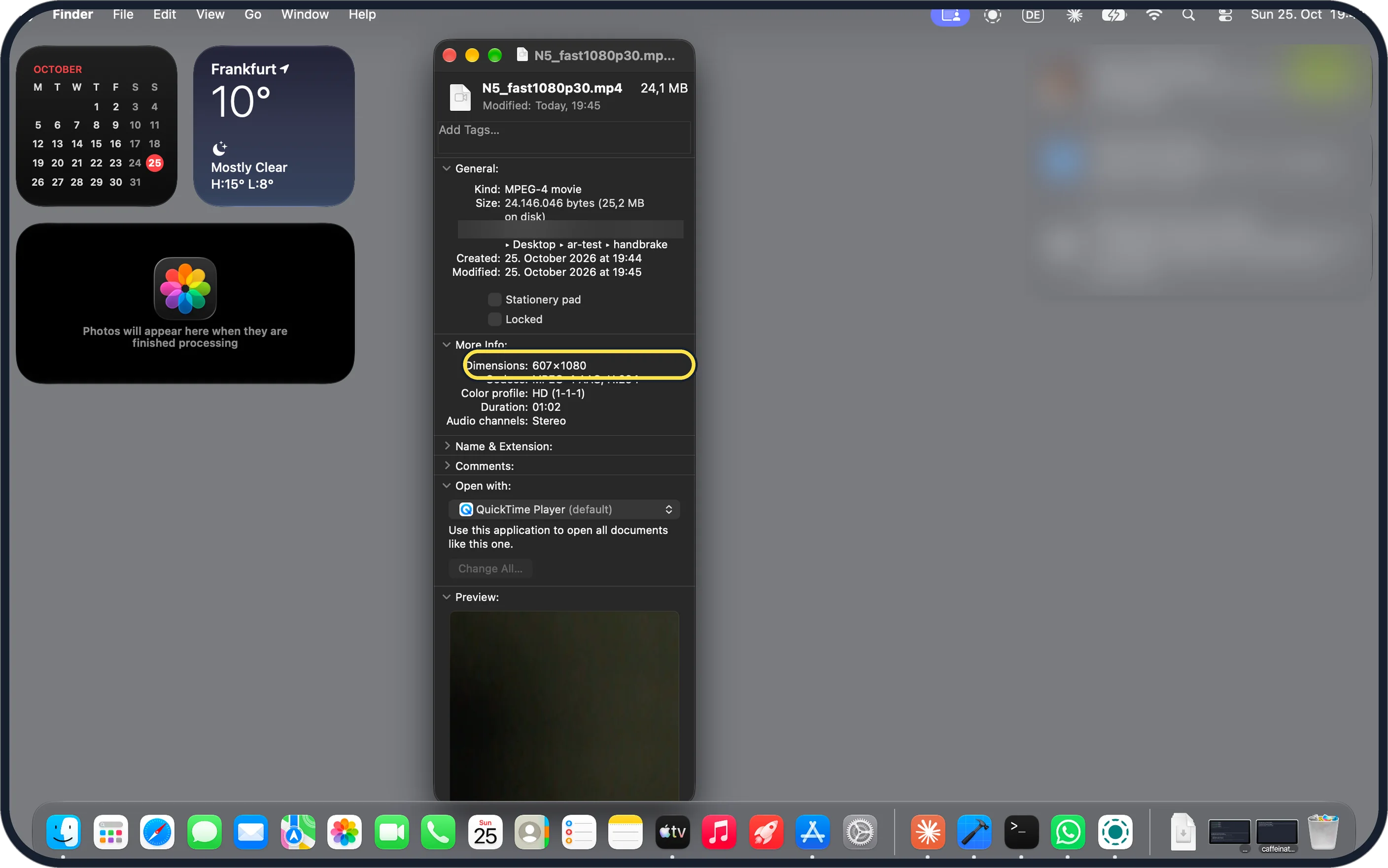
Select the new file and press Command + I. Ours said 24.146.046 bytes (24.1 MB). We had moved the new files from Movies into a test folder, which is why Get Info shows Desktop, ar-test, handbrake.
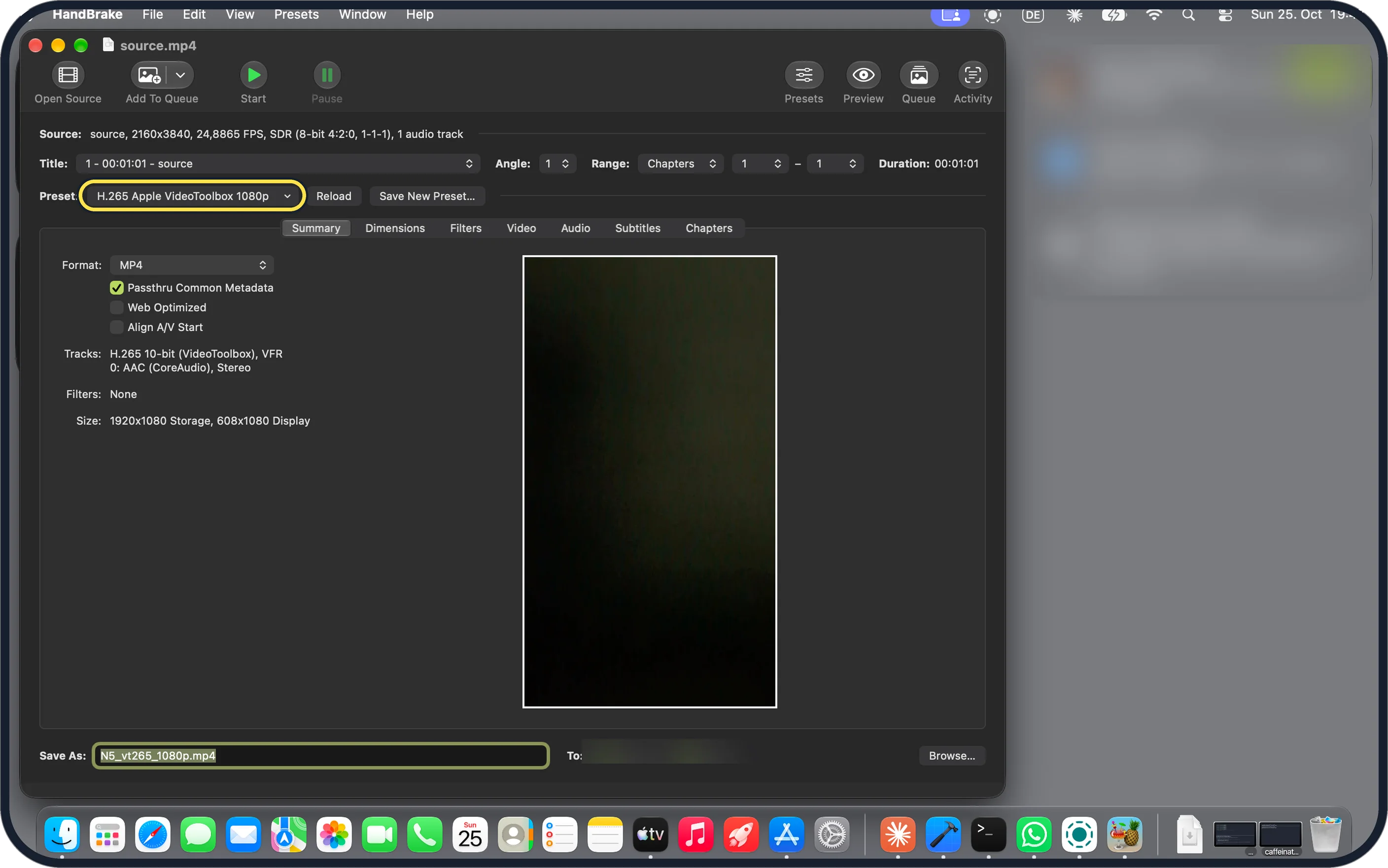
Zoomed in on the setting. Tap to see the whole screenTap the picture to see it full size Want it even smaller? Pick H.265 Apple VideoToolbox 1080p
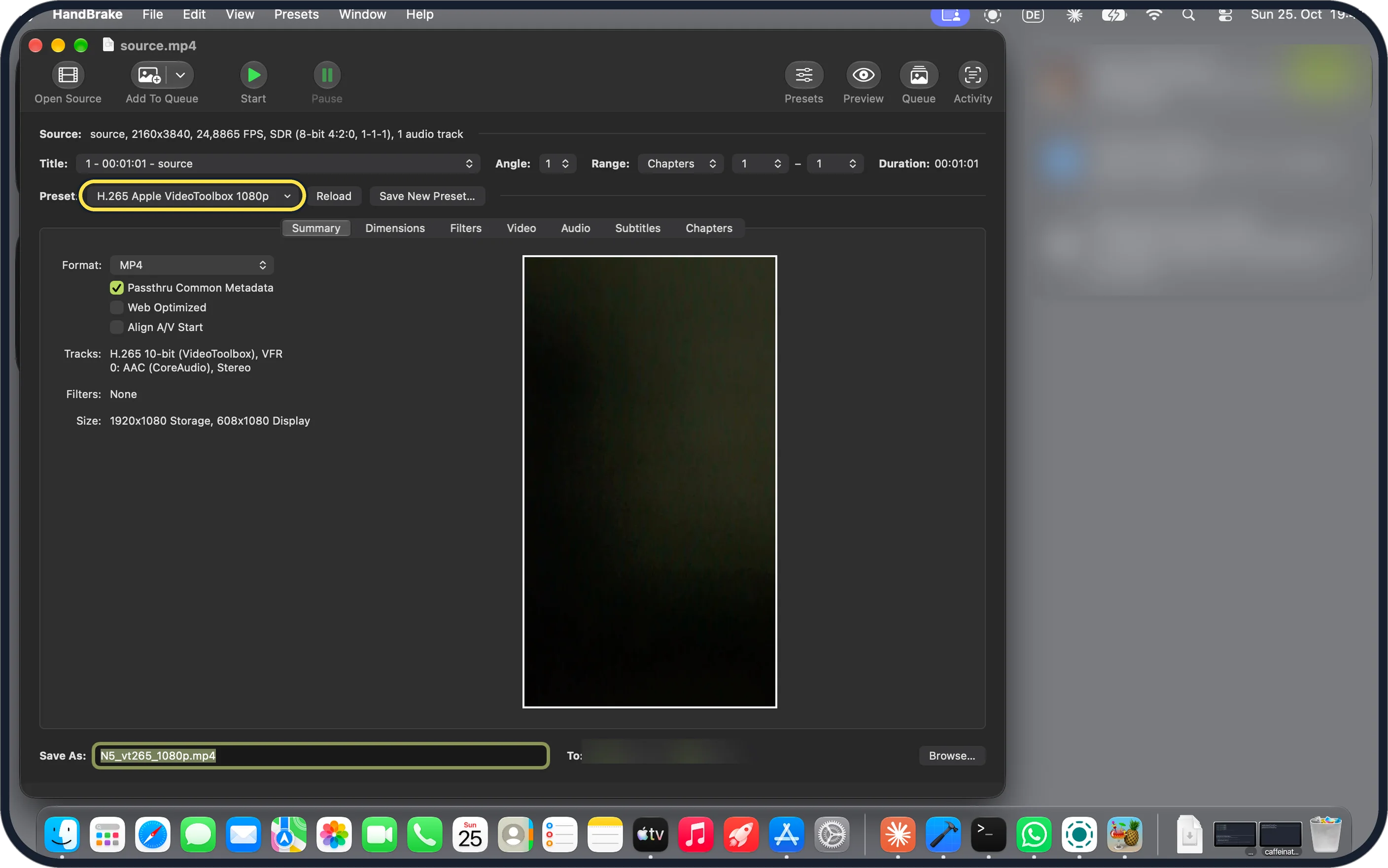
Choose it in the Preset menu and click Start again. It uses the Mac's hardware encoder; ours took 30 seconds.
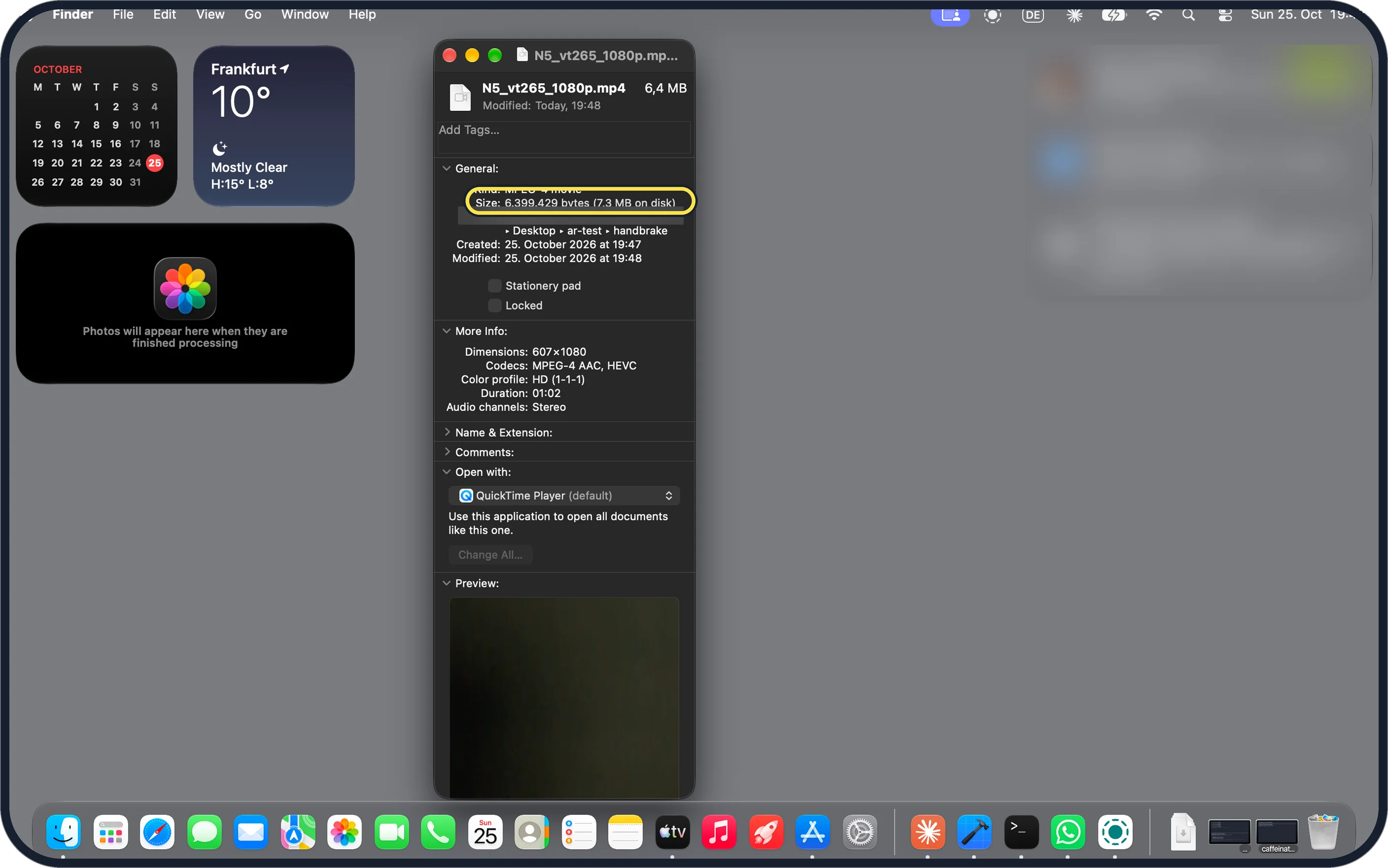
Zoomed in on the setting. Tap to see the whole screenTap the picture to see it full size Check that file too
Ours said 6.399.429 bytes (6.4 MB), 2.0% of the original.
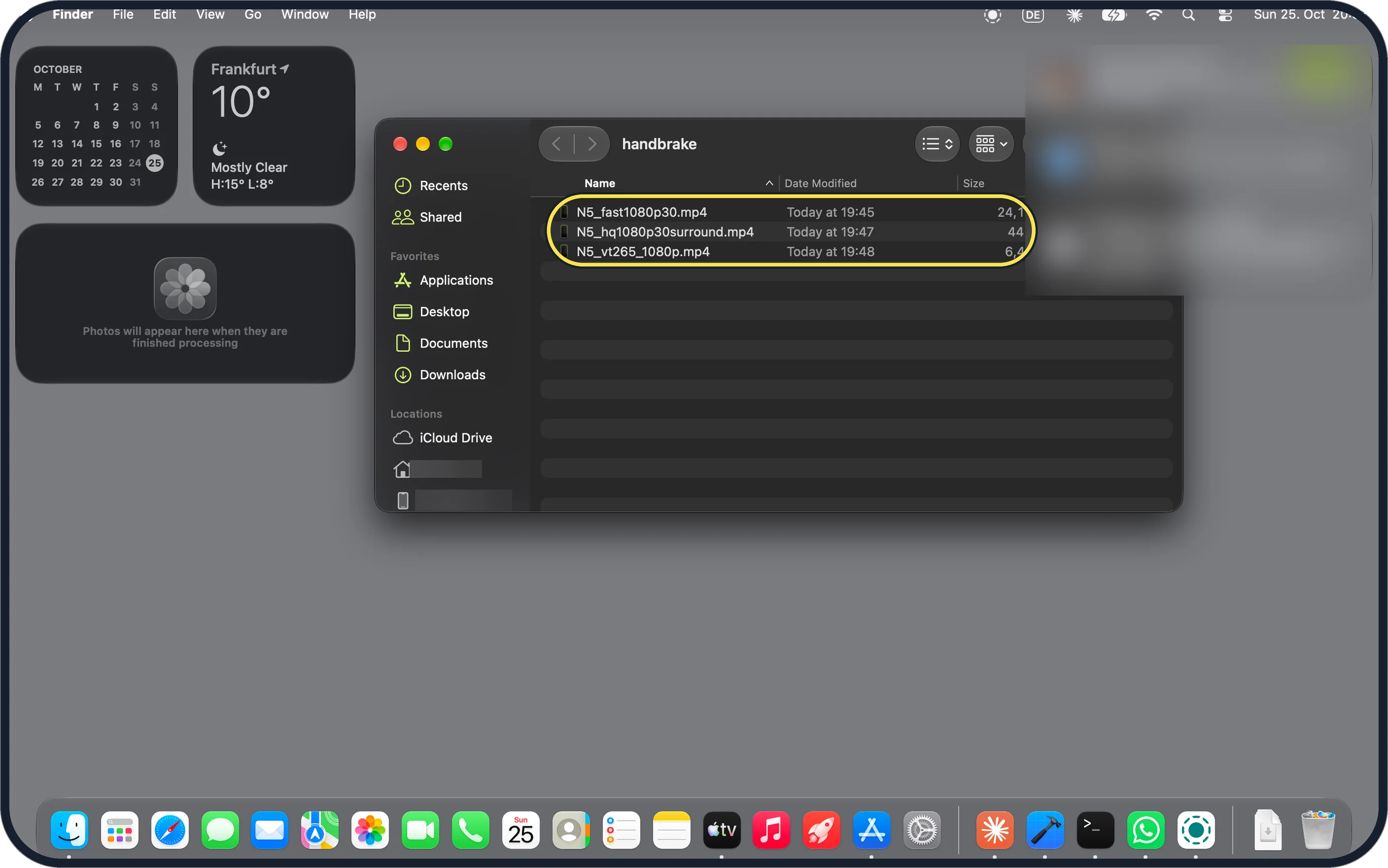
Zoomed in on the setting. Tap to see the whole screenTap the picture to see it full size Compare them in Finder
In list view the Size column shows each file. Ours read 24,1 for Fast 1080p30, 44 for HQ 1080p30 Surround and 6,4 for H.265 Apple VideoToolbox 1080p, in MB.
If you do not see this option
- No H.265 Apple VideoToolbox preset? HandBrake's help page says its VideoToolbox presets are in the Hardware group and need a supported Mac: most 2011 and later Macs. If it is missing, use Fast 1080p30. Source: Apple VideoToolbox
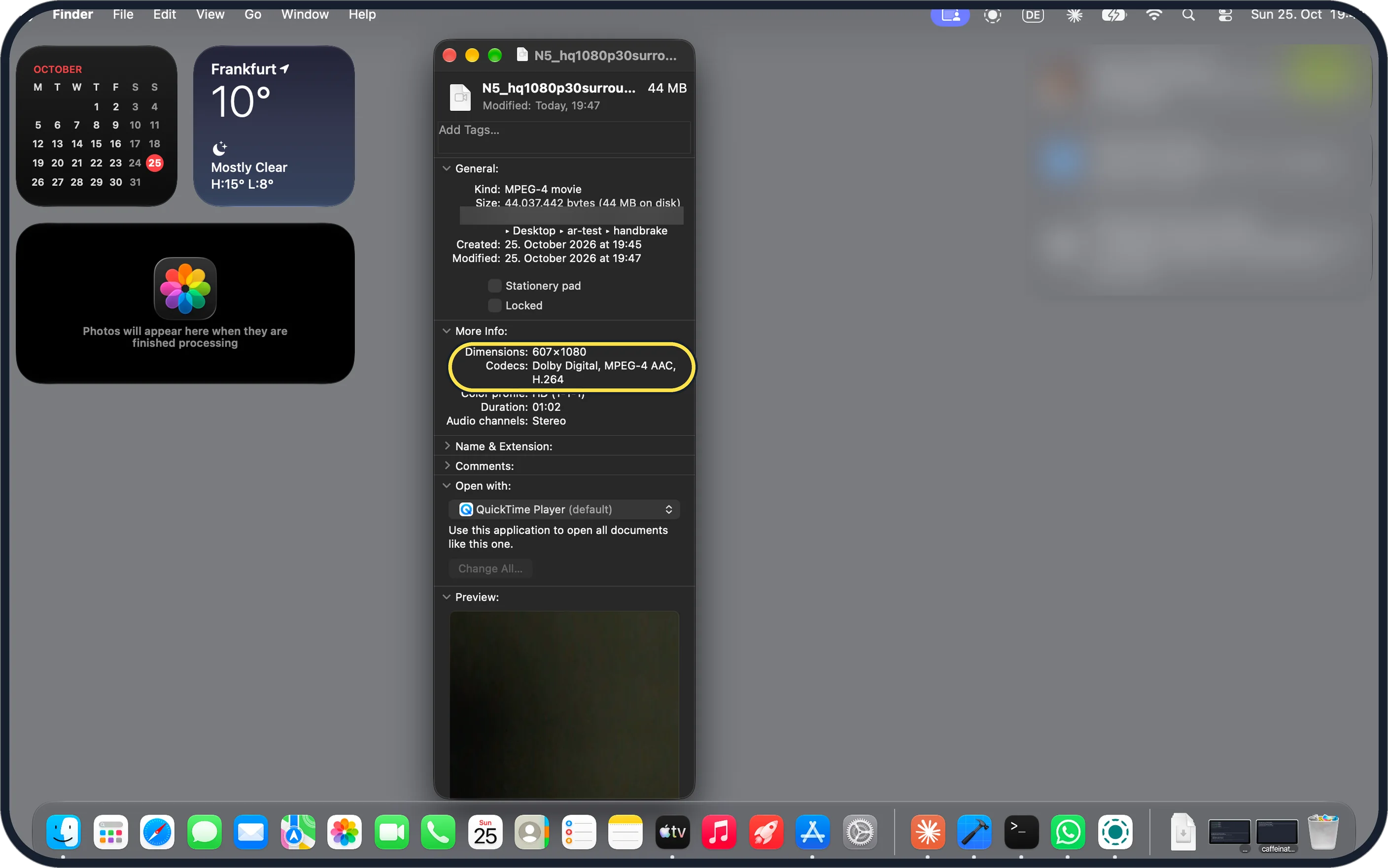
- Is HQ 1080p30 Surround worth it? It took 119 seconds on ours and made a 44 MB file, 13.5%. Get Info listed Dolby Digital as a second sound track, but our clip only had stereo sound, so Audio channels still said Stereo. Source: Official presets
If this does not work
- Video came out narrow? Ours was filmed upright, so the 1080p preset kept its shape: Get Info, More Info said Dimensions 607 x 1080.
- Can't find the new file? Look in the folder after To at the bottom of the window; ours said Movies. Click Browse to pick another folder before you start.
About this guide
We ran one 61.8-second 4K video through three of HandBrake's own presets, one run each, and checked each file's size in Get Info. We did not measure picture quality.
The screenshots are from our MacBook Neo with macOS 27.0.1 and HandBrake 1.11.2, in Dark mode, taken on 25 October 2026. The clip was filmed upright on our Pixel 10a; it is dark, so the preview looks almost black.
Good to know
If the new file won't open in QuickTime Player, see play MKV files on a Mac.
To keep only the sound, see extract the audio from a video on a Mac.
In short: Open the video in HandBrake, Fast 1080p30, Start, check the size.
- HandBrake: Open Source Video Transcoder
- HandBrake Documentation: Official presets
- HandBrake Documentation: Apple VideoToolbox
Links checked in October 2026. Menus and features can change after software updates. These steps match the version named at the top.
📷 Camera Lab: the same 6 scenes photographed with 11 phones, side by side.
Did this guide work for you?
Sorry about that. What happened?