
howtosimply.com/guides/how-to-open-a-password-protected-zip-file-on-a-mac/ · Checked October 2026 · MacBook Neo · macOS 27.0.1
In this guide
Double-click the ZIP. Archive Utility asks: Please enter the password for "[file name]". Type it and click OK; the folder appears next to the ZIP. No extra app is needed: Keka and The Unarchiver ask the same way.
3 of 3 steps with real screenshots · 2 official sources below
- Device
- Mac
- Shown on
- macOS 27.0.1 (MacBook Neo)
- App
- Archive Utility
- Real screenshots
- 3 of 3 steps
- Checked
- October 2026
- Sources
- 2 official, linked below
Step by step
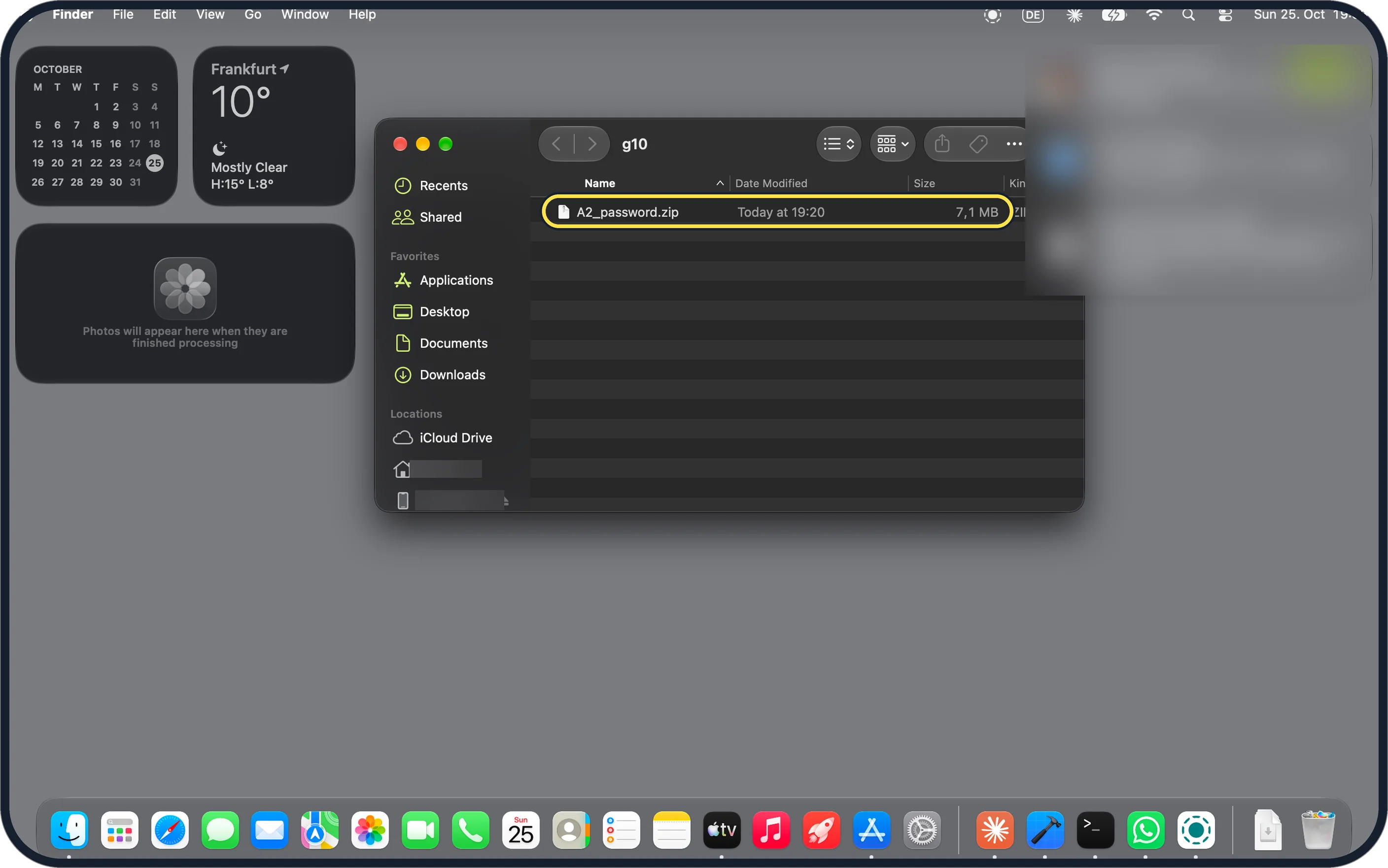
Zoomed in on the setting. Tap to see the whole screenTap the picture to see it full size Double-click the ZIP
Ours was A2_password.zip, 7.1 MB.
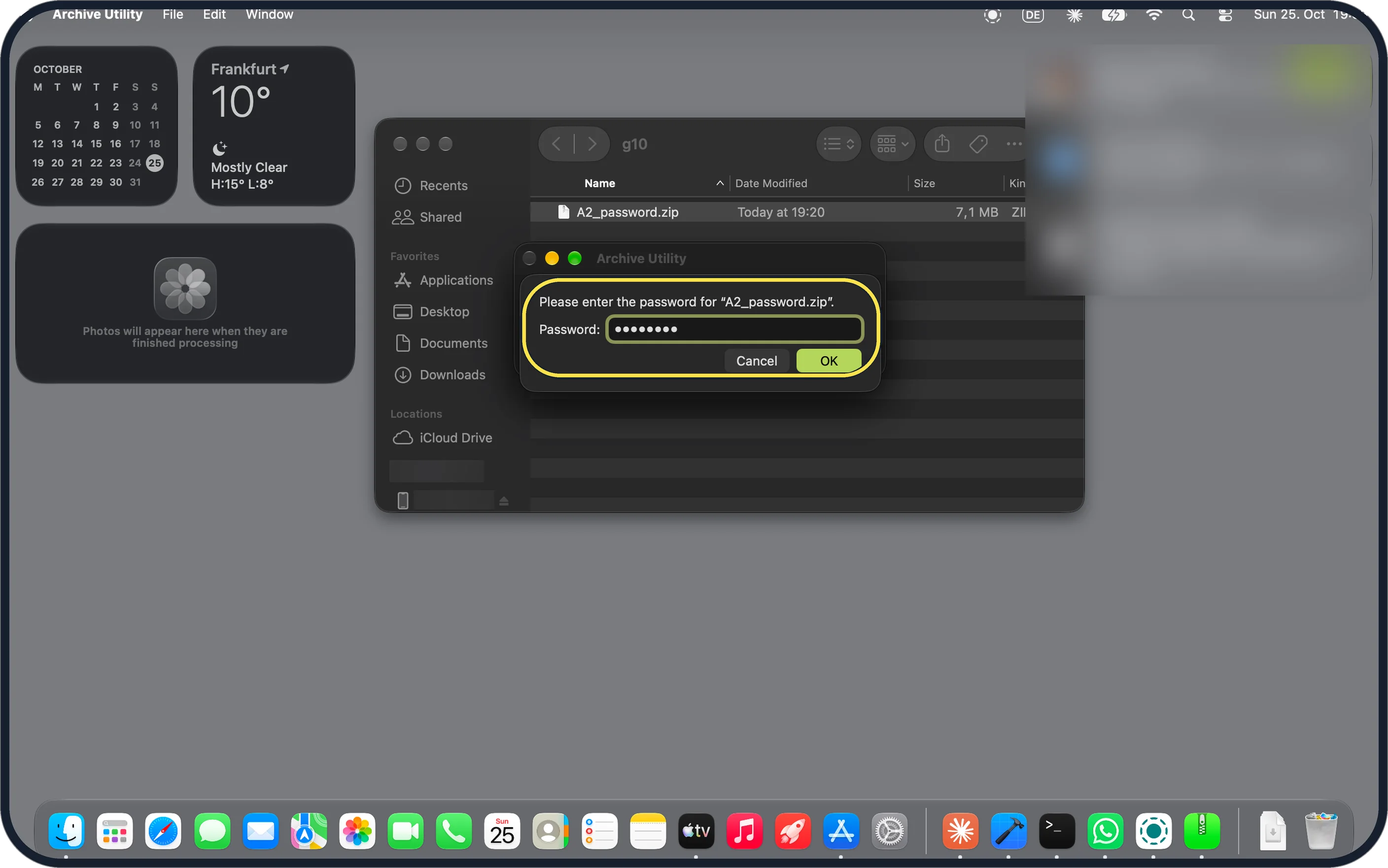
Zoomed in on the setting. Tap to see the whole screenTap the picture to see it full size Type the password and click OK
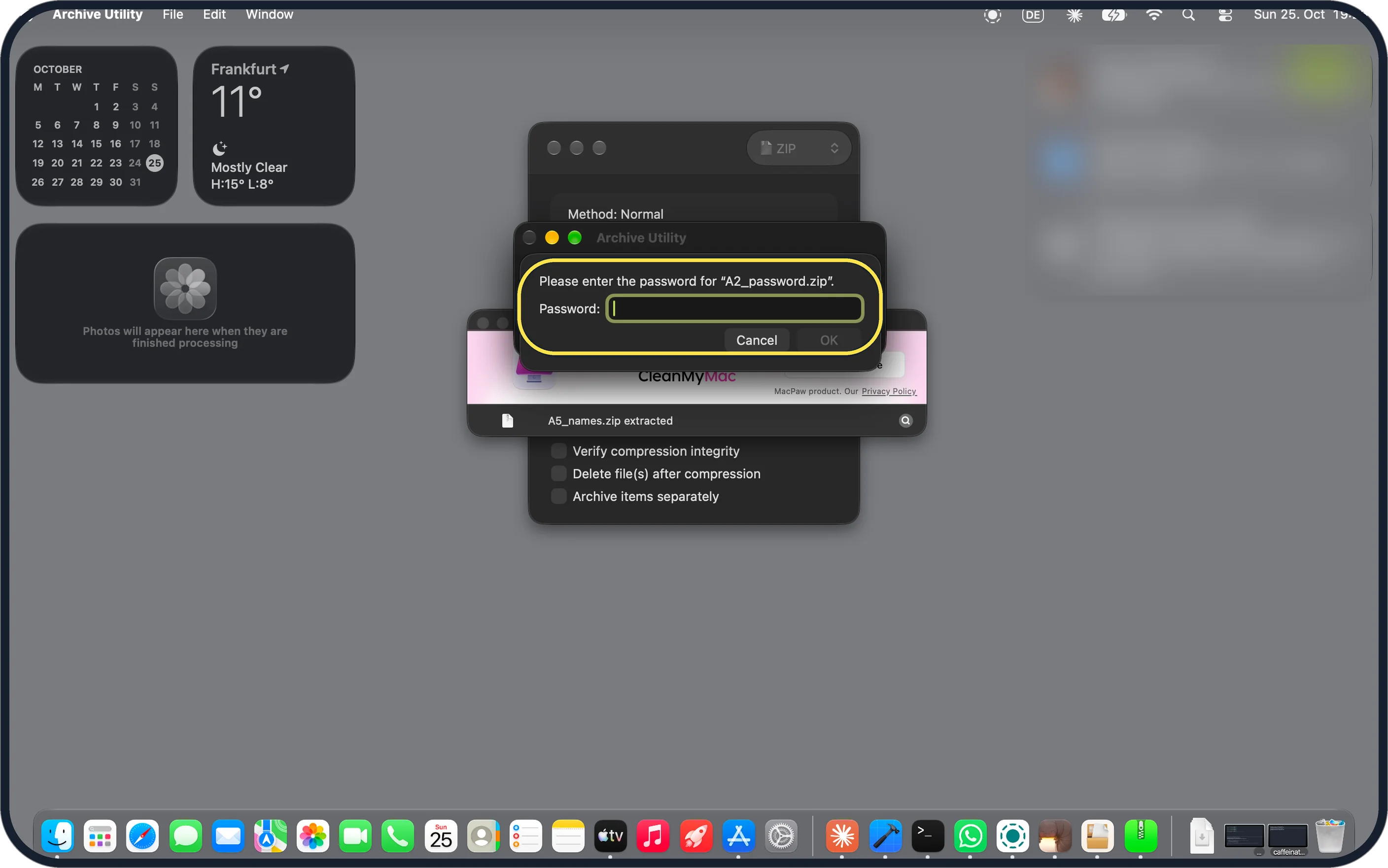
Archive Utility asks: Please enter the password for "A2_password.zip". OK turns on once you type.
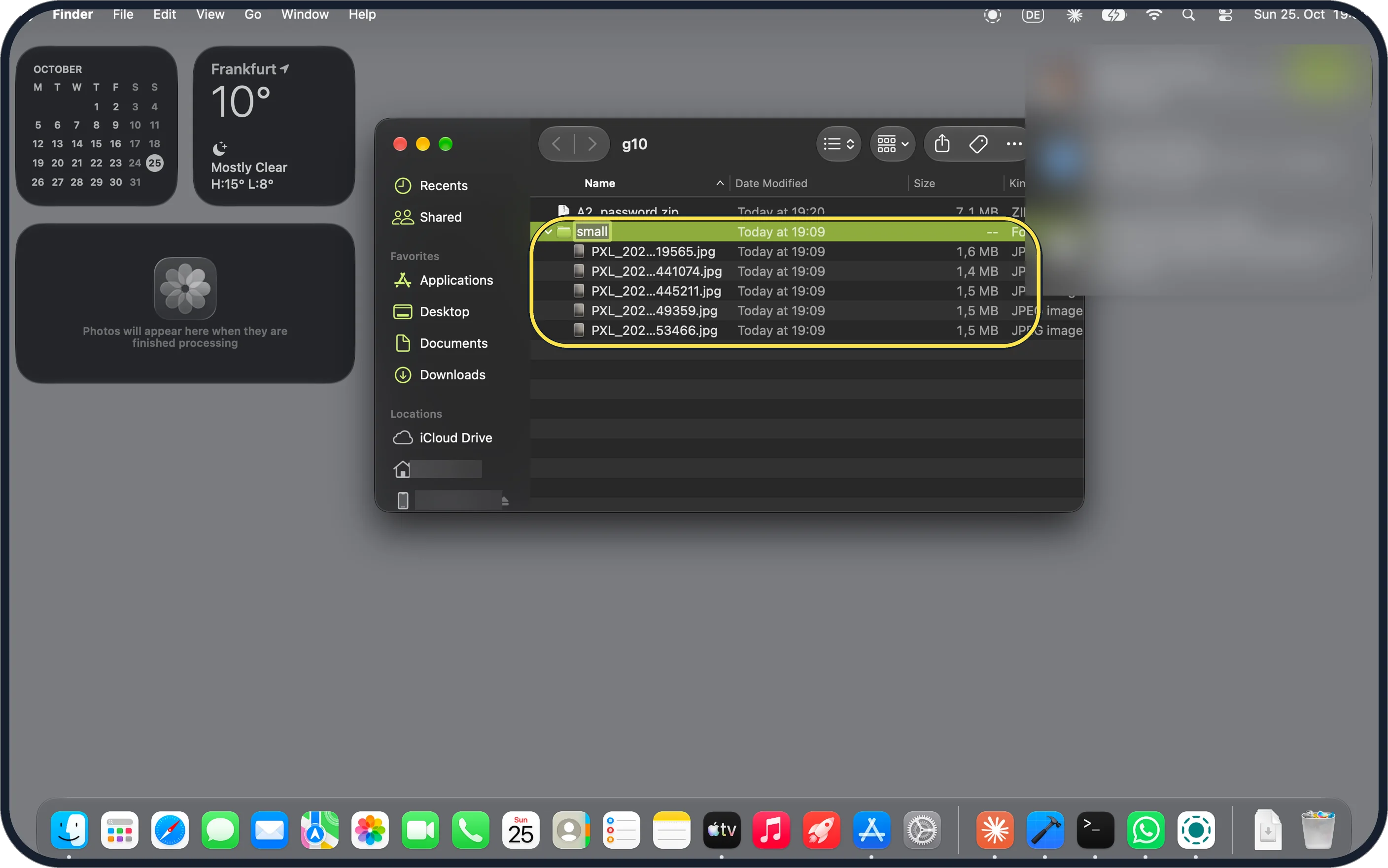
Zoomed in on the setting. Tap to see the whole screenTap the picture to see it full size Open the folder
It lands next to the ZIP. Ours, small, had the 5 photos.
If you do not see this option
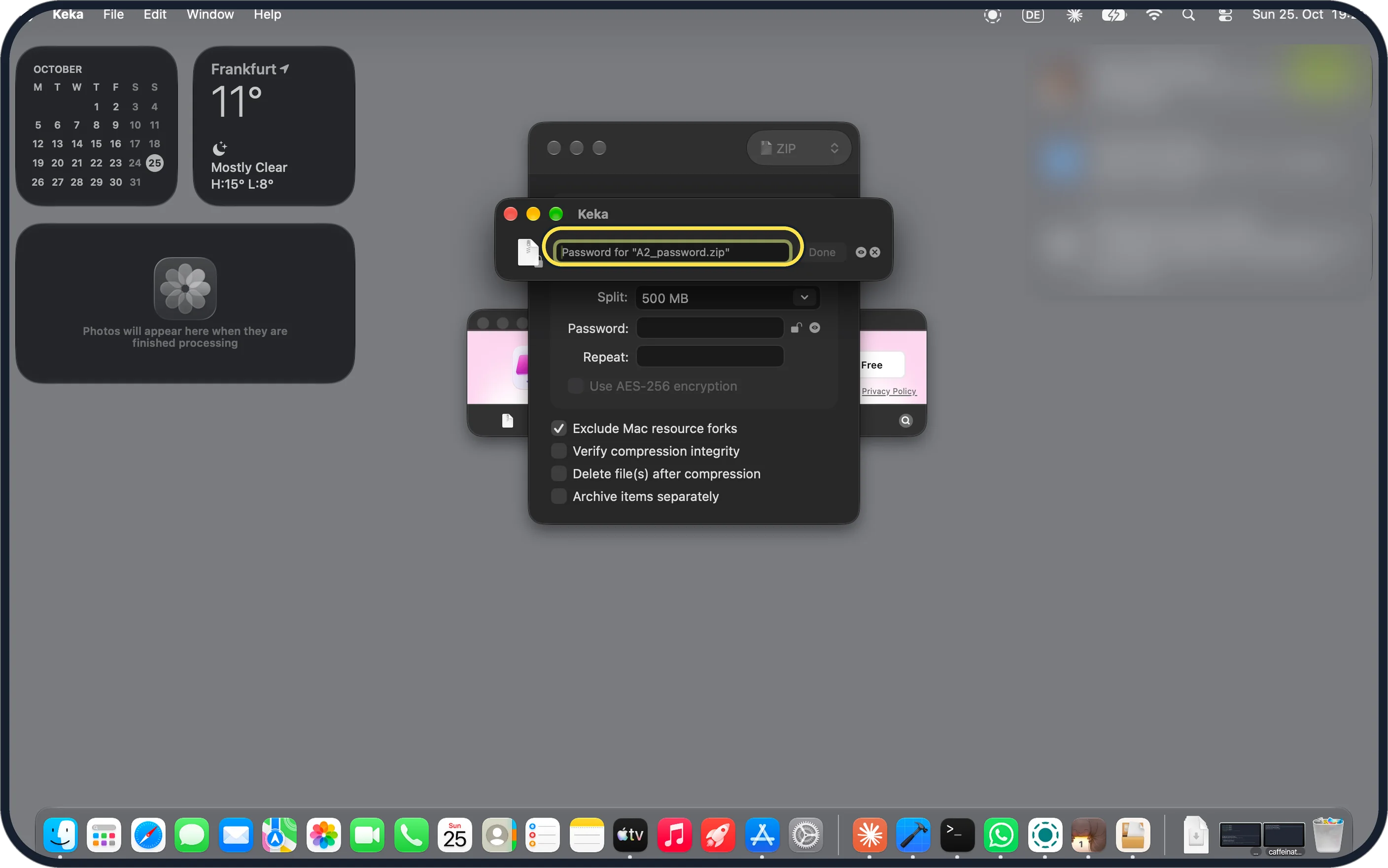
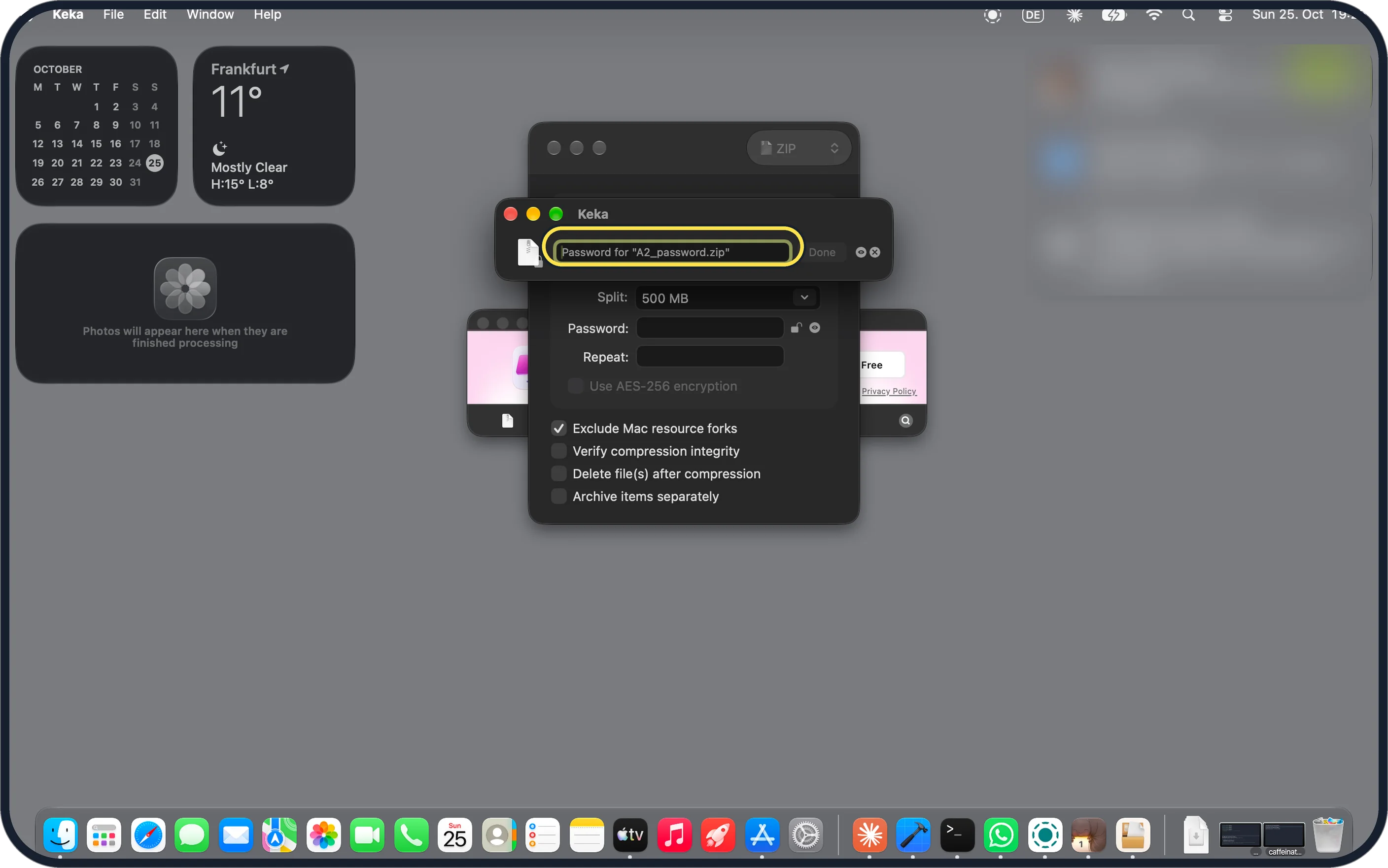
- Opening it with Keka? Our screenshot shows Keka's own Password for "A2_password.zip" box. Source: the macOS file archiver
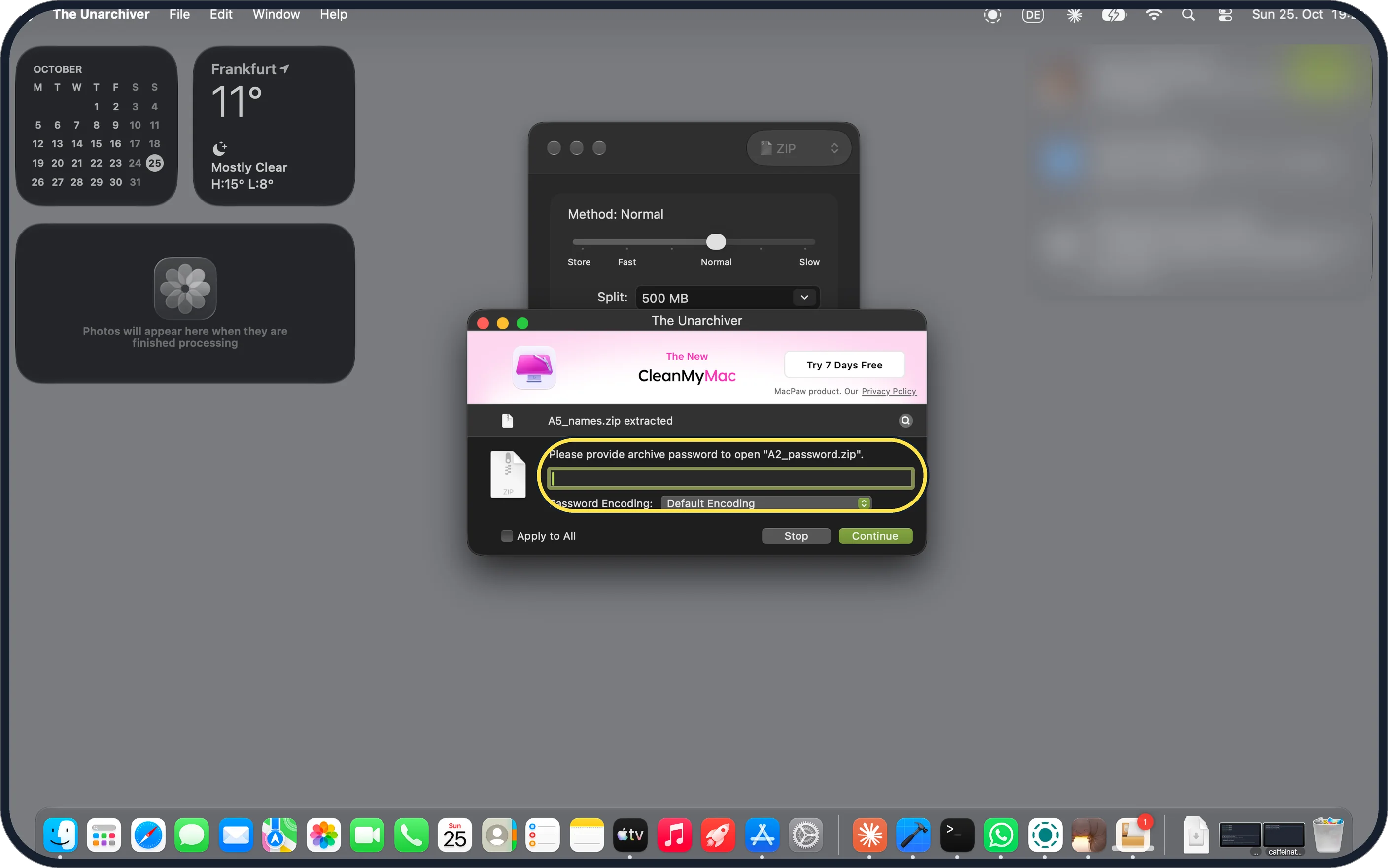
- Opening it with The Unarchiver? Our screenshot shows it asking: Please provide archive password to open "A2_password.zip", with a Password Encoding menu. Source: open any archive on Mac
- OK is grey? It stays grey until you type something. Our screenshot shows the empty box with OK greyed out.
If this does not work
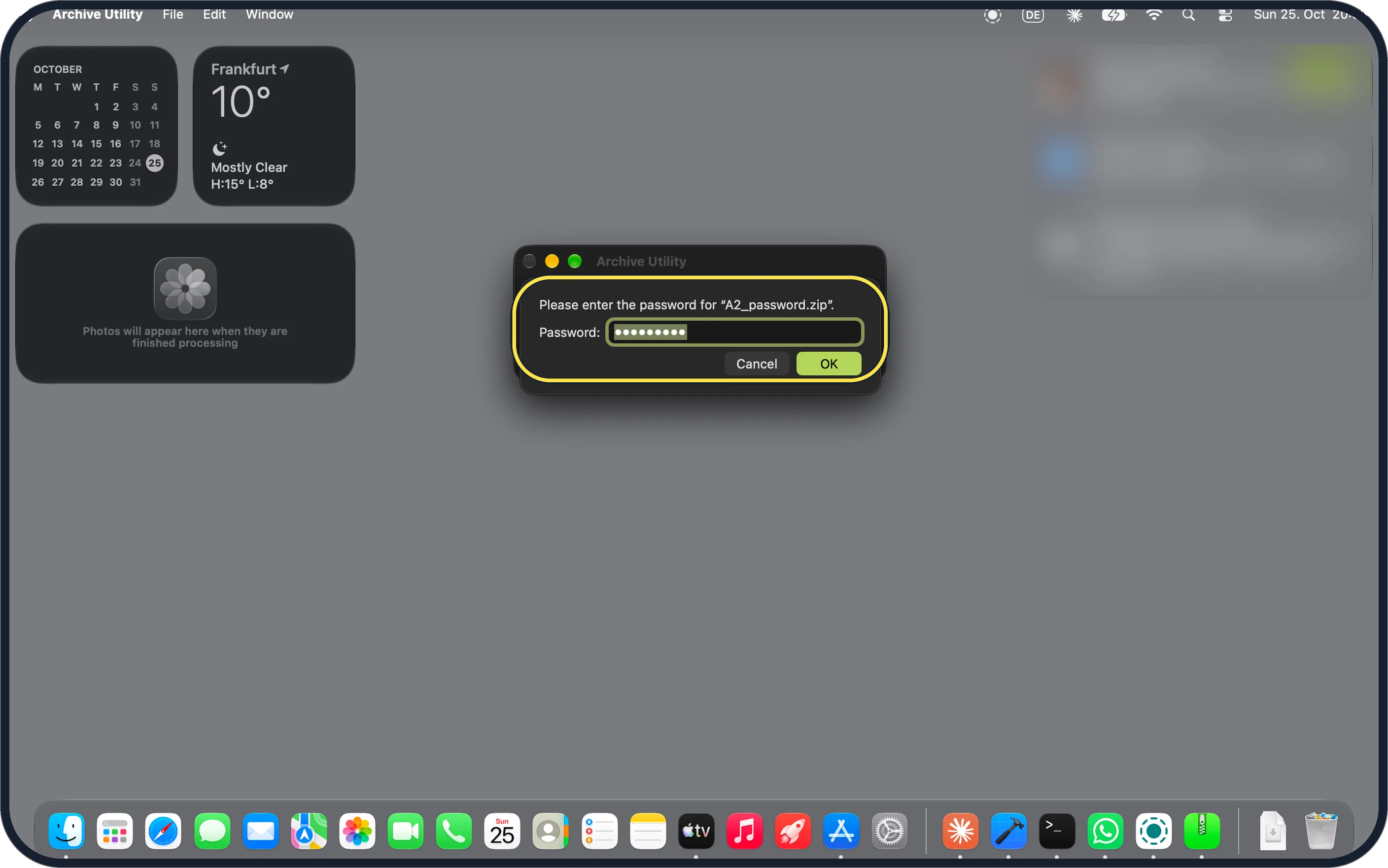
- Typed the wrong password? Archive Utility shows no error. Our screenshot shows the same box back with the dots selected after a wrong password. Type it again; Cancel extracts nothing.
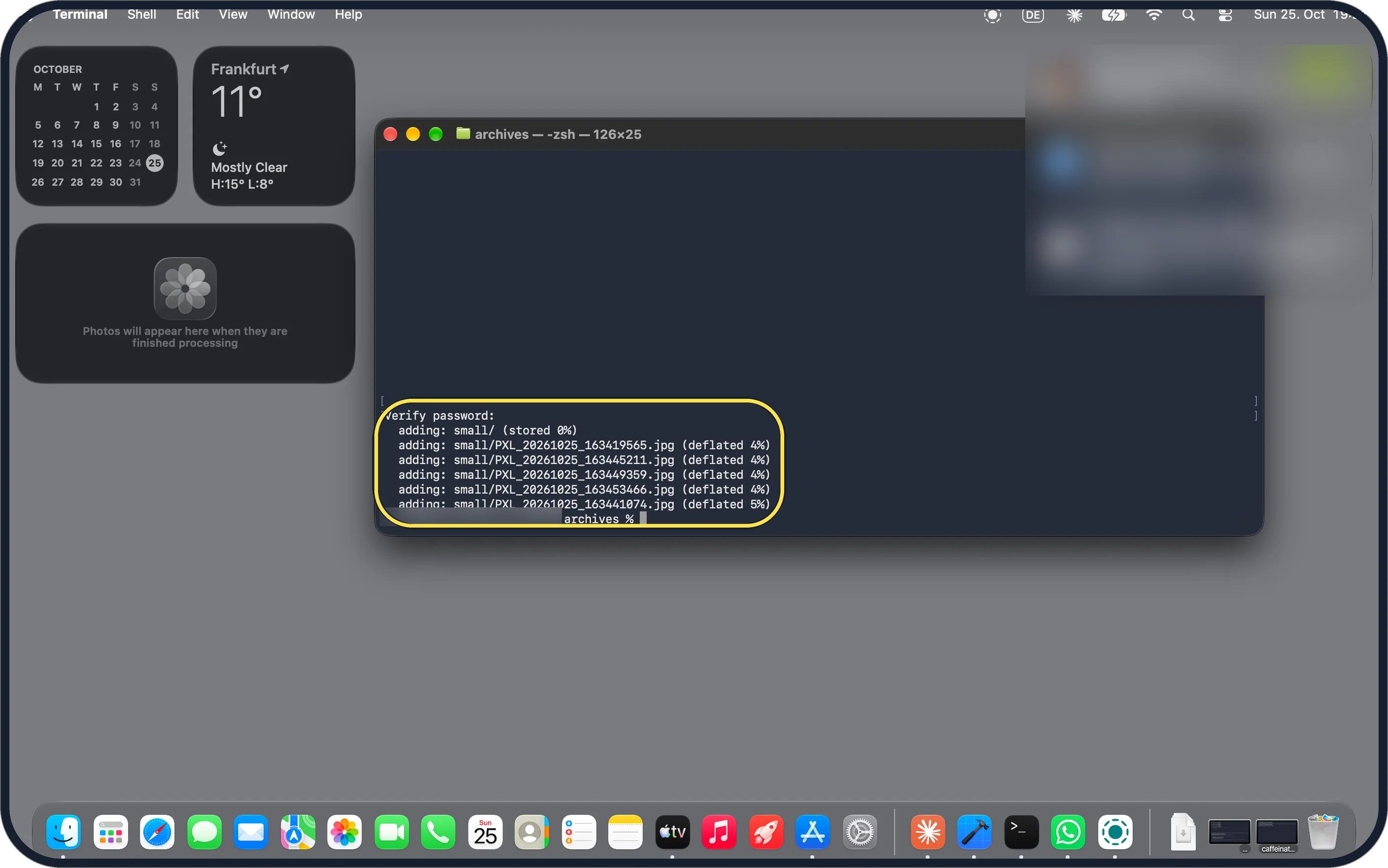
- Want to make one yourself? Finder's Compress has no password choice, so we used Terminal: zip -er, then a name for the ZIP and the folder. Our screenshot shows it asking to verify the password, then adding the files.
- Archive Utility not opening it? Right-click the ZIP and choose Open With, Keka or The Unarchiver. Our screenshot shows Keka's password box. Sources: the macOS file archiver, open any archive on Mac
About this guide
Our test ZIP held 5 photos and was made in Terminal with zip -er and a throwaway password. Archive Utility, Keka and The Unarchiver all asked for the password.
The screenshots are from our MacBook Neo with macOS 27.0.1, Keka 1.6.8 and The Unarchiver 4.3.9, in Dark mode, taken on 25 October 2026, with test archives we made from our own photos and videos.
Good to know
To zip files without a password, see zip and unzip files on a Mac.
For split archives, see open a split ZIP file on a Mac.
In short: Double-click, type the password, OK, open the folder.
Links checked in October 2026. Menus and features can change after software updates. These steps match the version named at the top.
📷 Camera Lab: the same 6 scenes photographed with 11 phones, side by side.
Did this guide work for you?
Sorry about that. What happened?