
howtosimply.com/guides/how-to-extract-the-audio-from-a-video-on-a-mac/ · Checked October 2026 · MacBook Neo · macOS 27.0.1
In this guide
Open the video in QuickTime Player and choose File, Export As, Audio Only. Name the file, pick a folder and click Save. You get an .m4a audio file in the folder you picked; the video itself stays as it was.
3 of 3 steps with real screenshots · 2 official sources below
- Device
- Mac
- Shown on
- macOS 27.0.1 (MacBook Neo)
- App
- QuickTime Player
- Path
- QuickTime Player › File › Export As › Audio Only
- Real screenshots
- 3 of 3 steps
- Checked
- October 2026
- Sources
- 2 official, linked below
Step by step
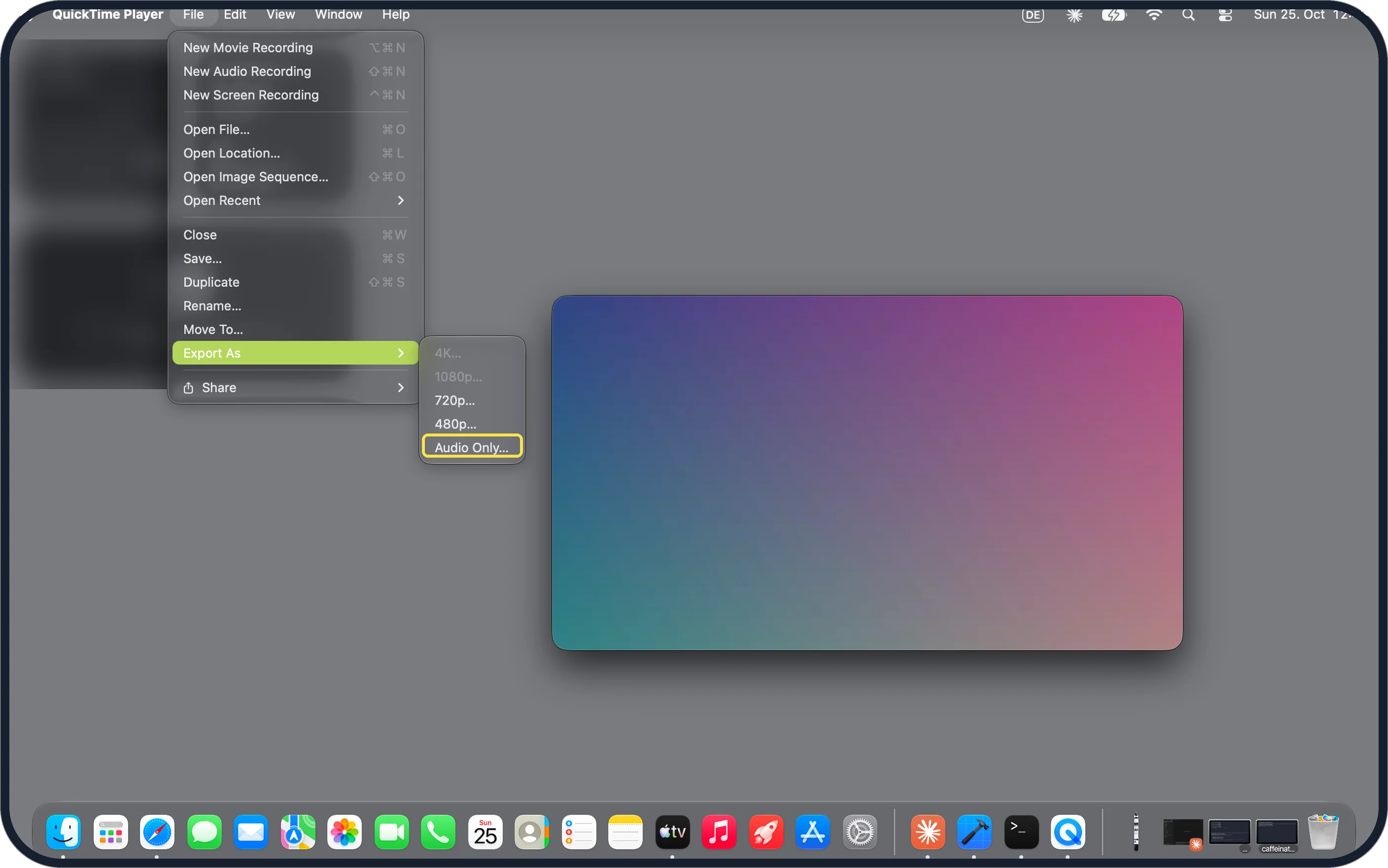
Tap the picture to see it full size Choose File, Export As, Audio Only
Open the video in QuickTime Player. In the File menu, point to Export As. Ours listed 4K and 1080p dimmed, then 720p, 480p and Audio Only.
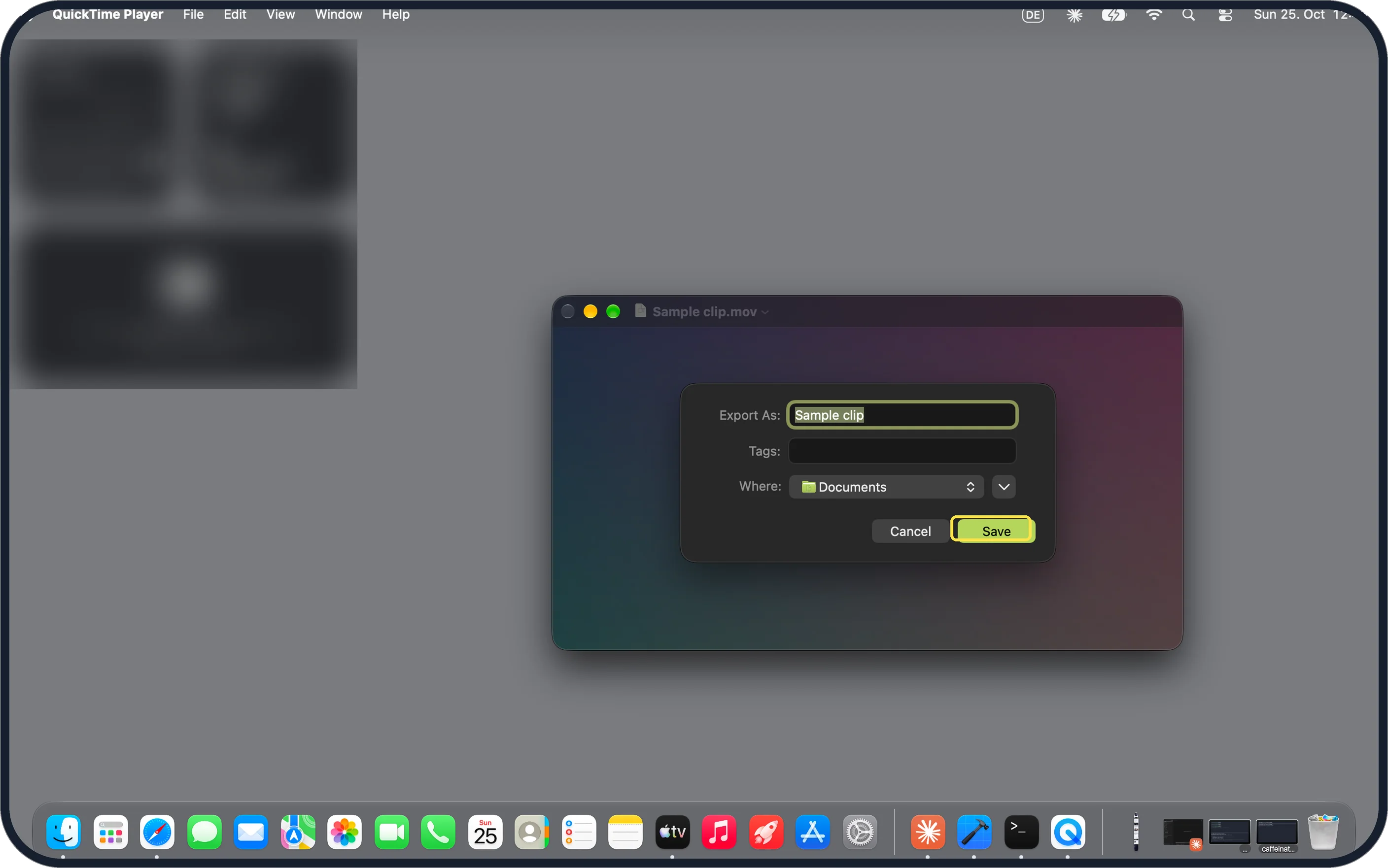
Tap the picture to see it full size Name it and click Save
Type a name next to Export As and choose a folder from the Where menu. Click Save.
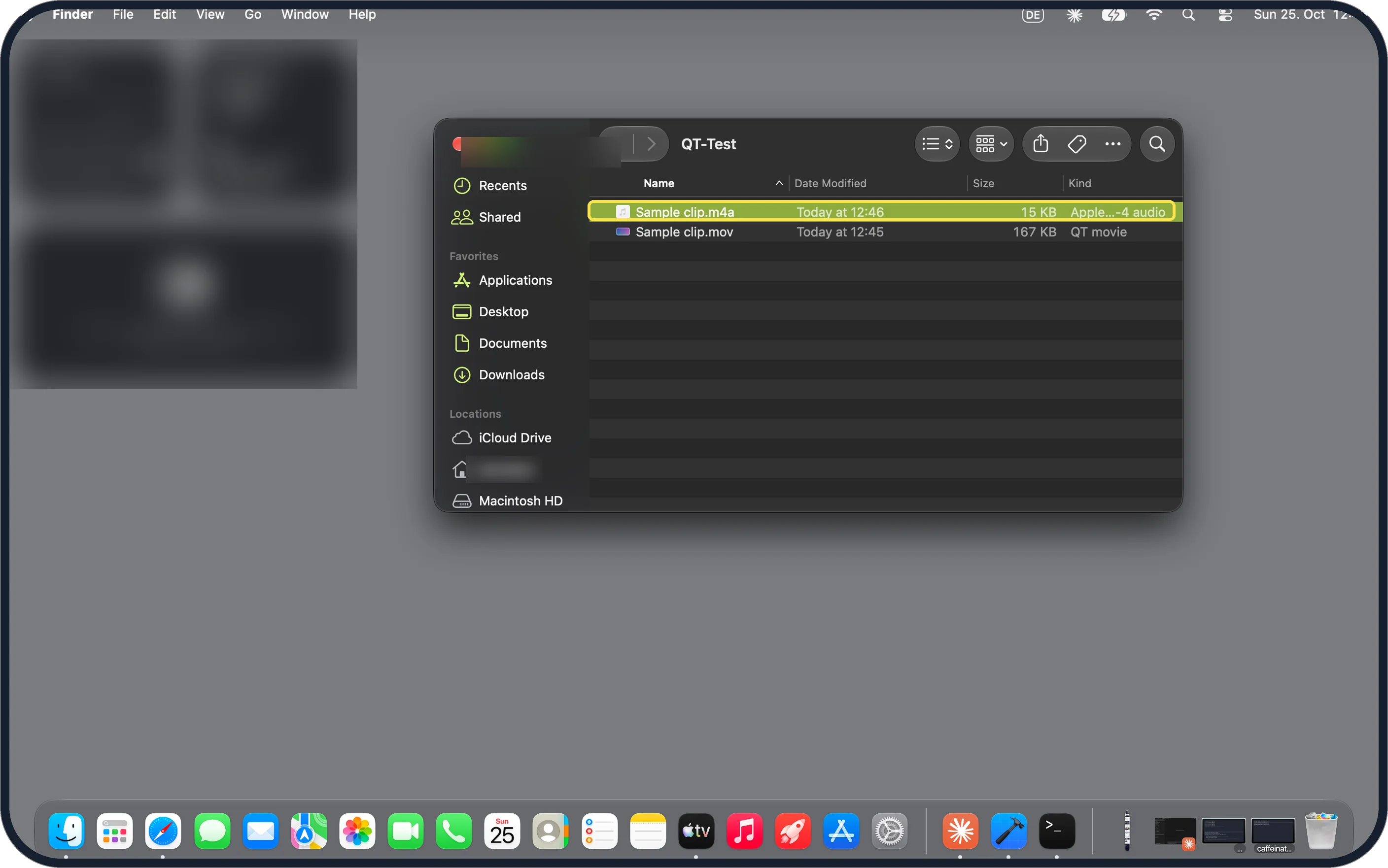
Tap the picture to see it full size Find the .m4a file
Open the folder in Finder. Ours held Sample clip.m4a, 15 KB, kind Apple MPEG-4 audio, beside the original 167 KB .mov, which was unchanged.
If you do not see this option
- Some sizes are dimmed? Apple says resolutions larger than your movie are dimmed. Ours was a small clip, so 4K and 1080p were grey. Audio Only is not affected. Source: Export movies to other file formats and resolutions
- No export options at all? Apple says the recording may be copyright-protected and cannot be distributed. Source: Export movies to other file formats and resolutions
If this does not work
- Need an MP3? QuickTime only saves Audio Only as an Apple MPEG-4 audio file with an AAC track (.m4a), per Apple. Most players, phones and editors open .m4a. Source: Export movies to other file formats and resolutions
- Audio Only is greyed out? Apple says a copyright-protected recording cannot be exported. Videos you recorded yourself are not affected. Source: Export movies to other file formats and resolutions
About this guide
QuickTime Player, which comes with every Mac, can save just the sound of a video. No other app is needed.
The screenshots are from our MacBook Neo with macOS 27.0.1 in dark mode, taken on 25 October 2026. We used a short test clip we made with a spoken sentence and deleted it afterwards.
Good to know
To shorten the clip first, see Apple's steps to trim a movie in QuickTime Player, then export.
In short: QuickTime Player, File, Export As, Audio Only, name and folder, Save. The result is an .m4a file.
- QuickTime Player User Guide: Export movies to other file formats and resolutions
- QuickTime Player User Guide: Trim a movie or clip in QuickTime Player on Mac
Links checked in October 2026. Menus and features can change after software updates. These steps match the version named at the top.
📷 Camera Lab: the same 6 scenes photographed with 11 phones, side by side.
Did this guide work for you?
Sorry about that. What happened?