
macOS 27 compared with macOS 26: We rewrote this guide on macOS 27.0.1 (MacBook Neo): it now has 4 steps instead of 6. The macOS 26 page keeps the steps and screenshots as they were.
howtosimply.com/guides/how-to-add-widgets-to-the-desktop-on-a-mac/ · Checked October 2026 · MacBook Neo · macOS 27.0.1
In this guide
Control-click an empty part of the desktop and choose Edit Widgets…. Drag a widget from the gallery onto the desktop, then click Done.
4 of 4 steps with real screenshots · 1 official source below
- Device
- Mac
- Shown on
- macOS 27.0.1 (MacBook Neo)
- Real screenshots
- 4 of 4 steps
- Checked
- October 2026
- Sources
- 1 official, linked below
Step by step
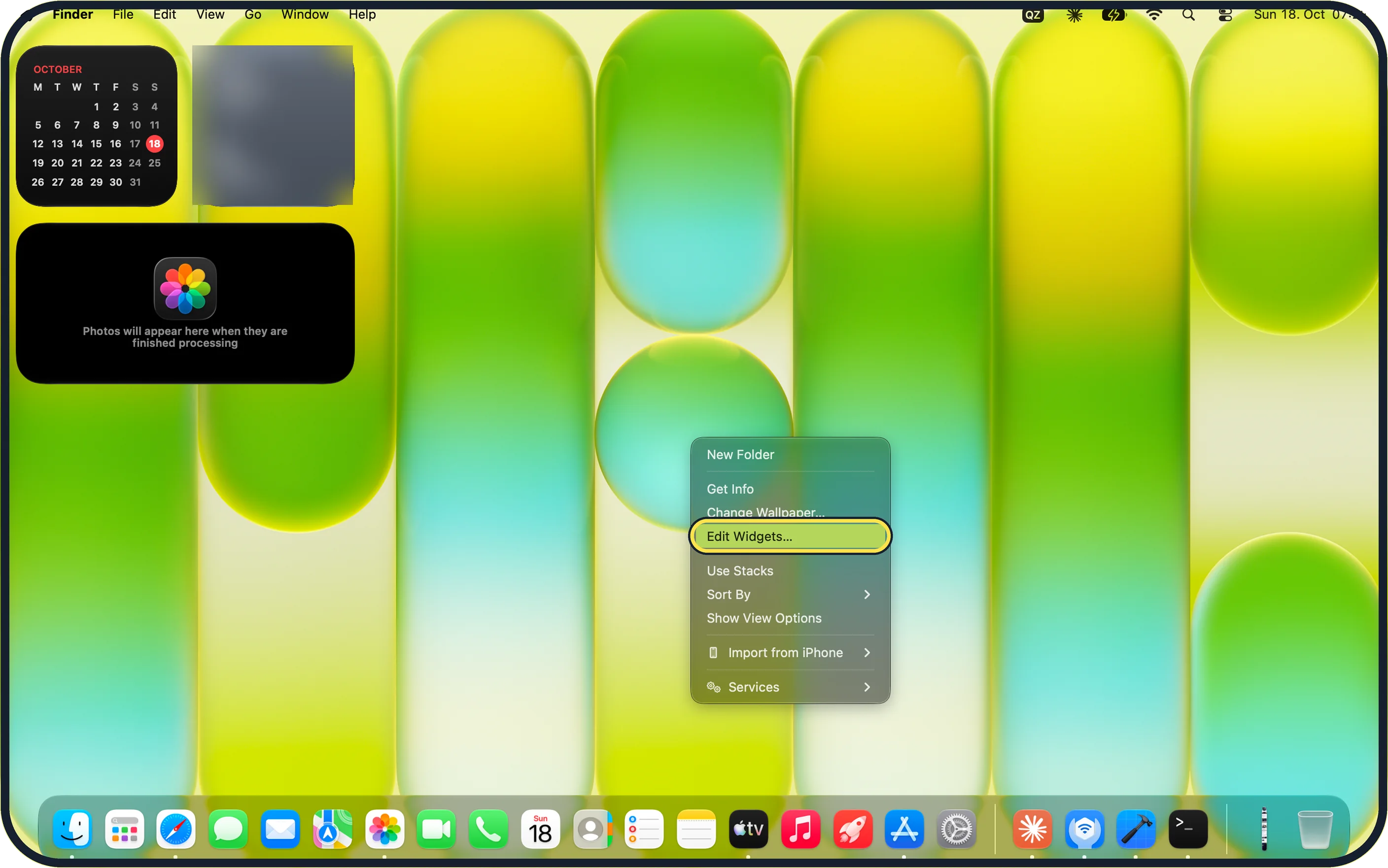
Zoomed in on the setting. Tap to see the whole screenTap the picture to see it full size Control-click the wallpaper
Hold Control and click an empty part of the desktop, or click with two fingers on the trackpad.
Choose Edit Widgets…. On our MacBook Neo it sits between Change Wallpaper… and Use Stacks.
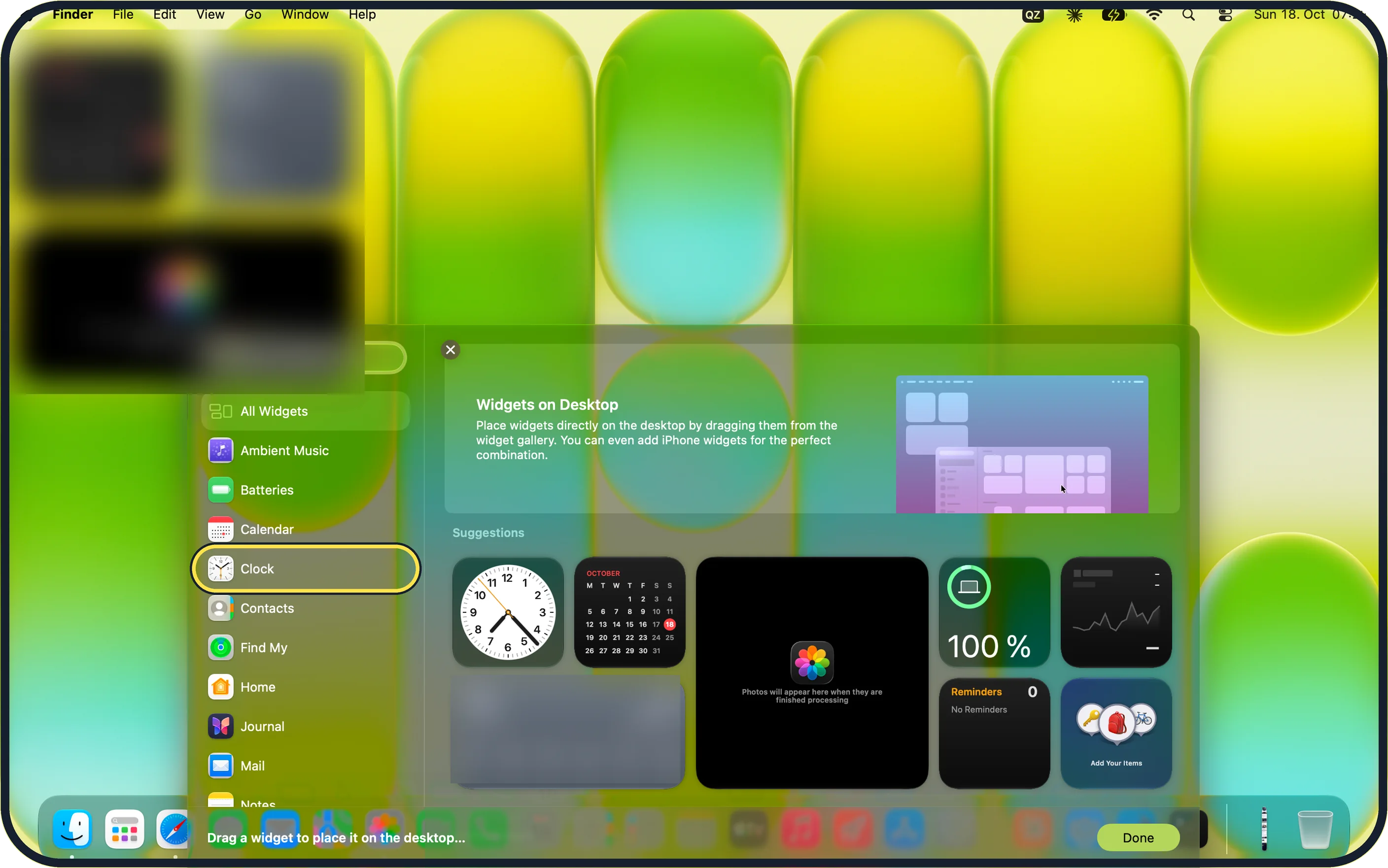
Zoomed in on the setting. Tap to see the whole screenTap the picture to see it full size Pick a category
The widget gallery opens. Search for a widget or click a category in the list, such as Clock.
On our MacBook Neo the list starts with All Widgets, Ambient Music, Batteries, Calendar and Clock, and a Suggestions row sits on the right.
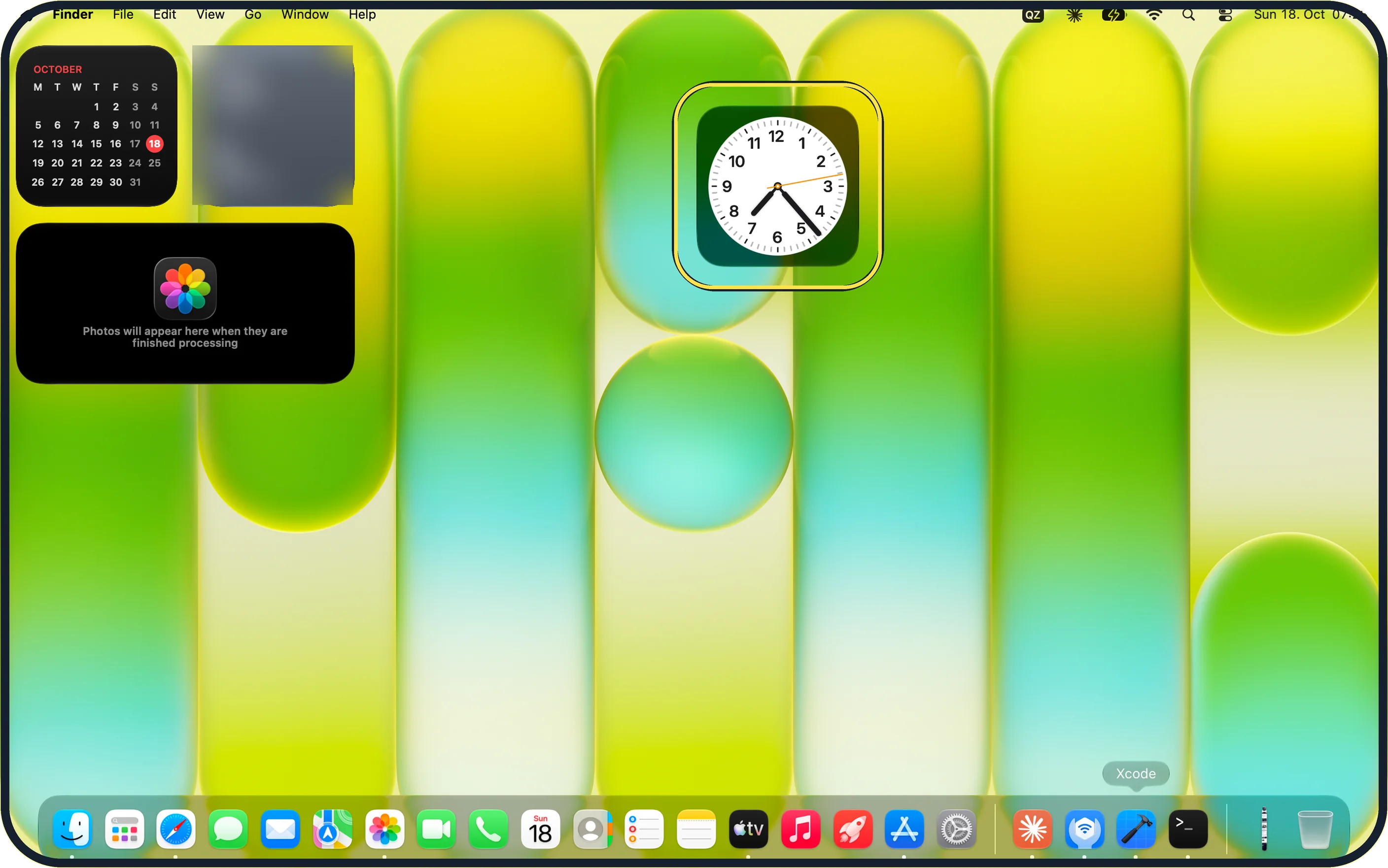
Zoomed in on the setting. Tap to see the whole screenTap the picture to see it full size Drag the widget to the desktop and click Done
Drag the widget to the spot you want. On our MacBook Neo the gallery says "Drag a widget to place it on the desktop…".
Click Done at the bottom right. The gallery closes and the widget stays on the desktop.
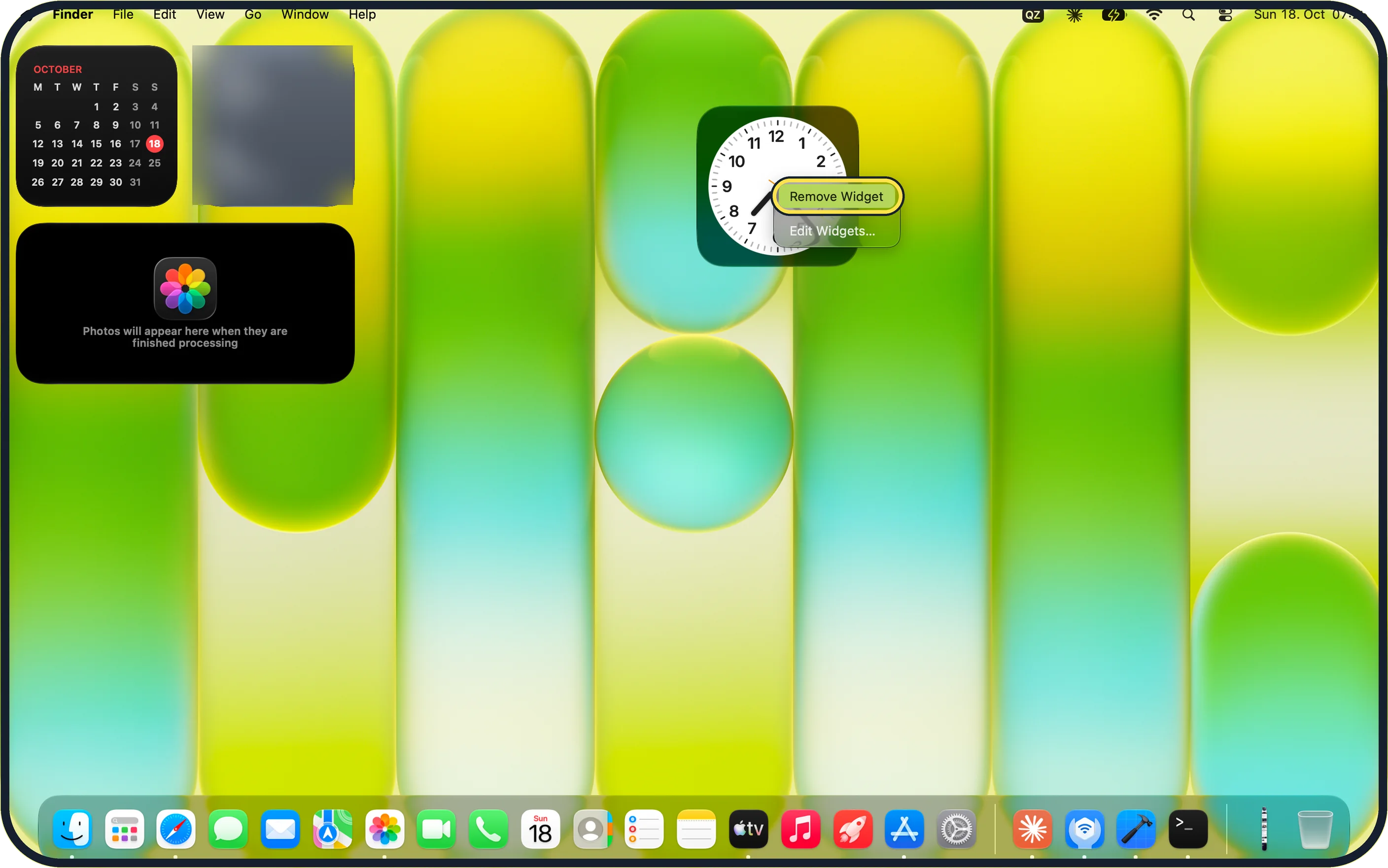
Zoomed in on the setting. Tap to see the whole screenTap the picture to see it full size Remove a widget
Control-click the widget and choose Remove Widget.
On our MacBook Neo the Clock widget's menu had just two items: Remove Widget and Edit Widgets….
If you do not see this option
- No Edit Widgets… in the menu Control-click an empty part of the wallpaper, not a file or a window. On our MacBook Neo the desktop menu starts with New Folder, Get Info and Change Wallpaper…, followed by Edit Widgets….
- You cannot find the widget you want Click All Widgets at the top of the gallery list, or use the search field above it. Widgets are grouped by app, such as Calendar, Contacts, Find My and Mail.
- iPhone widgets are missing Apple says the iPhone needs iOS 17 or later, the same Apple Account, and must be near the Mac or on the same Wi-Fi. Source: Add and customise widgets on Mac
If this does not work
- The widget does not stay on the desktop Drag it out of the gallery onto the wallpaper, then click Done. Clicking Done before dragging adds nothing.
- The gallery will not go away Click Done at the bottom right or the close (×) button at the top left of the gallery.
- You added the wrong widget Control-click it and choose Remove Widget. On our MacBook Neo the desktop went back to exactly how it was.
About this guide
Widgets show small pieces of information, such as the time, your calendar or battery levels, without opening an app. On a Mac they can sit right on the desktop.
Screenshots: MacBook Neo, macOS 27.0.1, dark mode.
Good to know
For Notification Centre, click the date and time in the menu bar and click Edit Widgets at the bottom.
Widgets from your iPhone can appear in the gallery too; on our MacBook Neo the gallery's Widgets on Desktop tip says "You can even add iPhone widgets for the perfect combination." Apple says the iPhone needs iOS 17 or later and the same Apple Account, and it must be near the Mac or on the same Wi-Fi. Apple's current guide describes the switch as Use iPhone widgets under Desktop & Dock, Widgets.
To remove a desktop widget later, open Edit Widgets again and click the remove button on the widget.
In short: Control-click the wallpaper > Edit Widgets… > drag a widget onto the desktop > Done.
Links checked in October 2026. Menus and features can change after software updates. These steps match the version named at the top.
Did this guide work for you?
Sorry about that. What happened?