
howtosimply.com/guides/how-to-add-srt-subtitles-to-a-video-on-a-mac/ · Checked October 2026 · MacBook Neo · macOS 27.0.1
In this guide
QuickTime Player has no way to load a separate .srt file. Open the video in the free VLC, choose Subtitles, Add Subtitle File, pick the .srt and click Open. In IINA it is Subtitles, Load External Subtitle. Both showed our test.srt on our test MP4.
4 of 4 steps with real screenshots · 2 official sources below
- Device
- Mac
- Shown on
- macOS 27.0.1 (MacBook Neo)
- App
- VLC
- Real screenshots
- 4 of 4 steps
- Checked
- October 2026
- Sources
- 2 official, linked below
Step by step
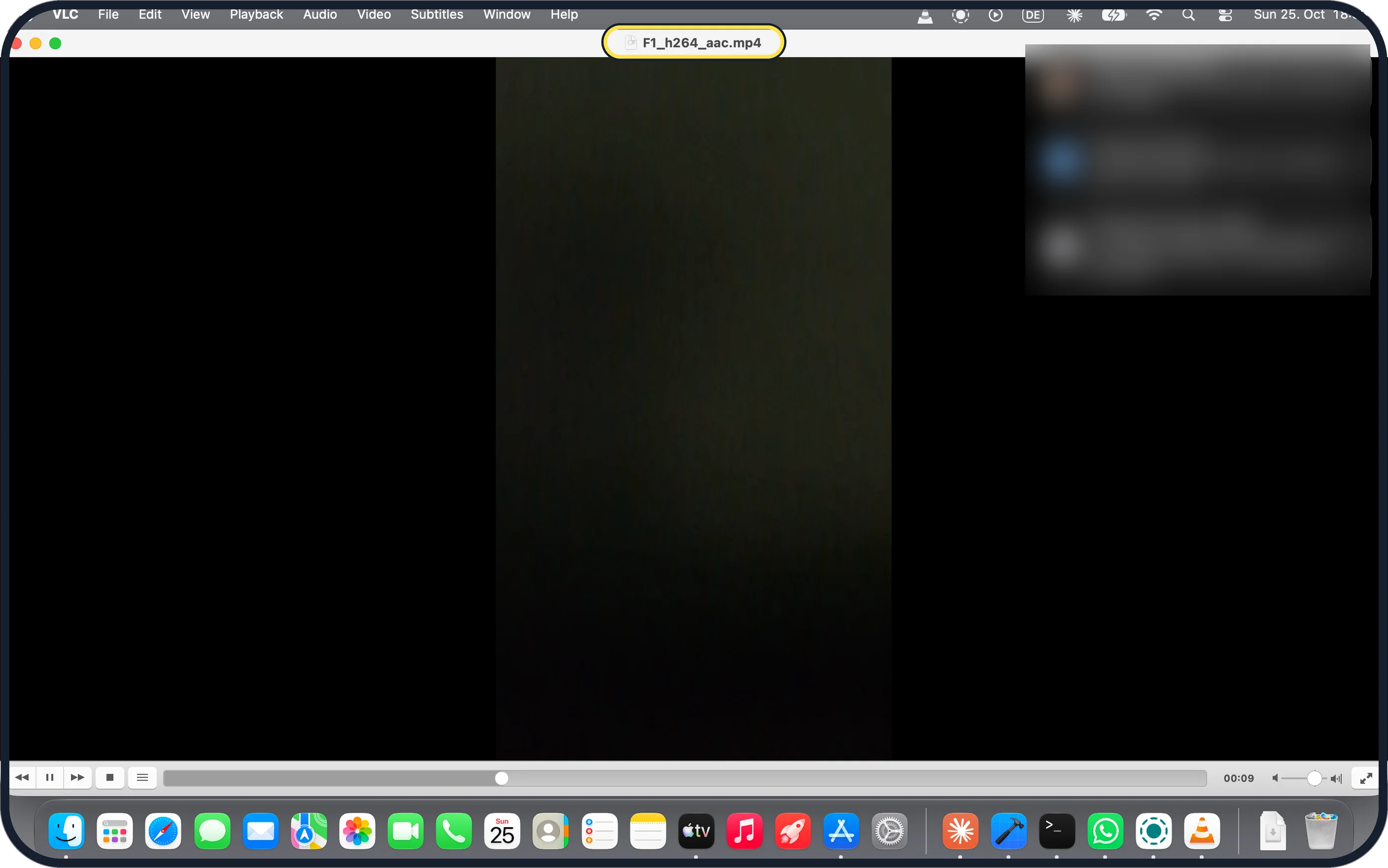
Zoomed in on the setting. Tap to see the whole screenTap the picture to see it full size Open the video in VLC
Drag it onto VLC, or right-click it and choose Open With, VLC. The file name shows in the title bar: ours was F1_h264_aac.mp4.
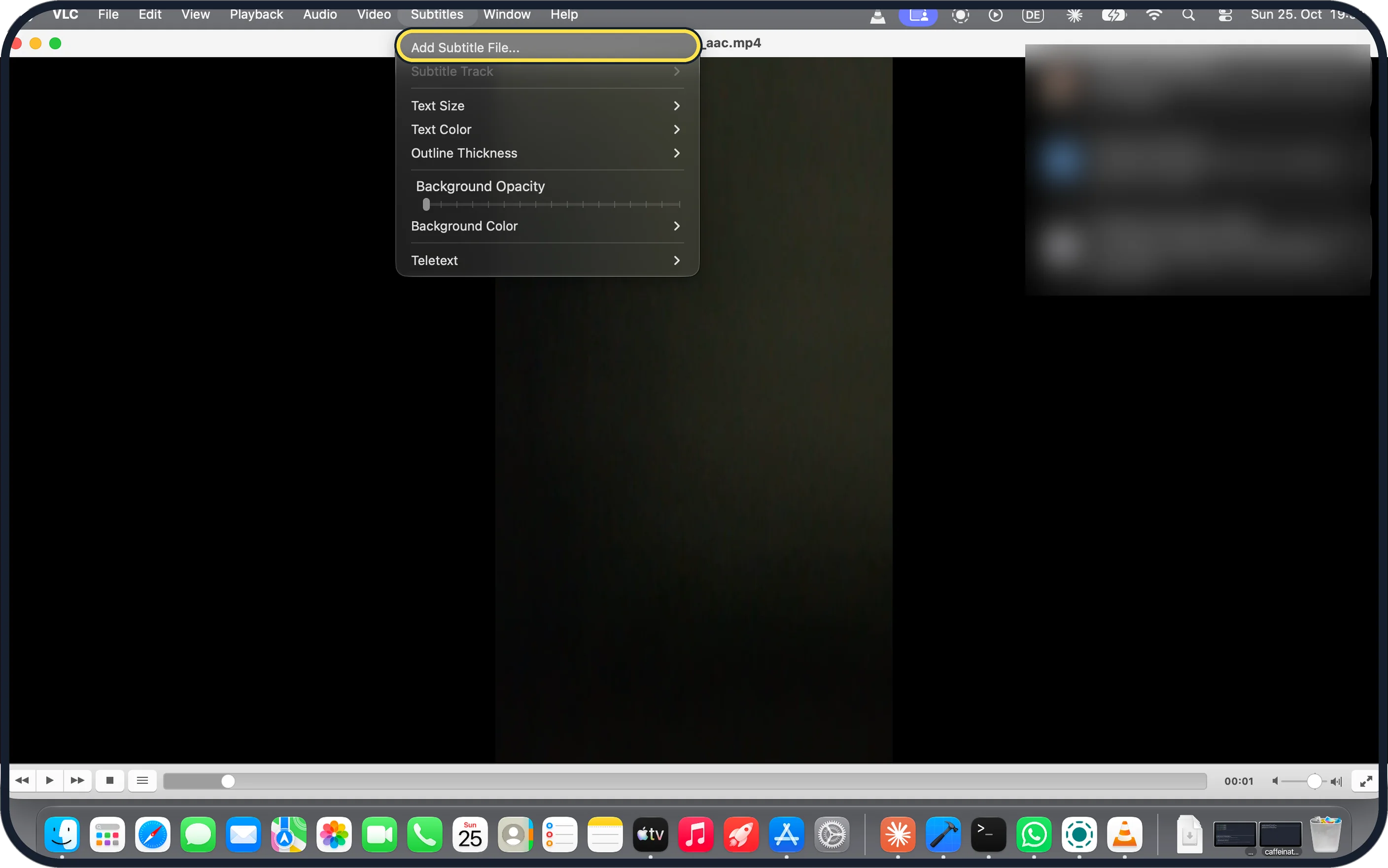
Zoomed in on the setting. Tap to see the whole screenTap the picture to see it full size Choose Subtitles, Add Subtitle File
It is the first item in VLC's Subtitles menu. Subtitle Track below it is grey until a track is loaded.
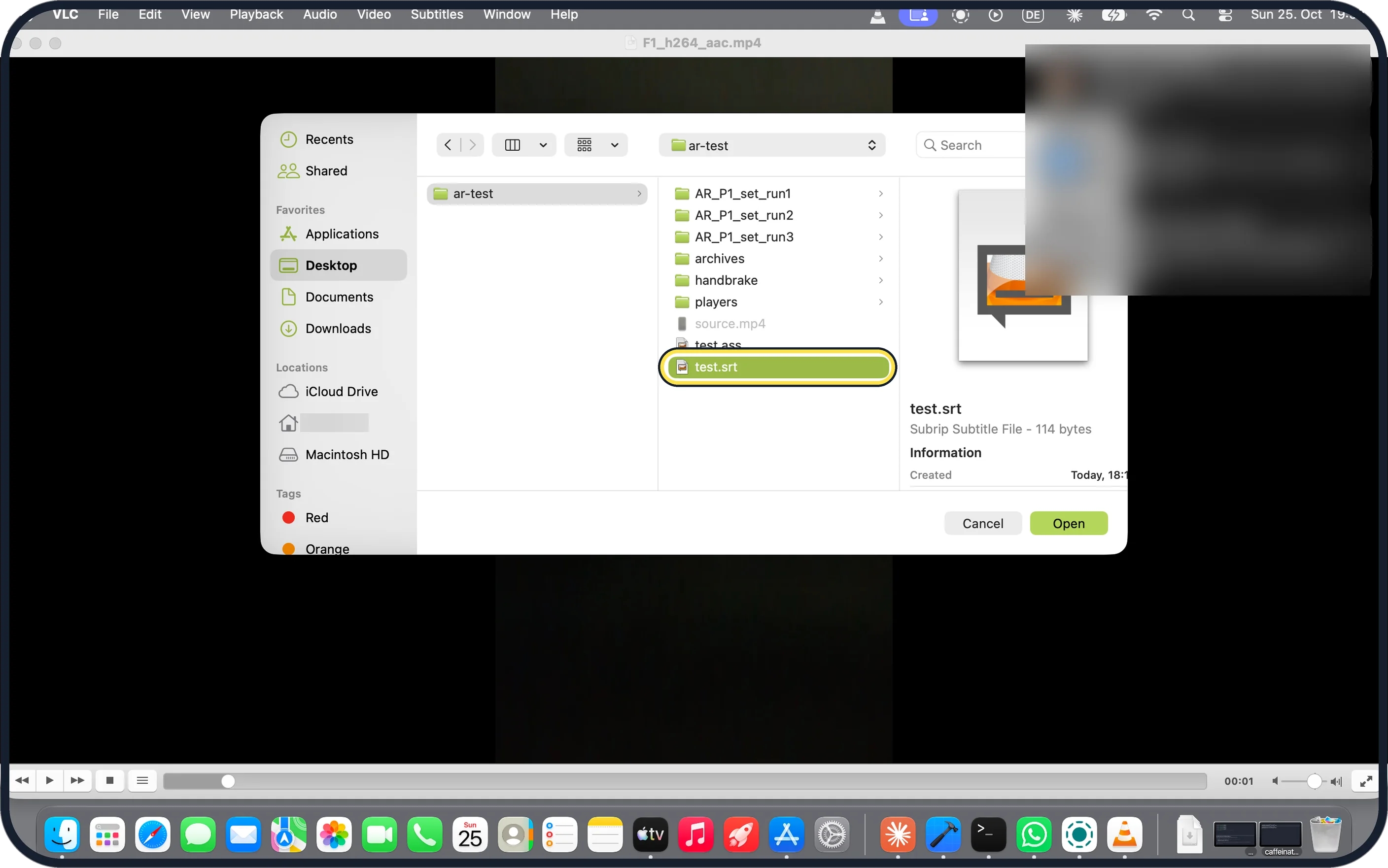
Zoomed in on the setting. Tap to see the whole screenTap the picture to see it full size Pick the .srt and click Open
Ours was test.srt, a Subrip Subtitle File of 114 bytes, in our ar-test folder.
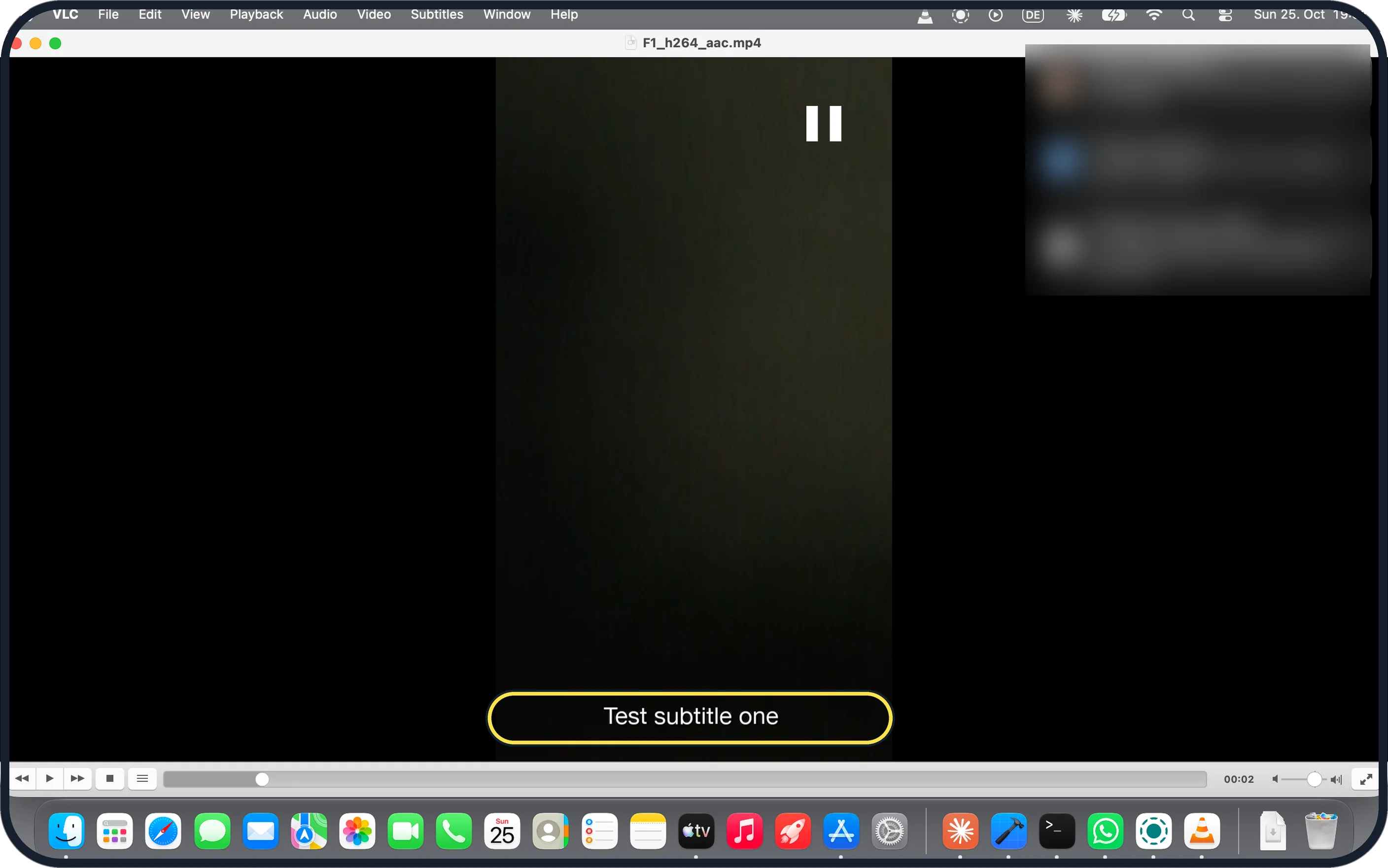
Zoomed in on the setting. Tap to see the whole screenTap the picture to see it full size Check the text on screen
The first line showed at the bottom of the picture on ours.
If you do not see this option
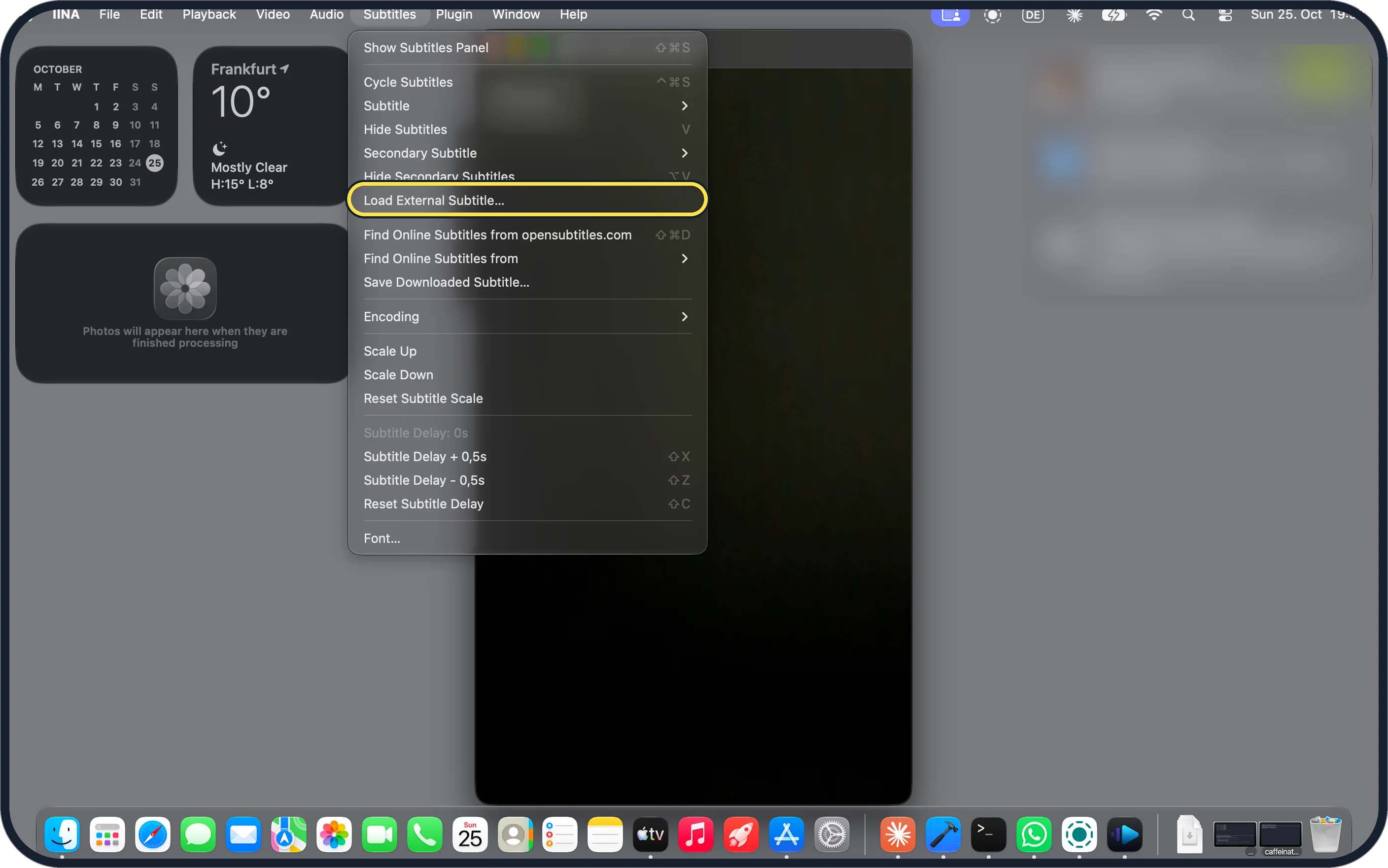
- Using IINA instead? Choose Subtitles, Load External Subtitle, pick the .srt and click Open. Our screenshot shows that item in IINA's Subtitles menu. Source: The modern media player for macOS
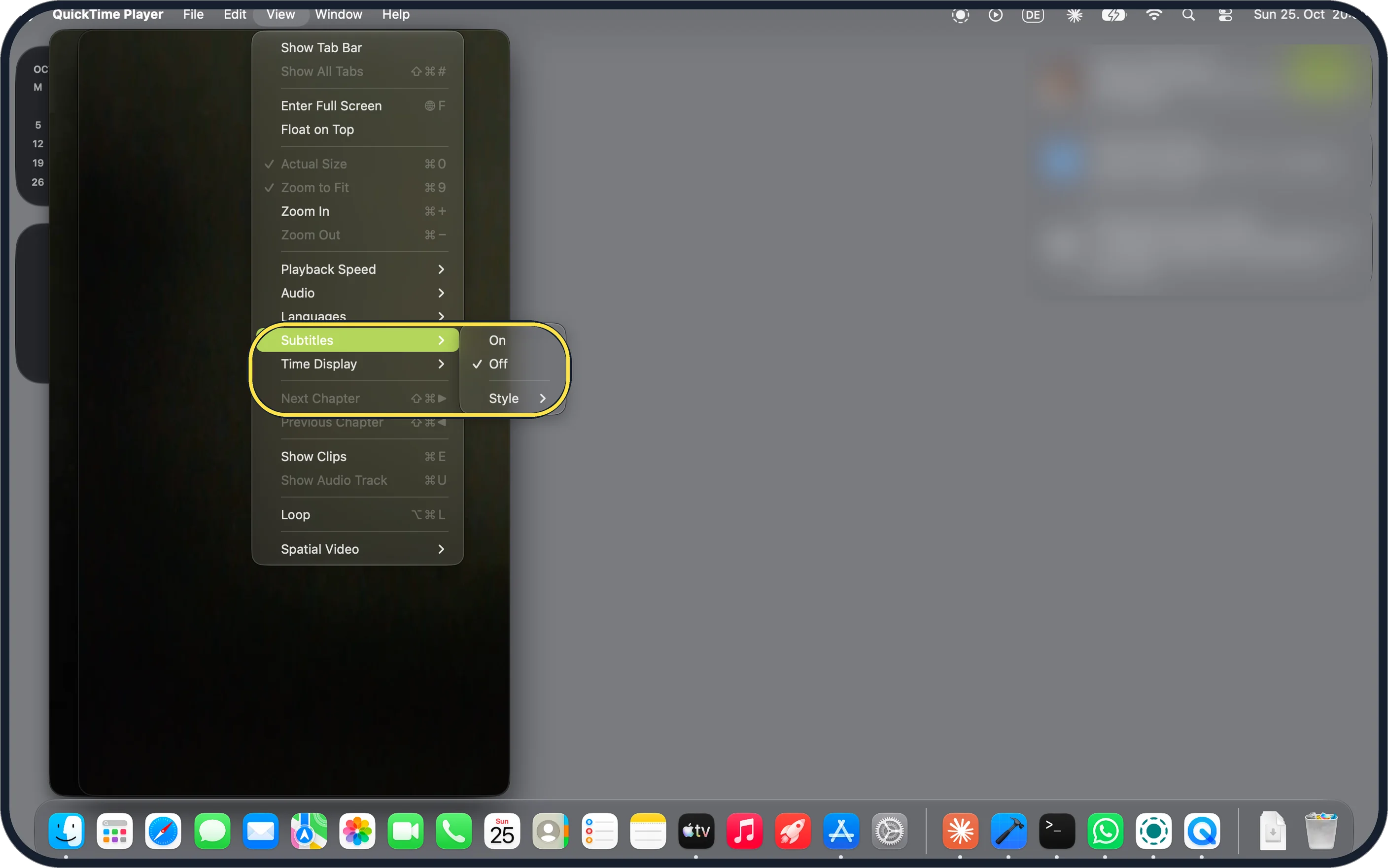
- Trying it in QuickTime Player? It can't load one. Our screenshot shows View, Subtitles with only On, Off and Style, which work on subtitles already inside a video.
- Subtitles inside an MKV not showing? They can start switched off. Our screenshot shows VLC's Subtitles, Subtitle Track with Disable ticked: pick Track 1 - [English].
![Mac screenshot: Disable, Track 1 - [English]](/static/shots/v/how-to-add-srt-subtitles-to-a-video-on-a-mac-moved-3.webp)
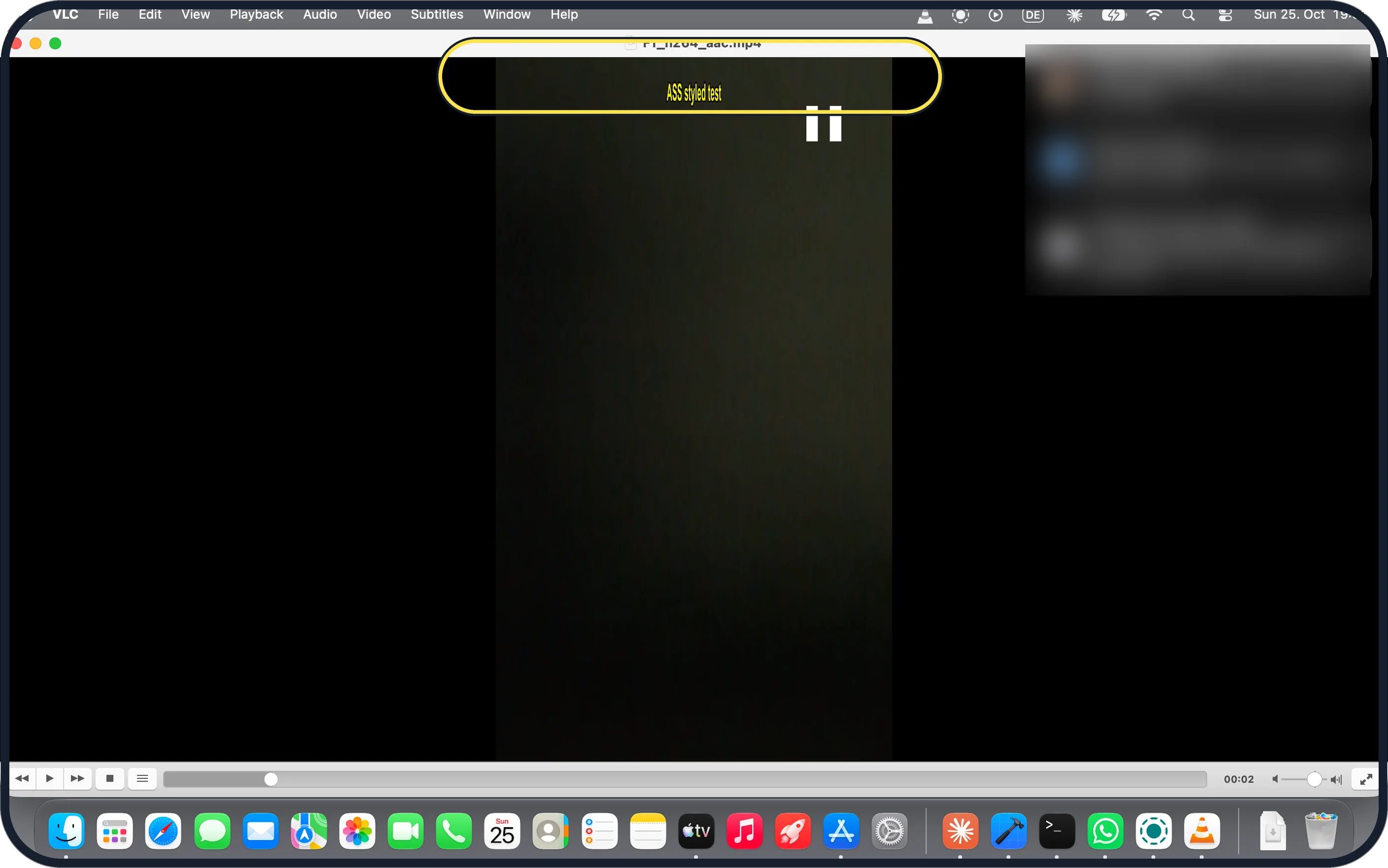
- Have an .ass file? Load it the same way. Our screenshot shows it in VLC with its own style: yellow text at the top centre.
If this does not work
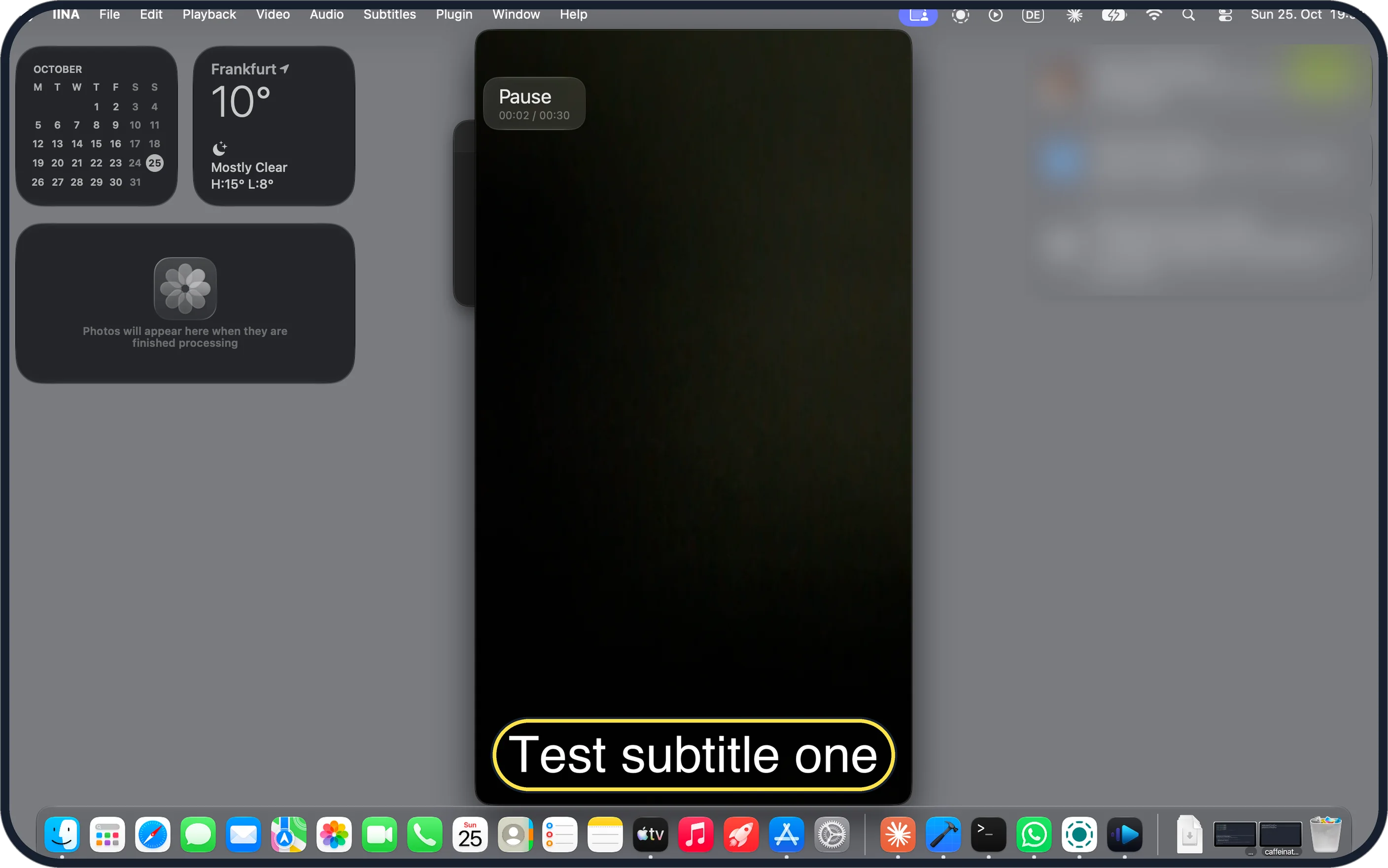
- MKV subtitles off in IINA too? Choose Subtitles, Subtitle and pick the track. Our screenshot shows the result in IINA: Test subtitle one at 2 seconds.
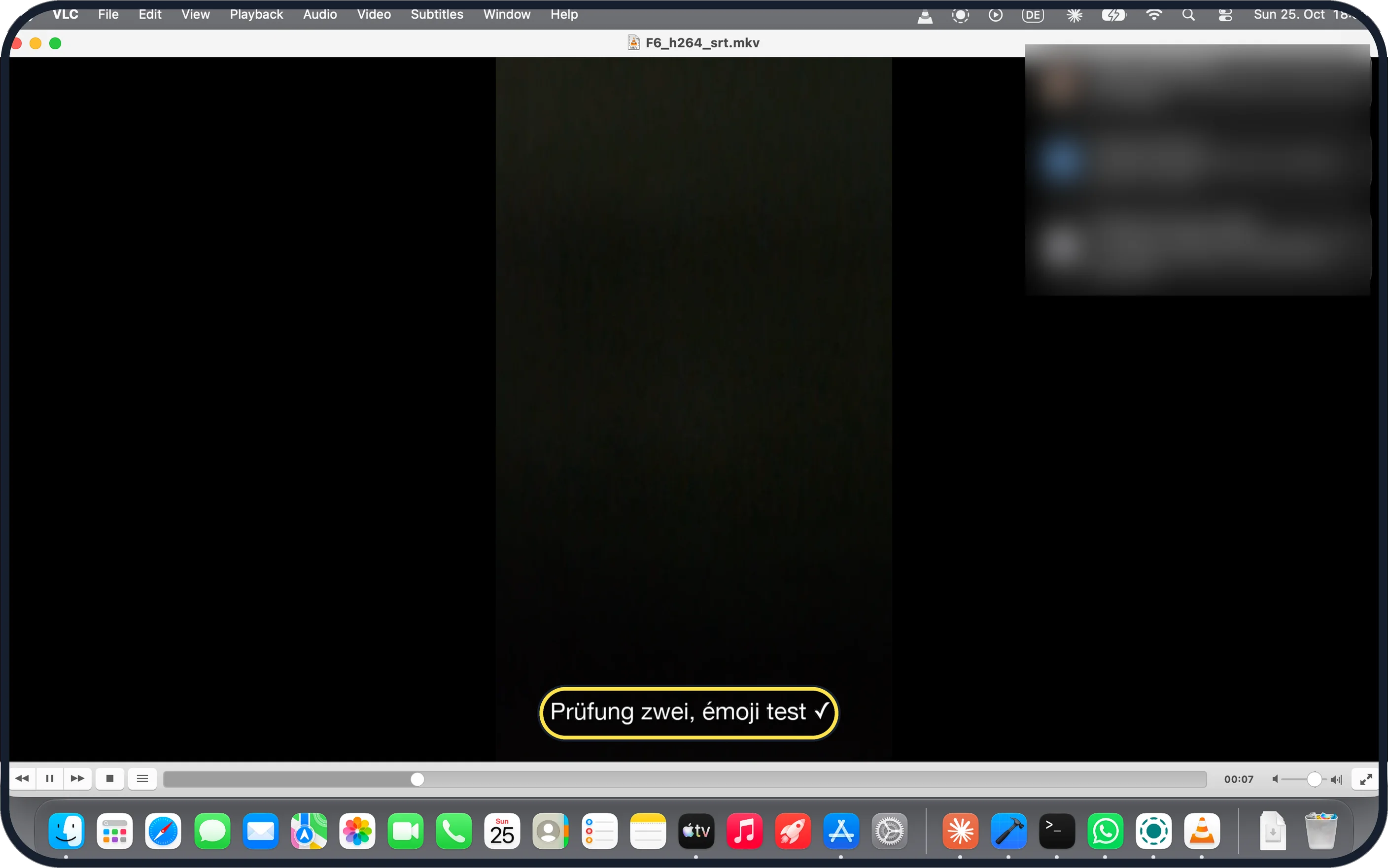
- Letters come out garbled? Save the .srt as UTF-8. Our screenshot shows ü, é and ✓ coming out right in VLC from a UTF-8 file.
About this guide
We loaded the same test.srt (114 bytes) and a styled test.ass into an MP4 in QuickTime Player, VLC and IINA. QuickTime had no menu item for it; VLC and IINA showed both files.
The screenshots are from our MacBook Neo with macOS 27.0.1, QuickTime Player 10.5, VLC 3.0.24 and IINA 1.5.0, in Dark mode, taken on 25 October 2026. The test clip is dark, so the picture looks almost black.
Good to know
To change the size or colour, see change the subtitle style on a Mac.
For MKV files QuickTime won't open, see play MKV files on a Mac.
In short: Open in VLC, Subtitles, Add Subtitle File, pick the .srt, Open.
Links checked in October 2026. Menus and features can change after software updates. These steps match the version named at the top.
📷 Camera Lab: the same 6 scenes photographed with 11 phones, side by side.
Did this guide work for you?
Sorry about that. What happened?