
macOS 27 compared with macOS 26: We rewrote this guide on macOS 27.0.1 (MacBook Neo): it now has 6 steps instead of 8. The macOS 26 page keeps the steps and screenshots as they were.
howtosimply.com/guides/macbook-battery-draining-fast-8-ways-to-make-it-last/ · Checked October 2026 · MacBook Neo · macOS 27.0.1
In this guide
Open Activity Monitor, click Energy and quit apps you do not need. Lower the screen brightness, set Low Power Mode under System Settings, Battery, and check Battery Health on the same page. Disconnect accessories you are not using.
6 of 6 steps with real screenshots · 2 official sources below
- Device
- Mac
- Shown on
- macOS 27.0.1 (MacBook Neo)
- App
- System Settings
- Real screenshots
- 6 of 6 steps
- Checked
- October 2026
- Sources
- 2 official, linked below
Step by step
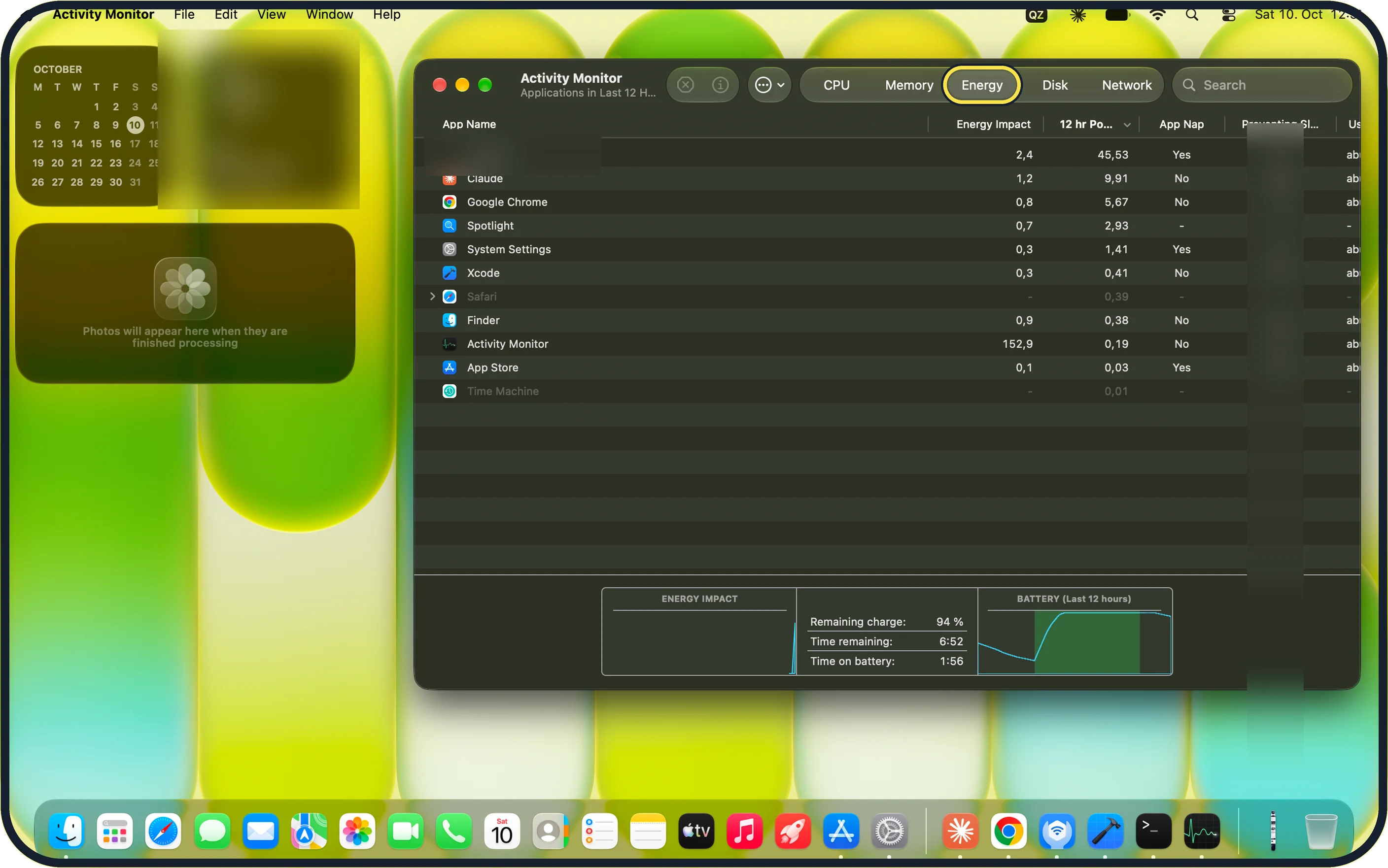
Zoomed in on the setting. Tap to see the whole screenTap the picture to see it full size Check Activity Monitor
Open Activity Monitor from Applications, Utilities, and click the Energy tab. Quit the apps you do not need: Apple's macOS 27 guide says even an app you are not using may be working in the background. On our MacBook Neo the tab lists Energy Impact, 12 hr Power and App Nap for each app.
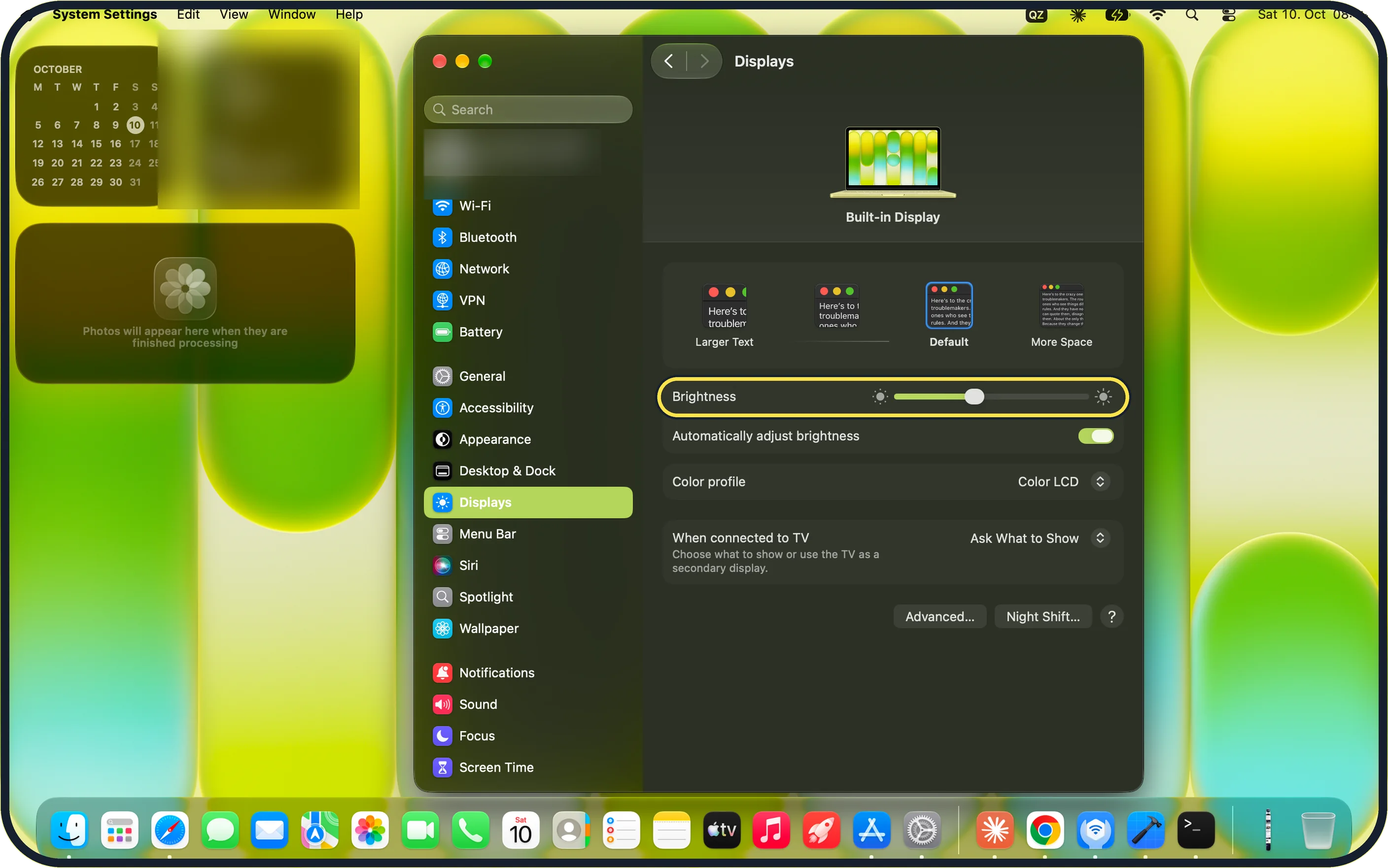
Zoomed in on the setting. Tap to see the whole screenTap the picture to see it full size Lower the brightness
Dim the display with the brightness keys or the Brightness slider under System Settings, Displays. On our MacBook Neo, Automatically adjust brightness is on, and the page has no True Tone row.
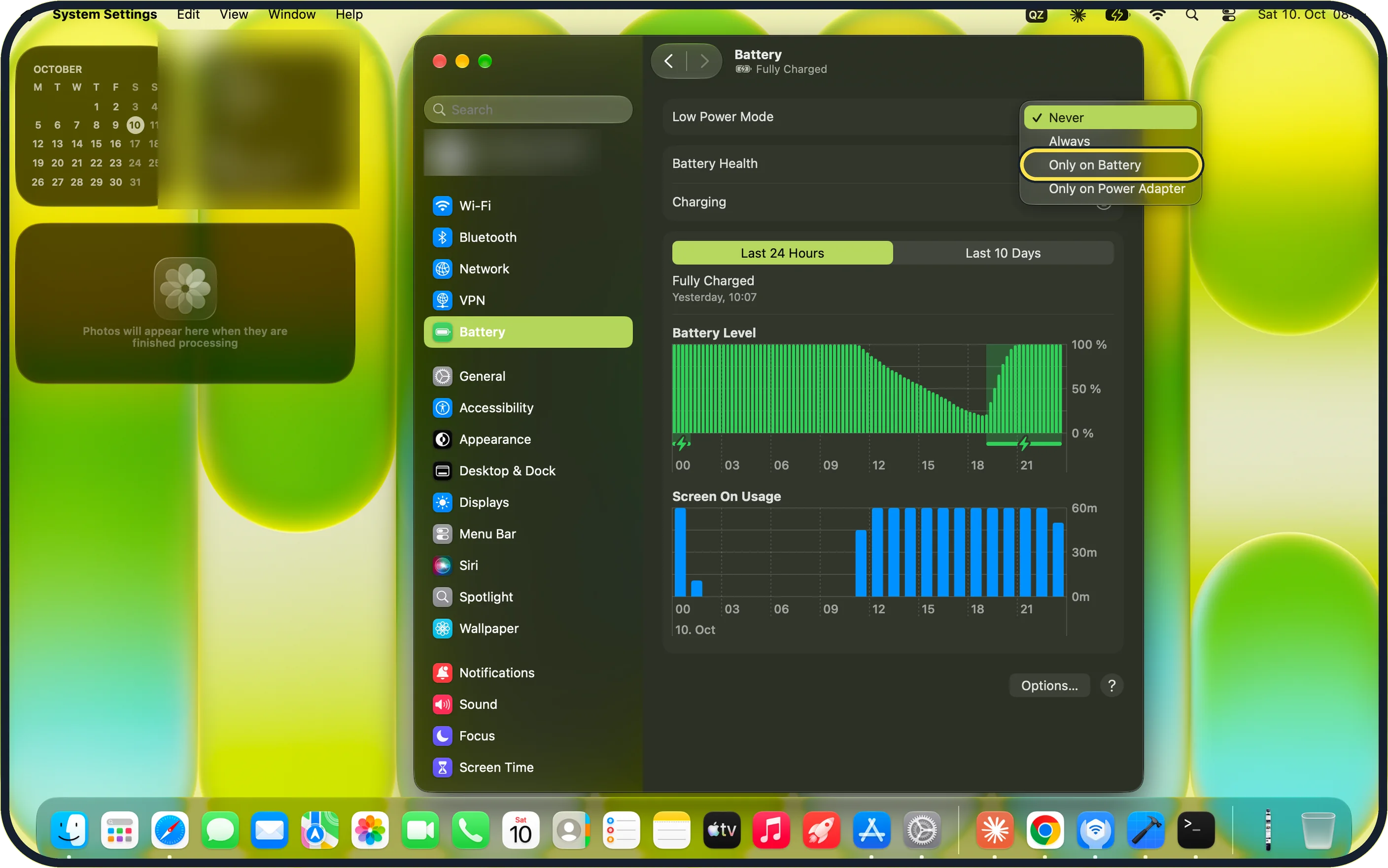
Zoomed in on the setting. Tap to see the whole screenTap the picture to see it full size Turn on Low Power Mode
Open System Settings, Battery, click the menu next to Low Power Mode and choose Always, Only on Battery or Only on Power Adapter. On our MacBook Neo it was set to Never.
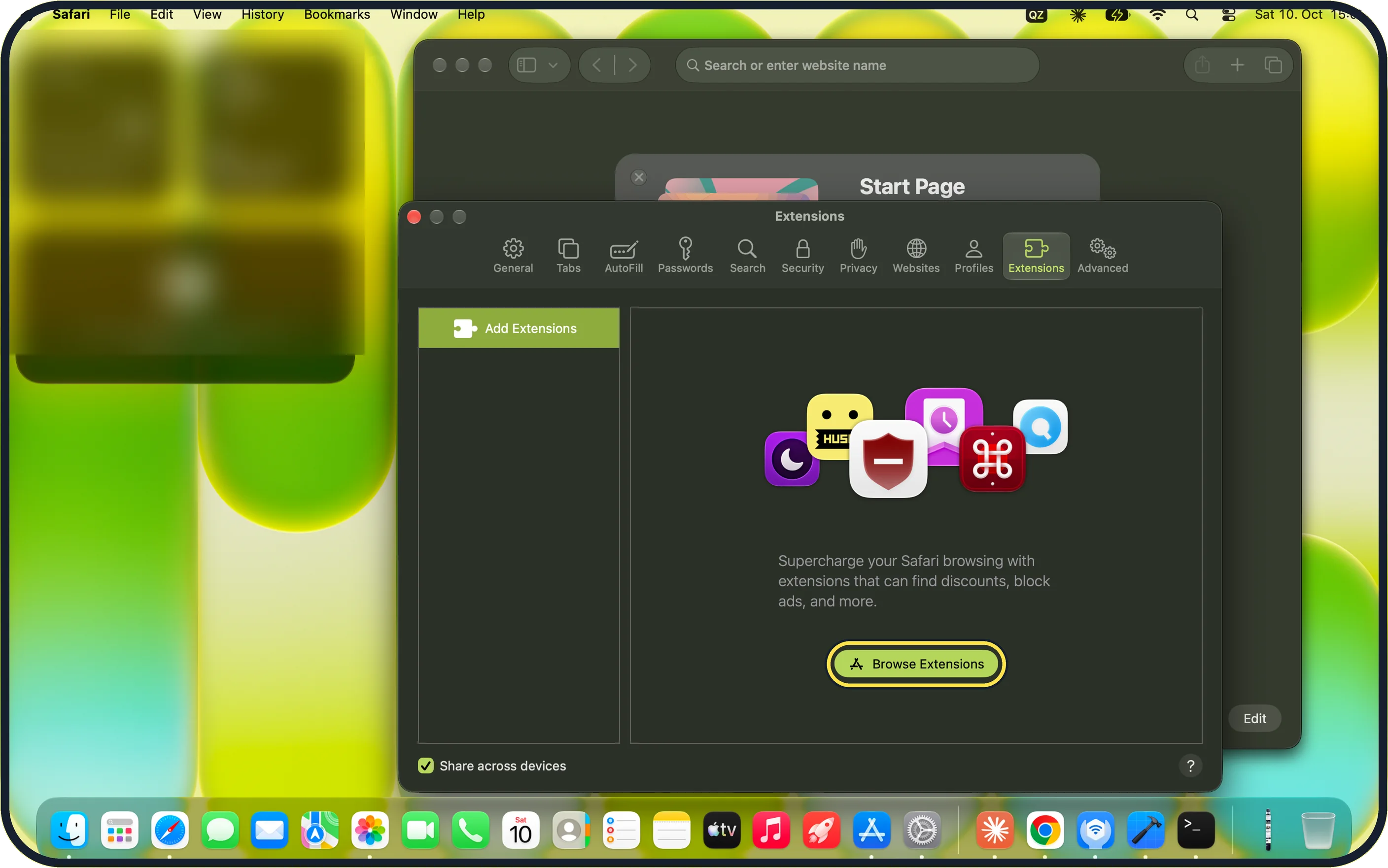
Zoomed in on the setting. Tap to see the whole screenTap the picture to see it full size Close browser tabs and extensions
Close the tabs you are not using. In Safari, choose Safari, Settings, Extensions and remove extensions you do not need. Our MacBook Neo has none installed: the tab shows Browse Extensions.
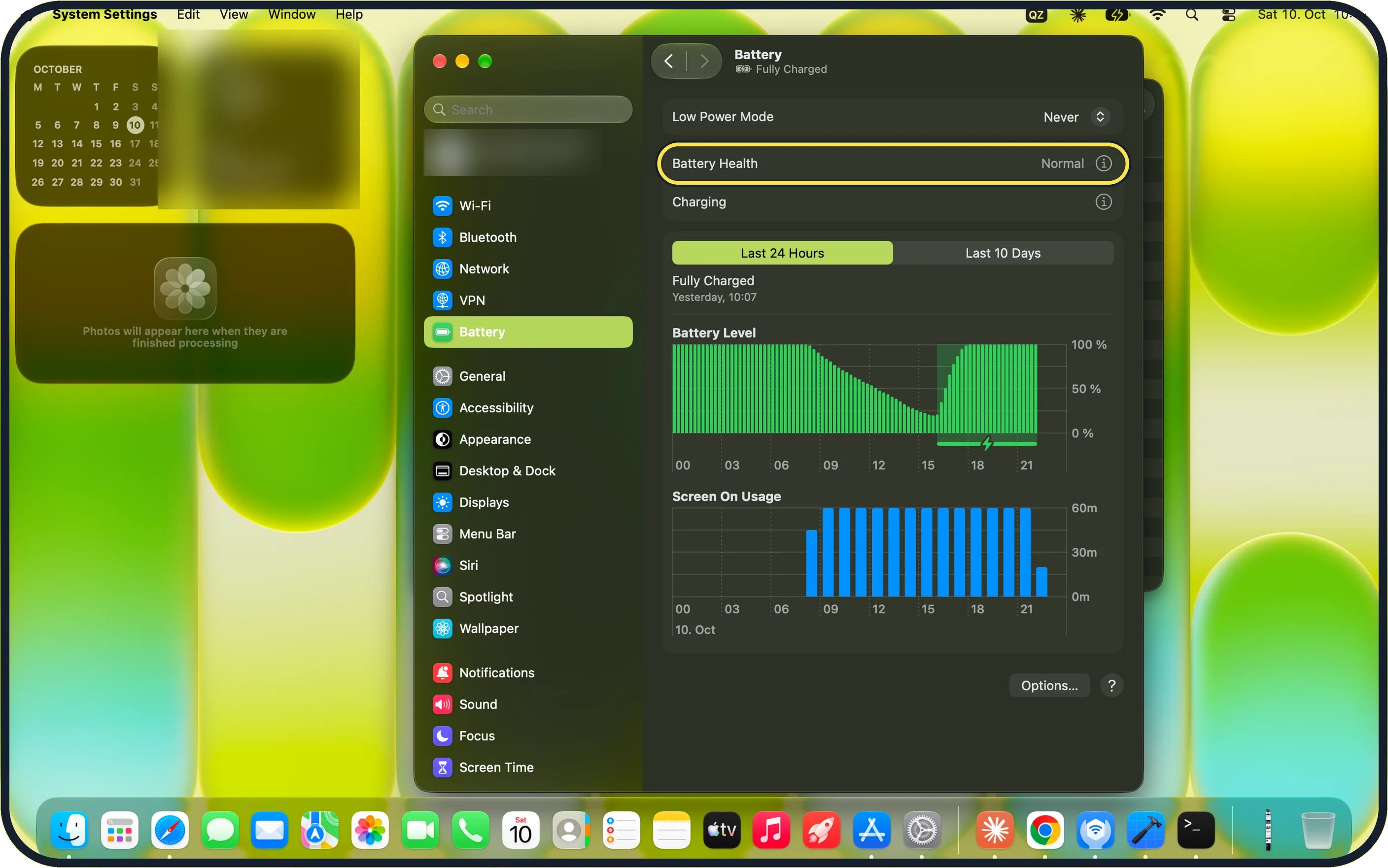
Zoomed in on the setting. Tap to see the whole screenTap the picture to see it full size Check battery health
In System Settings, Battery, click the (i) next to Battery Health. Our MacBook Neo shows Battery Health: Normal. More: how to check battery health on a MacBook.
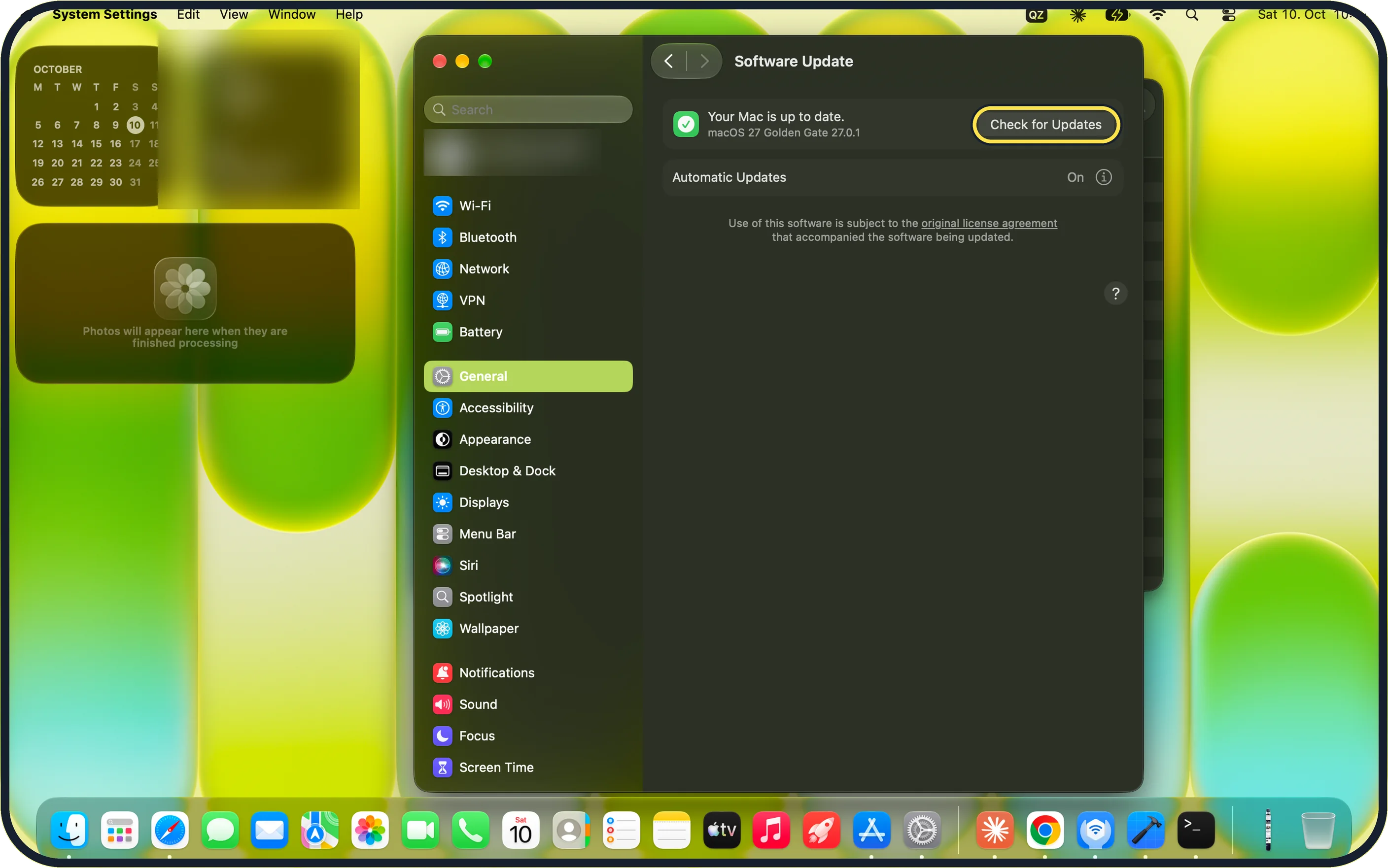
Zoomed in on the setting. Tap to see the whole screenTap the picture to see it full size Update macOS and restart
Open System Settings, General, Software Update, click Check for Updates and install what is offered, then choose Apple menu, Restart…. Our MacBook Neo shows Your Mac is up to date and Automatic Updates: On.
If you do not see this option
- No apps listed in the battery menu If the battery menu in the menu bar lists no apps, use Activity Monitor's Energy tab instead: on our MacBook Neo it lists Energy Impact and 12 hr Power for each app (step 1).
- No True Tone switch Our MacBook Neo's Displays page shows Brightness and Automatically adjust brightness, but no True Tone row.
If this does not work
- The battery still drains Sort Activity Monitor's Energy tab by 12 hr Power: on our MacBook Neo that column covers the apps of the last 12 hours, so it shows what ran while you were away.
- Battery Health is not Normal Click the (i) next to Battery Health for details; our MacBook Neo shows Normal. For anything else, ask Apple or an authorised service provider to test the battery.
About this guide
When a MacBook that used to last all day is empty by lunch, check which apps use energy and what the battery settings say.
Screenshots: MacBook Neo, macOS 27.0.1, dark mode.
Good to know
Apple's macOS 27 guide also says to disconnect accessories you are not using, such as external drives, and to turn off Bluetooth and Wi-Fi when you do not need them.
Under System Settings, Lock Screen you set how soon the display turns off on battery when the Mac is inactive.
In short: Battery icon for hungry apps, dim the screen, Low Power Mode, check battery health.
- Apple Support: Check the condition of your Mac laptop battery
- Apple Support: View information about Mac processes in Activity Monitor
Links checked in October 2026. Menus and features can change after software updates. These steps match the version named at the top.
Did this guide work for you?
Sorry about that. What happened?