
macOS 27 compared with macOS 26: We rewrote this guide on macOS 27.0.1 (MacBook Neo): it now has 4 steps instead of 7. The macOS 26 page keeps the steps and screenshots as they were.
howtosimply.com/guides/airdrop-not-working-on-a-mac-7-fixes-to-try/ · Checked October 2026 · MacBook Neo · macOS 27.0.1
In this guide
Bring the two devices within 10 metres, switch on Wi-Fi and Bluetooth on both, and check who may send to you under System Settings, General, AirDrop & Continuity. If the other device still does not appear, restart both devices.
4 of 4 steps with real screenshots · 1 official source below
- Device
- Mac
- Shown on
- macOS 27.0.1 (MacBook Neo)
- App
- System Settings
- Real screenshots
- 4 of 4 steps
- Checked
- October 2026
- Sources
- 1 official, linked below
Step by step
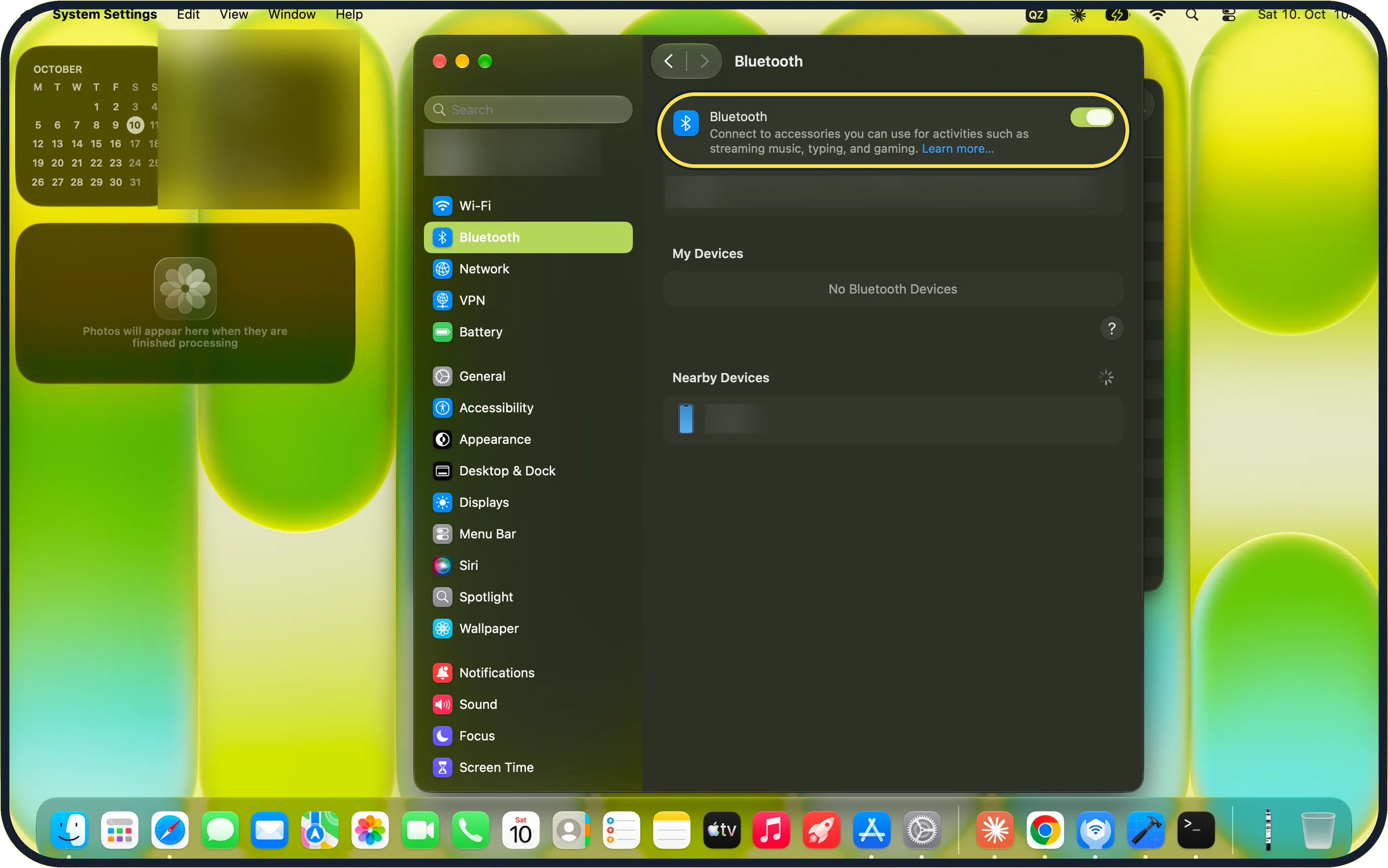
Zoomed in on the setting. Tap to see the whole screenTap the picture to see it full size Switch on Wi-Fi and Bluetooth on both
Apple's macOS 27 guide: both devices need Wi-Fi and Bluetooth on and must be within 10 metres. Open System Settings, Bluetooth and check the switch: on our MacBook Neo it is on. Wi-Fi is the row above it in the sidebar.
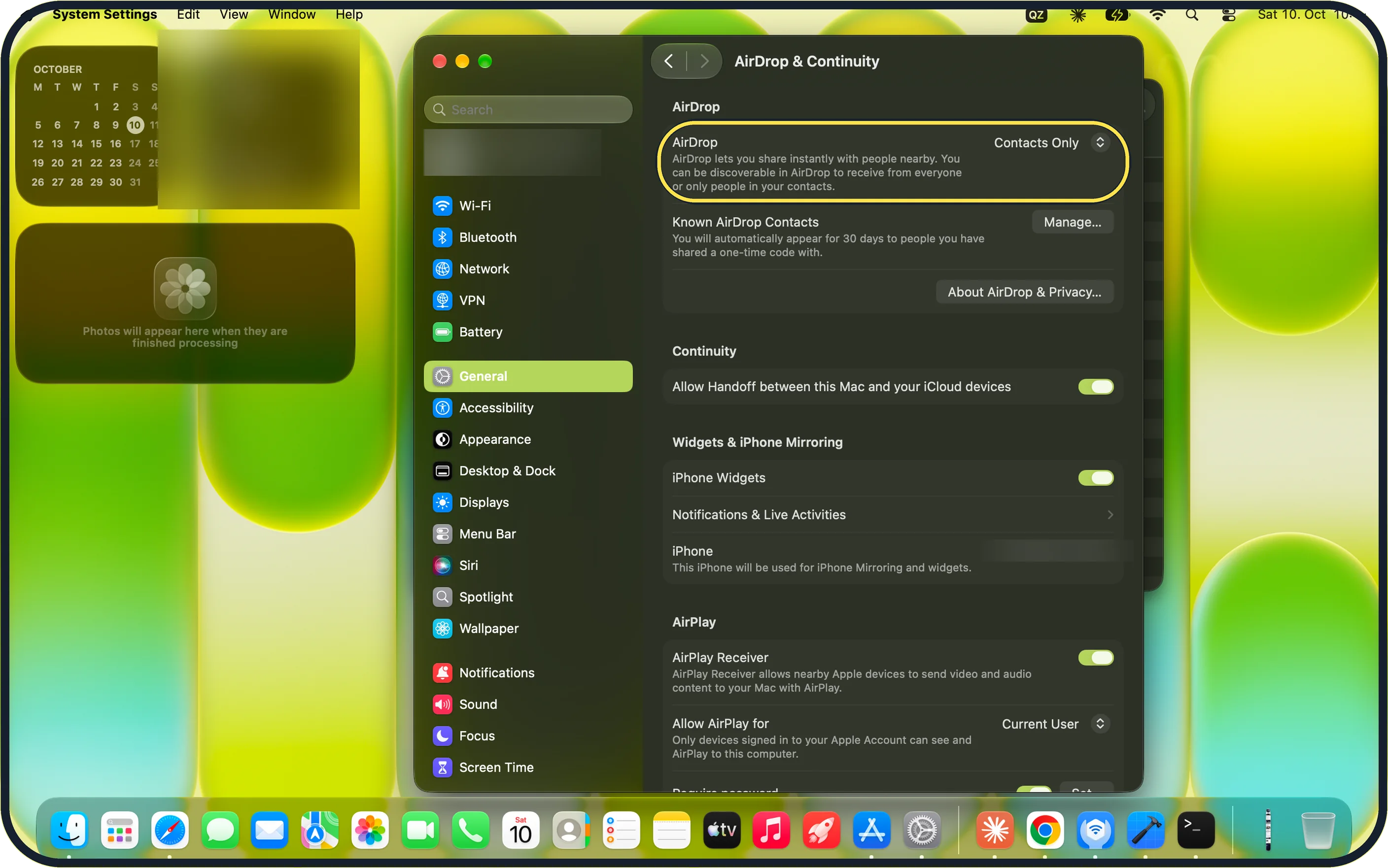
Zoomed in on the setting. Tap to see the whole screenTap the picture to see it full size Choose who can send to you
Open System Settings, General, AirDrop & Continuity and set AirDrop to Contacts Only or Everyone on the device that receives. On our MacBook Neo it is set to Contacts Only.
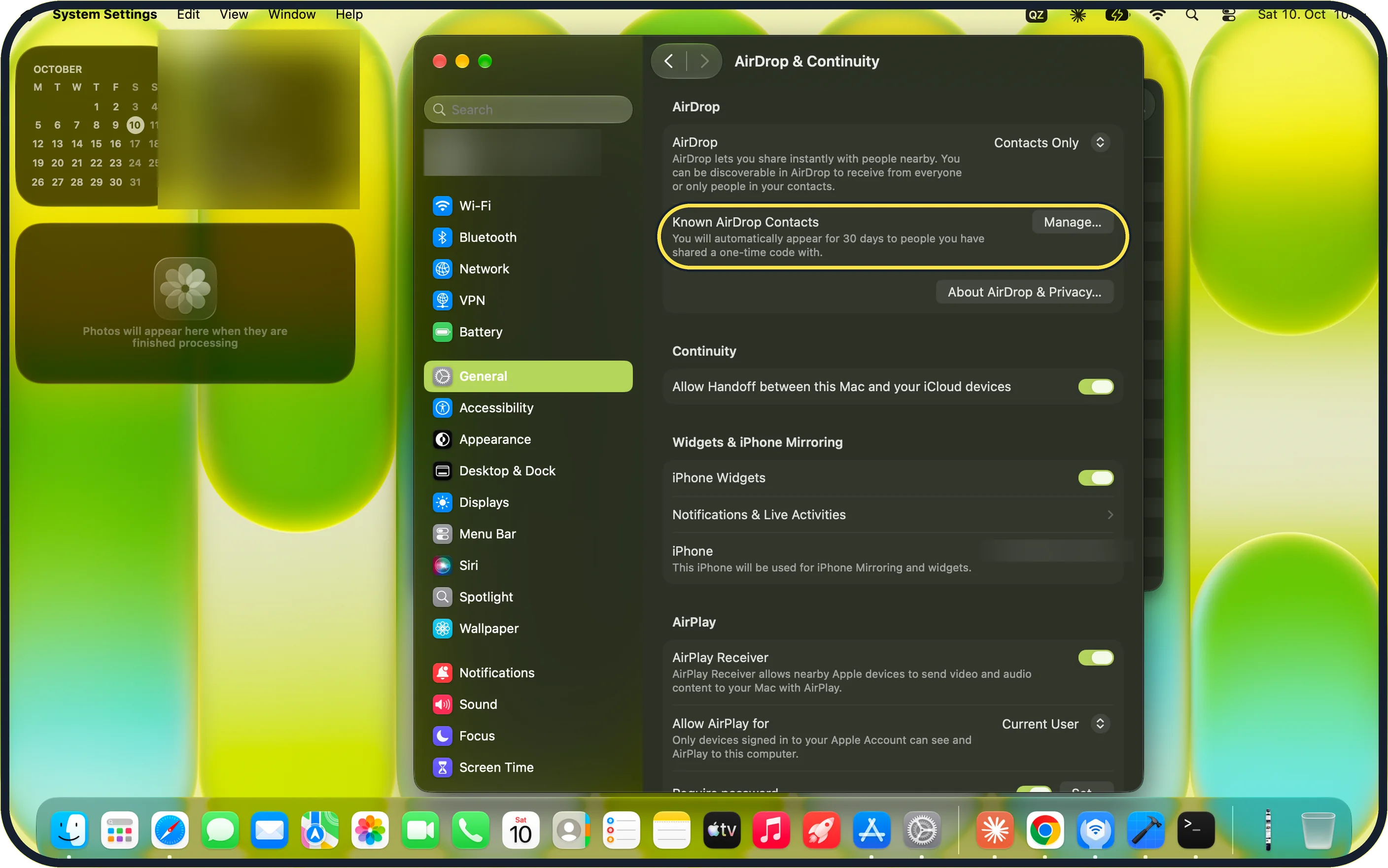
Zoomed in on the setting. Tap to see the whole screenTap the picture to see it full size Check the contact card if you use Contacts Only
With Contacts Only, Apple's guide says you must be in the receiver's contacts, with your Apple Account email address or phone number in your contact card. Our MacBook Neo also lists Known AirDrop Contacts: you appear for 30 days to people you have shared a one-time code with.
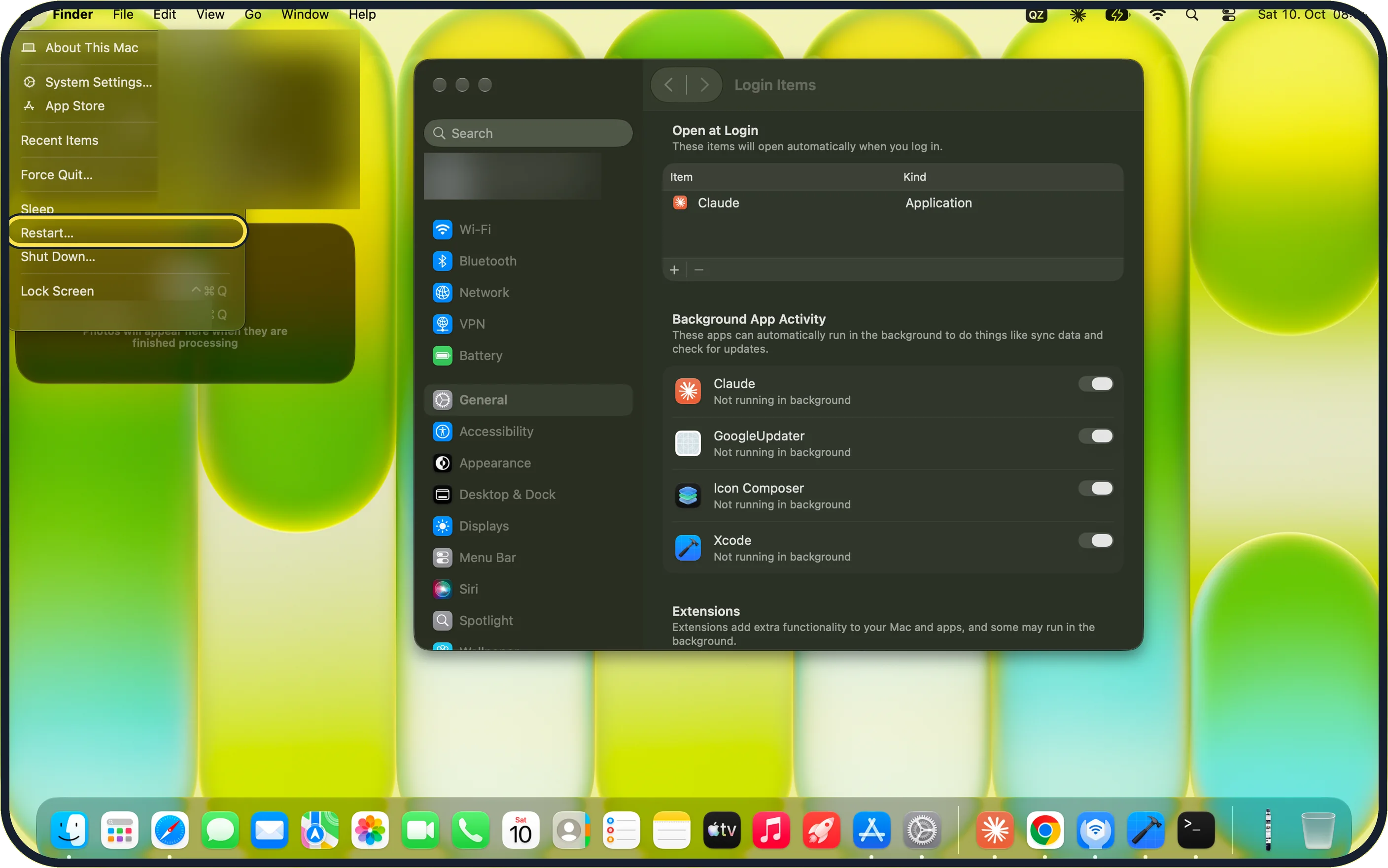
Zoomed in on the setting. Tap to see the whole screenTap the picture to see it full size Restart both devices
Apple's last step: restart your device and try again. On the Mac, choose Apple menu, Restart…; on our MacBook Neo it sits between Sleep and Shut Down….
If you do not see this option
- No AirDrop button in Control Centre Apple's macOS 27 guide: click Control Centre in the menu bar, then AirDrop; it is blue when on. The same choice is under System Settings, General, AirDrop & Continuity, where our MacBook Neo showed Contacts Only (step 2). Source: Use AirDrop to send items to nearby Apple devices
- The sender is asked for an AirDrop code Apple's macOS 27 guide: someone who is not in your contacts must use an AirDrop code. Our MacBook Neo lists such people under Known AirDrop Contacts, with a Manage… button. Source: Use AirDrop to send items to nearby Apple devices
If this does not work
- The other device is still missing Put the devices side by side, and wake and unlock the iPhone or iPad. Apple's guide also says both must be an iPhone, iPad or Mac with Wi-Fi and Bluetooth on. Source: Use AirDrop to send items to nearby Apple devices
- The transfer stops when you walk away Apple's macOS 27 guide says a transfer that has started continues over the internet if you leave Bluetooth or Wi-Fi range. Source: Use AirDrop to send items to nearby Apple devices
About this guide
AirDrop sends files between Apple devices nearby. When the other device does not show up, check the switches on both devices first.
Screenshots: MacBook Neo, macOS 27.0.1, dark mode.
Good to know
On a Mac, Apple's macOS 27 guide says some items are saved in the Downloads folder, and some let you choose where to save them.
If you switched to Everyone for a transfer, you can set AirDrop back to Contacts Only or No One afterwards.
How sending works: how to use AirDrop on a Mac and how to use AirDrop on an iPhone.
If Bluetooth itself is the problem: Mac Bluetooth not working: 7 fixes to try.
In short: Close together, Wi-Fi and Bluetooth on, AirDrop on, receiving set to Contacts Only or Everyone, restart.
Links checked in October 2026. Menus and features can change after software updates. These steps match the version named at the top.
Did this guide work for you?
Sorry about that. What happened?