
What changed: every step re-shot on our own Galaxy S26 (Korean model SM-S942N) on One UI 9, dark mode, with the steps rewritten for the One UI 9 screens.
howtosimply.com/guides/how-to-hide-apps-on-a-samsung-galaxy-phone/ · Checked October 2026 · SM-S942N, Korean model), One UI 9, Android 17 (build S942NKSS4BZIG · Samsung Galaxy S26
In this guide
Open Settings, Home screen, scroll down and tap Hide apps on Home and Apps screens. Tick the apps to hide and tap Done. To show an app again, open the same page, untick it under Hidden apps and tap Done.
6 of 6 steps with real screenshots · 1 official source below
- Device
- Android
- Shown on
- Samsung Galaxy S26 (SM-S942N, Korean model), One UI 9, Android 17 (build S942NKSS4BZIG)
- App
- Settings
- Path
- Settings › Home screen
- Real screenshots
- 6 of 6 steps
- Checked
- October 2026
- Sources
- 1 official, linked below
Step by step
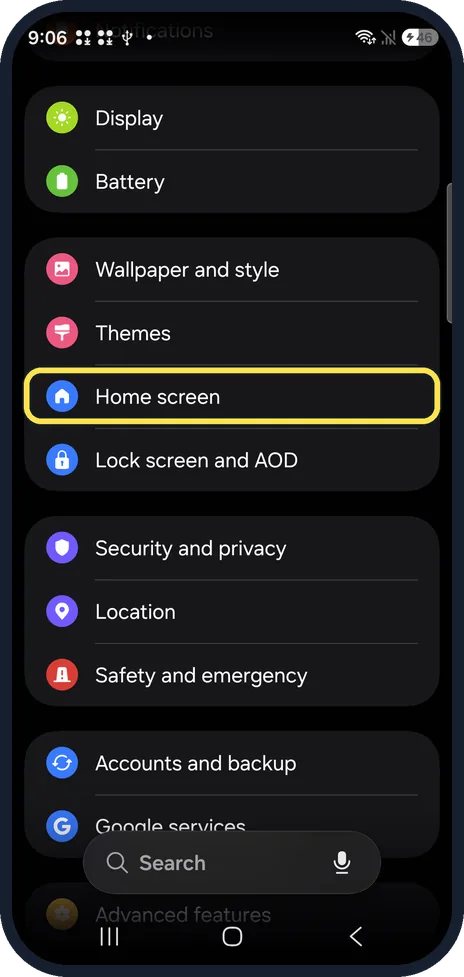
Open Home screen settings
Open Settings and tap Home screen.
Watch these steps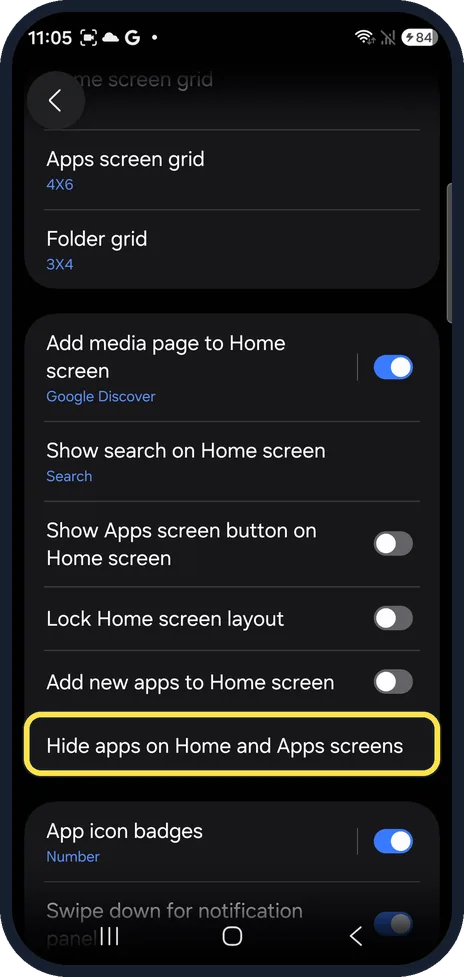
Tap Hide apps on Home and Apps screens
Scroll down below the grid options and Lock Home screen layout.
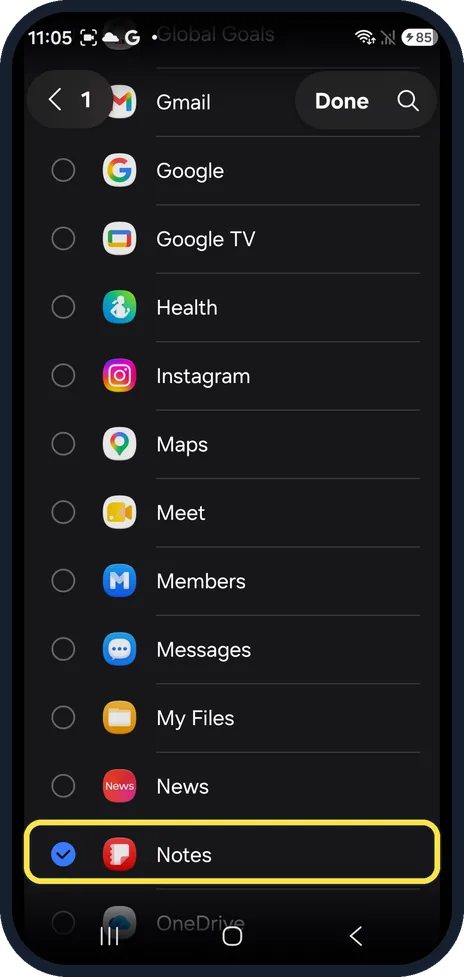
Tick the apps and tap Done
Tap the circle next to each app, then Done at the top right. We ticked Notes; it was gone from the Apps screen.
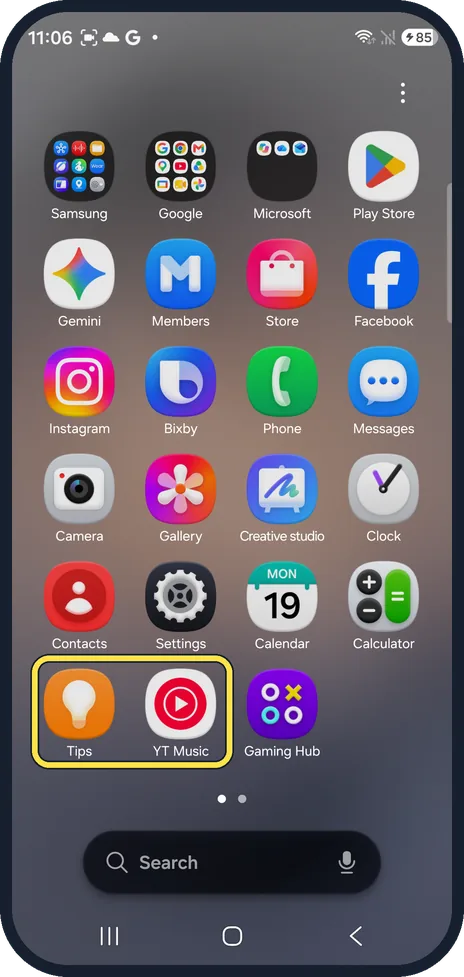
Check the Apps screen
Open the Apps screen. Notes was gone; Tips and YT Music now sat next to each other.
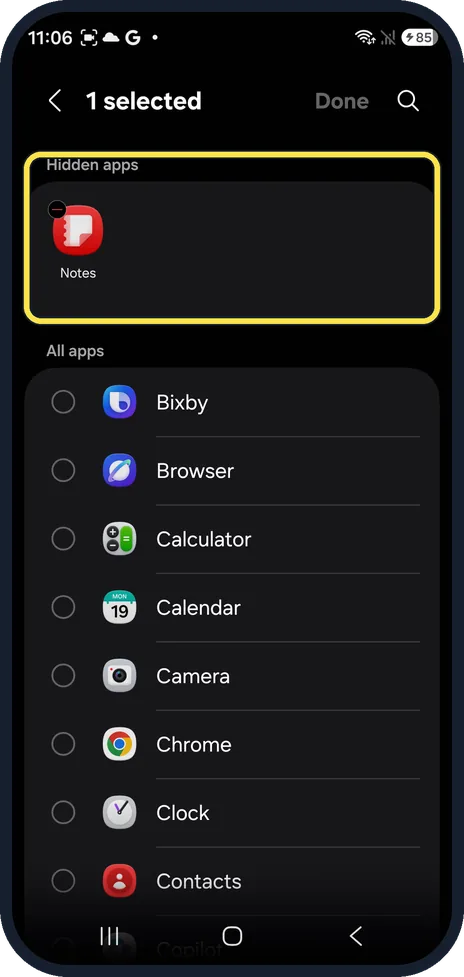
Show an app again
Open the same page. Hidden apps are listed at the top; untick one and tap Done.
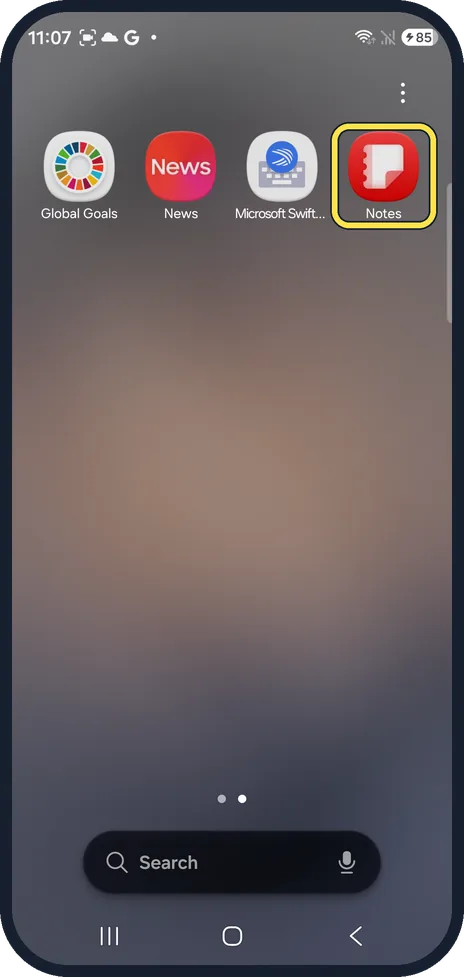
Find the app again
Shown again, Notes came back at the end of the last Apps page, not where it was before. Drag it back by hand.
What changed: every step re-shot on our own Galaxy S26 (Korean model SM-S942N) on One UI 9, dark mode, with the steps rewritten for the One UI 9 screens.
Watch these steps
If you do not see this option
- No Hide apps row On our S26 it is near the bottom of Home screen settings, below Add new apps to Home screen. Or tap Search in Settings and type Hide apps.
- You are on the Home screen Touch and hold an empty spot and tap Settings to open the same Home screen settings.
- On One UI 8.5 Our Galaxy A57 with One UI 8.5 had Hide apps on Home and Apps screens in the same place, below the grid options.
If this does not work
- Someone can still find the app Hiding does not lock it: the app still shows in Settings, Apps and in search.
- The app is still on the Home screen Hide apps removes it from both the Home and Apps screens; if a shortcut stays, touch and hold it and tap Remove.
About this guide
Hiding takes an app off the Home screen and out of the Apps screen without uninstalling it. It does not lock the app. For real privacy, use Secure Folder, which needs a screen lock.
The screenshots are from our Samsung Galaxy S26, the Korean model SM-S942N, with One UI 9 and Android 17 (build S942NKSS4BZIG), in Dark mode. Menus can differ on models sold in other regions. We hid the Notes app and showed it again.
Good to know
Secure Folder is under Settings, Security and privacy, More security settings.
In short: Settings, Home screen, Hide apps on Home and Apps screens, tick, Done. Untick under Hidden apps to show again.
Links checked in October 2026. Menus and features can change after software updates. These steps match the version named at the top.
📷 See real photos from the Galaxy S26 in our Camera Lab, next to 10 other phones.
Did this guide work for you?
Sorry about that. What happened?