
howtosimply.com/guides/how-to-keep-your-camera-settings-on-an-iphone/ · Checked October 2026 · iPhone 17e · iOS 27.0.1
In this guide
Open Settings, Apps, Camera, Preserve Settings and turn on what the Camera should remember, such as Camera Mode or Night Mode. Otherwise the Camera resets them each time. On our iPhone 17e only Portrait Zoom and Live Photo were on.
- Device
- iPhone
- Shown on
- iOS 27.0.1 (iPhone 17e)
- App
- Settings
- Path
- Settings › Apps › Camera › Preserve Settings
- Real screenshots
- 4 of 4 steps
- Checked
- October 2026
- Sources
- 1 official, linked below
Step by step
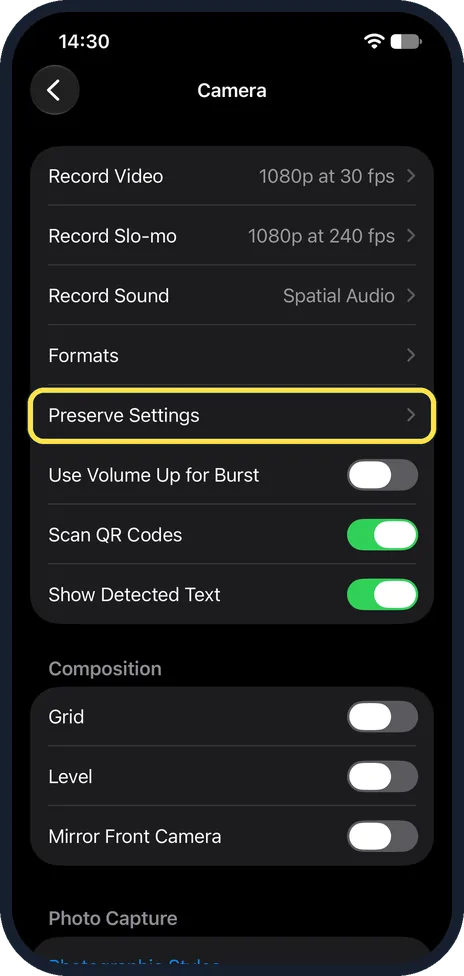
Tap Preserve Settings
Open Settings, Apps, Camera. Preserve Settings is below Record Video, Record Slo-mo, Record Sound and Formats.
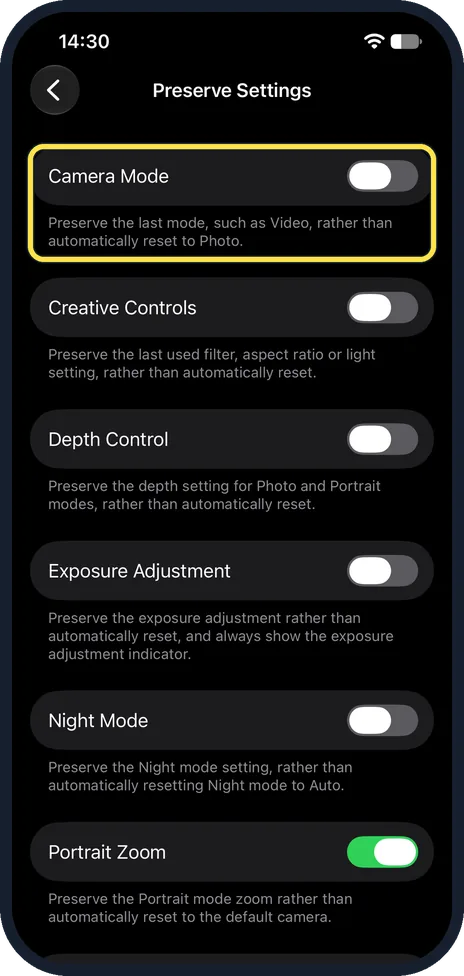
Keep the last mode
Camera Mode keeps the last mode, such as Video, rather than going back to Photo. It was off on ours, as were Creative Controls and Depth Control.
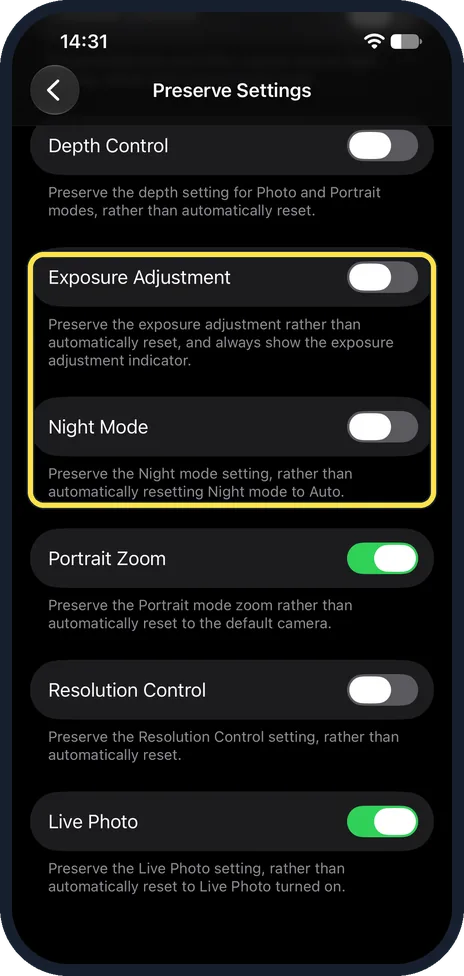
Keep Night mode and exposure
Further down: Exposure Adjustment keeps the exposure adjustment and always shows the exposure indicator, and Night Mode keeps your Night mode setting rather than resetting it to Auto. Both were off.
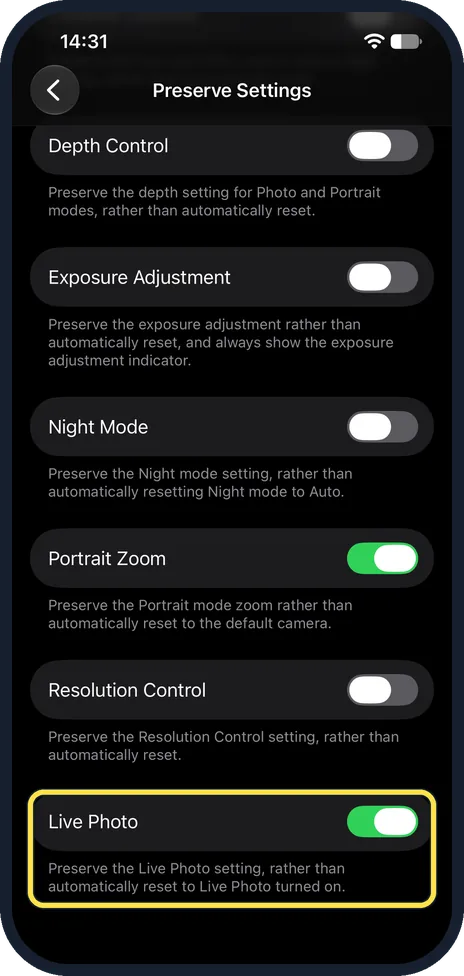
Keep Live Photo off
Live Photo keeps the Live Photo setting rather than turning it back on. With this switch on, turning Live Photo off in the Camera stays off. Portrait Zoom and Live Photo were on on ours.
If you do not see this option
- Fewer switches than Apple lists? Apple lists switches such as Photographic Style, Macro Control and ProRAW for some models. Our 17e had Camera Mode, Creative Controls, Depth Control, Exposure Adjustment, Night Mode, Portrait Zoom, Resolution Control and Live Photo. Source: Save camera settings on iPhone
- Looking for a shutter sound switch? Our 17e had none in Camera settings; Sounds & Haptics only mentions the camera shutter in its note on system sounds.
If this does not work
- The Camera still opens in Photo? Turn on Camera Mode in Preserve Settings. Source: Save camera settings on iPhone
- Live Photo keeps coming back? Turn on the Live Photo switch here, then turn Live Photo off once in the Camera. Source: Save camera settings on iPhone
About this guide
The Camera app normally opens in Photo mode with its default settings. Preserve Settings makes it remember your last choice instead.
The screenshots are from our iPhone 17e with iOS 27.0.1, in Dark mode. We looked at the switches and changed nothing.
Good to know
More Camera settings: turn on the grid and level and turn off lens correction. If the Camera fails: iPhone camera or flash not working.
In short: Settings, Apps, Camera, Preserve Settings: turn on what the Camera should remember.
Links checked in October 2026. Menus and features can change after software updates. These steps match the version named at the top.
Did this guide work for you?
Sorry about that. What happened?