
What changed: steps that look different now show our own iPhone 14 Pro on iOS 27.0.1, with the wording checked against that screen.
howtosimply.com/guides/how-to-turn-on-the-camera-grid-and-level-on-an-iphone/ · Checked October 2026 · iPhone 14 Pro · iOS 27.0.1
Open Settings, tap Camera, and under Composition switch on Grid and Level. The camera screen then displays a grid and a level that help you straighten and compose the shot. Both are off at first.
2 of 3 steps with real screenshots · 1 official source below
- Device
- iPhone
- Shown on
- iOS 27.0.1 (iPhone 14 Pro)
- App
- Settings
- Path
- Settings › Camera
- Real screenshots
- 2 of 3 steps
- Checked
- October 2026
- Sources
- 1 official, linked below
Step by step
Open Settings and tap Camera
Camera is in the first group of the main Settings list.
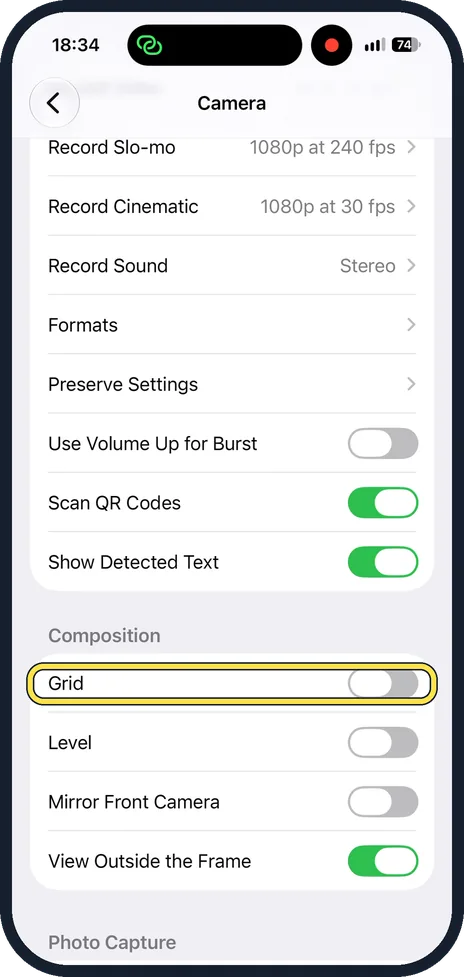
Switch on Grid
It is the first switch under the heading Composition.
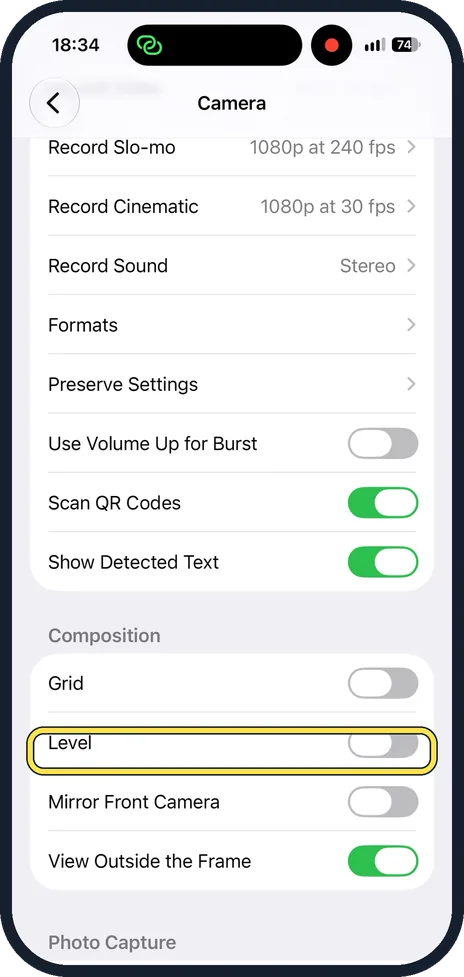
Switch on Level
Level is the row below Grid. You can switch on one of them or both.
What changed: steps that look different now show our own iPhone 14 Pro on iOS 27.0.1, with the wording checked against that screen.
About this guide
A crooked horizon is the most common flaw in a phone photo. The iPhone camera can display a grid or a level on the camera screen to help you straighten and compose your shot. The switches are in Settings, not in the Camera app.
Good to know
Open the Camera app afterwards to see them on the camera screen.
A photo that is still crooked can be fixed later: the editing tools in the Photos app can straighten a shot and adjust horizontal and vertical perspective.
In short: Settings, Camera, Grid on, Level on.
Links checked in October 2026. Menus and features can change after software updates. These steps match the version named at the top.
Did this guide work for you?
Sorry about that. What happened?