
What changed: the screenshots are now our own iPhone 17e on iOS 27.0.1, dark mode, and the wording is checked against those screens.
howtosimply.com/guides/how-to-turn-off-live-photos-on-an-iphone/ · Checked October 2026 · iPhone 17e · iOS 27.0.1
In this guide
Open the Camera app and tap the Live Photos button, the circles icon, so it shows a line through it. To keep it off, open Settings, Camera, Preserve Settings and switch on Live Photo.
5 of 5 steps with real screenshots · 1 official source below
- Device
- iPhone
- Shown on
- iOS 27.0.1 (iPhone 17e)
- App
- Camera
- Real screenshots
- 5 of 5 steps
- Checked
- October 2026
- Sources
- 1 official, linked below
Step by step
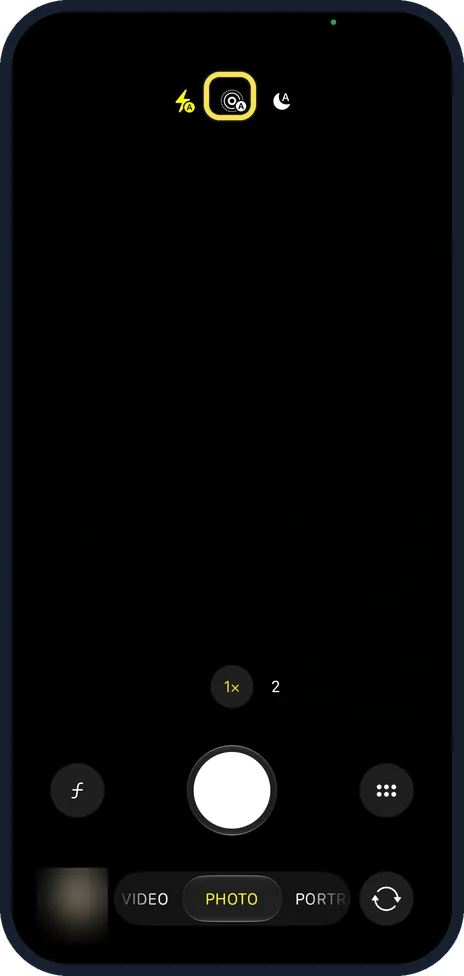
Open the Camera app
Use Photo mode. On our iPhone 17e with iOS 27.0.1 the Live Photos button sits in the row at the top, between the flash and Night mode buttons. Ours showed a small A, for Auto.
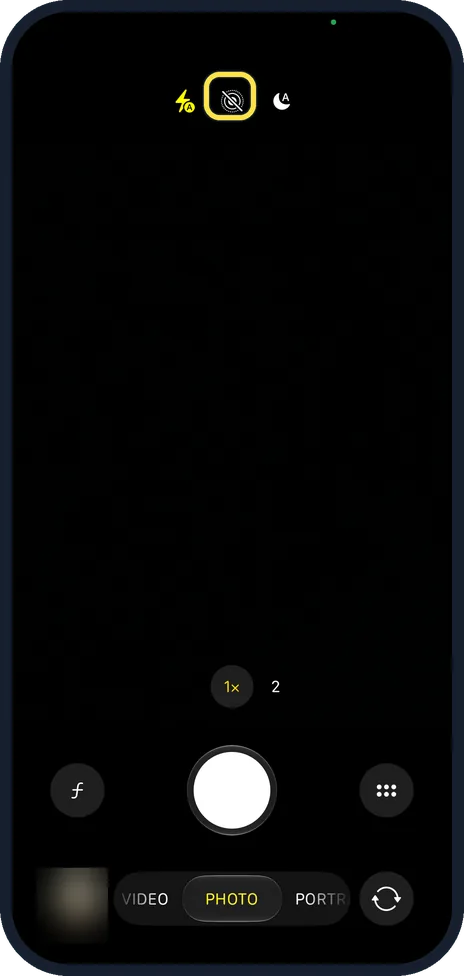
Tap the Live Photos button
It looks like a set of rings. On ours each tap switched between Auto and Off. A line through it means Live Photos are off.
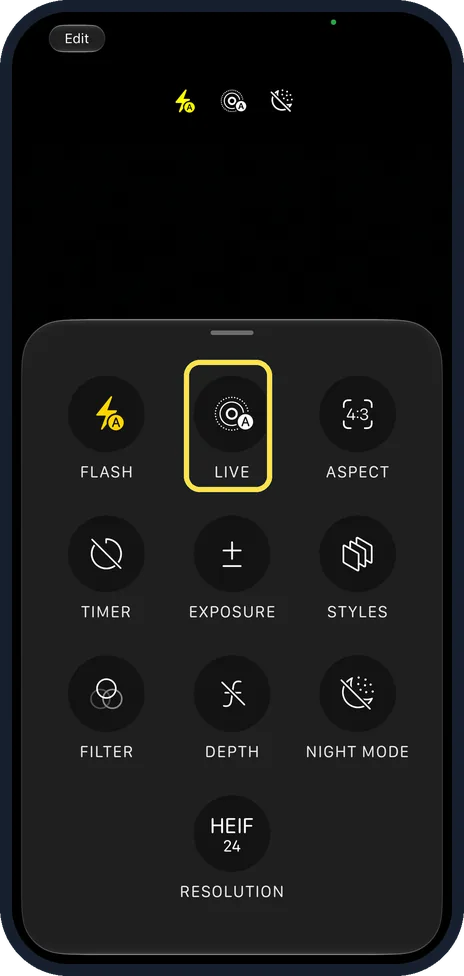
Or use the camera controls
Tap the button with six dots, to the right of the shutter, to open the camera controls. The LIVE tile there shows the same setting; ours read Auto.
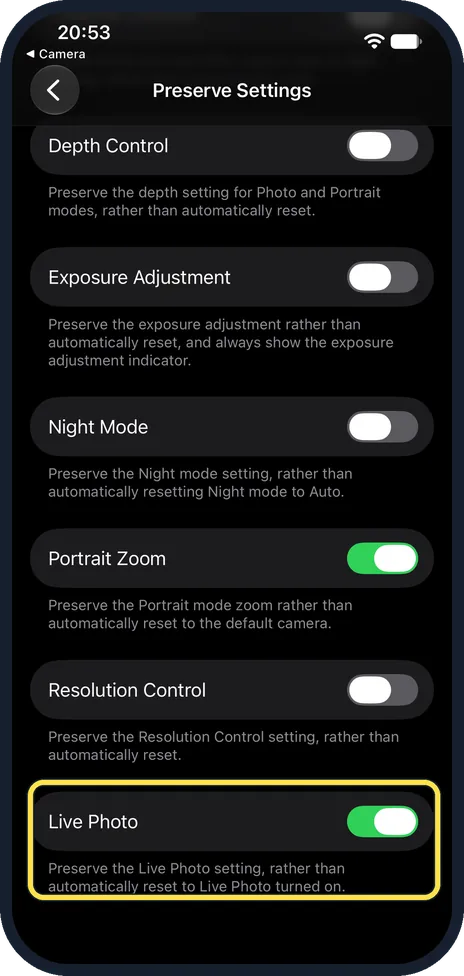
Make it stay off: Settings, Camera, Preserve Settings, Live Photo
Switch on Live Photo. The note under it reads: Preserve the Live Photo setting, rather than automatically reset to Live Photo turned on. Without it, the camera turns Live Photos back on the next time you open it. On ours it was already on.
Turn an existing Live Photo into a still
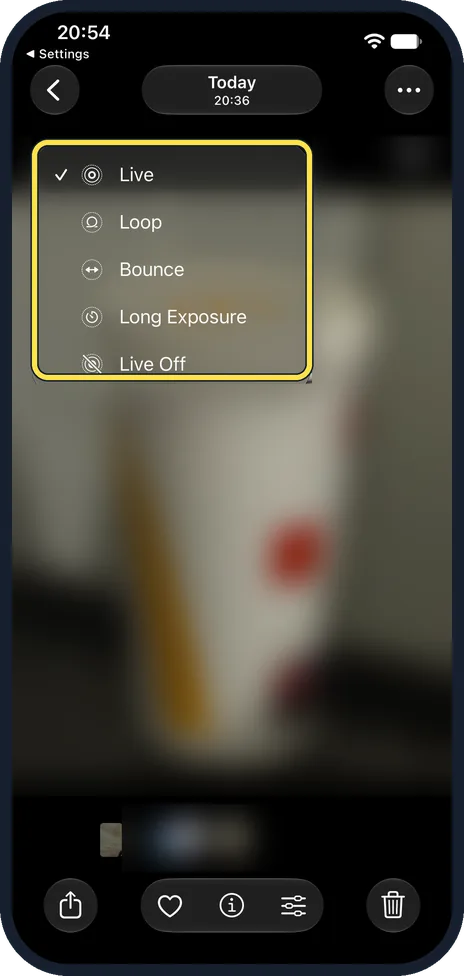
Open it in Photos and tap the Live label at the top left. Ours listed Live, Loop, Bounce, Long Exposure and Live Off. Tap Live Off.
What changed: the screenshots are now our own iPhone 17e on iOS 27.0.1, dark mode, and the wording is checked against those screens.
What we saw on our device
- Open the Camera app: On our iPhone 17e with iOS 27.0.1 the Live Photos button sits in the row at the top, between the flash and Night mode buttons.
- Open the Camera app: Ours showed a small A, for Auto.
- Tap the Live Photos button: On ours each tap switched between Auto and Off.
- Make it stay off: Settings, Camera, Preserve Settings, Live Photo: On ours it was already on.
- Turn an existing Live Photo into a still: Ours listed Live, Loop, Bounce, Long Exposure and Live Off.
If you do not see this option
- There is no Live Photos button at the top of the Camera. Tap the button with six dots next to the shutter and use the LIVE tile in the camera controls. Live Photos are only offered in Photo mode. Source: Take and edit Live Photos
- Live Photos come back each time you open the Camera. Preserve Settings, Live Photo, is off. Open Settings, Camera, Preserve Settings and switch it on, then turn Live Photos off in the Camera once more. Source: Take and edit Live Photos
About this guide
A Live Photo records a second and a half of video and sound before and after each picture. They take roughly twice the storage of a normal photo, and some people simply prefer stills.
The screenshots are our own, taken on an iPhone 17e running iOS 27.0.1, in dark mode. We blurred a brand logo in our own photo.
Good to know
Turning Live off for an existing photo does not free storage, because the video part is kept so you can turn it back on. To save space, duplicate the photo as a still and delete the original: tap the share button, Duplicate, Duplicate as Still Photo.
Live Photos are useful for moving subjects such as children and pets. You can pick a better frame afterwards with Edit, then the Live button.
When you share a Live Photo, tap the Live badge on the share sheet to send it as a still.
In short: Camera, tap the rings icon until it shows a line through it. Settings, Camera, Preserve Settings, Live Photo on to keep it off.
Links checked in October 2026. Menus and features can change after software updates. These steps match the version named at the top.
Did this guide work for you?
Sorry about that. What happened?