
howtosimply.com/guides/how-to-sort-apps-alphabetically-on-a-samsung-galaxy/ · Checked October 2026 · Samsung Galaxy A57 5G (SM-A576B), One UI 8.5, Android 16
In this guide
Swipe up on the Home screen to open the Apps screen, tap the three dots at the top right, tap Sort and choose Alphabetical order. Custom order puts the apps back where you placed them by hand.
2 of 3 steps with real screenshots · 1 official source below
- Device
- Android
- Shown on
- Samsung Galaxy A57 5G (SM-A576B), One UI 8.5, Android 16
- Starts in
- Home screen
- Real screenshots
- 2 of 3 steps
- What we did
- Observed: looked at each screen, changed nothing
- Our phone
- Shown on Galaxy A57, One UI 8.5
- Checked
- October 2026
- Sources
- 1 official, linked below
Step by step
Open the Apps screen
Swipe up from the middle of the Home screen.
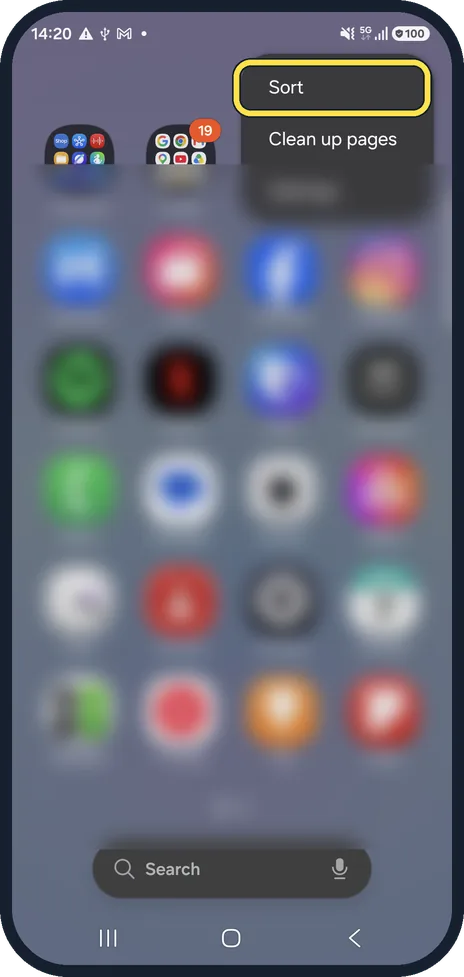
Tap the three dots at the top right, then Sort
The search bar is at the bottom of the screen on One UI 8.5. The menu also has Clean up pages, which closes gaps between apps, and Settings.
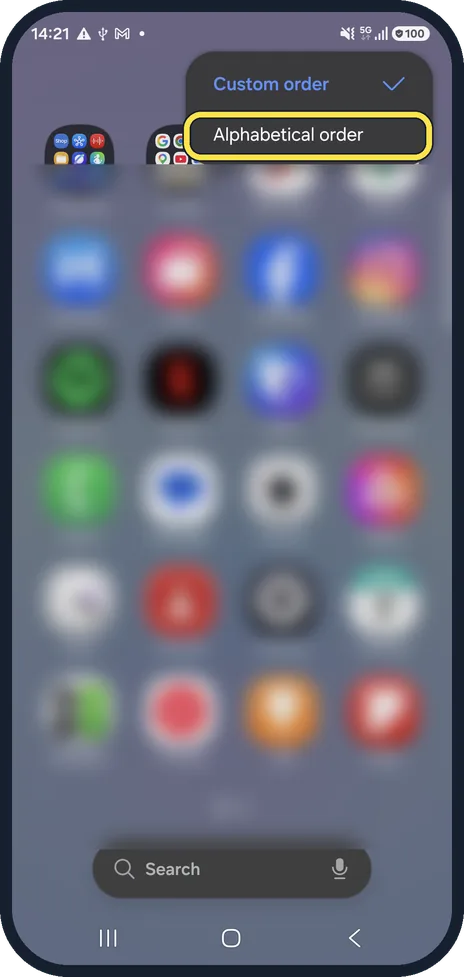
Choose Alphabetical order
The apps are sorted A to Z at once.
If you do not see this option
- There is no Apps screen With Home screen layout set to Home screen only, Samsung says every app sits on the Home screen and swiping up shows only suggested apps and a search bar. Change it back under Settings, Home screen, Home screen layout. Source: Access and organize the apps on your Galaxy phone
- You would rather have an Apps button Samsung says Settings, Home screen, Show Apps screen button on Home screen puts a button in the corner of the Home screen that opens the Apps screen. Source: Access and organize the apps on your Galaxy phone
If this does not work
- You want your own order back Samsung says Custom order is the default. Choose it in the same Sort menu. Source: Access and organize the apps on your Galaxy phone
- An app is missing from the list An app hidden with Hide apps on Home and Apps screens is not shown. Samsung says you can still open it by typing its name in the Apps screen search bar. Source: Access and organize the apps on your Galaxy phone
About this guide
New apps land at the end of the Apps screen, so after a while nothing is where you expect it. Alphabetical order fixes that in one tap. Ours was set to Custom order.
The app icons are blurred.
Good to know
Too many apps? how to hide apps on a Samsung Galaxy phone.
In short: Apps screen, three dots, Sort, Alphabetical order.
Links checked in October 2026. Menus and features can change after software updates. These steps match the version named at the top.
📷 See real photos from the Galaxy A57 in our Camera Lab, next to 10 other phones.
Did this guide work for you?
Sorry about that. What happened?