
What changed: new screenshots from our own Galaxy A57 on One UI 9, dark mode, with every step checked against those screens.
howtosimply.com/guides/how-to-hide-albums-in-samsung-gallery/ · Checked October 2026 · SM-A576B), One UI 9, Android 17 (build A576BXXU6BZIE · Samsung Galaxy A57
Open Gallery, tap Albums, the three dots and Hide albums. Switch on the albums you do not want to see in Gallery. Hidden albums can still appear in other apps; to hide photos from every app, move them to Secure Folder or your private album.
3 of 3 steps with real screenshots · 2 official sources below
- Device
- Android
- Shown on
- Samsung Galaxy A57 (SM-A576B), One UI 9, Android 17 (build A576BXXU6BZIE)
- App
- Gallery
- Path
- Gallery › Albums
- Real screenshots
- 3 of 3 steps
- What we did
- Observed: looked at each screen, changed nothing
- Checked
- October 2026
- Sources
- 2 official, linked below
Step by step
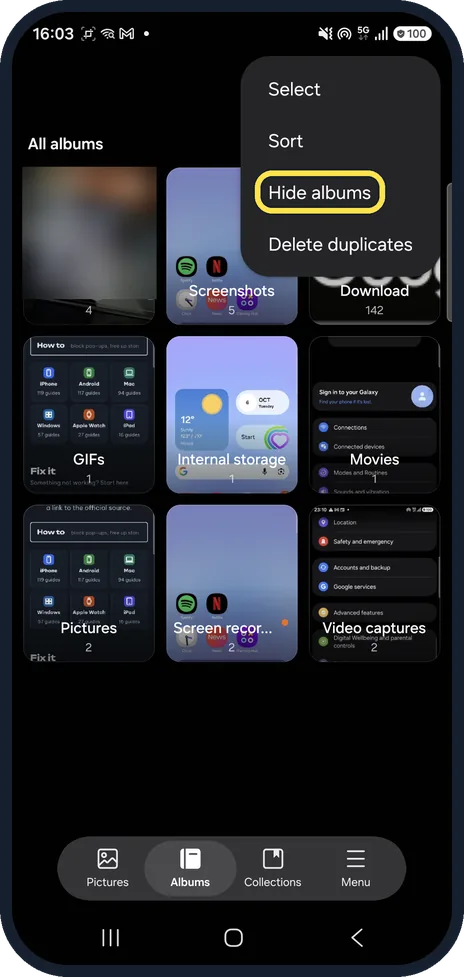
Open Hide albums
Open Gallery, tap Albums at the bottom, then the three dots and Hide albums.
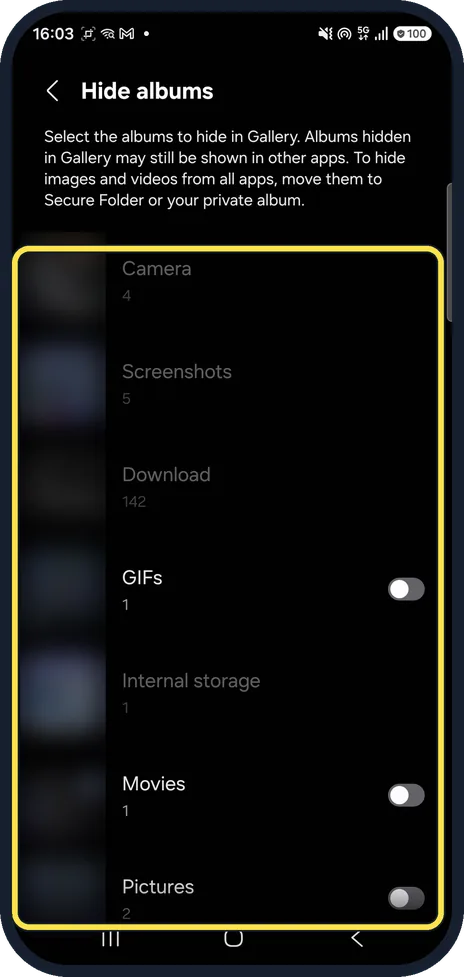
Choose the albums
Switch on the albums to hide and go back. Ours lists Camera, Screenshots, Download, GIFs, Internal storage, Movies and Pictures; some, such as Camera and Screenshots, have no switch. We changed nothing, and the album pictures are blurred.
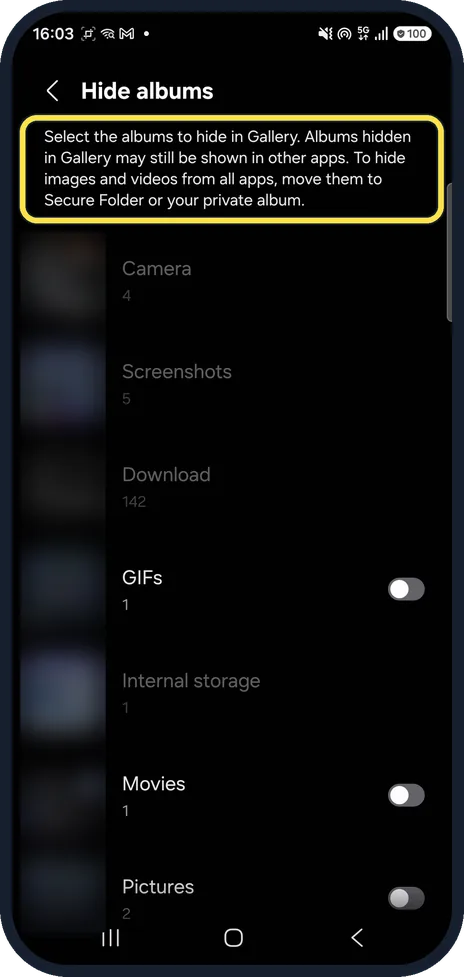
Know what hiding does
The note at the top of the same screen says it: albums hidden in Gallery may still be shown in other apps. To hide images and videos from all apps, move them to Secure Folder or your private album.
What changed: new screenshots from our own Galaxy A57 on One UI 9, dark mode, with every step checked against those screens.
About this guide
Hiding an album tidies Gallery; it does not lock or protect the photos.
The screenshots are from our Samsung Galaxy A57 with One UI 9 and Android 17 (build A576BXXU6BZIE), in Dark mode. The menus are the same as on One UI 8.5; only the note on the Hide albums page now also names the private album.
Good to know
To show an album again, open Hide albums and switch it off.
Samsung's help page describes the opposite way round, Select albums to show in Gallery settings; on our phone the option in the Albums menu is called Hide albums.
For photos nobody else should see, use Secure Folder, which needs a screen lock.
In short: Gallery, Albums, three dots, Hide albums, switch on the albums.
- Samsung Latin: How to select and view only the albums you want to see in Galaxy Gallery
- Samsung UK: How to select and view only the albums you want to see in Galaxy gallery
Links checked in October 2026. Menus and features can change after software updates. These steps match the version named at the top.
📷 See real photos from the Galaxy A57 in our Camera Lab, next to 10 other phones.
Did this guide work for you?
Sorry about that. What happened?