
howtosimply.com/guides/how-to-free-up-storage-on-a-nothing-phone/ · Checked October 2026 · 4a) Pro (A069P, EEA), Nothing OS 4.1, Android 16 (build FroggerPro-B4.1-260424-1447-EEA · Nothing Phone
In this guide
Open Settings, Storage to see what uses space. Turn on Storage manager to clear old photos automatically, or tap Free up space to open Files by Google and delete large or unused files.
3 of 3 steps with real screenshots · 3 official sources below
- Device
- Android
- Shown on
- Nothing Phone (4a) Pro (A069P, EEA), Nothing OS 4.1, Android 16 (build FroggerPro-B4.1-260424-1447-EEA), Nothing Phone (4a) Pro (A069P, EEA), Nothing OS 4.1, Android 16 (build FroggerPro-B4.1-260907-1153-EEA)
- App
- Settings
- Path
- Settings › Storage › Free up space
- Real screenshots
- 3 of 3 steps
- Checked
- October 2026
- Sources
- 3 official, linked below
Step by step
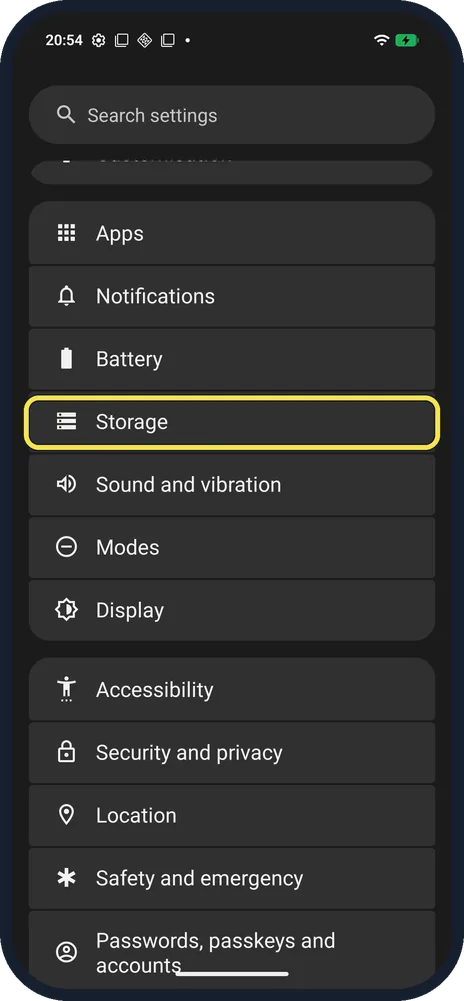
Open Storage
Open Settings and tap Storage; it is below Battery.
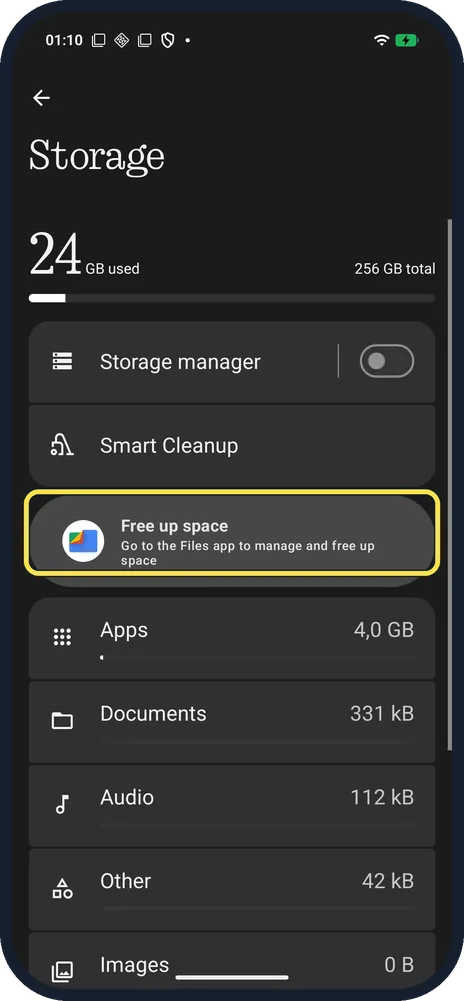
Tap Free up space
It opens the Files app to manage and free up space.
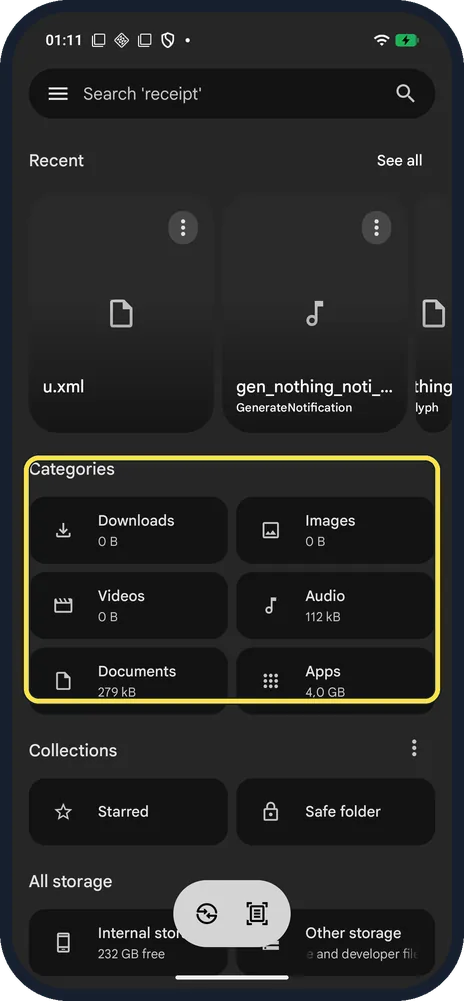
Clean up in Files
Browse Categories like Downloads, Images and Videos, and delete what you don't need.
If you do not see this option
- Want a quick check first? Smart Cleanup sits on the Storage page. Ours said: the phone is in good condition and needs no further handling.
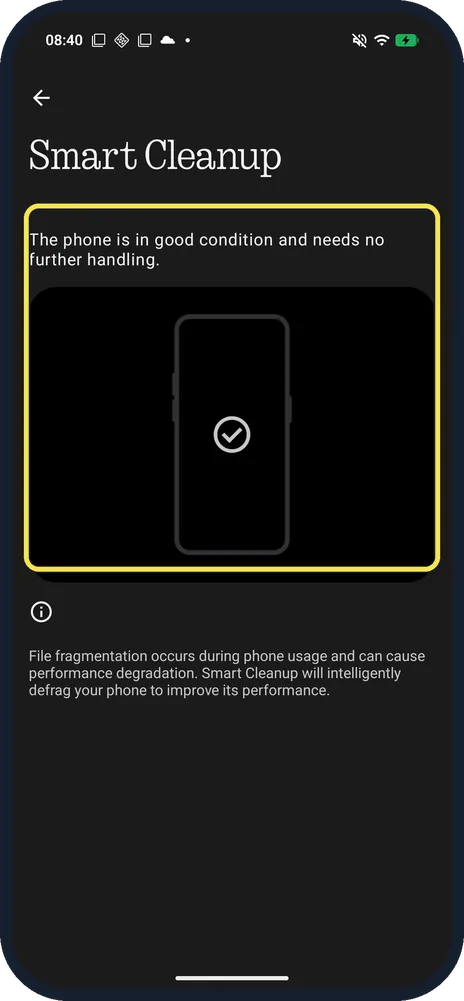
- No Clean button? Nothing's route is Settings, Storage, Free up space, Clean. To pick files yourself, Nothing says to open Clean, then Internal. Source: How do I clean up storage space?
- Prefer the Files app? Nothing says to swipe up to the app drawer, open Files and choose what to clean. Source: How do I clean up a file?
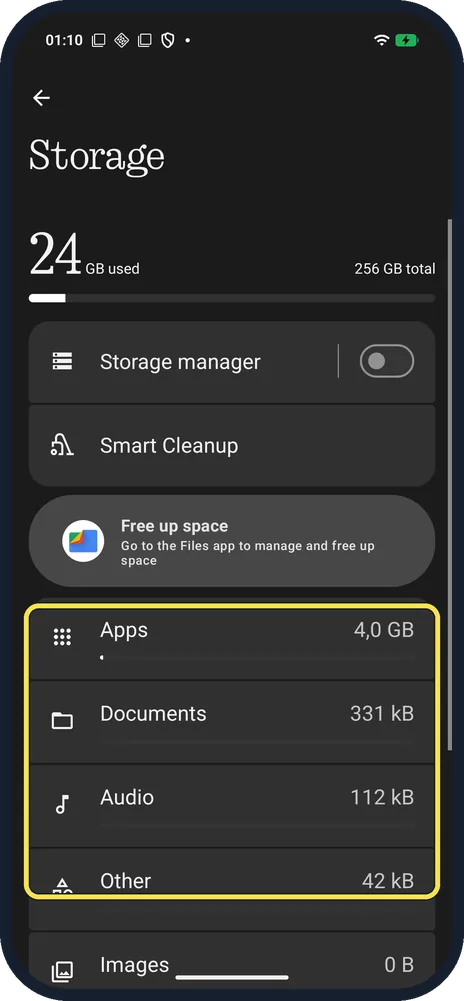
- Want to see what uses the space first? The Storage page lists it by type. Ours: Apps 4,0 GB, Documents 331 kB, Audio 112 kB, Other 42 kB.
If this does not work
- Thinking of a cleaner app? Nothing warns that third-party cleaning apps may cause power use and other problems. Source: How do I clean up a file?
- Apps take most of the space? Clear app cache, see the link below, or uninstall apps you don't use.
- Files says free space differs from Settings? Settings shows space used; Files shows space free. Ours: 24 GB used, 232 GB free.
About this guide
The screenshots are from our Nothing Phone (4a) Pro, the European model A069P, with Nothing OS 4.1 and Android 16 (build FroggerPro-B4.1-260907-1153-EEA, security update 1 September 2026), in Dark theme. Ours had 24 GB used of 256 GB; we deleted nothing.
The step 1 screenshot was taken earlier, on build FroggerPro-B4.1-260424-1447-EEA.
Good to know
To clear one app's temporary files, clear app cache.
Before selling the phone, factory reset it.
In short: Settings, Storage, Free up space.
- Nothing Support: How do I clean up storage space?
- Nothing Support: How do I clean up a file?
- Google Android Help: Free up space
Links checked in October 2026. Menus and features can change after software updates. These steps match the version named at the top.
Did this guide work for you?
Sorry about that. What happened?