
howtosimply.com/guides/how-to-clear-app-cache-on-a-nothing-phone/ · Checked October 2026 · 4a) Pro (A069P, EEA), Nothing OS 4.1, Android 16 (build FroggerPro-B4.1-260424-1447-EEA · Nothing Phone
In this guide
Open Settings, Apps, See all apps, tap the app, then Storage and cache, and tap Clear cache. Chrome's cache on ours went from 295 kB to 0 byte; your data and logins stay.
6 of 6 steps with real screenshots · 3 official sources below
- Device
- Android
- Shown on
- Nothing Phone (4a) Pro (A069P, EEA), Nothing OS 4.1, Android 16 (build FroggerPro-B4.1-260424-1447-EEA)
- App
- Settings
- Path
- Settings › Apps › See all apps
- Real screenshots
- 6 of 6 steps
- Checked
- October 2026
- Sources
- 3 official, linked below
Step by step
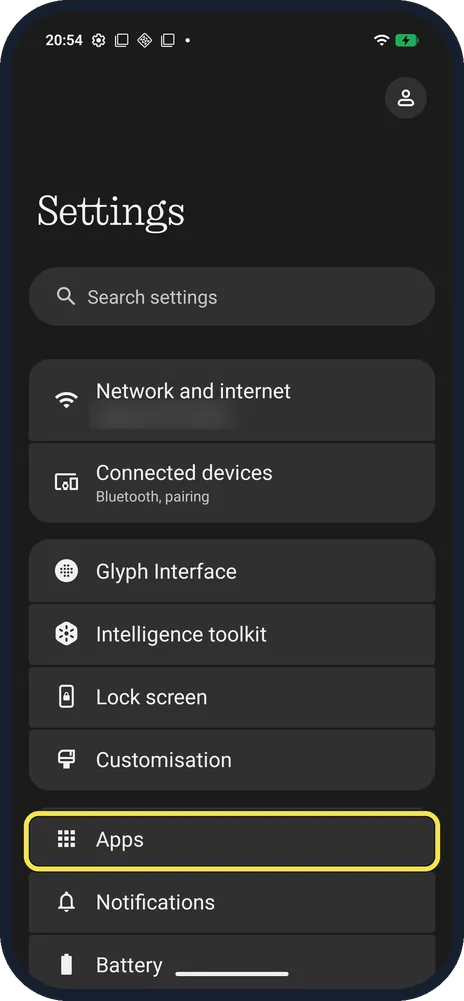
Open Apps
Open Settings and tap Apps.
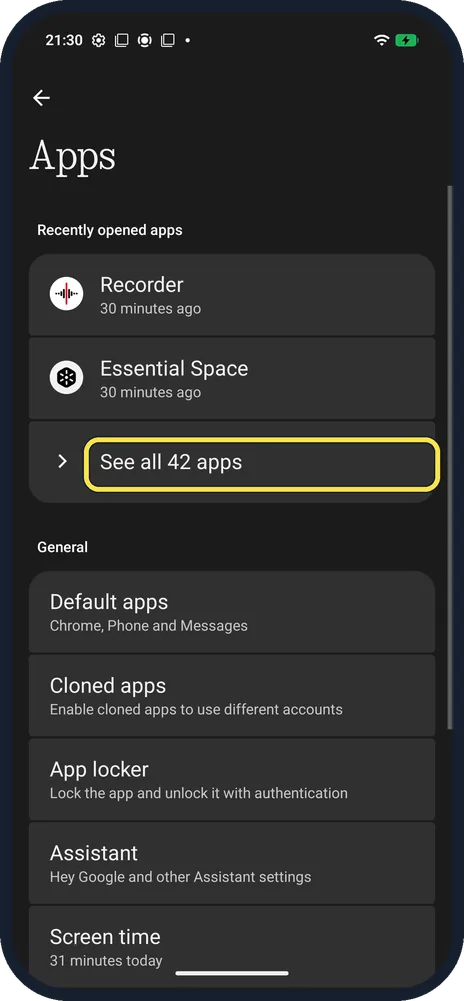
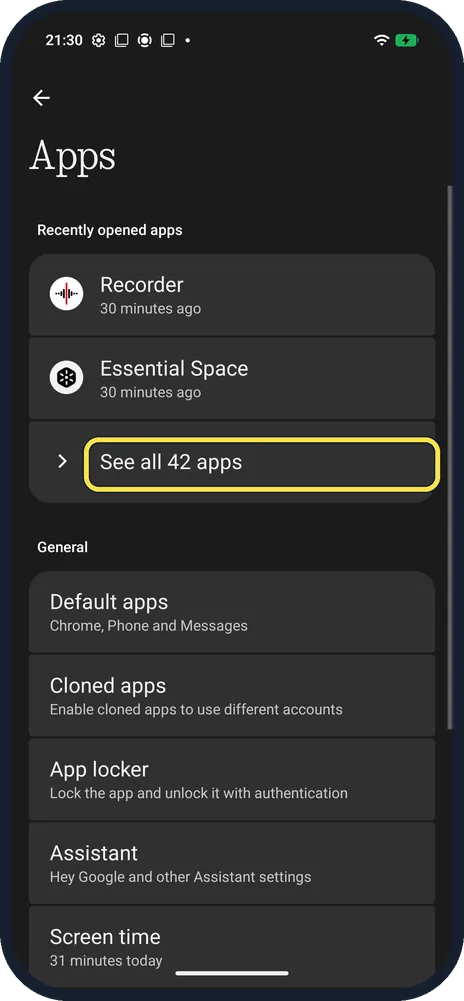
Tap See all apps
Ours said See all 42 apps.
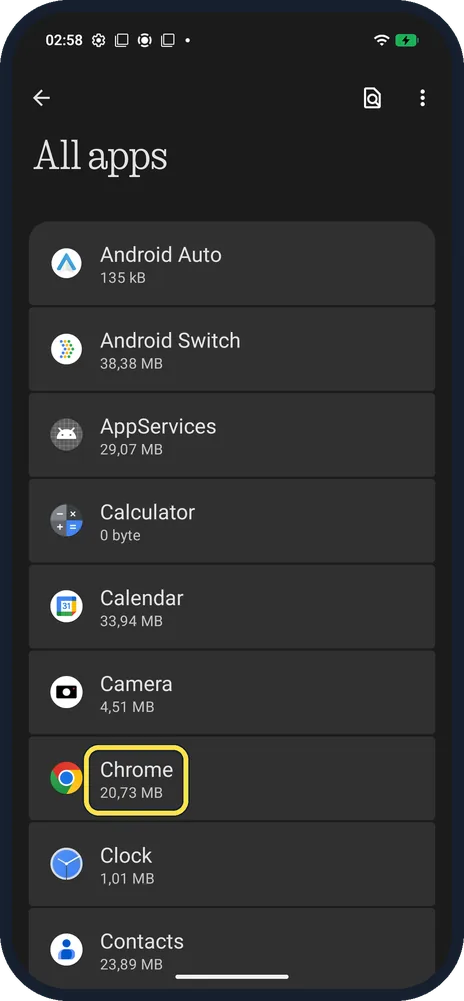
Tap the app
We tapped Chrome, listed at 20,73 MB.
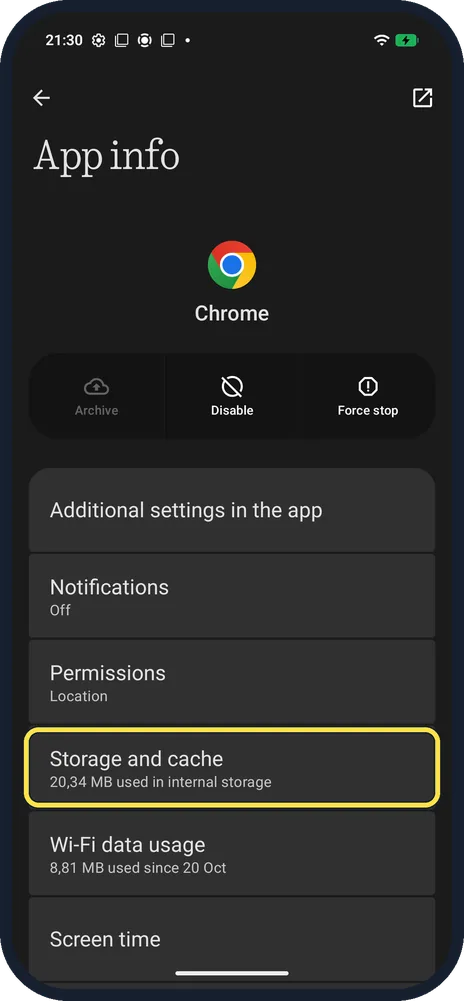
Tap Storage and cache
It shows how much the app uses.
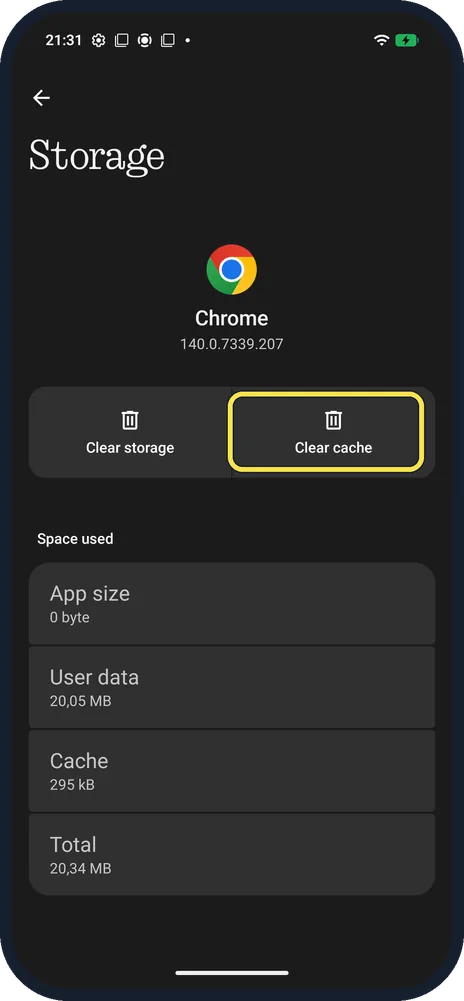
Tap Clear cache
Not Clear storage, which wipes the app's data.
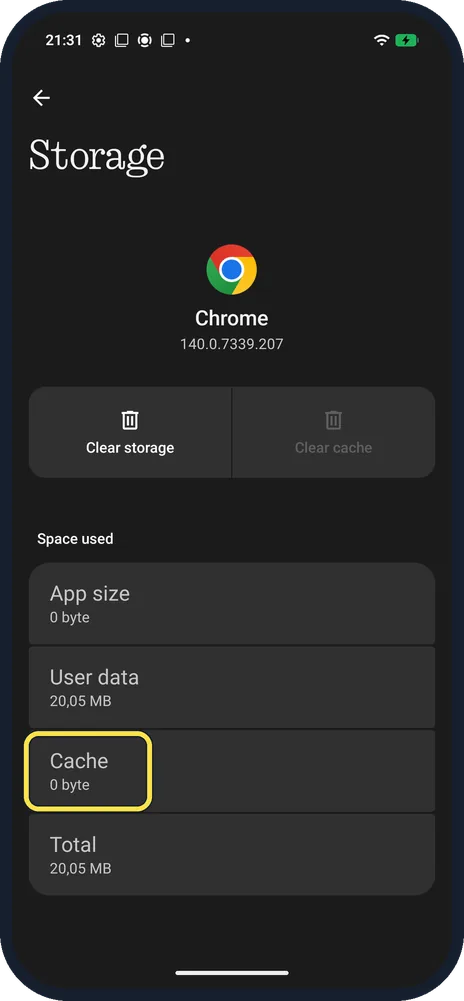
Check the cache
Cache dropped to 0 byte.
If you do not see this option
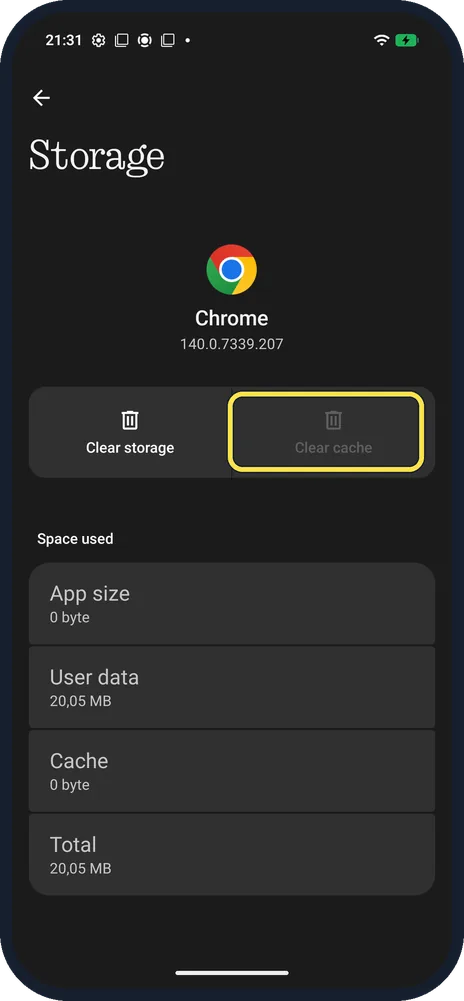
- Clear cache greyed out? There is nothing to clear: after ours was cleared, Cache read 0 byte and the button was greyed out.
- App not in the short list? Apps shows only recently opened apps at first. Tap See all apps (See all 42 apps on ours) for the full list.
If this does not work
- App still misbehaving? Tap Force stop on App info and reopen it.
- App not responding? Nothing suggests Clear cache and Clear storage, closing background apps, and restarting the phone. Back up first, because Clear storage wipes the app's data. Source: One of my apps isn't responding. What can I do?
- Phone short of space? Nothing says Settings, Storage, Free up space, Clean removes temporary files, cookies and cache in one go. Source: How do I clean up storage space?
- Rather remove the app? Nothing says Settings, Apps, See all apps, the app, Uninstall. Some built-in apps can't be uninstalled. Source: How do I uninstall an app?
About this guide
The screenshots are from our Nothing Phone (4a) Pro, the European model A069P, with Nothing OS 4.1 and Android 16 (build FroggerPro-B4.1-260424-1447-EEA), in Dark theme. We cleared Chrome's cache.
Good to know
With space freed, see update the phone.
In short: Settings, Apps, See all apps, the app, Storage and cache, Clear cache.
- Nothing Support: One of my apps isn't responding. What can I do?
- Nothing Support: How do I clean up storage space?
- Nothing Support: How do I uninstall an app?
Links checked in October 2026. Menus and features can change after software updates. These steps match the version named at the top.
Did this guide work for you?
Sorry about that. What happened?