GOOGLE PIXEL
How to free up storage on a Google Pixel (Android 17)

In short
Open Settings, Storage to see what fills the phone: Apps, Images, Videos, System and more. Tap Free up space to open the Files app's Clean page, which shows cleanup suggestions when there are files to clean. Google warns that files you clean there are deleted for good.
8 of 8 steps show a real screenshot from our Pixel 10a. Each step was checked against the maker's own instructions, linked at the end.
Steps
- 1
Open Storage
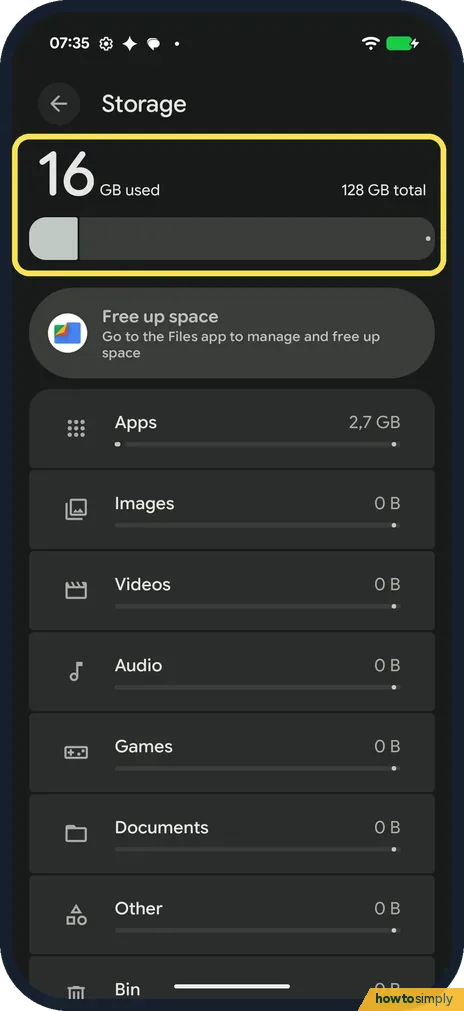
Open Settings and tap Storage. The top shows how much is used. Ours said 16 GB used, 128 GB total.
- 2
See what takes the space
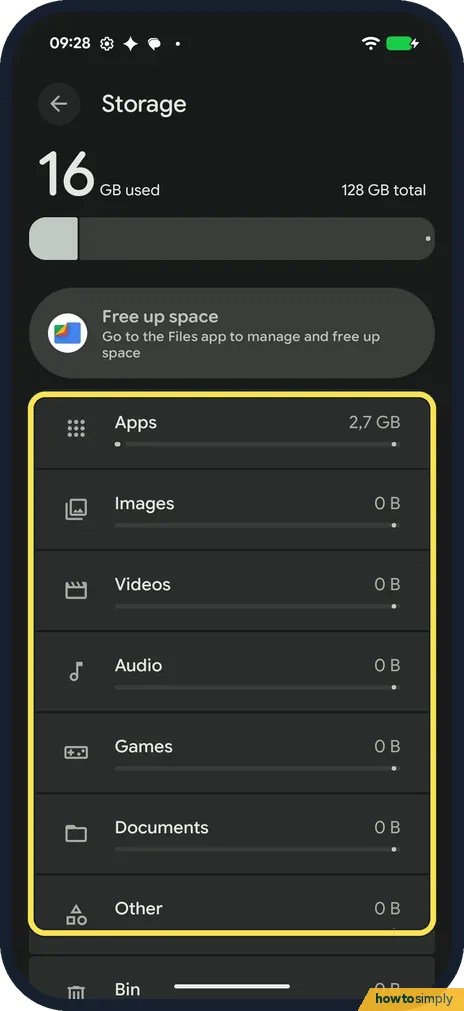
Each category shows its size: Apps, Images, Videos, Audio, Games, Documents, Other and Bin. On ours Apps was 2.7 GB and the rest 0 B. Tap a category to see what is in it.
- 3
Check System
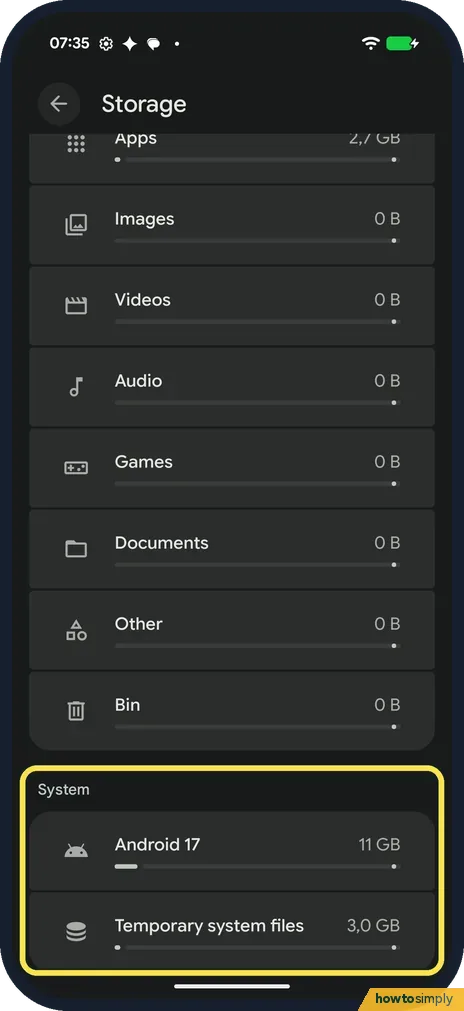
At the bottom, System had Android 17 at 11 GB and Temporary system files at 3.0 GB on ours.
- 4
Tap Free up space
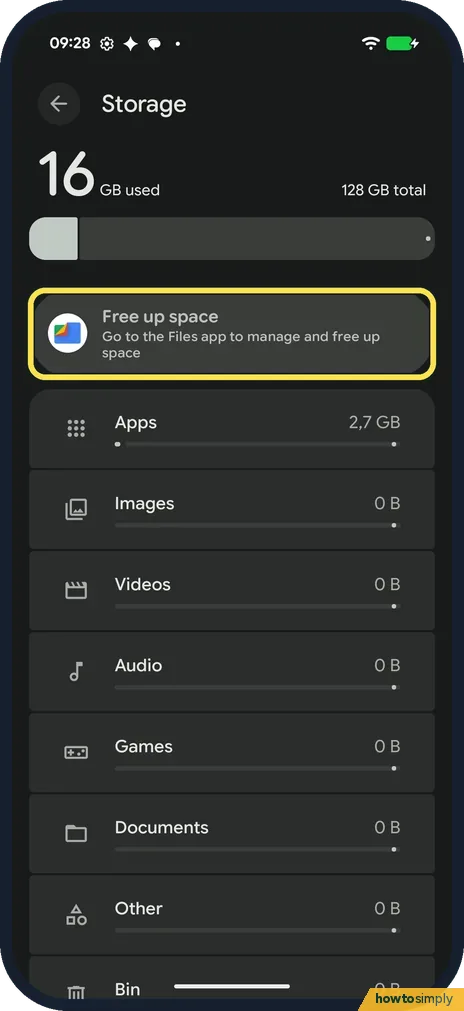
Back at the top, tap Free up space: Go to the Files app to manage and free up space.
- 5
Read the Clean page
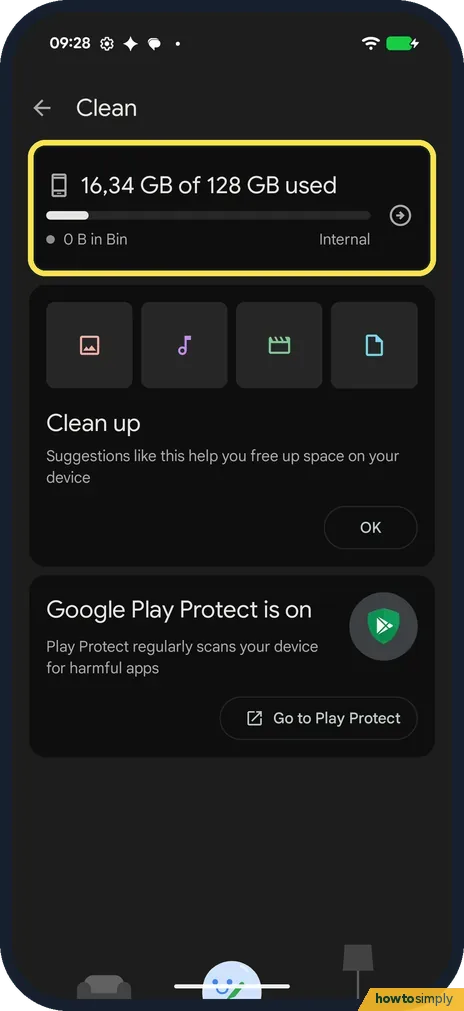
The Files app opens on its Clean page. Ours showed 16.34 GB of 128 GB used and 0 B in Bin.
- 6
Work through the suggestions
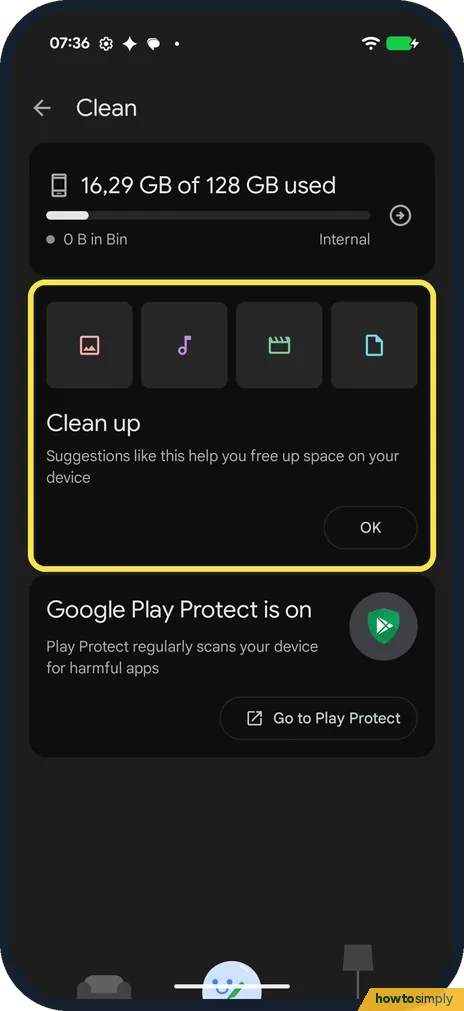
Below, a Clean up card said suggestions like this help you free up space on your device. Ours had no Junk files card, because there was nothing to clean. Google says that card has a Clean button, and you confirm with Clear.
- 7
Or start in the Files app
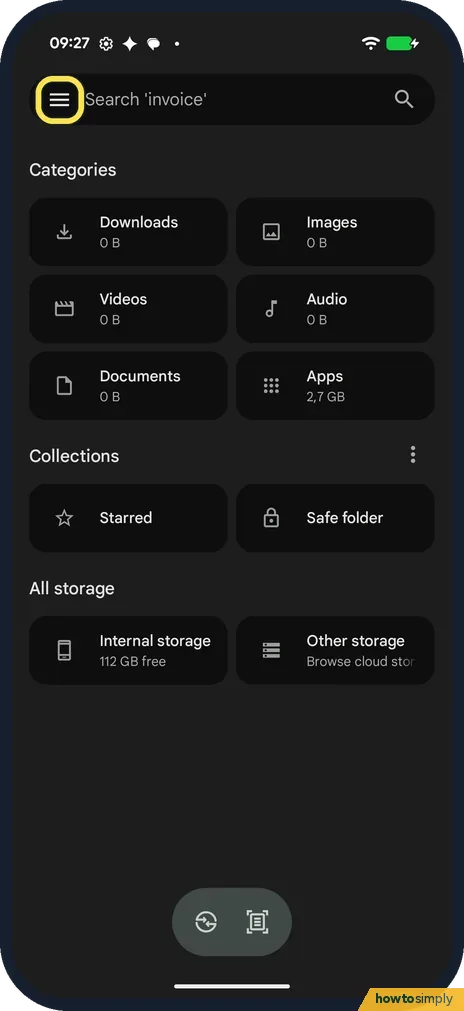
You can also open Files by Google yourself. Ours opened on its home page, with Categories at the top. Tap the menu at the top left.
- 8
Tap Clean
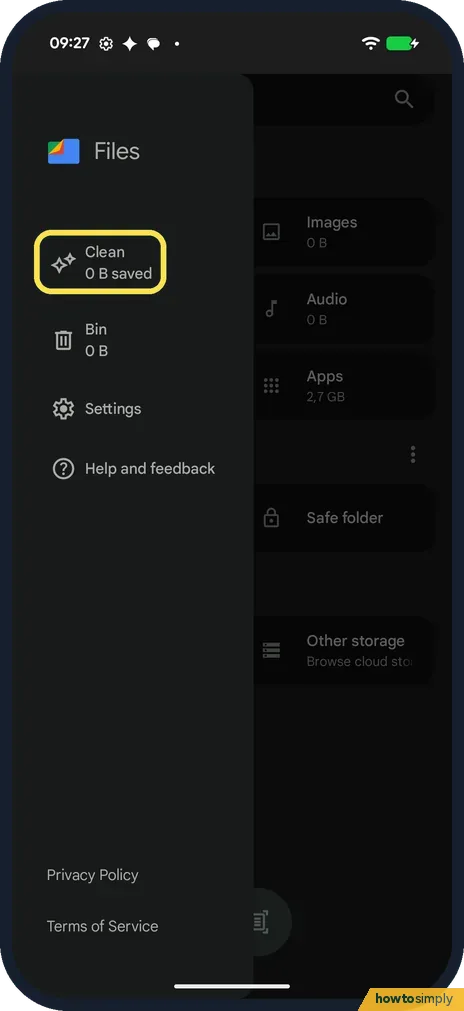
The menu has Clean, Bin, Settings and Help and feedback. Clean said 0 B saved on ours. Tap it to reach the same Clean page.
If you do not see this option
- No Junk files card? Ours showed only a general Clean up card, with no Junk files card, because there was nothing to clean. Google's steps use the Junk files card when there is something to clear. Source: Clear your junk files
- No categories with Select files? Google says Storage, Free up space lists photos, videos and apps you haven't used, each with Select files. On ours Free up space went straight to the Files app's Clean page instead. Source: Free up space
- No Clean tab at the bottom of Files? On ours Clean was not a tab: it was in the menu at the top left of Files by Google, with Bin and Settings.
- Steps look different? Google says some of these steps only work on Android 14 and up. Source: Free up space
If this does not work
- Can you get cleaned files back? Google says that if you clear junk files or delete files with Files by Google, the data is deleted for good. Check before you tap Clear.
- One app takes a lot of space? Clearing its cache can help: how to clear an app's cache on a Google Pixel.
- Nothing to clean, but storage is still full? Look at the Storage categories and tap the biggest one you can tidy. On ours System took the most (Android 17 at 11 GB, Temporary system files at 3.0 GB). Of the categories above it, Apps was the biggest, at 2.7 GB, and the rest were 0 B.
Good to know
Google says Smart Storage, under Storage, Free up space, Menu, Settings, can clear backed-up photos and videos when storage is almost full. We didn't check it on ours.
Before a big cleanup, make a backup: how to back up a Google Pixel.
The Clean page on ours also said Google Play Protect is on. More: how to scan for harmful apps with Play Protect.
About this guide
- Device
- Android
- Shown on
- Google Pixel 10a, Android 17 (build CP3A.261005.005)
- App
- Settings
- Path
- Settings › Storage: see the categories
- Real screenshots
- 8 of 8 steps
- Checked
- October 2026
- Sources
- 2 official, linked below
Sources
Links checked October 2026. Menus and features can change with updates.Spotted a mistake? Menus change with updates, and we want every step to match your screen. Email us about this page or use the contact form. We read every report, and fixes are listed on What changed.
Liked this guide?
Follow us for new guides and short how-to videos.
Did this guide work for you?
Sorry about that. What happened?