
howtosimply.com/guides/how-to-check-and-free-up-storage-on-a-samsung-galaxy-phone/ · Checked October 2026 · Samsung Galaxy A57 5G (One UI 8.5, Android 16) and Samsung Galaxy A57 (One UI 9, Android 17 (build A576BXXU6BZIE))
In this guide
Open Settings, Device care and tap Storage to see how much is used and what takes the space. Delete large files and duplicates from there, follow the suggestions, uninstall apps you do not use, and clear the cache of apps that store a lot of temporary data under Settings, Apps, the app, Storage.
6 of 6 steps with real screenshots · 1 official source below
- Device
- Android
- Shown on
- Samsung Galaxy A57 5G (SM-A576B), One UI 8.5, Android 16, Samsung Galaxy A57 (SM-A576B), One UI 9, Android 17 (build A576BXXU6BZIE)
- App
- Settings
- Path
- Settings › Device care › Storage: categories › Duplicate files › Large files › Suggestions
- Real screenshots
- 6 of 6 steps
- Our phone
- Shown on Galaxy A57, One UI 8.5
- Checked
- October 2026
- Sources
- 1 official, linked below
Step by step
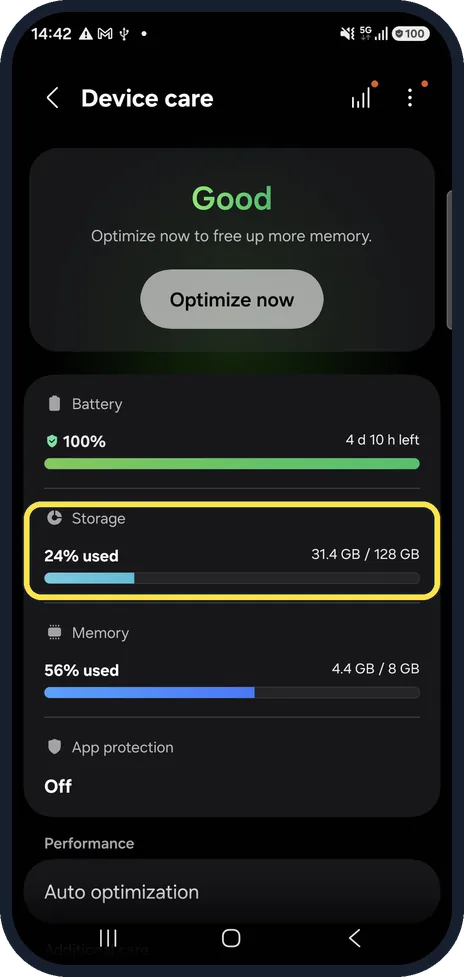
Open Device care
Open Settings and tap Device care. The Storage bar shows how much of the phone is used.
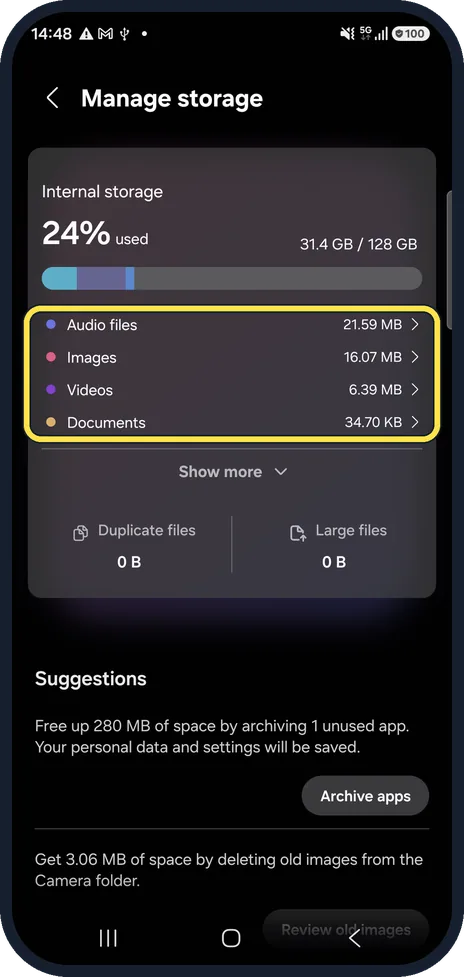
See what takes the space
Tap Storage. The Manage storage page lists audio files, images, videos and documents with their sizes. Tap a category to see and delete its files.
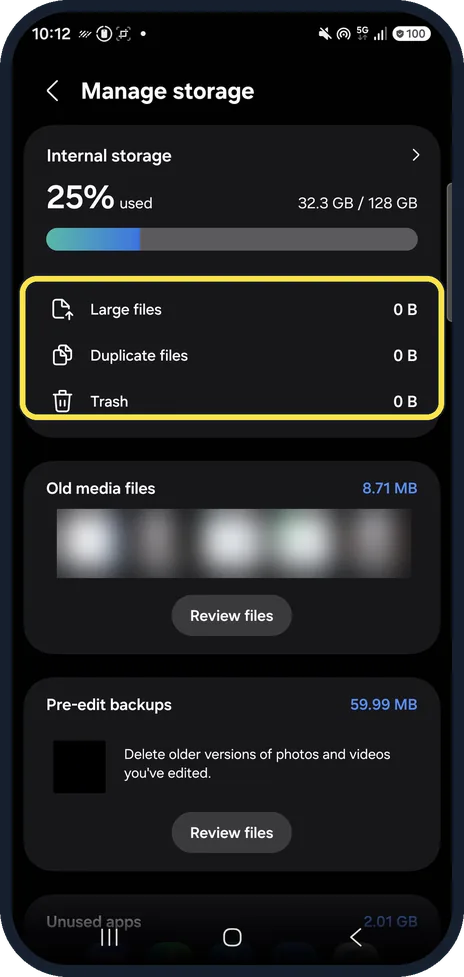
Remove duplicates and large files
Duplicate files and Large files collect the easiest wins. Tap one, select what you do not need and delete it. On our phone Large files, Duplicate files and Trash all showed 0 B, so there was nothing to remove there.
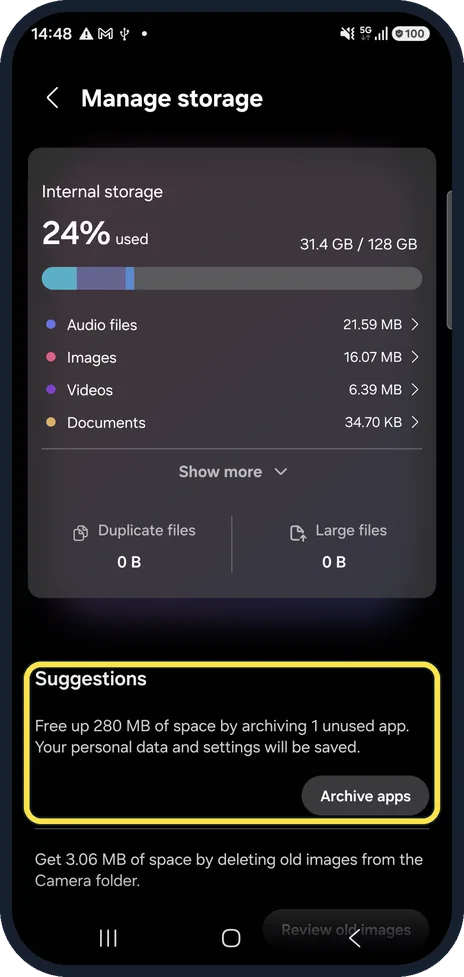
Follow the suggestions
Under Suggestions, One UI offers quick clean-ups, such as archiving apps you do not use (your data is kept) or deleting old images. Ours offered to free up 280 MB by archiving 1 unused app.
Uninstall apps you do not use
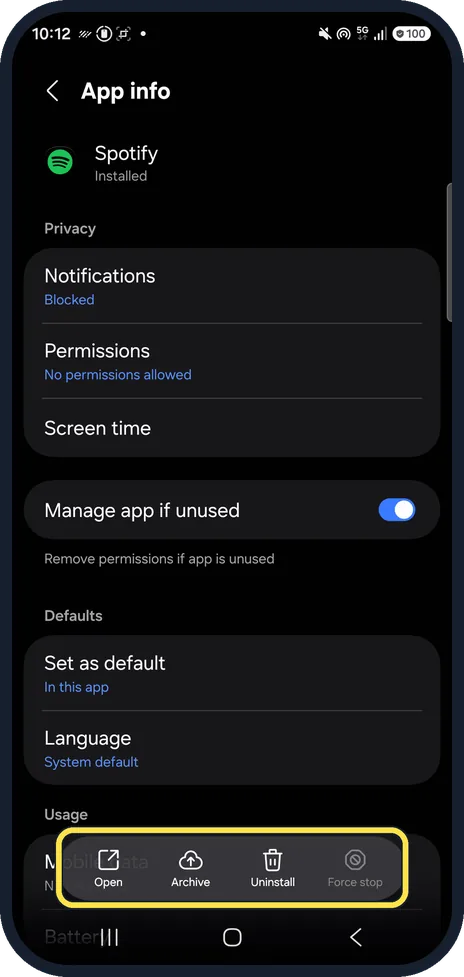
Open Settings, Apps. The list shows each app with its size. Tap an app you no longer need and tap Uninstall.
On ours, Spotify's App info had Open, Archive, Uninstall and Force stop at the bottom.
Clear an app's cache
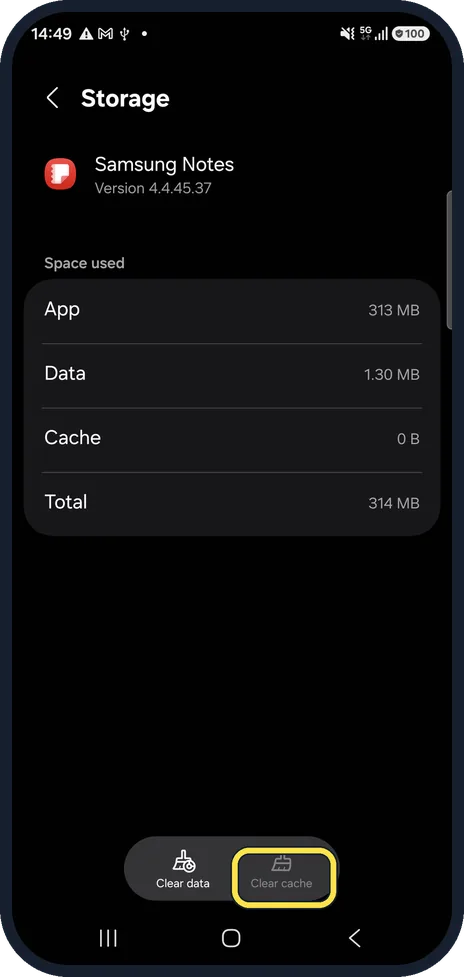
In Settings, Apps, tap an app, then Storage and Clear cache. This removes temporary files only. Clear cache is greyed out when an app has no cache, as Samsung Notes had on our phone. Clear data instead resets the app and deletes its data, so use it with care.
If you do not see this option
- There is no Duplicate files or Large files list Samsung says you can also open Settings, Device care, Storage, tap a category such as Images or Videos, touch and hold a file or tap All, then Delete and Move to Trash. Source: Free up storage space on your Samsung phone or tablet
- Your phone has a microSD card Samsung says many apps can be moved to the card under Settings, Apps, the app, Storage, Change. If Change does not appear, that app cannot be moved. Files can be moved in My Files. Source: Free up storage space on your Samsung phone or tablet
If this does not work
- The space did not come back Samsung says deleted files go to the Trash first (Move to Trash). Empty the Trash in Gallery and My Files to free the space. Source: Free up storage space on your Samsung phone or tablet
- The phone is slow rather than full Samsung says Device care, Memory, Clean now stops background apps and frees memory. Excluded apps keeps the apps you want running. Source: Free up storage space on your Samsung phone or tablet
About this guide
A full phone gets slow, fails to install updates and stops taking photos. One UI shows exactly what fills it and offers to clean some of it for you.
Steps 3 and 5 are from the same phone after its One UI 9 update (Android 17).
Good to know
Deleted pictures and videos go to the Trash in Gallery first; empty it to be sure the space is freed.
Messages can delete old conversations automatically: in Messages, More options, Settings, More settings, Delete old messages.
In short: Settings, Device care, Storage: categories, Duplicate files, Large files, Suggestions. Uninstall unused apps; clear app caches.
Links checked in October 2026. Menus and features can change after software updates. These steps match the version named at the top.
📷 See real photos from the Galaxy A57 in our Camera Lab, next to 10 other phones.
Did this guide work for you?
Sorry about that. What happened?