
howtosimply.com/guides/how-to-sync-the-desktop-and-documents-folders-with-icloud-on-a-mac/ · Checked October 2026 · MacBook Neo · macOS 27.0.1
In this guide
Open System Settings, click your name, then iCloud and Drive. With Sync this Mac on, switch on Desktop & Documents Folders and click Done. Apple says the files then move to iCloud Drive.
4 of 6 steps with real screenshots · 1 official source below
- Device
- Mac
- Shown on
- macOS 27.0.1 (MacBook Neo)
- App
- System Settings
- Real screenshots
- 4 of 6 steps
- Checked
- October 2026
- Sources
- 1 official, linked below
Step by step
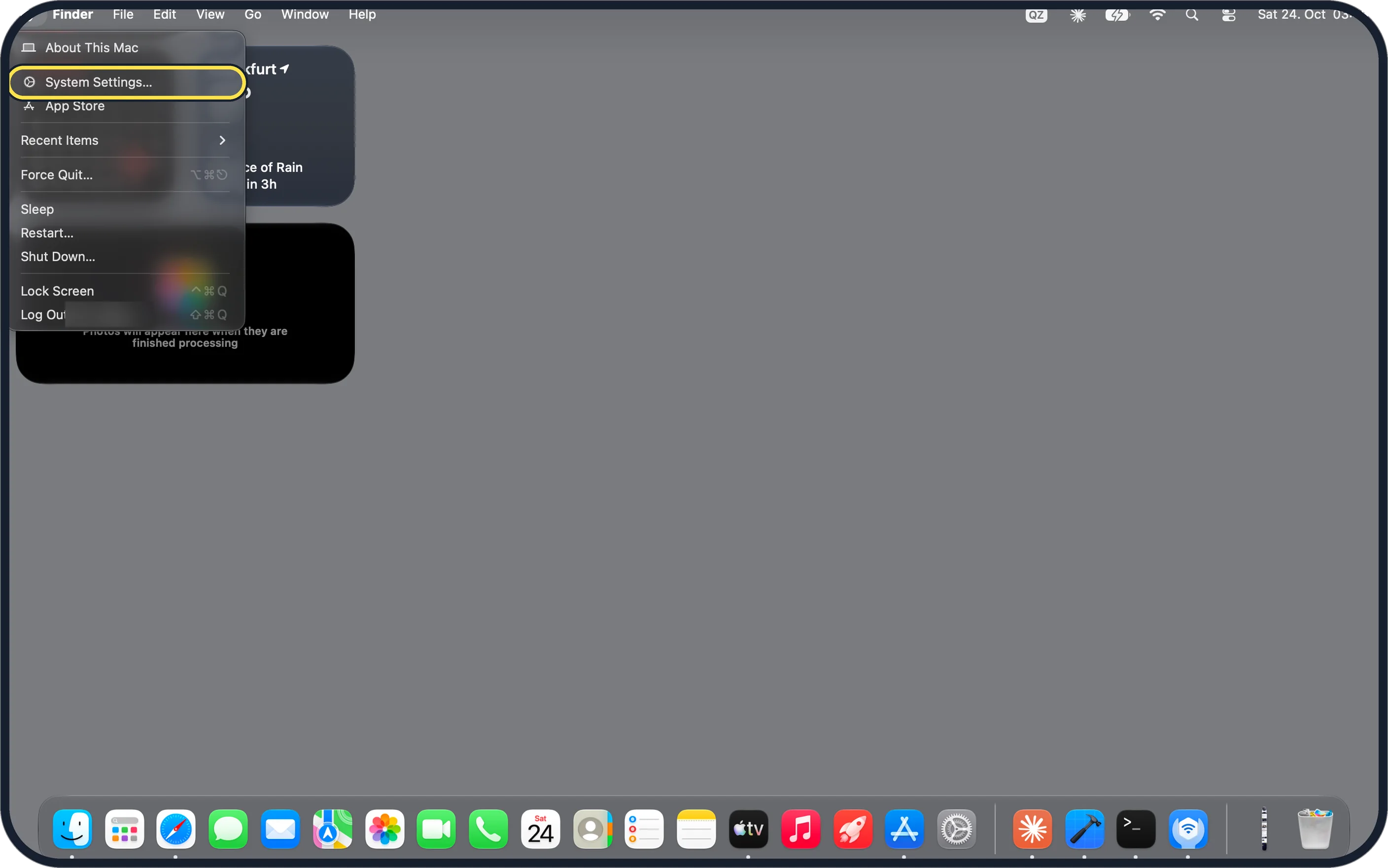
Zoomed in on the setting. Tap to see the whole screenTap the picture to see it full size Open System Settings
Click the Apple menu and choose System Settings….
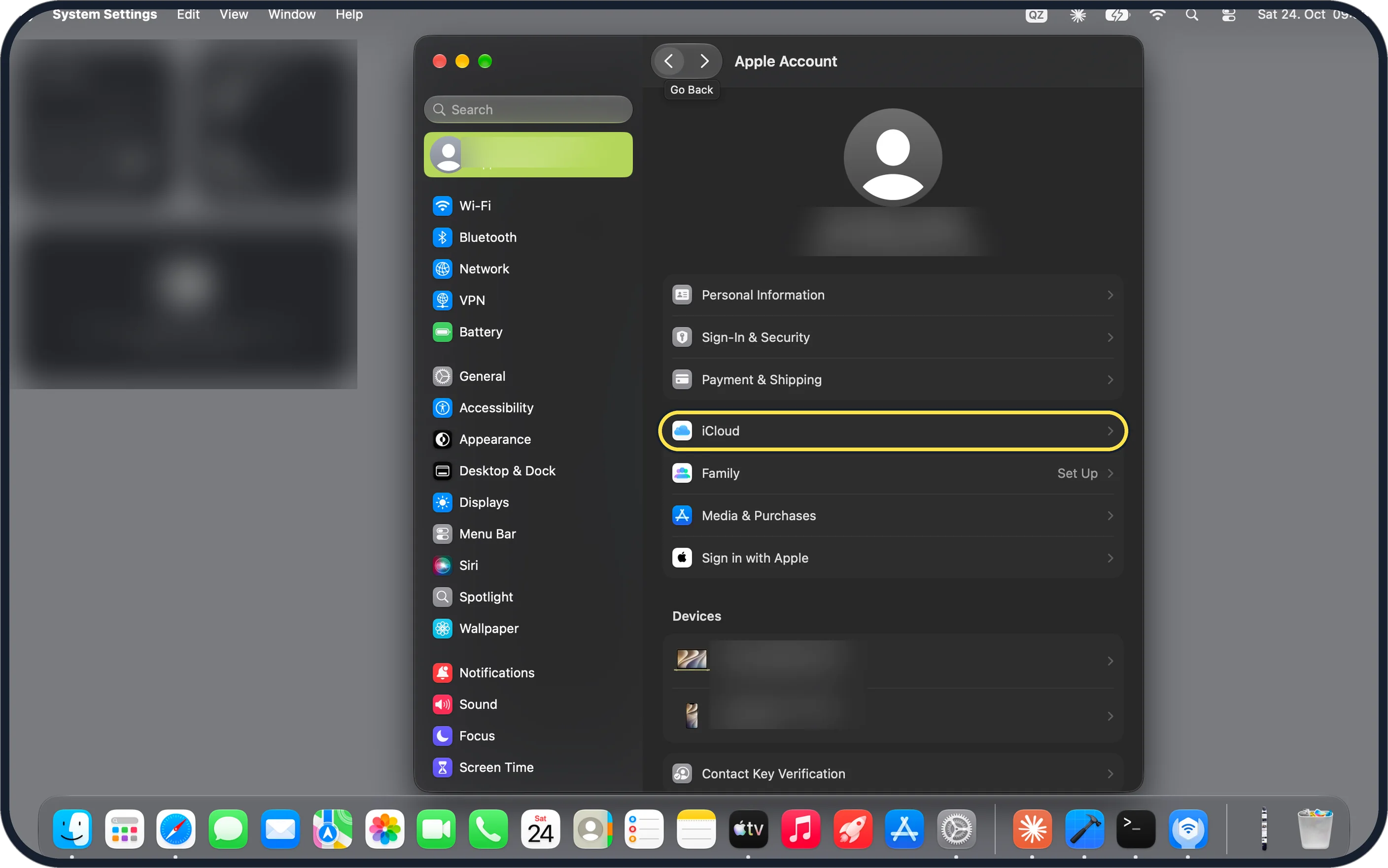
Zoomed in on the setting. Tap to see the whole screenTap the picture to see it full size Click your name, then iCloud
Click your name at the top of the sidebar to open the Apple Account page, then click iCloud.
On our MacBook Neo, macOS 27 titles this page Apple Account; iCloud sits below Personal Information, Sign-In & Security and Payment & Shipping.
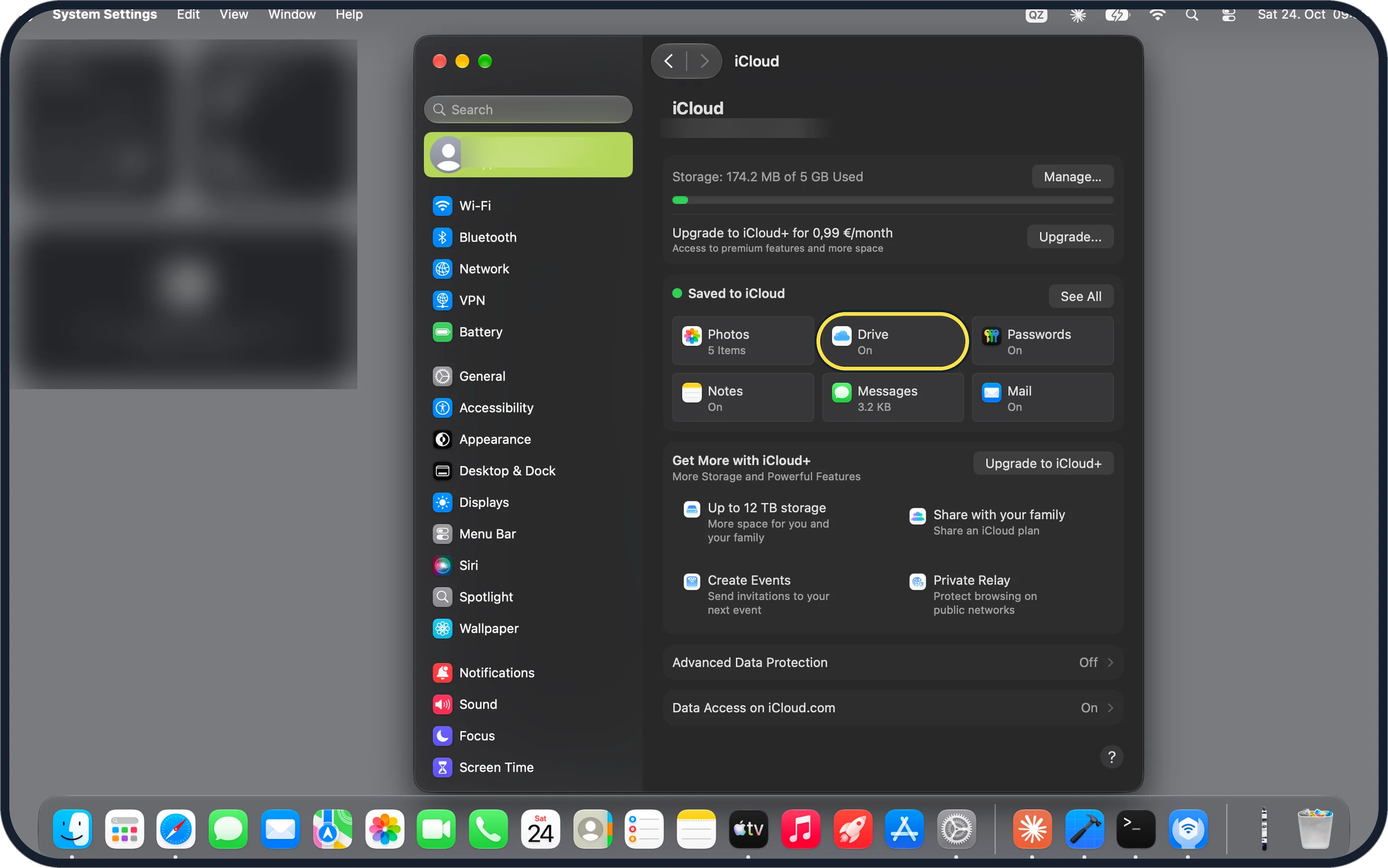
Zoomed in on the setting. Tap to see the whole screenTap the picture to see it full size Check your storage and click Drive
The Storage bar shows how much iCloud space you use; make sure it has room for both folders. Then click Drive under Saved to iCloud.
On our MacBook Neo the bar read Storage: 174.2 MB of 5 GB Used, and the Drive tile showed On even though the two folders were not yet synced.
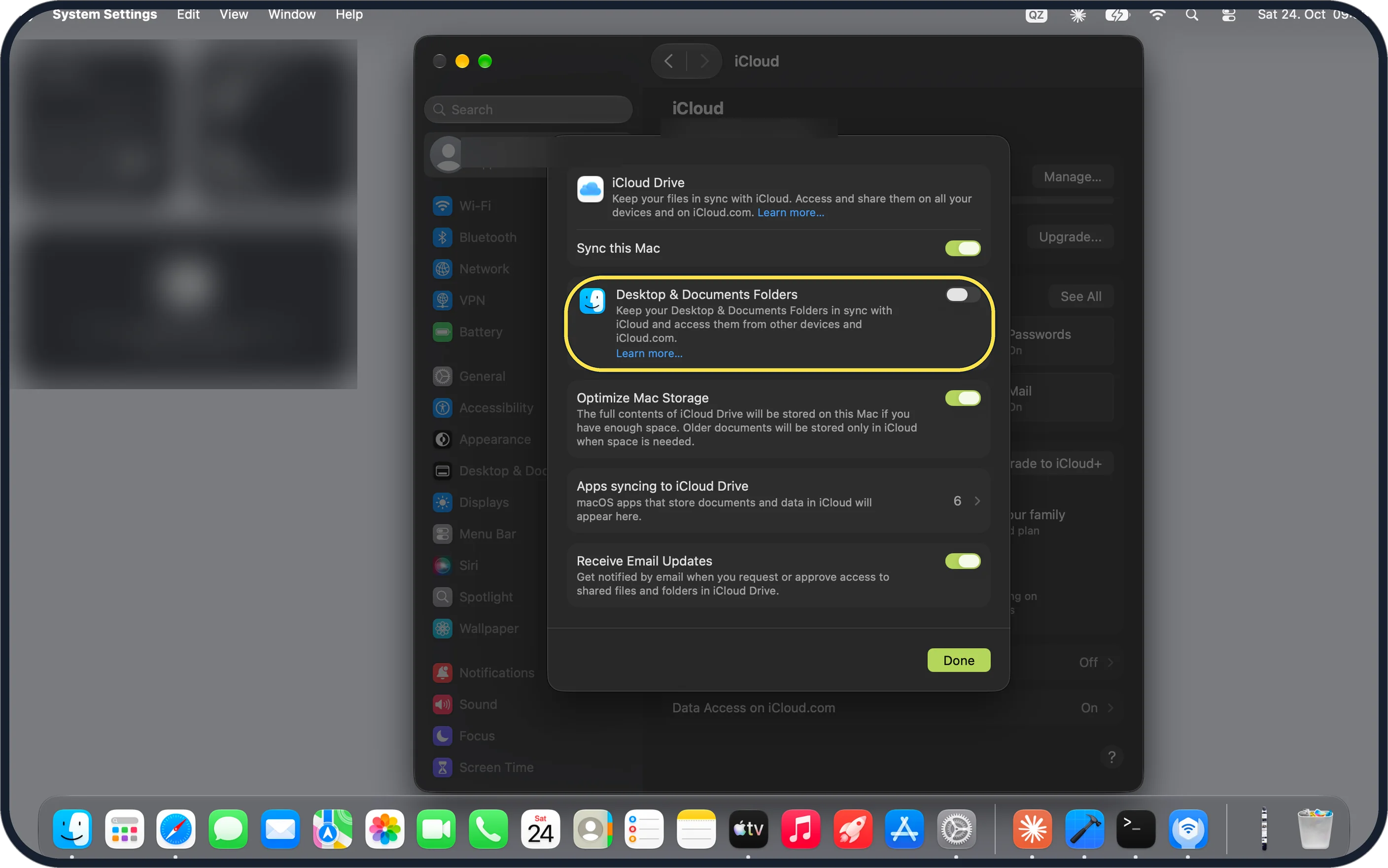
Zoomed in on the setting. Tap to see the whole screenTap the picture to see it full size Switch on Desktop & Documents Folders
In the iCloud Drive sheet, make sure Sync this Mac is on, then switch on Desktop & Documents Folders and click Done.
On our MacBook Neo Sync this Mac was already on and Desktop & Documents Folders was off; the same sheet lists Optimize Mac Storage (on) and Apps syncing to iCloud Drive (6).
Open the files on other devices
Apple says that on an iPhone or iPad you open the Files app, tap Browse, iCloud Drive and then Desktop or Documents. On any computer, sign in at icloud.com and open iCloud Drive.
Repeat on a second Mac
Apple says that if you turn the setting on on another Mac, its Desktop and Documents files go into a folder with that Mac's name inside the shared folders. You can then sort them in.
If you do not see this option
- No name at the top of the sidebar Apple says you need to be signed in with your Apple Account. On our MacBook Neo the name sits above Wi-Fi in the System Settings sidebar. Source: Add your Desktop and Documents files to iCloud Drive
- No Desktop & Documents Folders switch It is part of iCloud Drive: click Drive on the iCloud page and look directly below Sync this Mac in the iCloud Drive sheet. Apple says Sync this Mac must be on. Source: Add your Desktop and Documents files to iCloud Drive
If this does not work
- Not enough iCloud storage The free plan is 5 GB. On our MacBook Neo the iCloud page offers Upgrade… with Upgrade to iCloud+ for 0,99 €/month, and Manage… to free up space.
- A file is not stored on the Mac With Optimize Mac Storage on, the sheet says older documents will be stored only in iCloud when space is needed. Turn it off in the iCloud Drive sheet to keep everything on the Mac.
- Files clash with another cloud service Apple says to turn off other cloud services that also manage the Desktop and Documents folders. Source: Add your Desktop and Documents files to iCloud Drive
About this guide
This setting stores your Desktop and Documents folders in iCloud Drive so they match on your other Apple devices; it uses your iCloud storage, and the free plan is 5 GB.
Screenshots: MacBook Neo, macOS 27.0.1, dark mode.
Good to know
Deleting a file deletes it on all devices. It stays under Recently Deleted for 30 days.
Photos, iMovie and similar libraries in these folders are not synced. Turn off other cloud services that also manage these folders, to avoid conflicts.
If you turn the setting off, the files stay in iCloud Drive, and the Mac gets new, empty Desktop and Documents folders. Copy the files back from iCloud Drive if you want them locally.
iCloud sync is not a backup of old versions. Keep a Time Machine backup as well: how to back up a Mac with Time Machine. To see what fills the Mac: how to check and free up storage on a Mac.
In short: Apple menu > System Settings… > your name > iCloud > Drive > Desktop & Documents Folders on > Done.
Links checked in October 2026. Menus and features can change after software updates. These steps match the version named at the top.
Did this guide work for you?
Sorry about that. What happened?