
macOS 27 compared with macOS 26: We rewrote this guide on macOS 27.0.1 (MacBook Neo): it now has 6 steps instead of 7. The macOS 26 page keeps the steps and screenshots as they were.
howtosimply.com/guides/how-to-resize-an-image-on-a-mac-with-preview/ · Checked October 2026 · MacBook Neo · macOS 27.0.1
In this guide
Open the picture in Preview, choose Tools, Adjust Size, type a new width or height and click OK. Keep Scale proportionally ticked so the picture is not stretched. The window shows the resulting file size before you confirm.
6 of 6 steps with real screenshots · 1 official source below
- Device
- Mac
- Shown on
- macOS 27.0.1 (MacBook Neo)
- App
- Preview
- Real screenshots
- 6 of 6 steps
- Checked
- October 2026
- Sources
- 1 official, linked below
Step by step
Zoomed in on the setting. Tap to see the whole screenTap the picture to see it full size Work on a copy
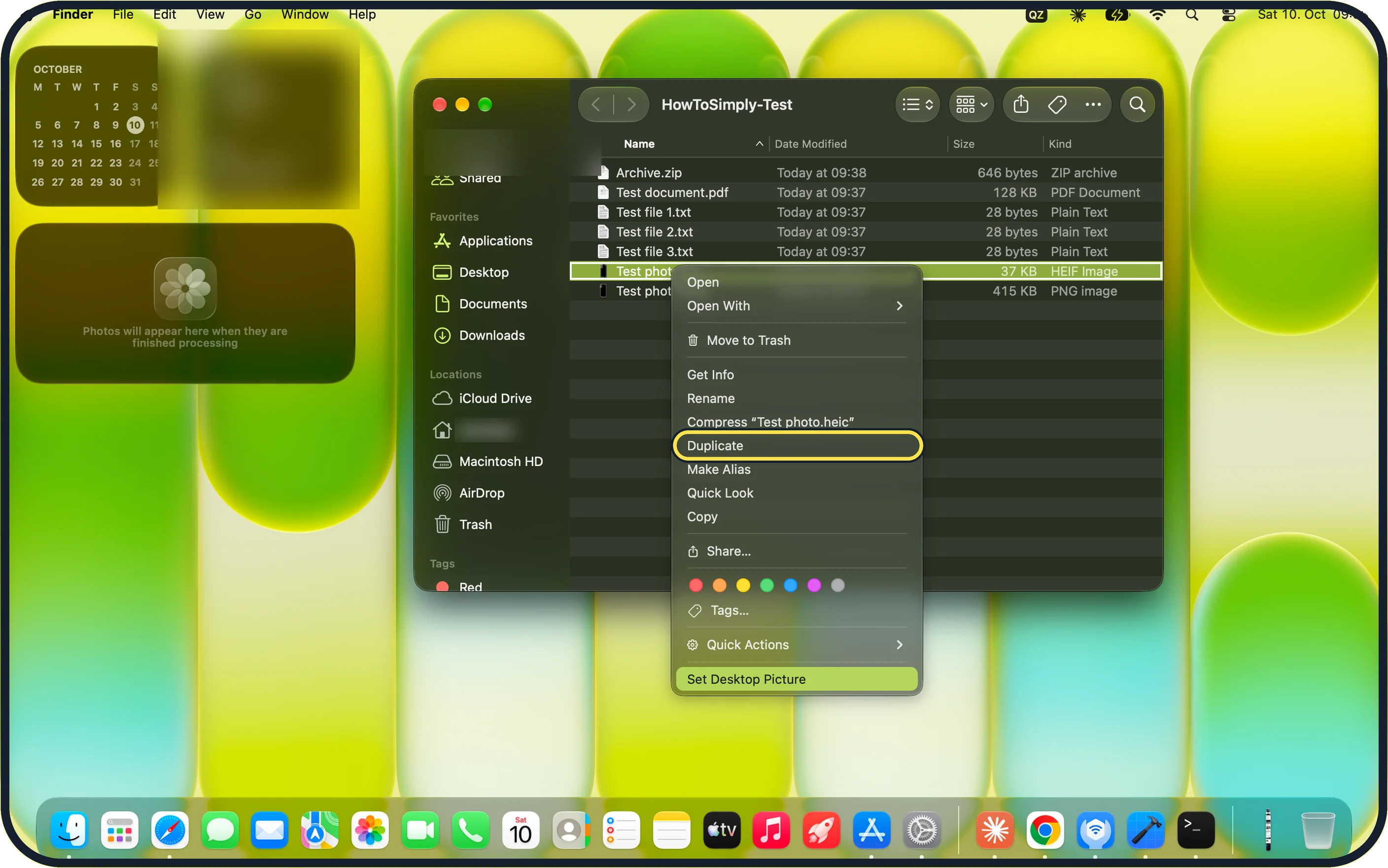
To keep the original, duplicate the file first: select it in Finder and press Command + D, or Control-click it and choose Duplicate. On our MacBook Neo, Control-clicking Test photo.heic showed Duplicate below Compress “Test photo.heic” in that menu.
Zoomed in on the setting. Tap to see the whole screenTap the picture to see it full size Open the picture in Preview
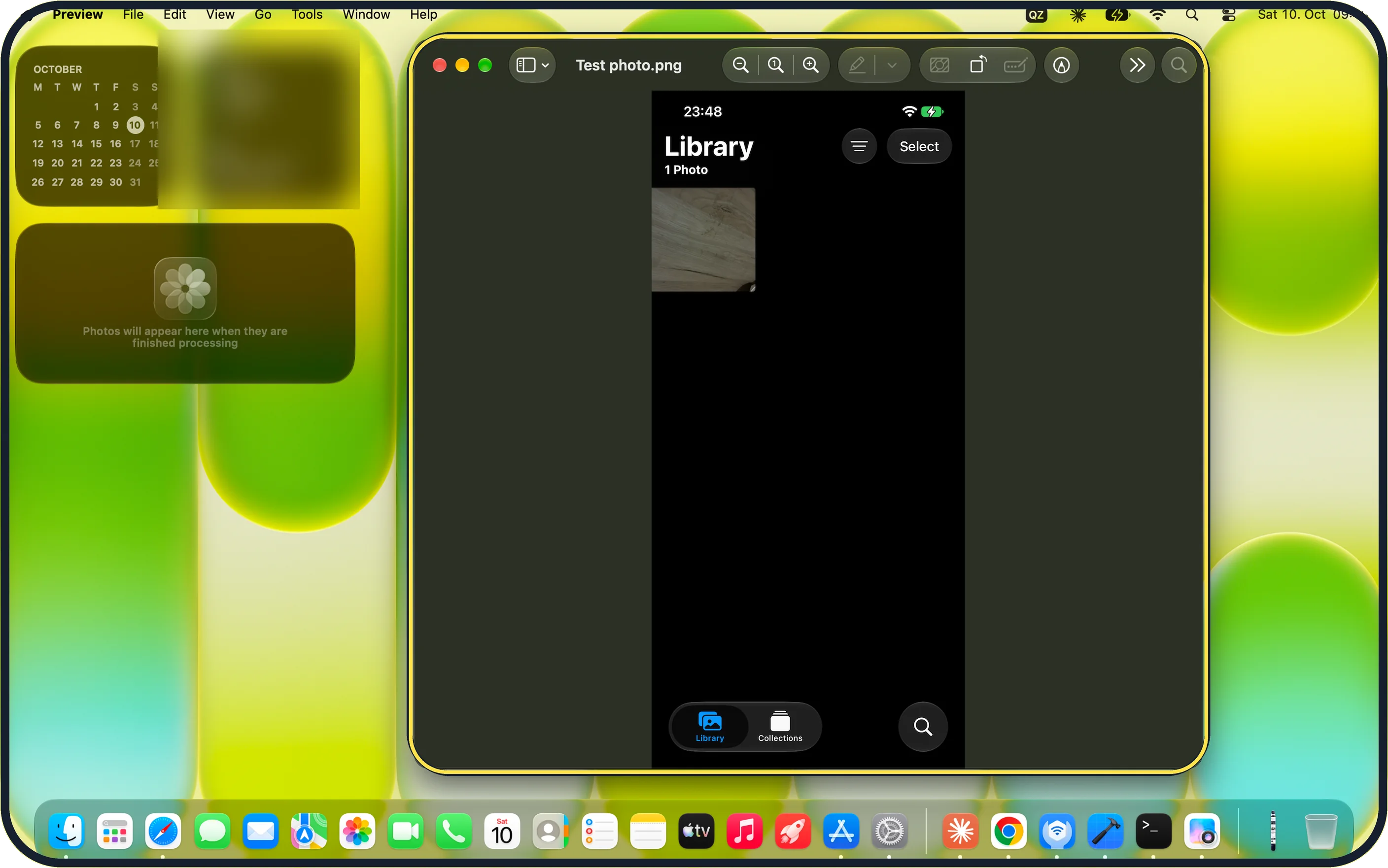
Double-click the file. If it opens in another app, Control-click it and choose Open With, Preview. On our Mac the window showed the file name, Test photo.png, at the top.
Zoomed in on the setting. Tap to see the whole screenTap the picture to see it full size Choose Tools, Adjust Size
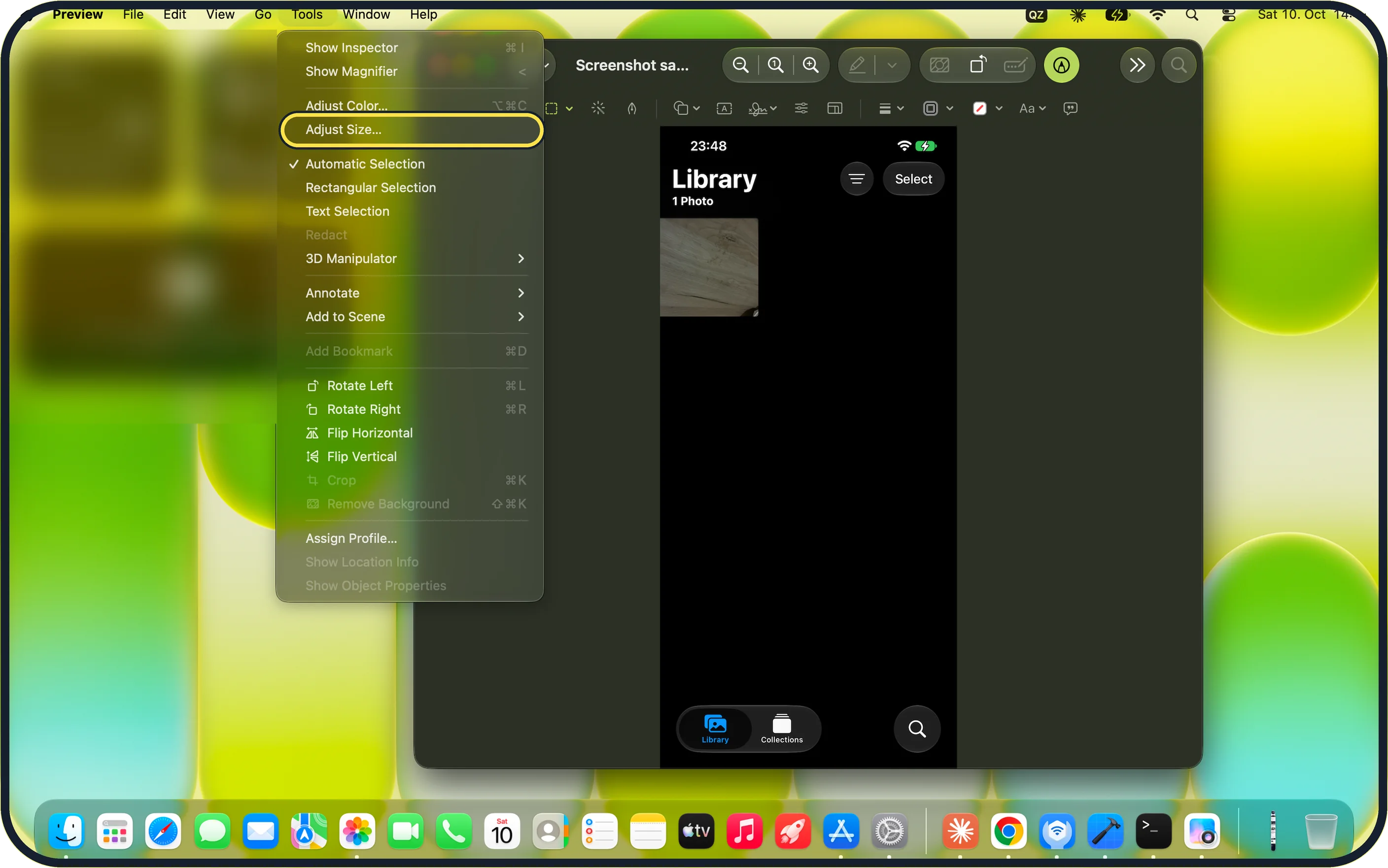
Click Tools in the menu bar, then Adjust Size…. On our MacBook Neo, with a screenshot file open, Adjust Size… sat below Adjust Color… and could be clicked. It opened the window in the next step.
Zoomed in on the setting. Tap to see the whole screenTap the picture to see it full size Enter the new size
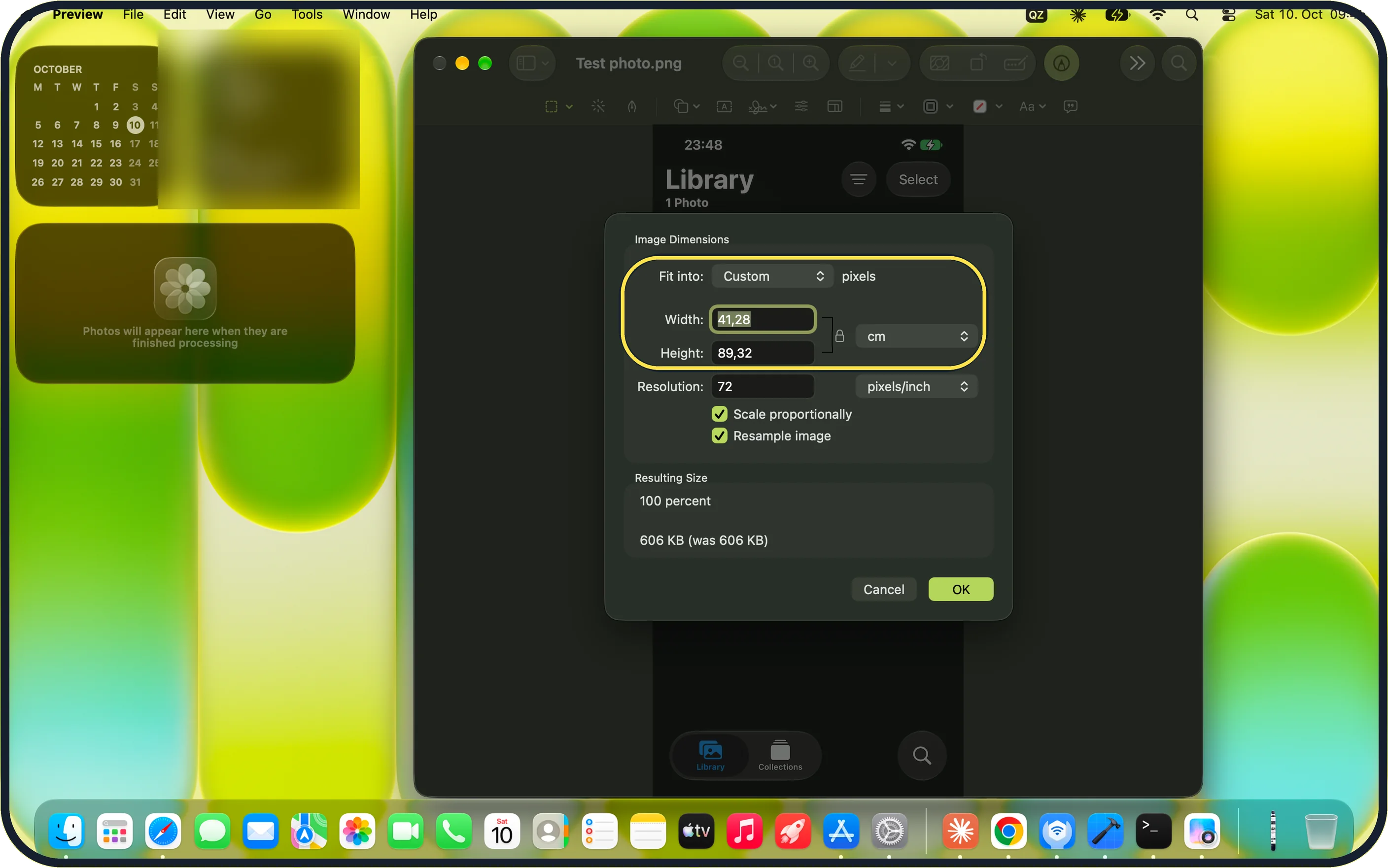
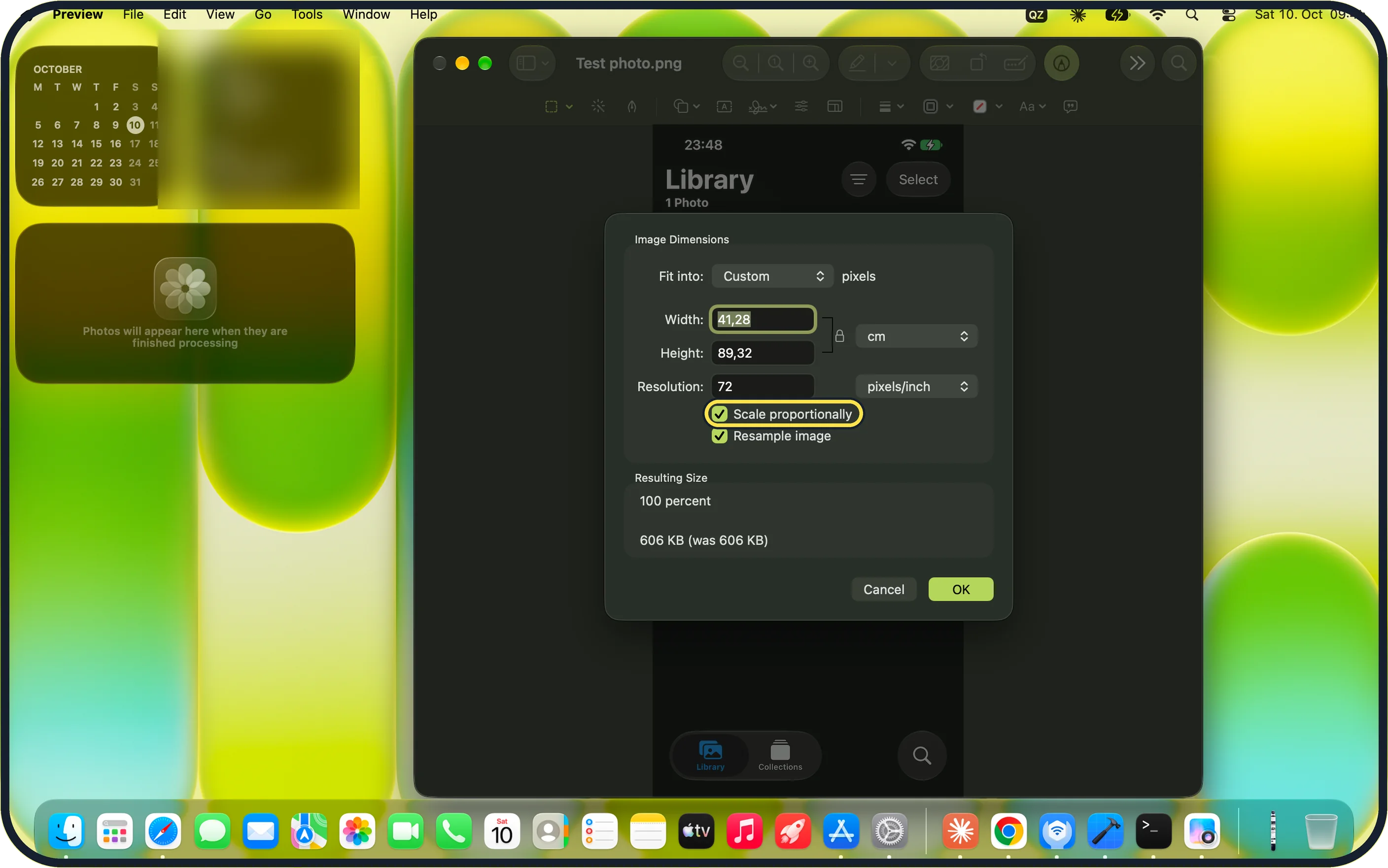
Type a width or a height, or choose a ready-made size from the Fit into menu. Our MacBook Neo showed Fit into Custom, with Width and Height in cm and a unit menu next to them.
Zoomed in on the setting. Tap to see the whole screenTap the picture to see it full size Keep the proportions
Leave Scale proportionally ticked, as it was on our Mac. Then you only type one value and Preview works out the other.
Zoomed in on the setting. Tap to see the whole screenTap the picture to see it full size Check the resulting size and click OK
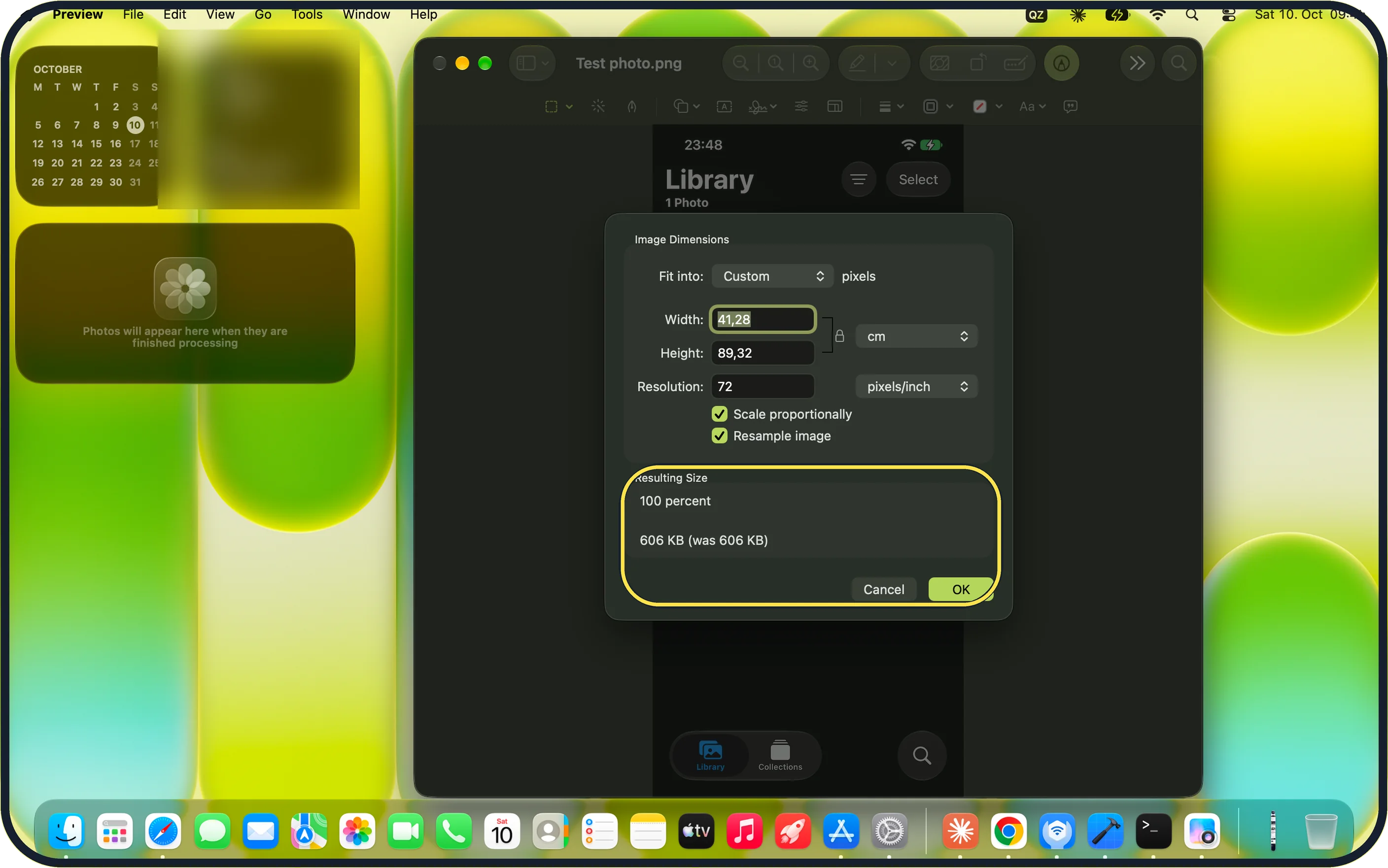
The Resulting Size area at the bottom shows the new file size. Before any change our MacBook Neo showed 100 percent and 606 KB (was 606 KB). Click OK, and the picture is resized.
If you do not see this option
- Adjust Size is grey Adjust Size… is for image files. On our MacBook Neo, with a screenshot file open, it could be clicked (step 3). If it is grey, open an image file such as a PNG or JPEG.
- Sizes are not in pixels Our Mac showed Width and Height in cm and Resolution in pixels/inch. Use the unit menu next to Width and Height to change the unit.
If this does not work
- The file size does not change Check the Resulting Size area before clicking OK: at 100 percent our MacBook Neo showed 606 KB (was 606 KB). Type a smaller width or height and keep Resample image ticked.
- The picture looks stretched Scale proportionally was ticked on our Mac. Tick it again, then type only the width or only the height.
About this guide
Preview, the app that opens pictures on every Mac, can make an image smaller in pixels and in file size. That is enough for email attachments, application portals and websites. No extra software is needed.
Screenshots: MacBook Neo, macOS 27.0.1, dark mode.
Good to know
To make a file smaller without changing how large it prints, keep Resample image ticked and lower the Resolution value instead. Our Mac showed Resolution 72 pixels/inch.
Enlarging a small picture does not add detail. It only becomes blurry.
iPhone photos in HEIC format: how to convert HEIC photos to JPG on a Mac.
In short: Duplicate the file, open it in Preview, Tools, Adjust Size, type the width, keep Scale proportionally, OK.
Links checked in October 2026. Menus and features can change after software updates. These steps match the version named at the top.
Did this guide work for you?
Sorry about that. What happened?