
macOS 27 compared with macOS 26: We rewrote this guide on macOS 27.0.1 (MacBook Neo): it now has 4 steps instead of 7. The macOS 26 page keeps the steps and screenshots as they were.
howtosimply.com/guides/how-to-use-tags-in-finder-on-a-mac/ · Checked October 2026 · MacBook Neo · macOS 27.0.1
In this guide
Control-click a file in Finder and click one of the coloured dots above Tags, or click Tags to type a name of your own. To see everything with a tag, click the tag in the Finder sidebar. Tags work across all folders.
4 of 4 steps with real screenshots · 1 official source below
- Device
- Mac
- Shown on
- macOS 27.0.1 (MacBook Neo)
- App
- Finder
- Real screenshots
- 4 of 4 steps
- Checked
- October 2026
- Sources
- 1 official, linked below
Step by step
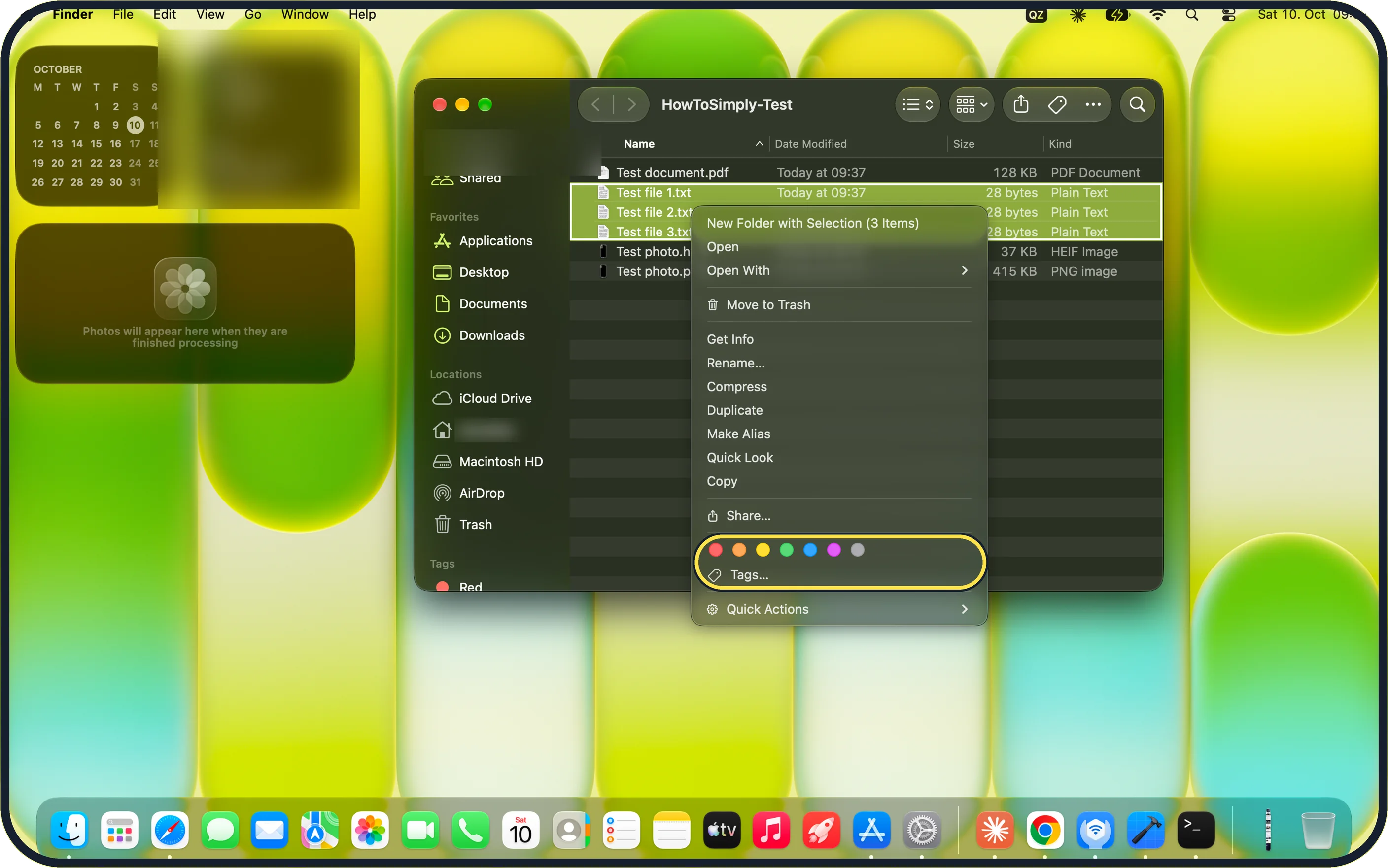
Zoomed in on the setting. Tap to see the whole screenTap the picture to see it full size Tag a file in Finder
Select the file, then Control-click it (or click with two fingers). Click a colour above Tags. For a tag with your own name, click Tags, type the name and press Return. On our MacBook Neo the menu showed seven colour dots above Tags….
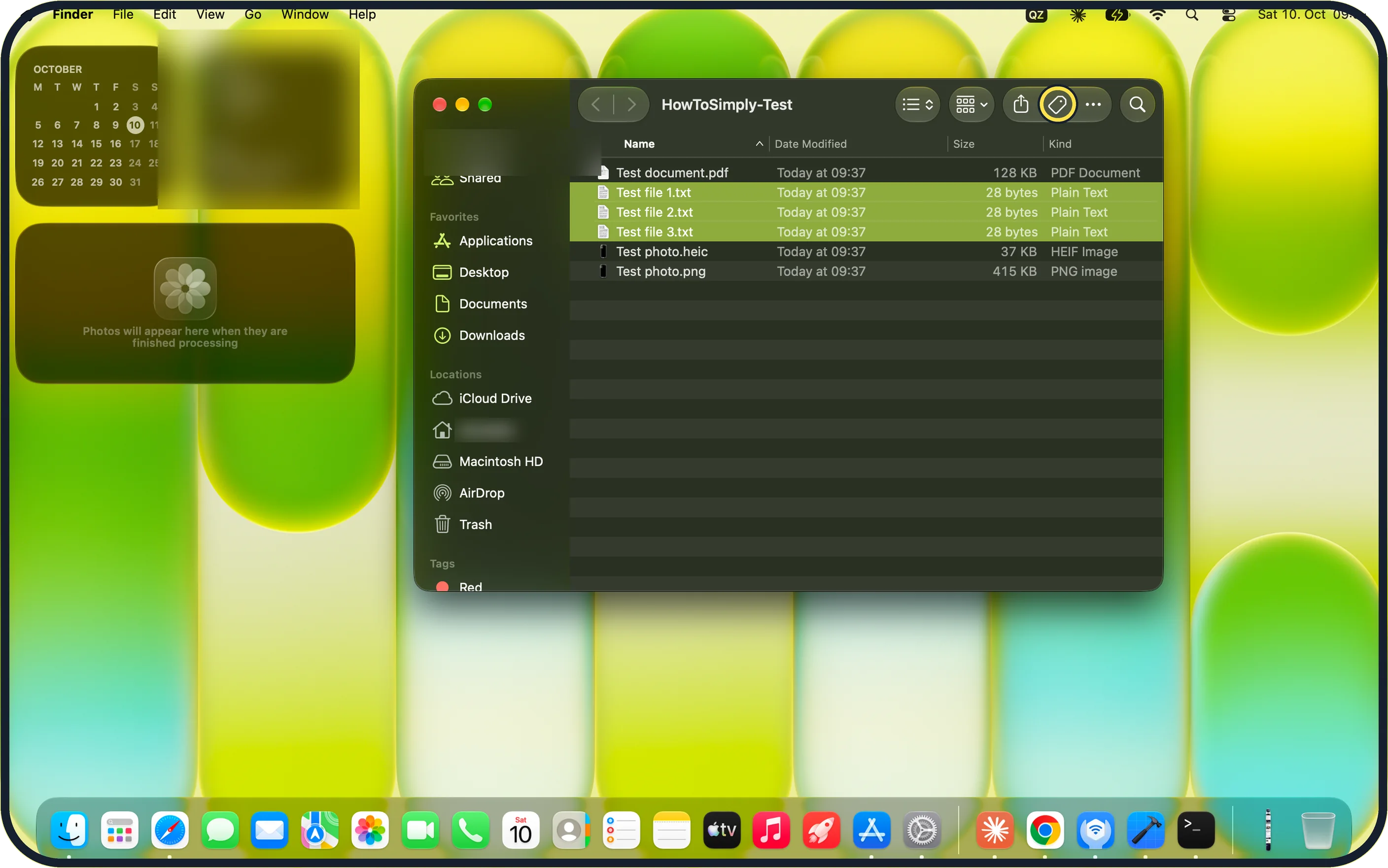
Zoomed in on the setting. Tap to see the whole screenTap the picture to see it full size Use the toolbar or the keyboard
With a file selected, click the Tag button in the Finder toolbar. On our Mac it sits between the Share button and the More button. Or press Control and a number from 1 to 7 to add or remove one of your favourite tags. Control + 0 removes all tags from the file.
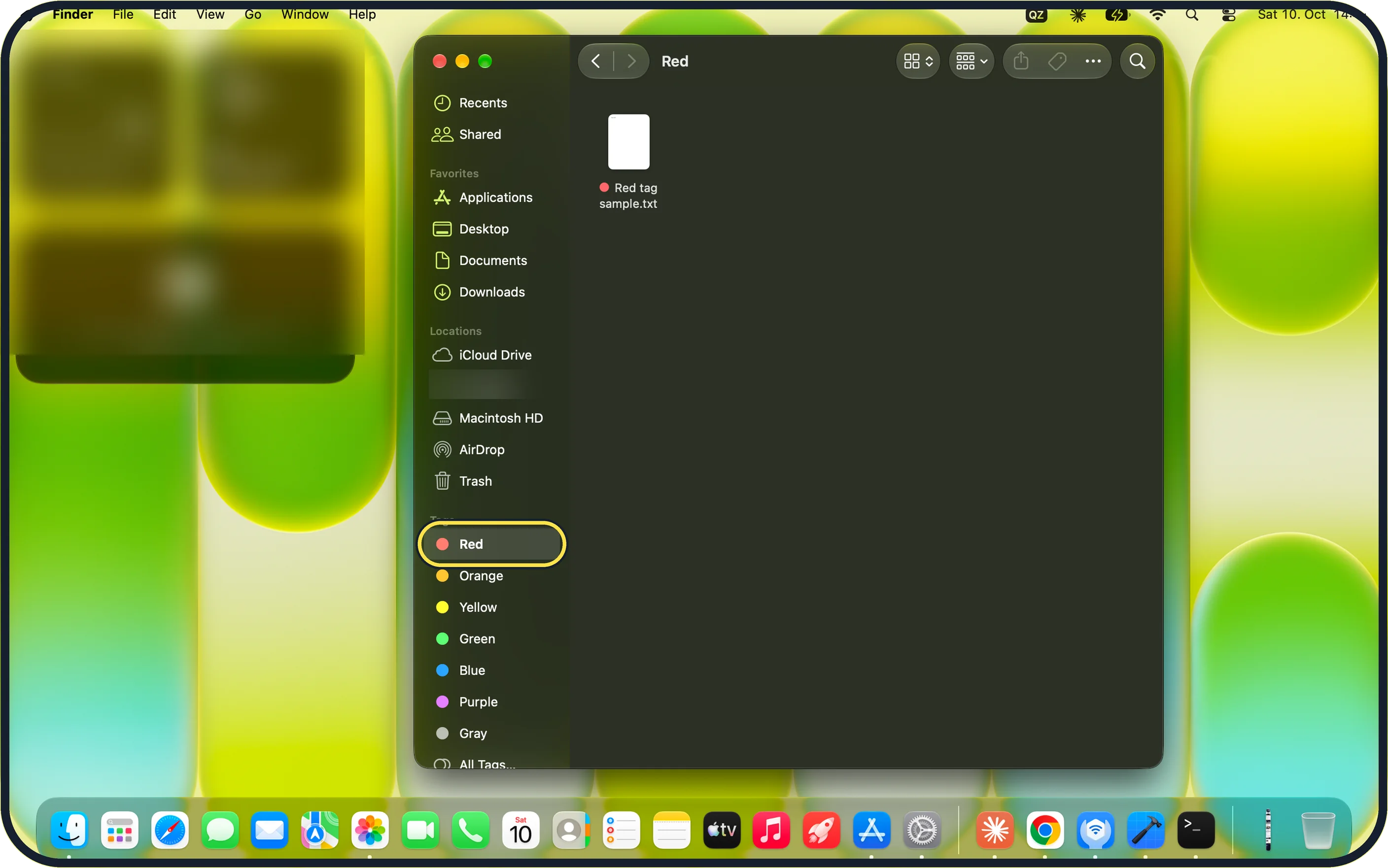
Zoomed in on the setting. Tap to see the whole screenTap the picture to see it full size Find tagged files
Open a Finder window and click a tag in the sidebar. All files with that tag are listed, wherever they are stored. On our MacBook Neo the Tags section at the bottom of the sidebar listed Red, Orange, Yellow, Green, Blue, Purple and Gray. Clicking Red showed our file Red tag sample.txt with its red dot. You can also type the tag name or colour into the search field and choose the tag from the suggestions.
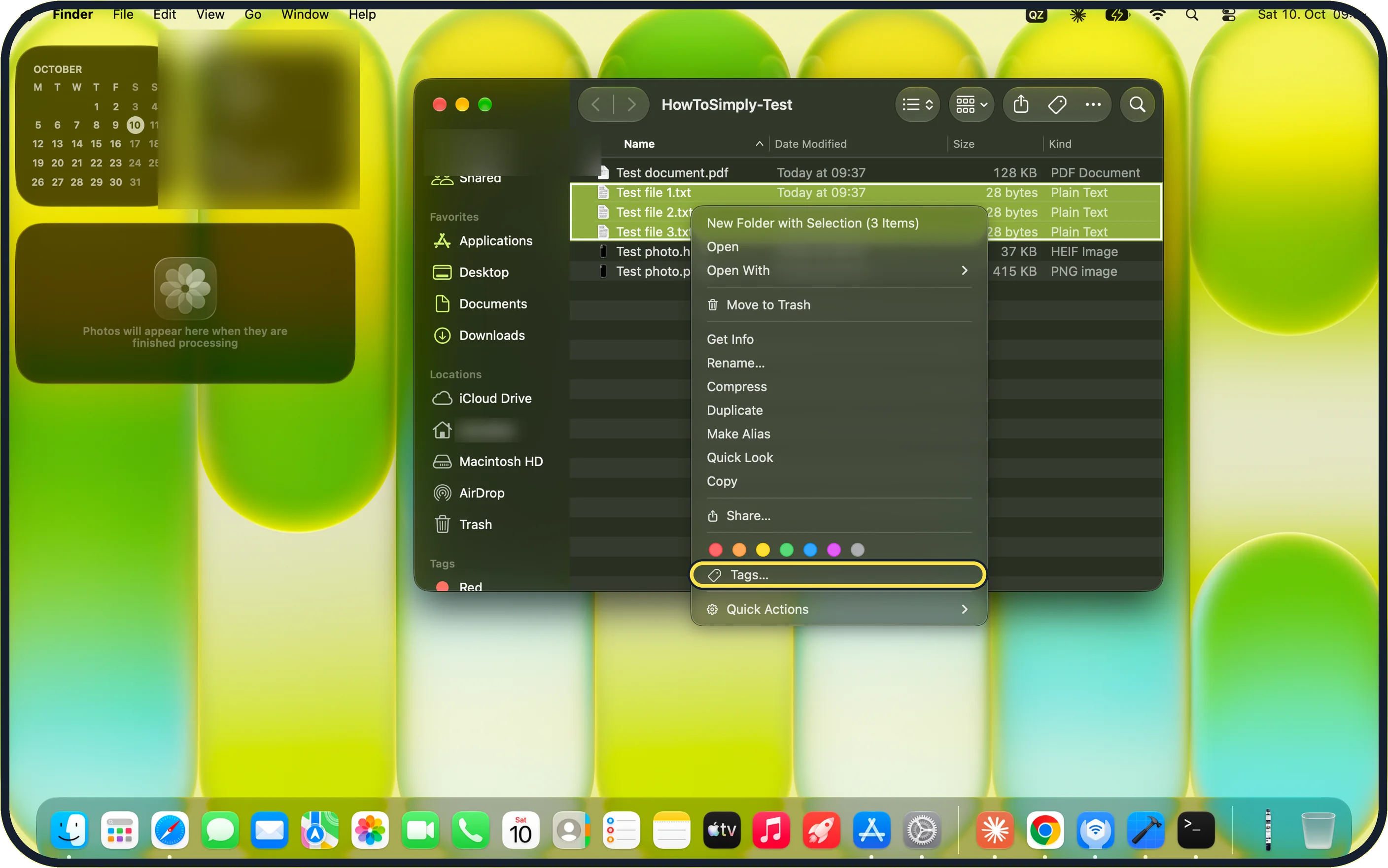
Zoomed in on the setting. Tap to see the whole screenTap the picture to see it full size Remove a tag from a file
Control-click the file, click Tags…, select the tag and press Delete. Control + 0 removes all its tags at once.
If you do not see this option
- No tag in the Finder sidebar Apple's macOS 27 guide says to choose Finder, Settings, click Tags and select the tags you want in the sidebar. On our MacBook Neo the sidebar showed Red under Tags. Source: Use tags to organize files on Mac
- The tag you want is not among the dots On our MacBook Neo the right-click menu showed seven colour dots. Apple's macOS 27 guide says up to seven Favorite Tags appear there; drag another tag into Favorite Tags in Finder Settings, Tags, or click Tags… and type its name. Source: Use tags to organize files on Mac
If this does not work
- Control and a number does nothing Apple's macOS 27 guide says Control-1 to Control-7 work on a selected file and add or remove your favourite tags. Click the file once first. Source: Use tags to organize files on Mac
- Tagged files do not show up Apple's macOS 27 guide says to type the tag colour or name in the Finder search field and select the tag from the suggestions, or to click the tag in the sidebar. Source: Use tags to organize files on Mac
About this guide
A tag is a coloured label with a name, such as Red, Work or Tax 2026. One file can carry several tags and stays where it is. Tags are a way to collect files that belong together but live in different folders.
Screenshots: MacBook Neo, macOS 27.0.1, dark mode.
Good to know
Apple's macOS 27 guide also lets you tag a file when you save it (click the Tags field in the Save dialog) or while it is open (click the arrow to the right of the document title).
To rename, recolour or delete tags, choose Finder, Settings and click Tags. Deleting a tag there removes it from your Mac. The files themselves are not deleted.
To sort a folder by tag, click the Group button in the toolbar and choose Tags.
Tags pair well with renaming files in bulk: how to rename several files at once on a Mac.
In short: Control-click a file and pick a colour or type a tag. Click the tag in the sidebar to find everything. Manage tags in Finder Settings.
Links checked in October 2026. Menus and features can change after software updates. These steps match the version named at the top.
Did this guide work for you?
Sorry about that. What happened?