ONEPLUS
How to find the IMEI, model and build number on a OnePlus

In short
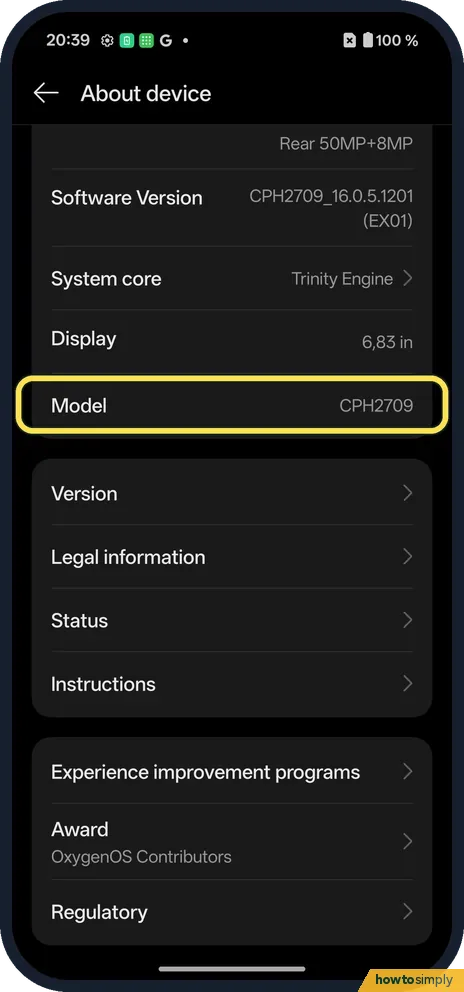
Go to Settings, About device. Model (ours CPH2709) is above Version; Version shows the build as Version No. Status shows IMEI 1, IMEI 2 and the serial number. You can also dial *#06# for the IMEI.
3 of 3 steps show a real screenshot from our Nord 5. Each step was checked against the maker's own instructions, linked at the end.
Steps
- 1
Model and Version
Open Settings, About device and scroll down past the specs. Model shows CPH2709, with Version below it; Software Version is above.
- 2
Build number
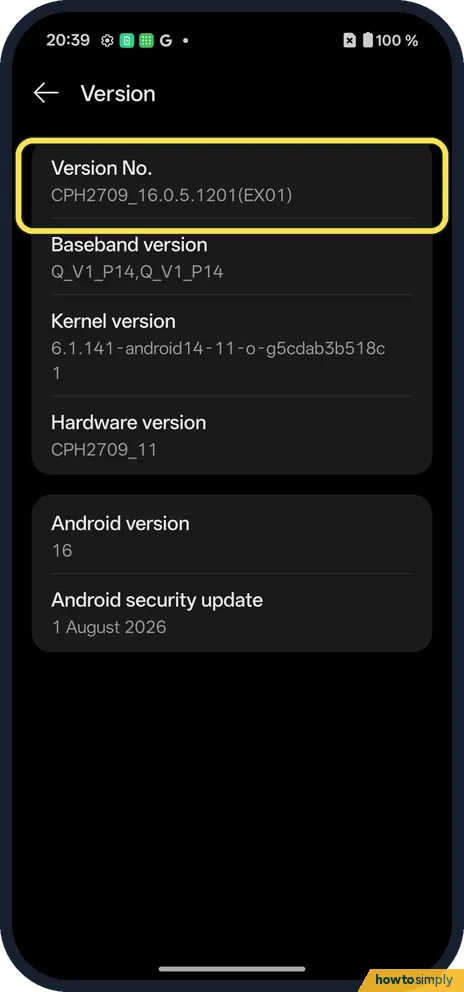
Tap Version. Version No. is the build: CPH2709_16.0.5.1201(EX01) on ours.
- 3
IMEI and serial
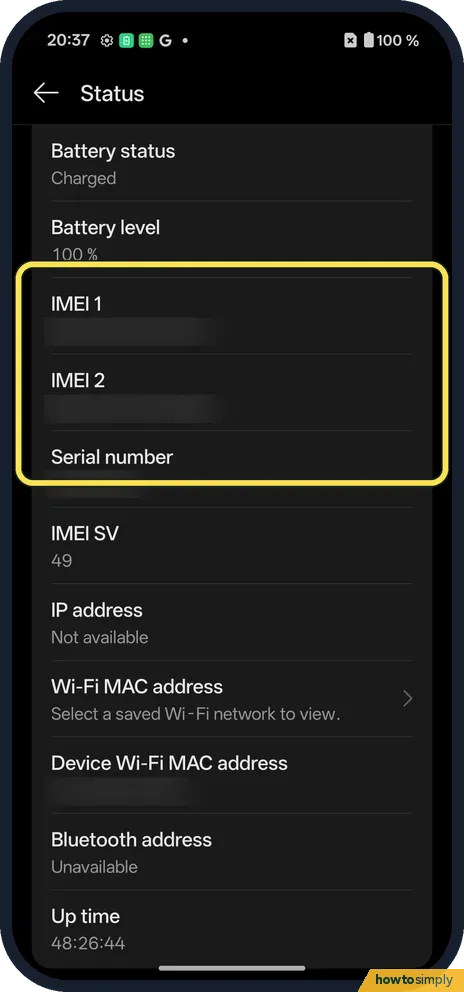
Back on About device, tap Status. IMEI 1, IMEI 2 and Serial number are listed.
If you do not see this option
- No "Build number" label? On ours the build is Version No. under Version.
- Two IMEIs? One per SIM slot.
- Need it from the box instead? The retail box and the original receipt usually show the IMEI and serial number too. Compare them with Status to confirm they match the phone in your hand.
If this does not work
- IMEI blank or unknown? Restart and check Status again. If it is still blank, for example after a repair, contact OnePlus support.
- Only one IMEI? Ours lists IMEI 1 and IMEI 2. A single-SIM model may show one.
- Need Developer options? Tap Version No. 7 times.
- Phone lost and you need the IMEI? You cannot open Settings on a phone you do not have. Google says you can see the IMEI in Find Hub: go to android.com/find, and next to the device select Settings. This works if the phone was signed in to your Google Account.
- *#06# does nothing? Type it in the Phone app's keypad, not in a search bar or the calculator. On most phones the IMEI appears as soon as you type the last character, without pressing call.
Good to know
Check for software updates on a OnePlus.
Reading these numbers changes nothing on the phone, so there is nothing to undo. It is worth writing the IMEI and serial number down somewhere safe away from the phone, such as a note in your email or with your insurance papers. Google notes that if a phone is lost or stolen, your mobile service provider can use the IMEI to disable it. A police report often asks for it as well.
The build number changes with every software update, so check it again after updating if a support agent asks. The model number (CPH2709 on ours) never changes and is the most reliable way to find the right manual, case or charger. To see what the latest build is for your phone, check for software updates.
About this guide
- Device
- Android
- Shown on
- OnePlus Nord 5 (CPH2709), OxygenOS 16.0.5.1201, Android 16
- App
- Settings
- Path
- Settings › About device › Status
- Real screenshots
- 3 of 3 steps
- Checked
- October 2026
- Sources
- 2 official, linked below
Sources
Links checked October 2026. Menus and features can change with updates.Spotted a mistake? Menus change with updates, and we want every step to match your screen. Email us about this page or use the contact form. We read every report, and fixes are listed on What changed.
Liked this guide?
Follow us for new guides and short how-to videos.
Did this guide work for you?
Sorry about that. What happened?