
howtosimply.com/guides/how-to-offload-unused-apps-on-an-iphone/ · Checked October 2026 · iPhone 17e · iOS 27.0.1
In this guide
To let the iPhone do it, open Settings, General, iPhone Storage and tap Enable next to Offload Unused Apps. For one app, tap it in the list and tap Offload App. Offloading removes the app but keeps its documents and data, and reinstalling it reinstates your data if the app is still available in the App Store.
5 of 5 steps with real screenshots · 2 official sources below
- Device
- iPhone
- Shown on
- iOS 27.0.1 (iPhone 17e)
- App
- Settings
- Path
- Settings › General › iPhone Storage
- Real screenshots
- 5 of 5 steps
- Checked
- October 2026
- Sources
- 2 official, linked below
Step by step
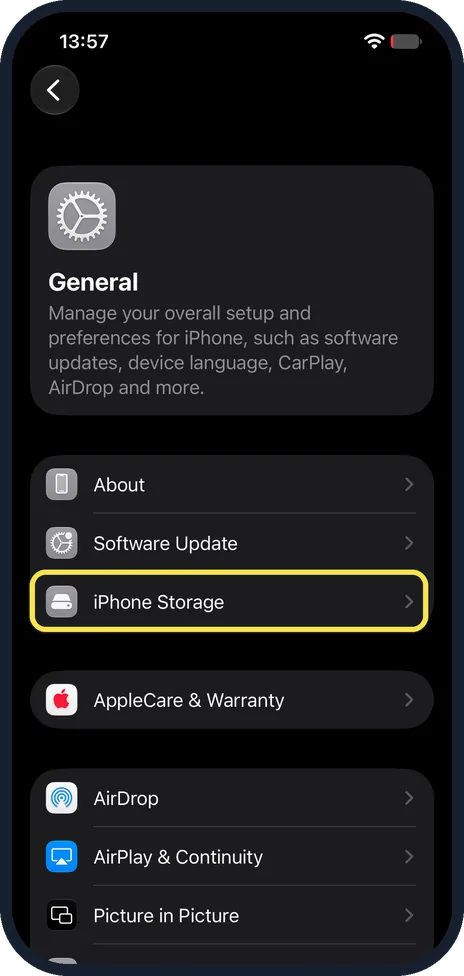
Open iPhone Storage
Open the Settings app and tap General. iPhone Storage is the third row, below About and Software Update. Tap it.
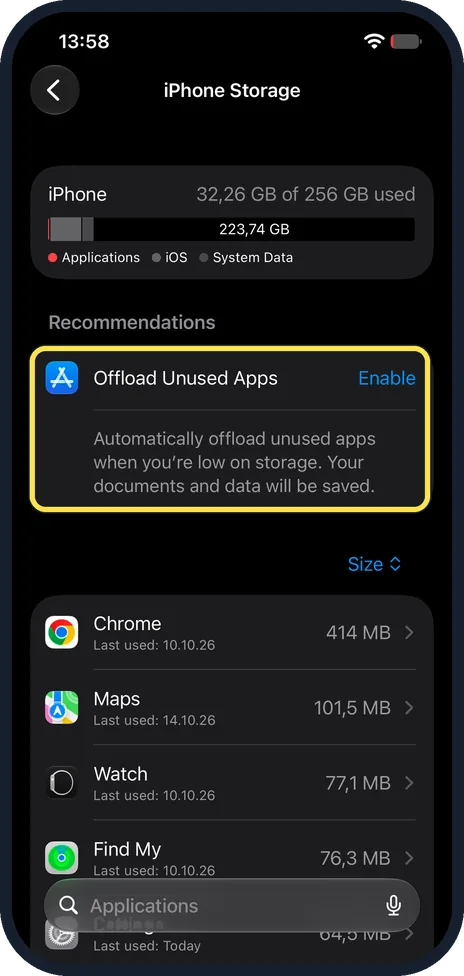
Tap Enable next to Offload Unused Apps
At the top you see how much space is used, 32,26 GB of 256 GB on ours. Under Recommendations is Offload Unused Apps: automatically offload unused apps when you are low on storage; your documents and data will be saved. Tap Enable to turn it on.
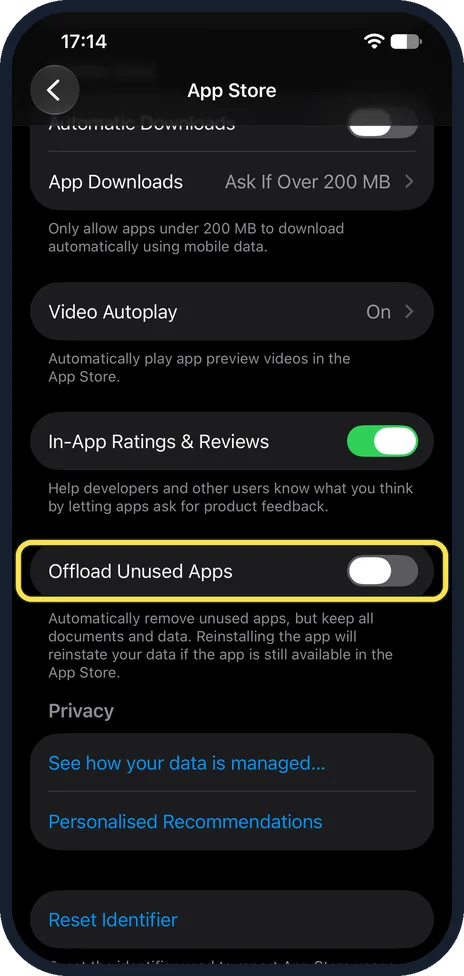
Or use the App Store settings
The same switch is in Settings, Apps, App Store. Scroll its page down: Offload Unused Apps is below In-App Ratings & Reviews, and was off on ours. Its note says it removes unused apps but keeps all documents and data, and reinstalling the app reinstates your data if the app is still available in the App Store.
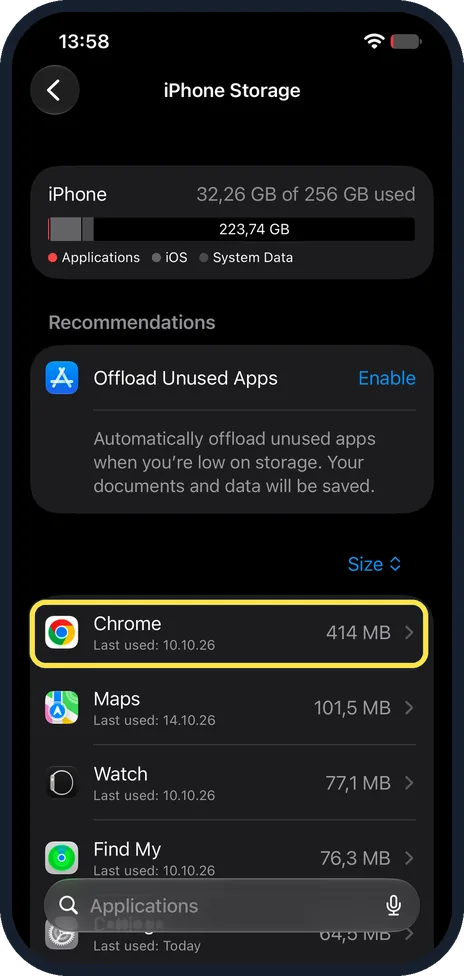
Tap an app to offload it by hand
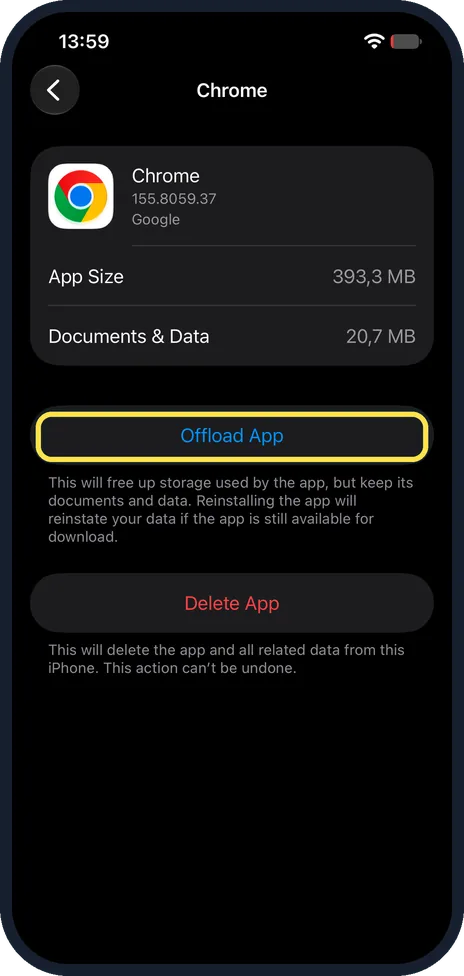
To offload one app now, open iPhone Storage again. The apps are sorted by size, with the date each was last used. Tap the app. We tapped Chrome, last used 10.10.26, 414 MB.
Tap Offload App
The app page shows App Size and Documents & Data. Tap Offload App to free the space used by the app and keep its documents and data. Delete App, below it, deletes the app and all related data. We tapped neither.
If you do not see this option
- No App Store row in Settings? On iOS 27.0.1 the App Store settings are not in the main Settings list: open Settings, Apps, App Store, as in step 3.
- No Offload App for an app? On ours the built-in Maps app showed only App Size and Documents & Data, with no Offload App or Delete App button. Chrome had both.
If this does not work
- An app icon has a cloud next to it? Apple says that is an offloaded app: tap the icon to reinstall it. The note under the App Store switch says reinstalling the app reinstates your data if the app is still available in the App Store. Source: Manage storage on iPhone
- Space did not free up after offloading? Offloading frees only the app itself; the Documents & Data part stays. To remove that as well, Apple says to use Delete App. Source: How to check the storage on your iPhone and iPad
- Worried about losing data? The note under Offload App on ours says reinstalling the app will reinstate your data if the app is still available for download. Delete App cannot be undone.
About this guide
Offloading removes an app but keeps what you made in it. Apple says the icon stays on the Home Screen with a cloud symbol, and tapping it reinstalls the app. Delete App removes the data too.
The screenshots are from our iPhone 17e with iOS 27.0.1, in Dark mode. We opened the switches and buttons but did not tap them, so no app was offloaded.
Good to know
For more ways to free space: iPhone storage full? 7 ways to free up space fast. To remove an app with its data: how to delete apps on an iPhone.
On a Samsung phone the same idea is called archiving: how to archive unused apps on a Samsung Galaxy.
In short: Settings, General, iPhone Storage, Enable next to Offload Unused Apps; or tap one app and Offload App.
- Apple iPhone User Guide: Manage storage on iPhone
- Apple Support: How to check the storage on your iPhone and iPad
Links checked in October 2026. Menus and features can change after software updates. These steps match the version named at the top.
Did this guide work for you?
Sorry about that. What happened?