
howtosimply.com/guides/how-to-edit-a-video-on-a-samsung-galaxy/ · Checked October 2026 · SM-A576B), One UI 9, Android 17 (build A576BXXU6BZIE · Samsung Galaxy A57
In this guide
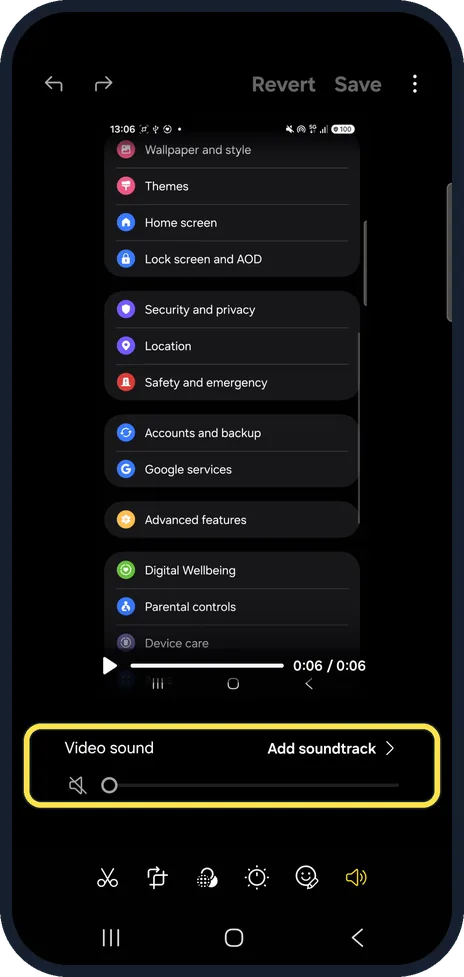
Open the video in Gallery and tap the pencil. The editor has tools along the bottom: speed (the gauge next to the time), filters, and the speaker icon for video sound and Add soundtrack. Tap Save when done.
5 of 5 steps with real screenshots · 3 official sources below
- Device
- Android
- Shown on
- Samsung Galaxy A57 (SM-A576B), One UI 9, Android 17 (build A576BXXU6BZIE)
- Real screenshots
- 5 of 5 steps
- Checked
- October 2026
- Sources
- 3 official, linked below
Step by step
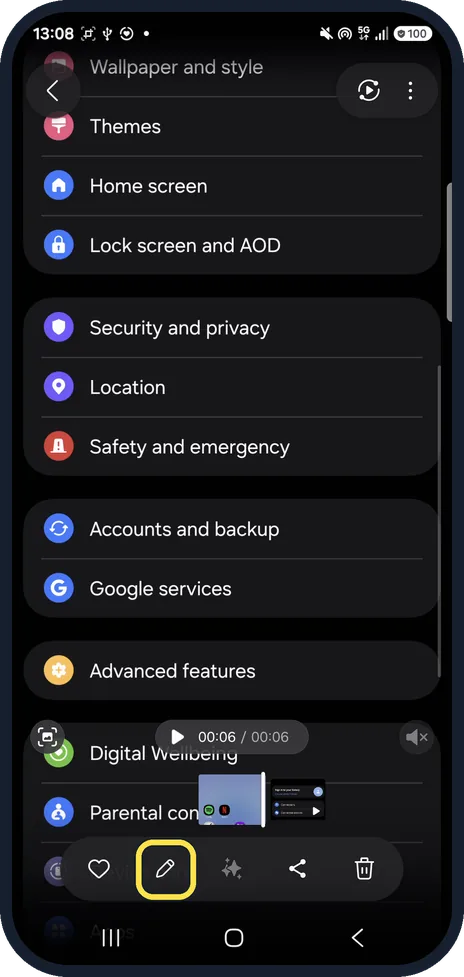
Tap the pencil
Open the video in Gallery and tap the pencil at the bottom.
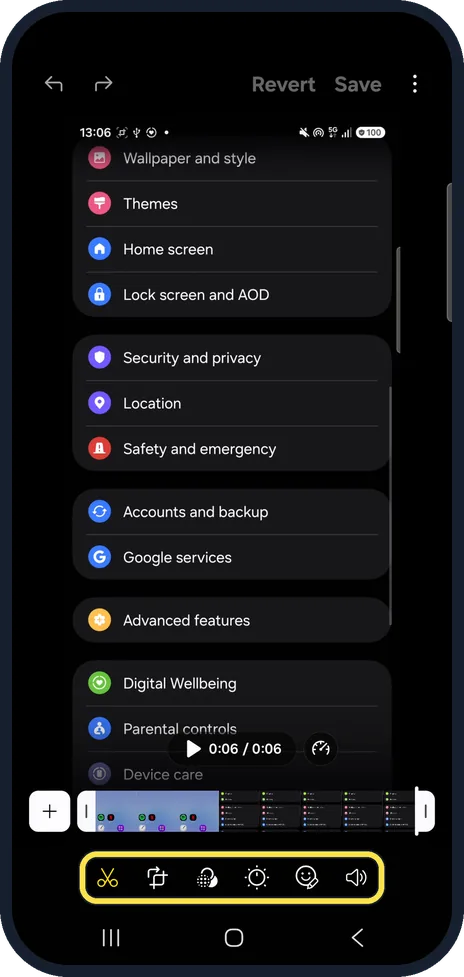
Find the tools
Along the bottom: trim, transform, filters, tone, decorations and sound. The gauge next to the time sets the speed.
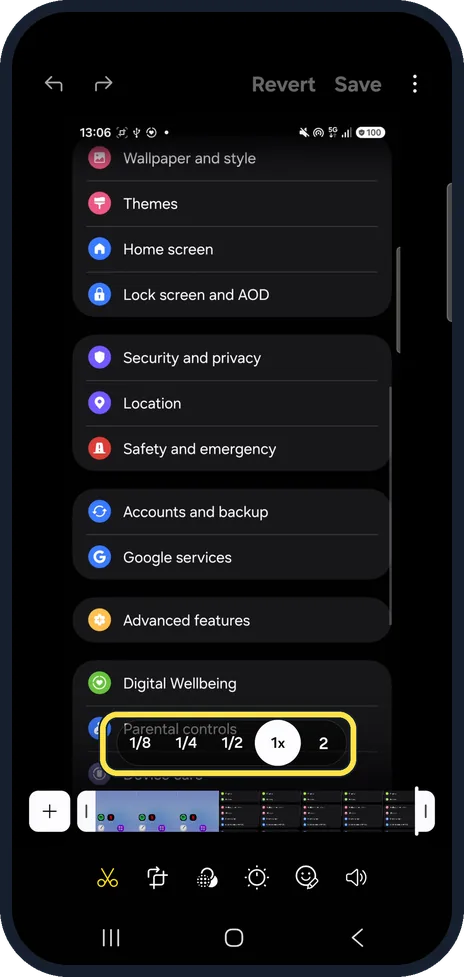
Change the speed
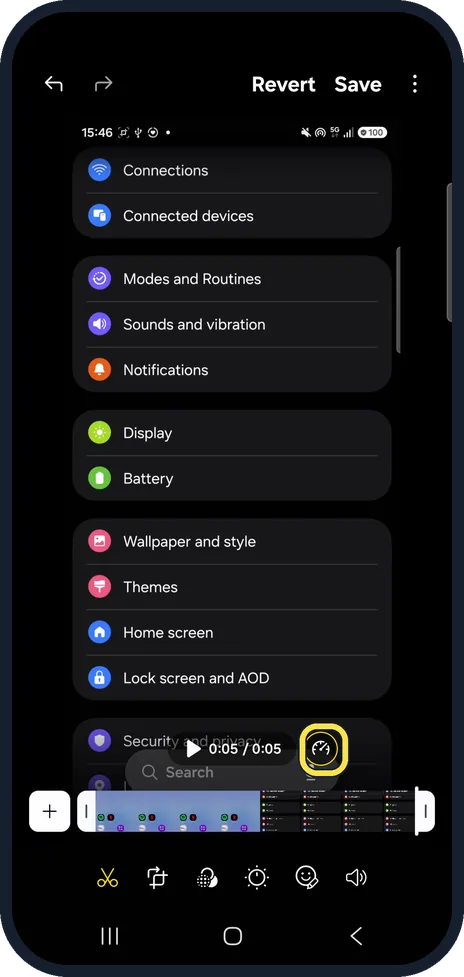
Tap the gauge: ours offered 1/8, 1/4, 1/2, 1x and 2 (shown without an x).
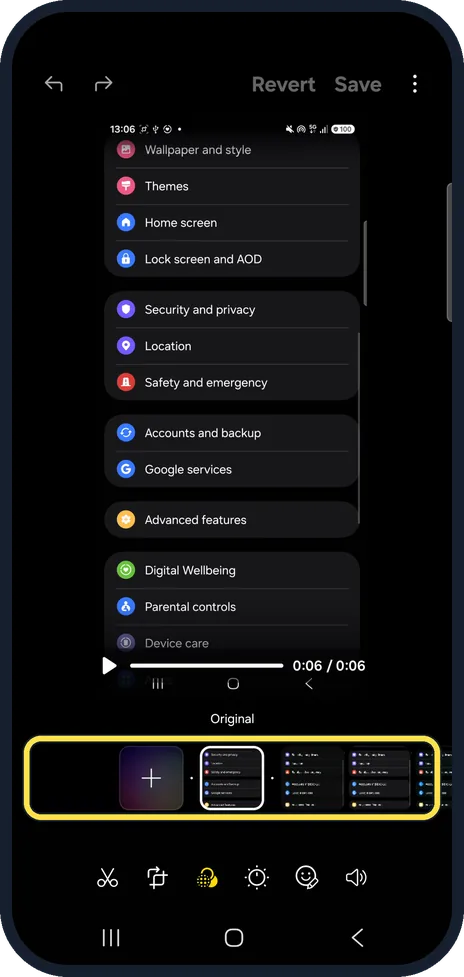
Add a filter
Tap the filters icon, the third one, and swipe through them. Original, the unchanged look, comes right after the + tile.
Change the sound
Tap the speaker: a slider sets Video sound, and Add soundtrack picks music. On our screen recording the slider sat at the far left, next to a muted speaker.
If you do not see this option
- No editor, or fewer tools? Samsung says its Video editor is available on S20 models and above. On older Galaxy phones the pencil may open fewer tools than our A57 shows. Source: How to use Samsung Video editor
- Did the speed change? On a second short screen recording, after we picked 2 the speed icon turned yellow and Revert and Save at the top became active.
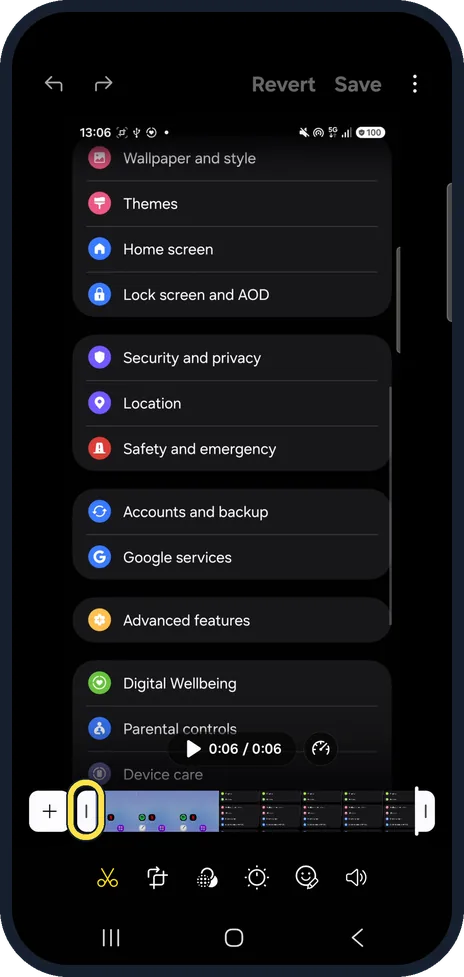
- Want to cut the start or end? Drag the white handles at either end of the timeline. Source: How to use Samsung Video editor
If this does not work
- Saving takes a while? Samsung says long or high-resolution videos can take a few minutes to save. Source: How to use Samsung Video editor
- Don't want to change the original? Tap Revert to undo before saving. Source: How to use Samsung Video editor
About this guide
Gallery has a full video editor, so speed, filters and music need no extra app.
The screenshots are from our Samsung Galaxy A57 (SM-A576B) with One UI 9 and Android 17, in Dark mode, taken on 25 October 2026. Our test clips were short screen recordings; we did not save any change.
Good to know
Samsung lists Filter and Audio, with Add soundtrack and video volume, for videos too.
Just trimming? See trim a video on a Samsung Galaxy.
In short: Gallery, video, pencil, speed, filters, sound, Save.
- Samsung US: Edit photos or videos on your Galaxy phone or tablet
- Samsung Latin: How to use Samsung Video editor
- Samsung UK: How to use Samsung Video editor
Links checked in October 2026. Menus and features can change after software updates. These steps match the version named at the top.
📷 See real photos from the Galaxy A57 in our Camera Lab, next to 10 other phones.
Did this guide work for you?
Sorry about that. What happened?