
What changed: new screenshots from our own Galaxy A57 on One UI 9, dark mode, with every step checked against those screens.
howtosimply.com/guides/how-to-trim-a-video-on-a-samsung-galaxy/ · Checked October 2026 · SM-A576B), One UI 9, Android 17 (build A576BXXU6BZIE · Samsung Galaxy A57
In this guide
Open the video in Gallery and tap the pencil (Edit). The editor opens with the scissors (Trim) selected. Drag the white handles at each end of the timeline to the new start and end, then tap Save. Revert brings the original back, even after saving.
8 of 8 steps with real screenshots · 2 official sources below
- Device
- Android
- Shown on
- Samsung Galaxy A57 (SM-A576B), One UI 9, Android 17 (build A576BXXU6BZIE)
- Real screenshots
- 8 of 8 steps
- Checked
- October 2026
- Sources
- 2 official, linked below
Step by step
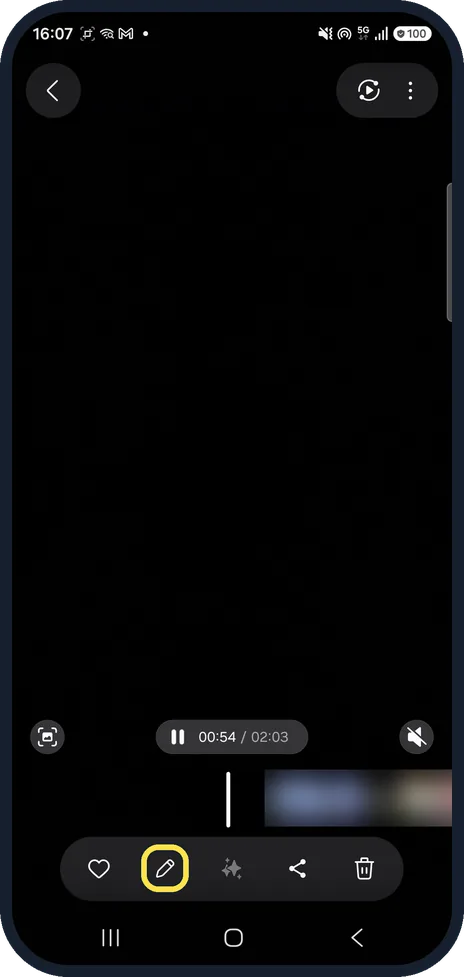
Open the video and tap the pencil
Open the video in Gallery and tap the pencil in the bar at the bottom. On ours, the 2:03 video showed 00:54 / 02:03 while playing, and the pencil sat between the heart and the sparkle icon.
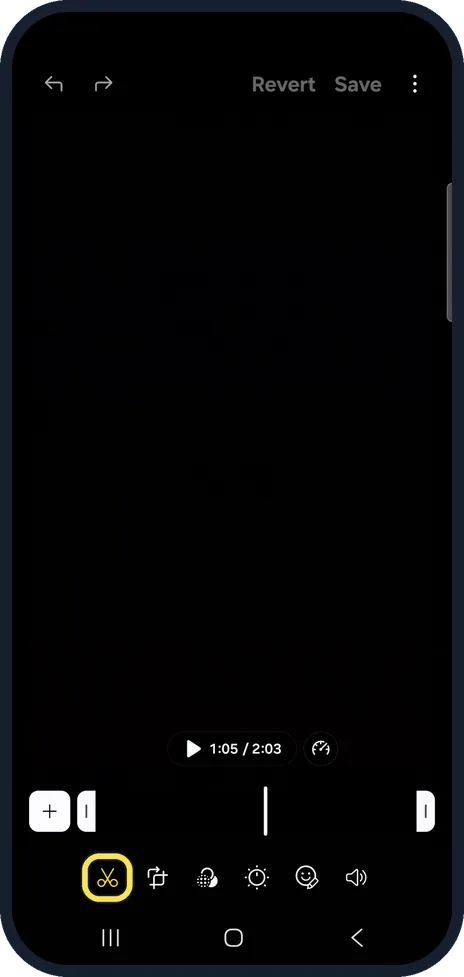
Check the scissors are selected
The editor opens with the scissors (Trim) selected and the timeline above them.
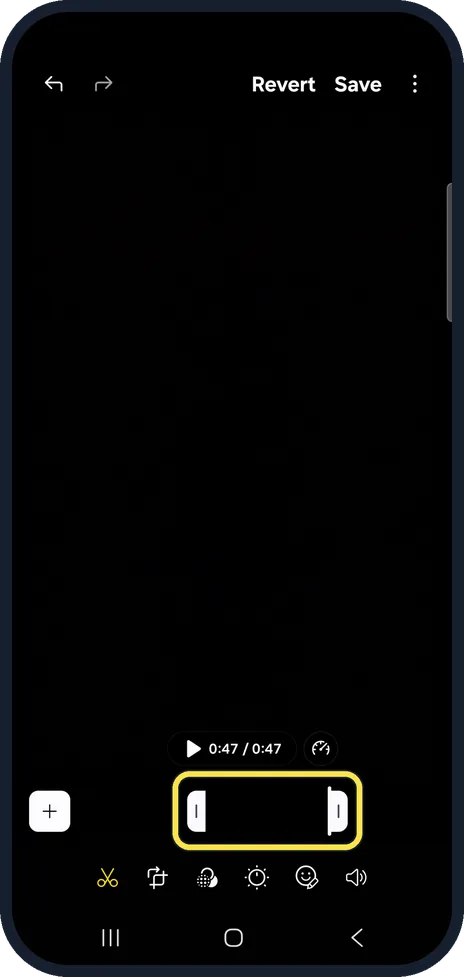
Drag the handles
Drag the white handle at either end of the timeline to the new start or end. We dragged both in, and the length went from 2:03 to 0:47.
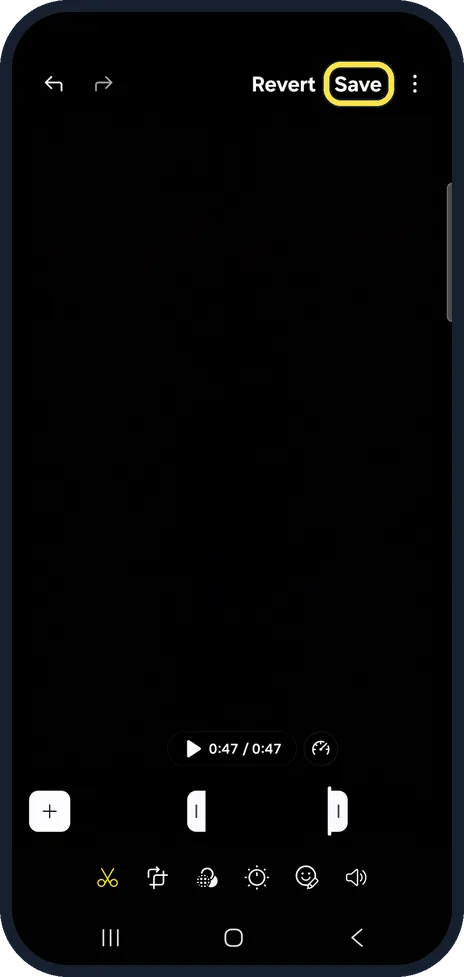
Tap Save
Tap Save at the top right to keep the shorter video.
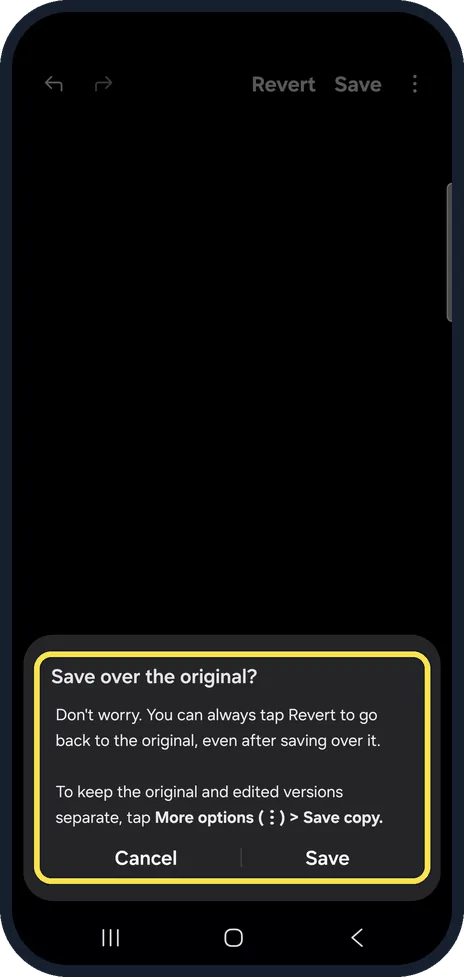
Save over the original
A box asks Save over the original? and says you can always tap Revert to go back to the original, even after saving over it. To keep both versions, tap More options (the three dots), Save copy instead. We tapped Save.
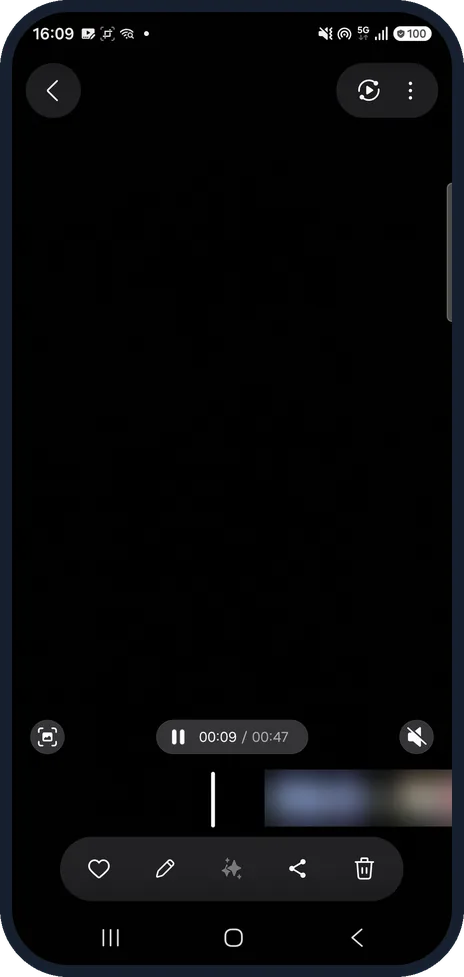
Check the new length
The video now plays with the shorter length; ours showed 00:09 / 00:47.
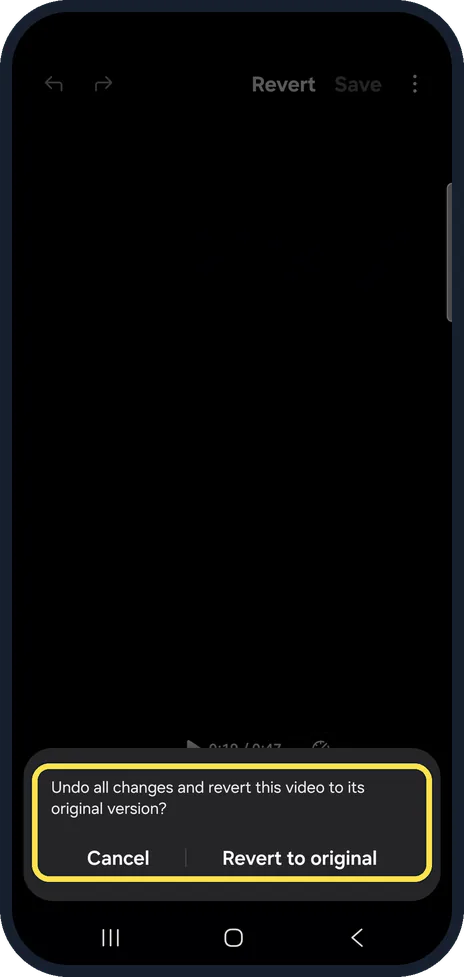
Tap Revert to undo
To go back, open the editor again and tap Revert. The phone asks Undo all changes and revert this video to its original version?; tap Revert to original.
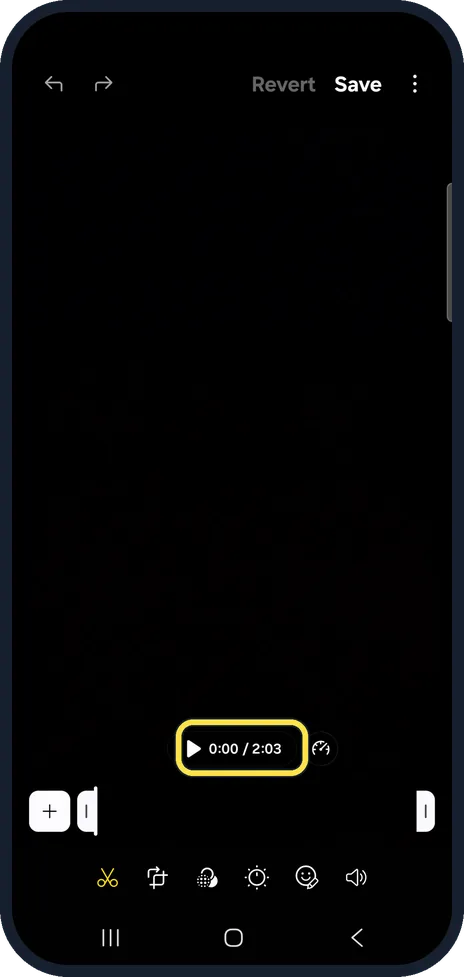
Check the full length is back
After Revert, the clip returns to its full length. Ours showed 0:00 / 2:03 again.
What changed: new screenshots from our own Galaxy A57 on One UI 9, dark mode, with every step checked against those screens.
If you do not see this option
- No pencil in the viewer Look in the rounded bar at the bottom of the video viewer: the pencil is the second icon, after the heart.
- Editor opens on another tool Tap the scissors, the first icon in the bottom row, to get the Trim timeline.
- Revert and Save not where you expect They sit at the top right of the editor, next to the three-dot menu.
- Different names on your phone Our screenshots are from One UI 9. Look for the pencil in the viewer and the scissors in the editor, as shown in the steps.
If this does not work
- Cut off too much Tap Revert, even after saving. On our Galaxy, the clip went back from 0:47 to its full 2:03.
- Only want to undo the last change Tap the undo arrow at the top left of the editor.
- Want to keep the original too When Save asks Save over the original?, use More options (the three dots), Save copy instead.
- Saving takes a long time Long or high-resolution videos can take a few minutes to save, Samsung says. Sources: How to use Samsung Video editor, How to use Samsung Video editor
About this guide
Gallery has a built-in video editor, so trimming the start or end of a clip needs no extra app. We trimmed our own 2:03 test video to 0:47, saved it, used Revert to get the full video back and deleted it afterwards.
The screenshots are from our Samsung Galaxy A57 with One UI 9 and Android 17 (build A576BXXU6BZIE), in Dark mode. The editor is the same as on One UI 8.5, where we did not save; the Save over the original? box is from One UI 9.
Good to know
Long or high-resolution videos can take a few minutes to save, Samsung says.
The other icons along the bottom of the editor hold the other editing tools; the scissors are the one for trimming.
In short: Gallery, the video, pencil, scissors, drag the handles, Save (or Revert).
Links checked in October 2026. Menus and features can change after software updates. These steps match the version named at the top.
📷 See real photos from the Galaxy A57 in our Camera Lab, next to 10 other phones.
Did this guide work for you?
Sorry about that. What happened?