
howtosimply.com/guides/how-to-create-a-routine-in-modes-and-routines-on-a-samsung-galaxy/ · Checked October 2026 · Samsung Galaxy A57 5G (SM-A576B), One UI 8.5, Android 16
In this guide
Open Settings, Modes and Routines, the Routines tab and tap +. Add an If (what starts the routine, such as a time or a place) and a Then (what it does, such as turning on Do not disturb), and tap Save.
4 of 4 steps with real screenshots · 2 official sources below
- Device
- Android
- Shown on
- Samsung Galaxy A57 5G (SM-A576B), One UI 8.5, Android 16
- App
- Settings
- Path
- Settings › Modes and Routines › Routines
- Real screenshots
- 4 of 4 steps
- What we did
- Observed: looked at each screen, changed nothing
- Our phone
- Shown on Galaxy A57, One UI 8.5
- Checked
- October 2026
- Sources
- 2 official, linked below
Step by step
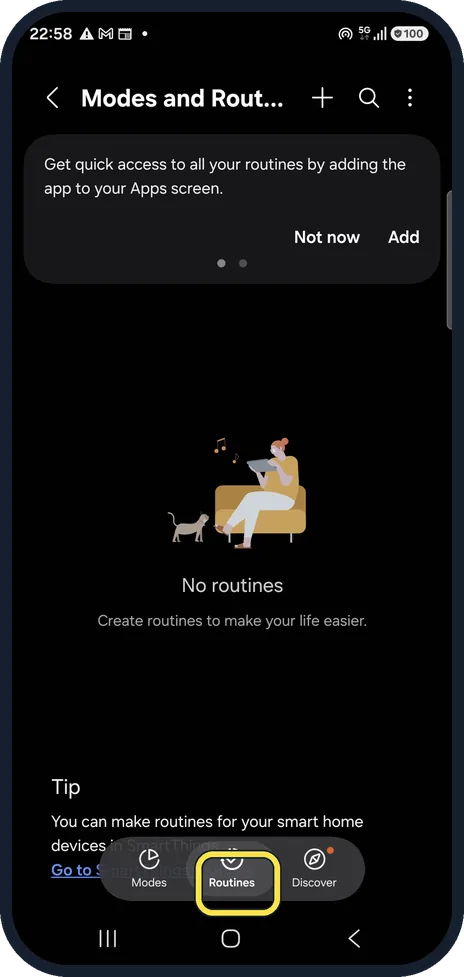
Open the Routines tab
Open Settings, Modes and Routines and tap Routines at the bottom. Ours has No routines.
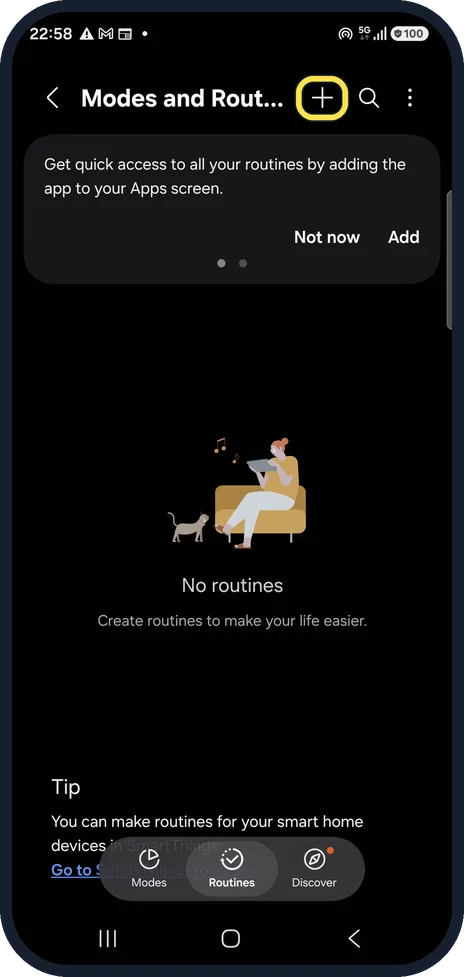
Tap +
The + at the top starts a new routine.
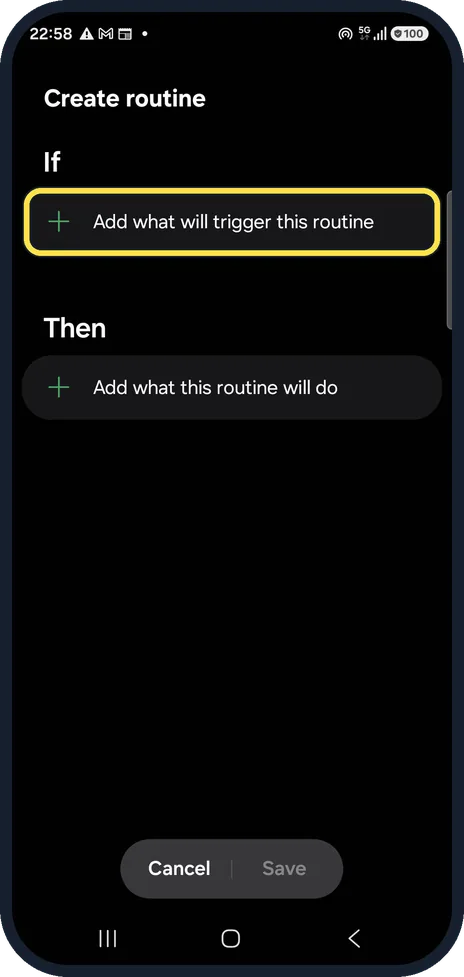
Add the If
Tap Add what will trigger this routine and choose a condition, such as a time, a place or connecting to a device.
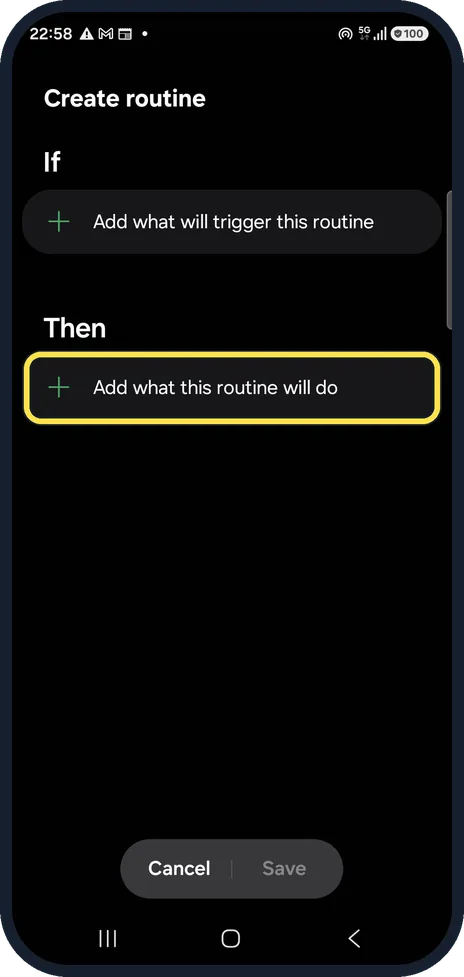
Add the Then and save
Tap Add what this routine will do, choose the actions, then Save and give it a name. Save stays greyed out until the routine has both an If and a Then. We pressed Cancel.
If you do not see this option
- There is no Modes and Routines in Settings Samsung says that on Android 12 and 11 routines are in the separate Bixby Routines app. From Android 13 they are under Settings, Modes and Routines. Source: How to use routines on your Samsung Galaxy device
- You want it on the Apps screen Samsung says Modes and Routines, More, Settings, Show Modes and Routines on Apps screen adds an icon for it. Source: How to use routines on your Samsung Galaxy device
- You want conditions like waking up or driving Samsung says these appear after you turn on Customized services under Routines, More, Settings, which lets the phone analyse how you use it. Source: How to use routines on your Samsung Galaxy device
If this does not work
- A setting changes and you do not know why Samsung says a routine you set earlier may be running. Swipe down and tap the routine notification, or open Modes and Routines, Routines, to see which ones are running. Source: How to use routines on your Samsung Galaxy device
- The new routine does not start Samsung says a routine runs only when all the conditions you set are met. Open it from the Routines tab and check its If part. Source: How to use routines on your Samsung Galaxy device
About this guide
A routine changes settings by itself, for example Wi-Fi off when you leave home, or quieter sound at night. Settings go back when the routine ends.
Good to know
The Discover tab has ready-made routines to start from.
Modes, the other tab, are switched on by you or a schedule; Sleep is one: how to use Sleep mode.
In short: Settings, Modes and Routines, Routines, +, If and Then, Save.
- Samsung Latin: How to use routines on your Samsung Galaxy device
- Samsung US: Use Modes and Routines on your Galaxy phone or tablet
Links checked in October 2026. Menus and features can change after software updates. These steps match the version named at the top.
📷 See real photos from the Galaxy A57 in our Camera Lab, next to 10 other phones.
Did this guide work for you?
Sorry about that. What happened?