XIAOMI REDMI
How to change Gboard keyboard settings on a Xiaomi phone (HyperOS 3)

In short
Go to Settings, Additional settings, Languages and input, Manage keyboards and tap Gboard. Preferences has the number row, emoji, comma and full stop keys, and typing shortcuts. Theme sets the keyboard colours; ours was Dynamic colour.
11 of 11 steps show a real screenshot from our Redmi Note 15 Pro 5G. Each step was checked against the maker's own instructions, linked at the end.
Steps
- 1
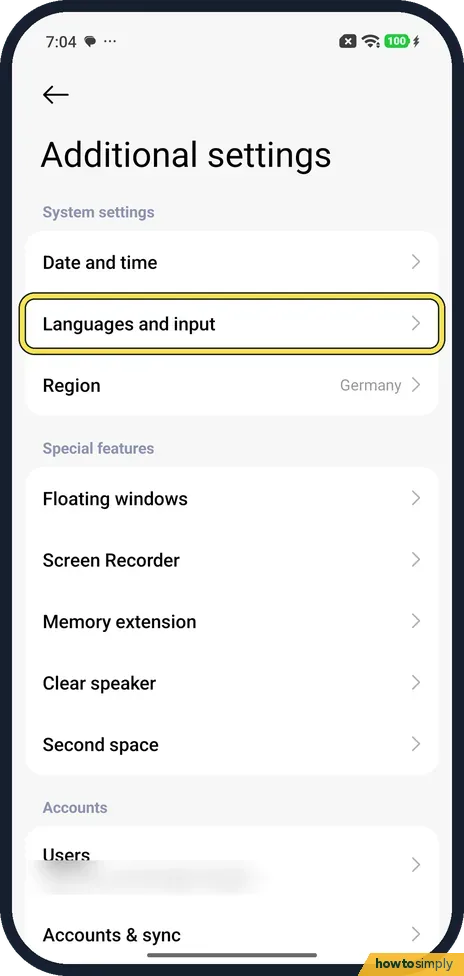
Open Languages and input
Open Settings and tap Additional settings. Languages and input is below Date and time.
- 2
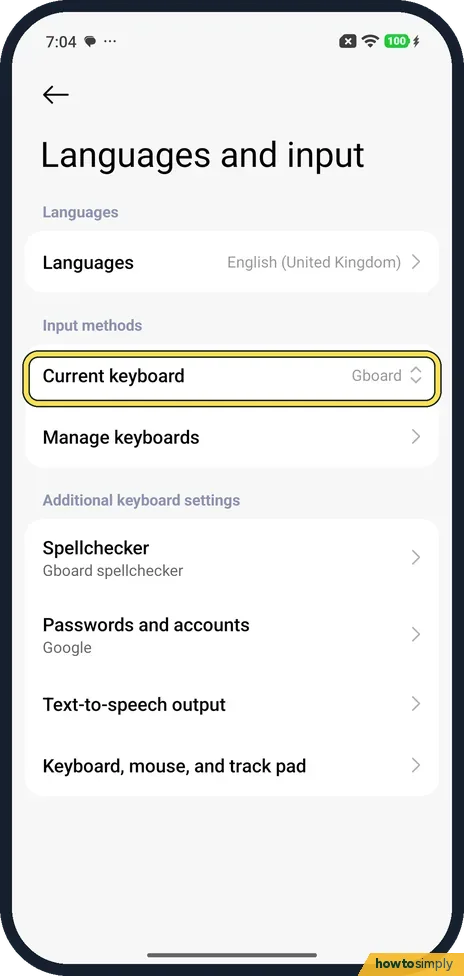
Check the current keyboard
Current keyboard shows which keyboard you type with. Ours said Gboard.
- 3
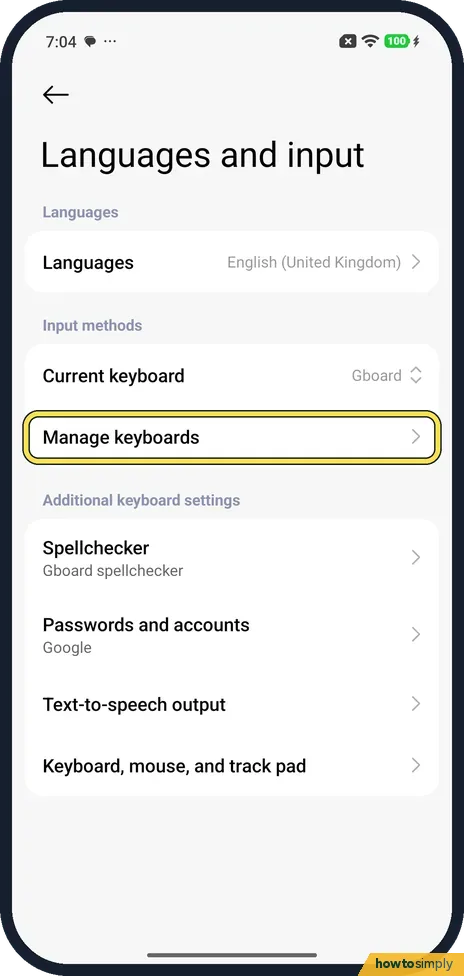
Tap Manage keyboards
Tap Manage keyboards, just below.
- 4
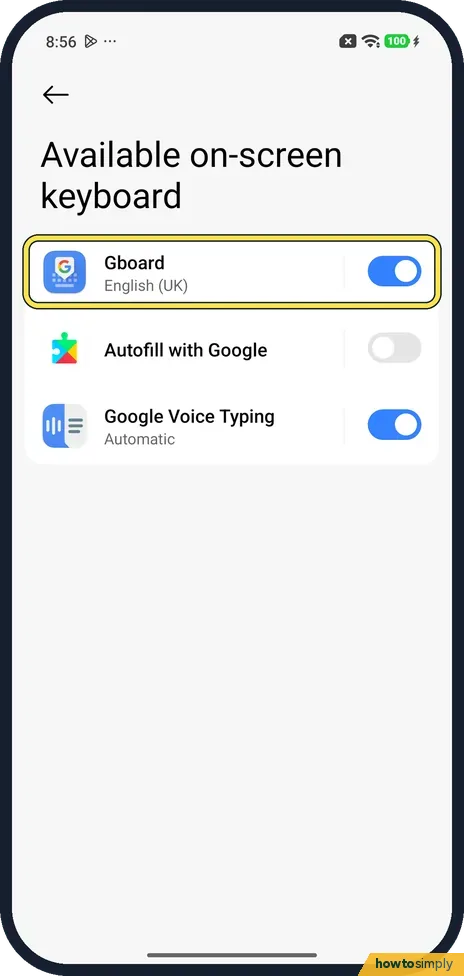
Tap Gboard
Available on-screen keyboard lists Gboard, English (UK), with its switch on. Autofill with Google was off and Google Voice Typing on. Tap the word Gboard.
- 5
Open Preferences
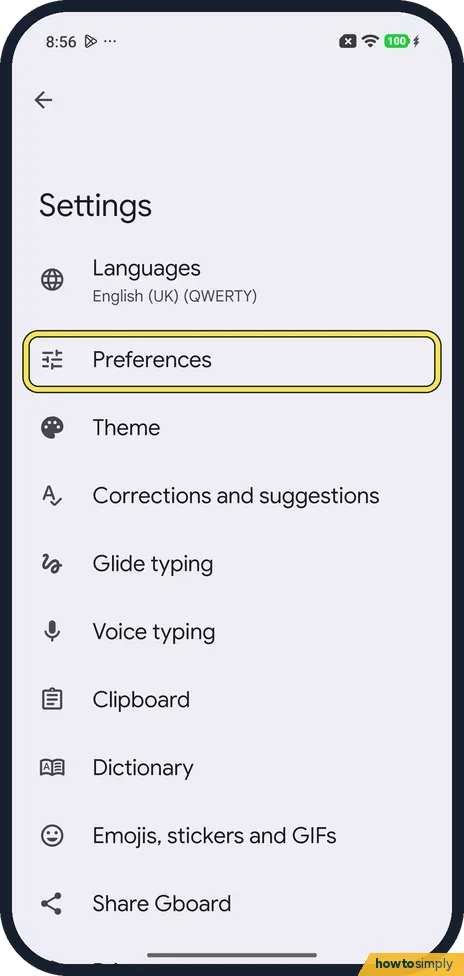
Gboard's Settings list starts with Languages, English (UK) (QWERTY) on ours. Tap Preferences.
- 6
Keys
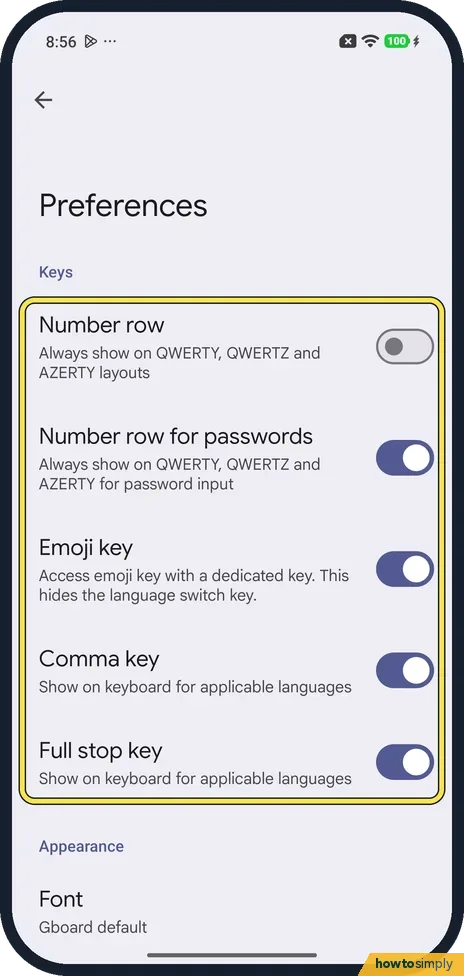
Under Keys: Number row (always show numbers) was off. Number row for passwords, Emoji key, Comma key and Full stop key were on. The page says the Emoji key hides the language switch key.
- 7
Font
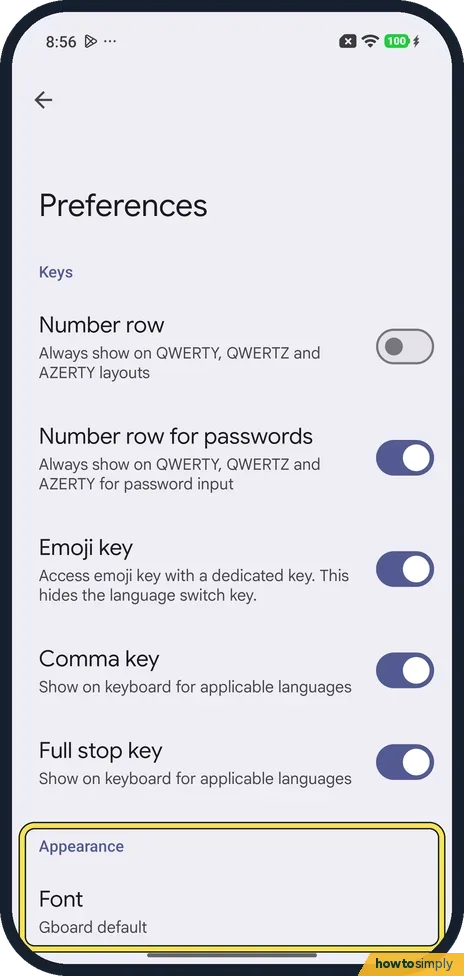
Under Appearance, Font said Gboard default.
- 8
Layout and shortcuts
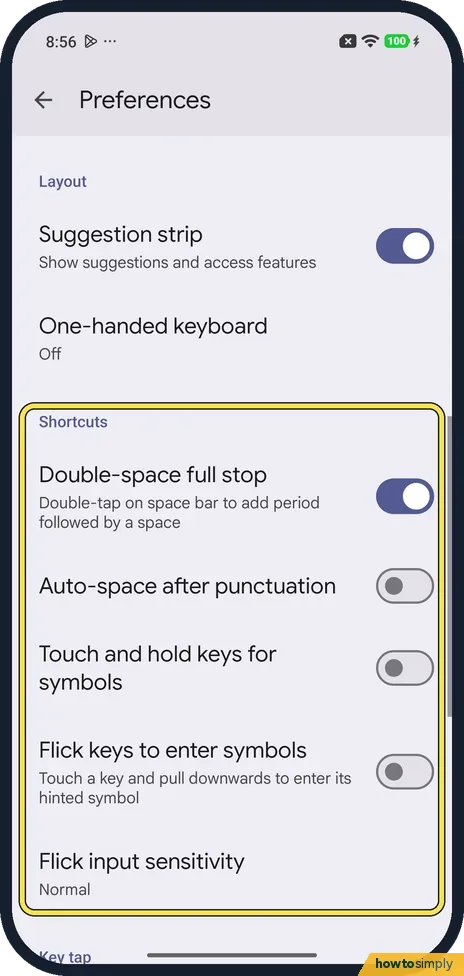
Further down, Suggestion strip was on and One-handed keyboard Off. Under Shortcuts, Double-space full stop was on; Auto-space after punctuation, Touch and hold keys for symbols and Flick keys to enter symbols were off.
- 9
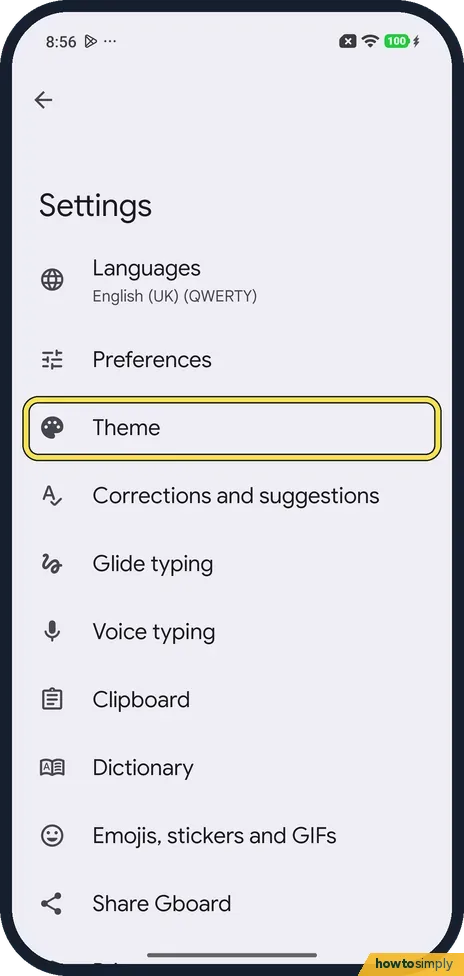
Open Theme
Back on Gboard's Settings, tap Theme.
- 10
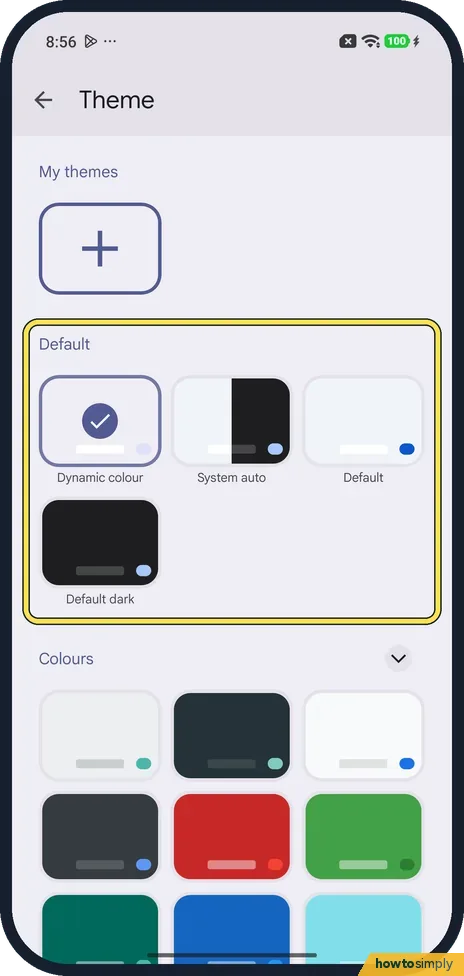
Pick a theme
Under Default are Dynamic colour, System auto, Default and Default dark. Ours was Dynamic colour, ticked. Colours, further down, has more.
- 11
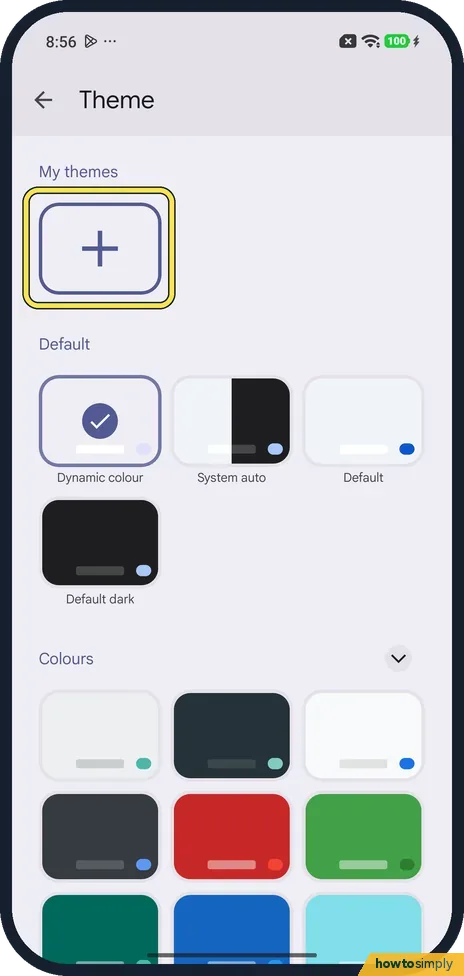
Or make your own
The + under My themes adds a theme of your own. We didn't open it.
If you do not see this option
- Quicker way in? Xiaomi's REDMI Note 13 5G page says you can also tap the settings icon on the keyboard itself. Source: How to change the keyboard layout on the REDMI Note 13 5G?
- Another keyboard as default? For the REDMI 13C 5G, Xiaomi says to tap Current keyboard and pick the input method, and to turn keyboards on or off in Manage keyboards. Source: How to set and switch an input method on the REDMI 13C 5G?
- Languages & input? Some Xiaomi pages spell it Languages & input; ours said Languages and input. To add a typing language, Xiaomi and Google both say Gboard, Languages, Add keyboard. Sources: How to change the keyboard layout on the REDMI Note 13 5G?, Type in a different language
If this does not work
- Gboard missing from the list? Google says Gboard can drop out of the keyboard list after an update. Turn its switch back on in Manage keyboards.
- Gboard lags or freezes? Google says to clear Gboard's cache and keep only one or two languages on. See how to clear an app's cache on a Xiaomi phone.
- Keys click or buzz? Google says key sound and vibration are under Preferences, Key tap. See how to turn off keyboard and touch sounds.
Good to know
On a Pixel the same Gboard pages open from a different path: how to change Gboard settings on a Google Pixel.
To change the phone's own language, see how to change the language on a Xiaomi phone.
About this guide
- Device
- Android
- Shown on
- Xiaomi Redmi Note 15 Pro 5G (25080RABDG), HyperOS 3.0.308.0, Android 16
- App
- Settings
- Path
- Settings › Additional settings › Languages and input › Manage keyboards › Gboard: Preferences › Theme
- Real screenshots
- 11 of 11 steps
- Checked
- October 2026
- Sources
- 5 official, linked below
Sources
Links checked October 2026. Menus and features can change with updates.Spotted a mistake? Menus change with updates, and we want every step to match your screen. Email us about this page or use the contact form. We read every report, and fixes are listed on What changed.
Liked this guide?
Follow us for new guides and short how-to videos.
Did this guide work for you?
Sorry about that. What happened?