XIAOMI REDMI
How to change the wallpaper on a Xiaomi phone (HyperOS 3)

In short
Go to Settings, Personalisation, tap the picture icon on the Home screen preview, then Select and pick a picture, and tap Apply at the top right. Cancel asks Discard changes? and keeps your old wallpaper.
6 of 6 steps show a real screenshot from our Redmi Note 15 Pro 5G. Each step was checked against the maker's own instructions, linked at the end.
Steps
- 1
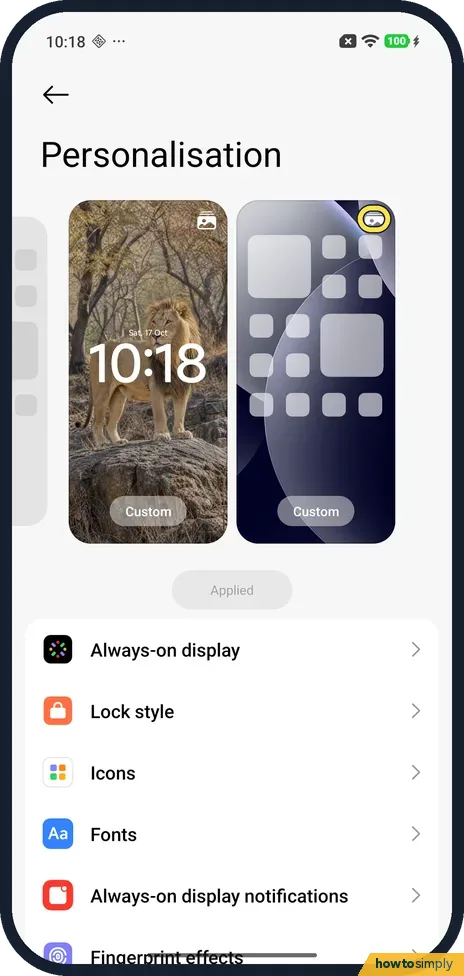
Tap the picture icon on the Home screen preview
Open Settings and tap Personalisation. The top shows the lock screen and the home screen side by side, both marked Custom on ours. Each has a small picture icon at its top right. Tap the one on the Home screen preview, on the right.
- 2
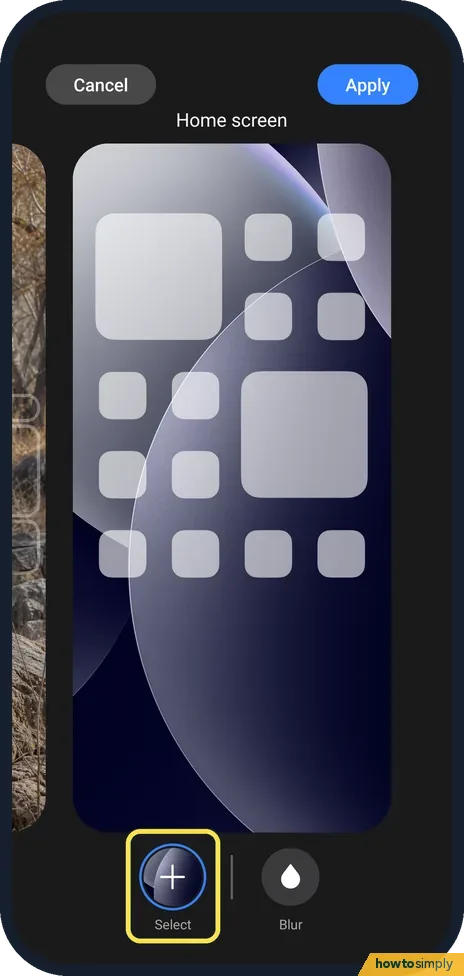
Tap Select
An editor called Home screen opens, with Cancel and Apply at the top and Select and Blur at the bottom. Tap Select.
- 3
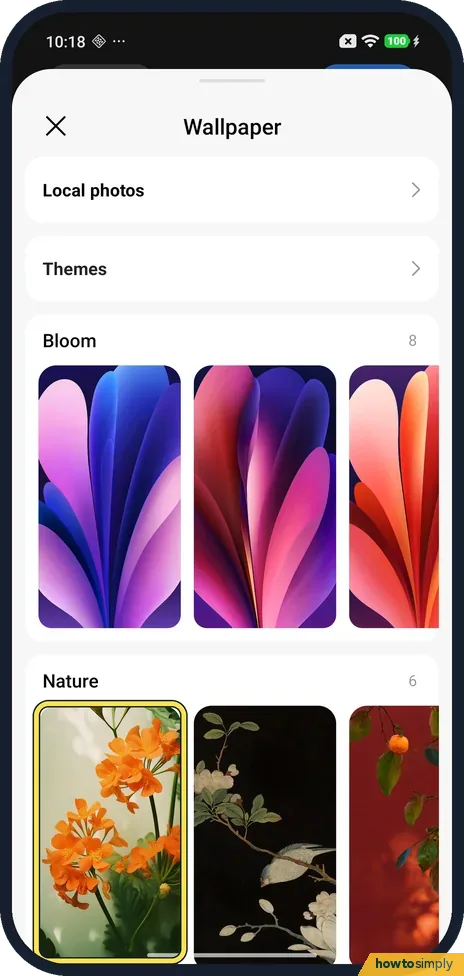
Pick a wallpaper
A Wallpaper sheet opens. Local photos is for your own pictures and Themes for more from the Themes app. Below are built-in sets: Bloom (8 pictures) and Nature (6) on ours. We tapped the first Nature picture.
- 4
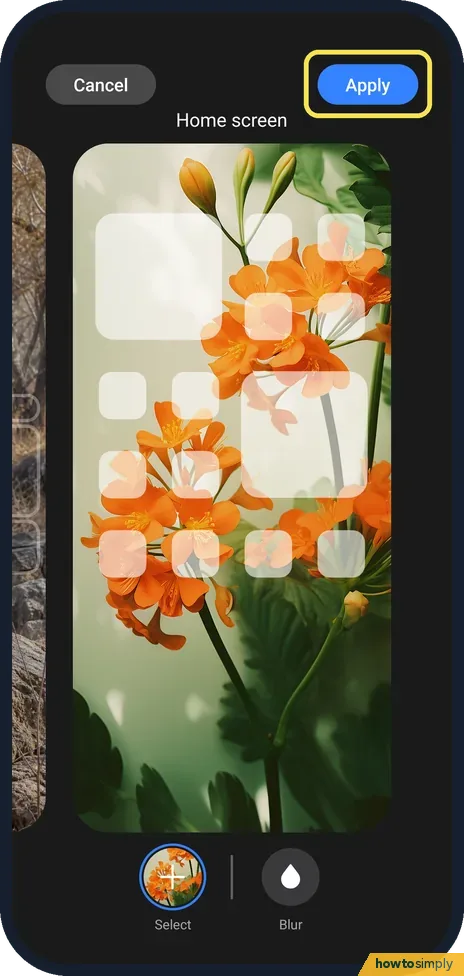
Tap Apply
The editor shows the picture behind your home screen icons, and the Select button shows it too. Tap Apply at the top right to use it. We didn't.
- 5
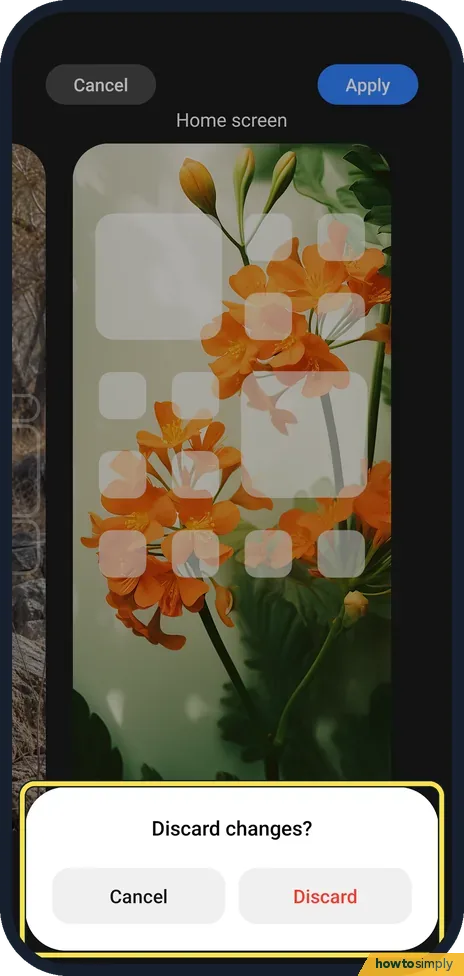
Or Cancel and Discard
Cancel, at the top left, asks Discard changes? with Cancel and Discard. We tapped Discard, and our home screen kept its old wallpaper.
- 6
For the lock screen
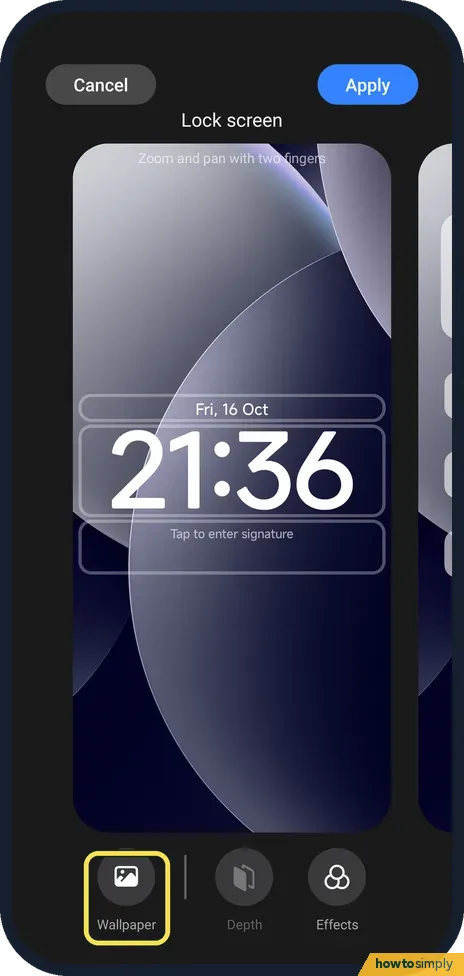
Back on Personalisation, the picture icon on the Lock screen preview, on the left, opens a Lock screen editor. On ours, with Wallpaper Carousel off, it had Wallpaper, Depth and Effects at the bottom; tap Wallpaper to pick one.
If you do not see this option
- Called Wallpaper & personalization? Xiaomi's steps for the REDMI 13C 5G are Settings, Wallpaper & personalization, pick a wallpaper, Apply, then choose where to show it. They also mention Find more for more wallpapers. Ours said Personalisation. Source: How to set the Home screen wallpaper on the REDMI 13C 5G?
- Asked Set as Lock screen or Home screen? Xiaomi's general help says that after Apply you pick Set as Lock screen, Set as Home screen or Set both. On ours the Home screen editor was only for the home screen. Source: Wallpapers and themes
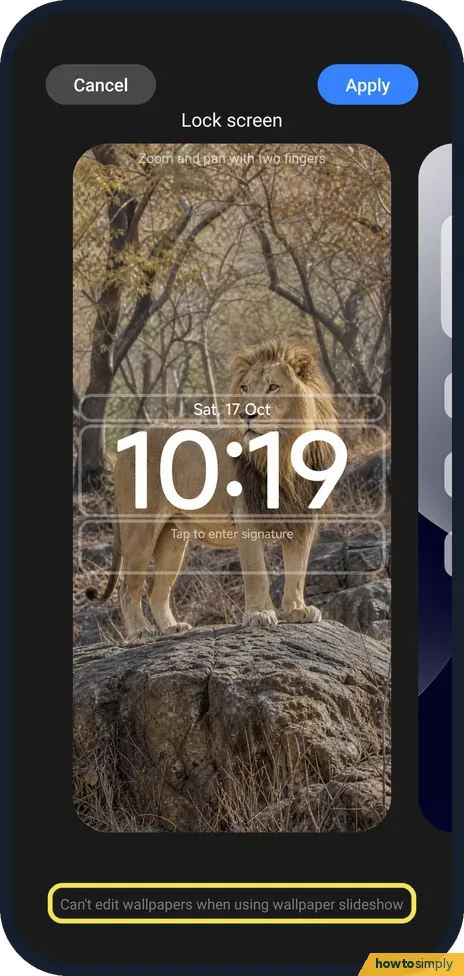
- No Wallpaper button in the Lock screen editor? With Wallpaper Carousel on, ours showed no Wallpaper, Depth or Effects buttons, only a line of text at the bottom.
If this does not work
- Says Can't edit wallpapers when using wallpaper slideshow? That is Wallpaper Carousel. Ours showed it in the Lock screen editor while the carousel was on; with it off the editor had Wallpaper, Depth and Effects. Turn it off first: how to remove news and stories from the lock screen.
- Wallpaper didn't change? You need Apply, at the top right of the editor. Cancel, then Discard, throws the change away.
- Want one of your own photos? Tap Local photos in the Wallpaper sheet. Xiaomi also gives Gallery, the picture, the three-dot icon, Set as wallpaper, then Apply.
Good to know
Xiaomi says the same wallpaper settings also open from the home screen: press and hold it, then tap the wallpaper icon.
Darker look everywhere: how to turn on dark mode on a Xiaomi phone.
On a Pixel: how to change the wallpaper on a Google Pixel.
About this guide
- Device
- Android
- Shown on
- Xiaomi Redmi Note 15 Pro 5G (25080RABDG), HyperOS 3.0.308.0, Android 16
- App
- Settings
- Path
- Settings › Personalisation
- Real screenshots
- 6 of 6 steps
- Checked
- October 2026
- Sources
- 2 official, linked below
Sources
Links checked October 2026. Menus and features can change with updates.Spotted a mistake? Menus change with updates, and we want every step to match your screen. Email us about this page or use the contact form. We read every report, and fixes are listed on What changed.
Liked this guide?
Follow us for new guides and short how-to videos.
Did this guide work for you?
Sorry about that. What happened?