
howtosimply.com/guides/how-to-add-and-change-edge-panels-on-a-samsung-galaxy/ · Checked October 2026 · SM-A576B), One UI 9, Android 17 (build A576BXXU6BZIE · Samsung Galaxy A57
In this guide
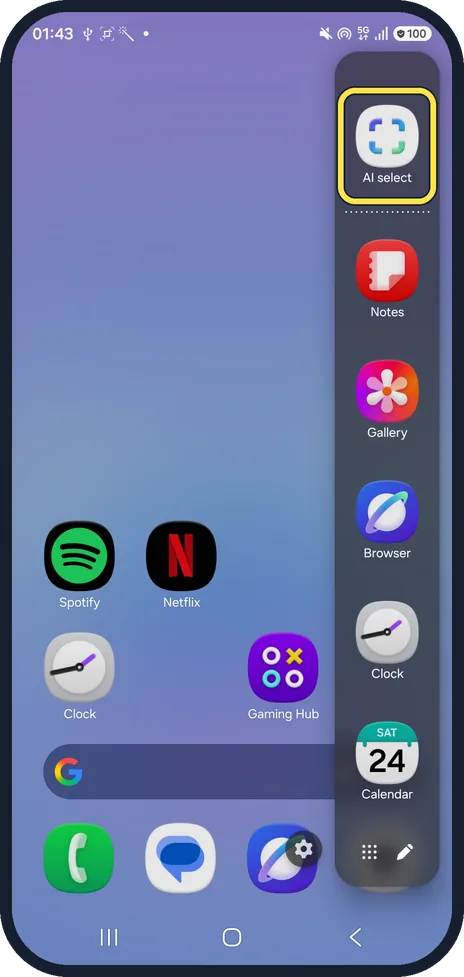
Go to Settings, Display, Edge panels, tap Panels and tick the ones you want (Apps, People, Tasks, Weather, Tools, Clipboard, Reminder). Handle position and style moves the handle. On One UI 9, Smart select is now AI select at the top of the Apps panel.
5 of 5 steps with real screenshots · 1 official source below
- Device
- Android
- Shown on
- Samsung Galaxy A57 (SM-A576B), One UI 9, Android 17 (build A576BXXU6BZIE)
- App
- Settings
- Path
- Settings › Display › Edge panels › Panels: tick panels › Edit
- Real screenshots
- 5 of 5 steps
- What we did
- Observed: looked at each screen, changed nothing
- Checked
- October 2026
- Sources
- 1 official, linked below
Step by step
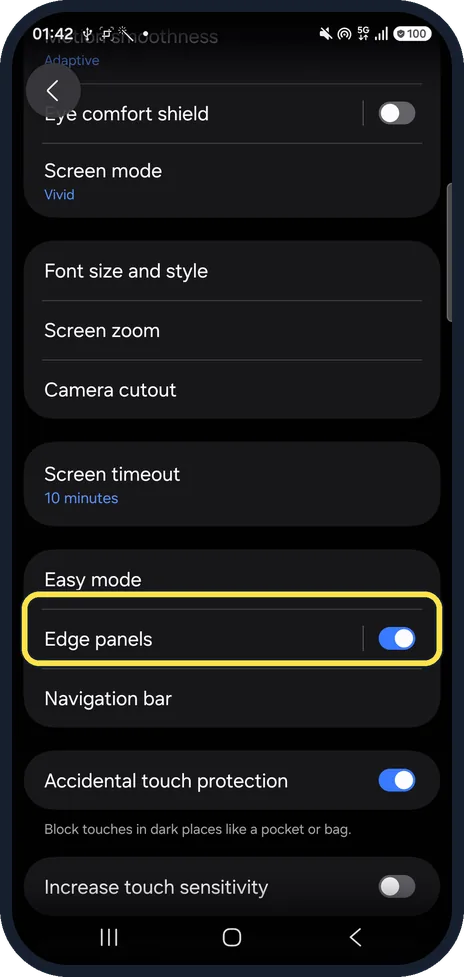
Open Edge panels
Open Settings, Display and tap the words Edge panels (the switch only turns them on or off).
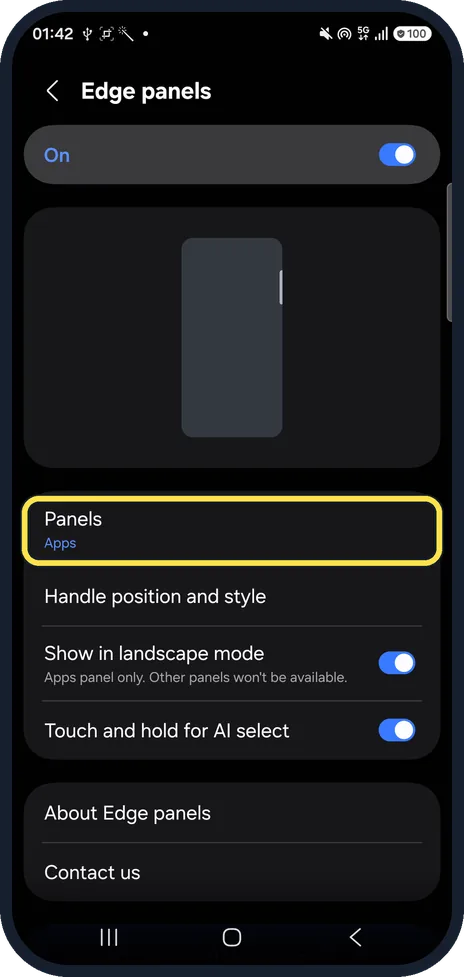
Tap Panels
Ours had Edge panels On, and Panels said Apps.
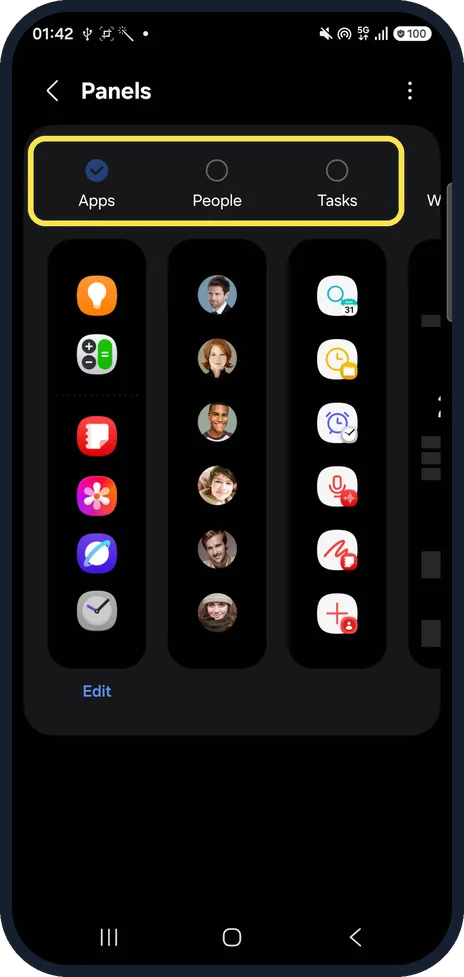
Tick the panels you want
Swipe through Apps, People, Tasks, Weather, Tools, Clipboard and Reminder and tick the circle above each one you want. Tap Edit under a panel to change what it holds.
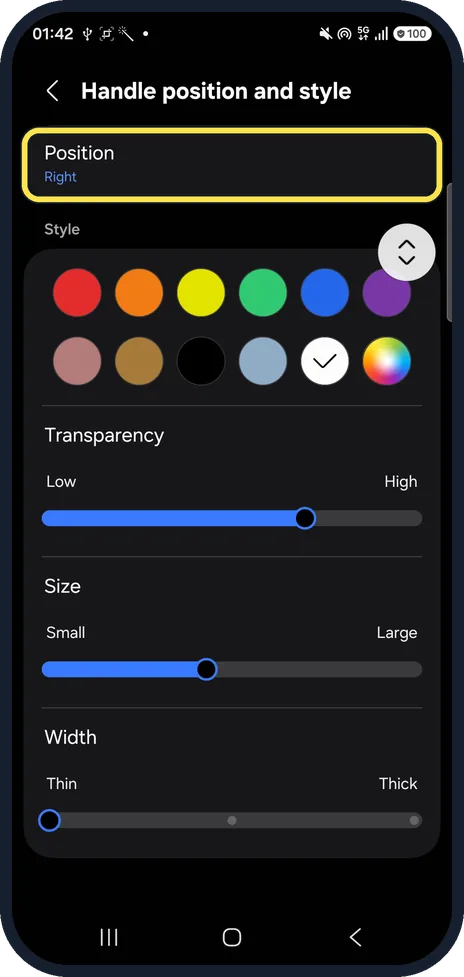
Move or restyle the handle
Back on Edge panels, Handle position and style sets Position (Right on ours), colour, transparency, size and width.
Swipe in from the handle
Swipe from the handle towards the middle. Ours opened the Apps panel, with AI select at the top.
If you do not see this option
- Looking for Smart select? Our A57 with One UI 9 lists Apps, People, Tasks, Weather, Tools, Clipboard and Reminder, with no Smart select. The screen-capture tool is AI select, at the top of the Apps panel (step 5).
- No handle on the edge of the screen? Edge panels may be switched off. The switch at the top of the Edge panels page turns them on; ours was On (step 2).
If this does not work
- Panels missing in landscape? Show in landscape mode on the Edge panels page says Apps panel only. Other panels won't be available.
- Handle keeps getting in the way? See how to turn off Edge panels on a Samsung Galaxy, or make the handle smaller and more transparent.
About this guide
Edge panels are the shortcuts you swipe in from the side of the screen. On One UI 9 the old Smart select panel is gone; the same screen-capture tool is AI select, at the top of the Apps panel.
The screenshots are from our Samsung Galaxy A57 with One UI 9 and Android 17, in Dark mode, taken on 24 October 2026. We only looked at these screens and changed nothing.
Good to know
Turn them off: how to turn off Edge panels.
In short: Settings, Display, Edge panels, Panels: tick panels, Edit. Handle position and style. Swipe from the handle; AI select tops the Apps panel.
Links checked in October 2026. Menus and features can change after software updates. These steps match the version named at the top.
Did this guide work for you?
Sorry about that. What happened?