XIAOMI REDMI
How to change the lock screen shortcuts on a Xiaomi phone (HyperOS 3)

In short
Go to Settings, Lock screen, Customise shortcuts. Pick Left or Right, then tap an option such as Torch, Photo, Calculator, Notes or Compass, or None. It only works with the Classic or Limitless lock screen theme. Ours had Wallpaper Carousel on the left.
5 of 5 steps show a real screenshot from our Redmi Note 15 Pro 5G. Each step was checked against the maker's own instructions, linked at the end.
Steps
- 1
Open Customise shortcuts
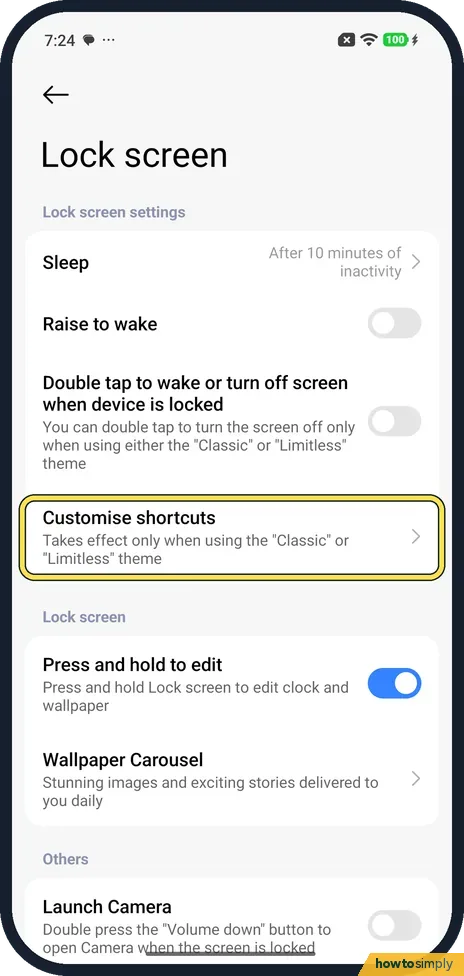
Open Settings, tap Lock screen, then Customise shortcuts. The note says it takes effect only when using the Classic or Limitless theme.
- 2
Check the preview
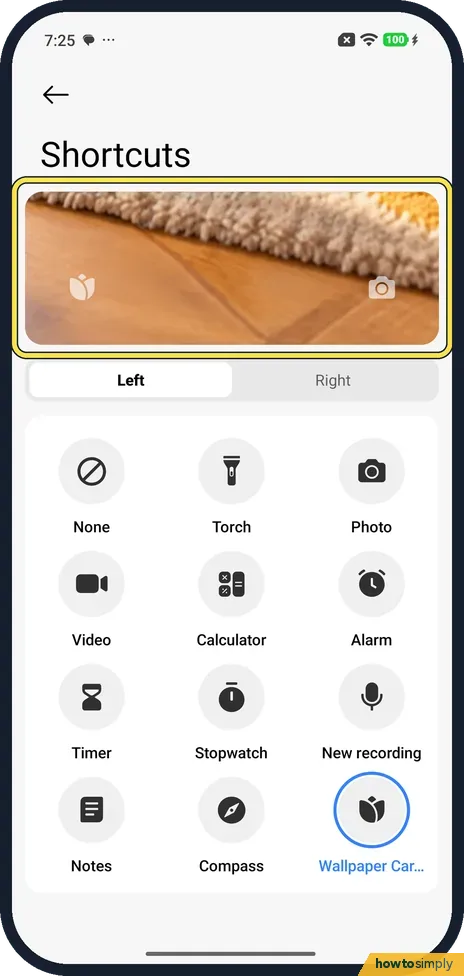
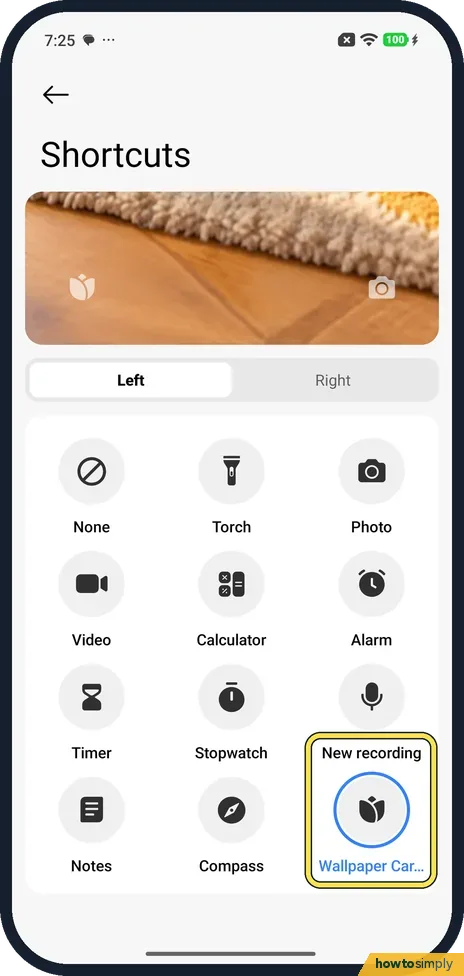
The top shows the lock screen with a shortcut in each bottom corner. Ours had the Wallpaper Carousel tulip on the left and a camera on the right.
- 3
Pick Left or Right
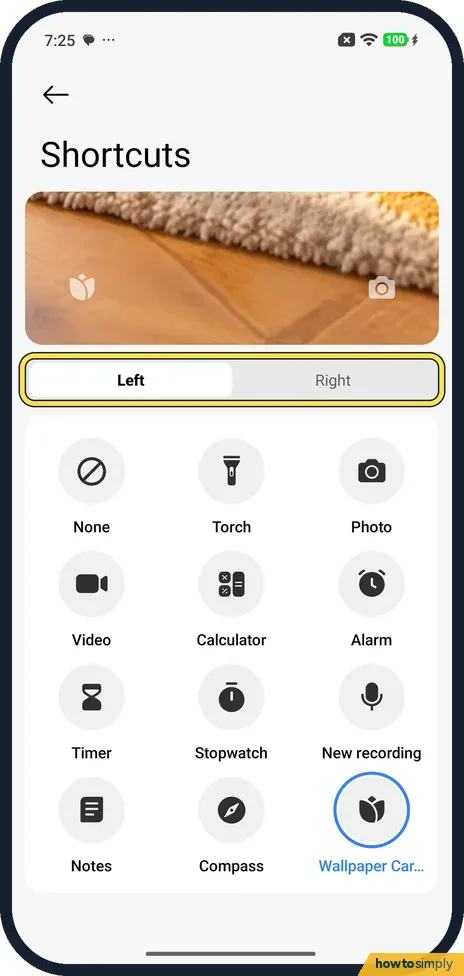
Tap Left or Right to choose which corner you are changing.
- 4
Choose a shortcut
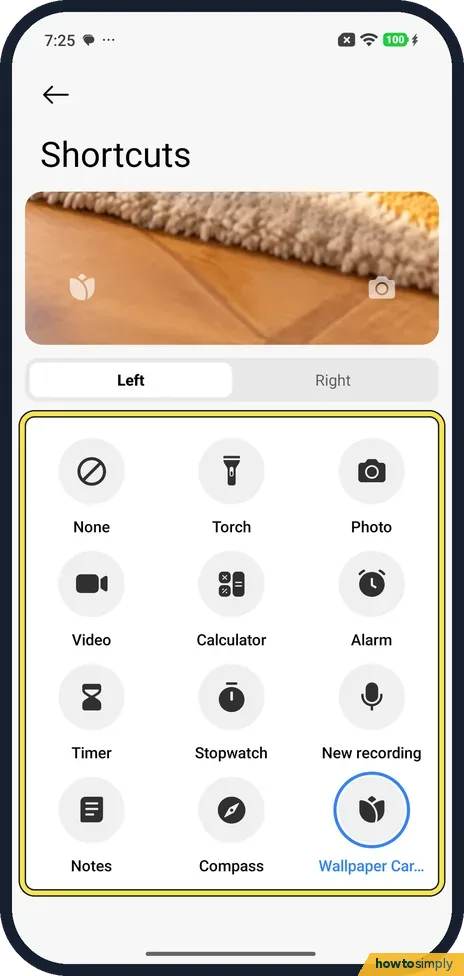
Tap one: None, Torch, Photo, Video, Calculator, Alarm, Timer, Stopwatch, New recording, Notes, Compass or Wallpaper Carousel.
- 5
See what is set
The current choice has a blue ring. Ours was Wallpaper Carousel on the Left tab. We changed nothing.
If you do not see this option
- Looking for double tap to wake? It is on the same Lock screen page, just above Customise shortcuts, and was off on ours. Its note says double tap to turn the screen off works only with the Classic or Limitless theme. Source: Generic User Guide for HyperOS 3.0
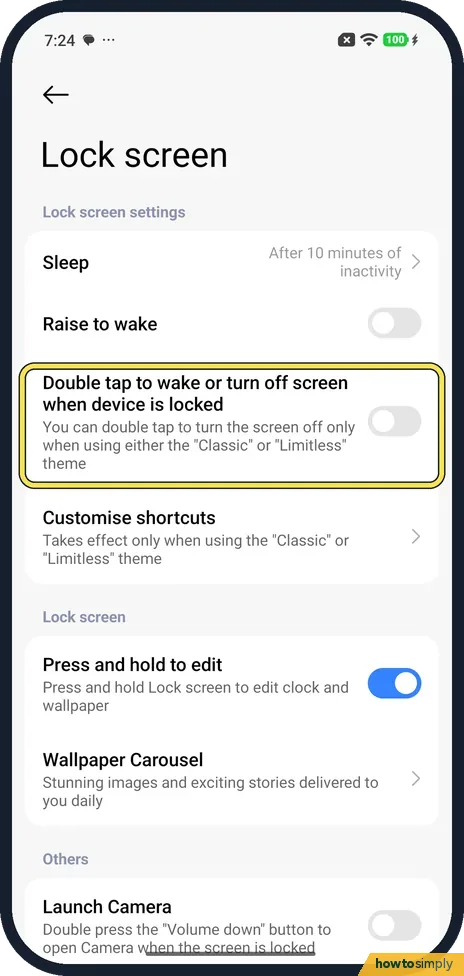
- Not in Xiaomi's manual? Xiaomi's HyperOS 3 guide covers Double tap to wake on this page but not Customise shortcuts. Our route is from the phone. Source: Generic User Guide for HyperOS 3.0
If this does not work
- Shortcut does not change on the lock screen? It takes effect only with the Classic or Limitless theme. To change the lock screen style, see how to customise the lock screen clock.
- A tulip icon you don't want? That is Wallpaper Carousel. Pick another option here, or turn the carousel off: remove news and stories from the lock screen.
- Shortcut opens but asks to unlock? Some shortcuts open a full app, which needs your screen lock before it shows personal content. Xiaomi's guide says that if you open Camera from the lock screen without unlocking, you cannot see your Gallery items.
- Shortcut fires in your pocket? Xiaomi's guide lists Pocket mode on the Lock screen page, which locks touch gestures when the phone is in a pocket. Our Redmi's Lock screen page had it, as Pocket mode: Lock touch gestures when placed in a pocket, along with a Launch Camera switch. Turn it on when accidental taps are a problem.
Good to know
Change the torch brightness: how to change the torch brightness.
How long before the screen locks: how to change the screen timeout.
The new shortcut is ready at once on the lock screen. It does not change your screen lock or the apps themselves. Anyone holding the phone can use the two corner shortcuts without unlocking, so think about what they open. Torch, Compass or a timer reveal nothing personal; notes or recordings are worth checking before you choose them. To undo, pick the old option again, or None to leave a corner empty.
To control what can be pulled down from the top of the lock screen, Xiaomi's guide points to Notifications & status bar, Items shown on the Lock screen after swiping down.
About this guide
- Device
- Android
- Shown on
- Xiaomi Redmi Note 15 Pro 5G (25080RABDG), HyperOS 3.0.308.0, Android 16
- App
- Settings
- Path
- Settings › Lock screen › Customise shortcuts › Left or Right
- Real screenshots
- 5 of 5 steps
- Checked
- October 2026
- Sources
- 1 official, linked below
Sources
Links checked October 2026. Menus and features can change with updates.Spotted a mistake? Menus change with updates, and we want every step to match your screen. Email us about this page or use the contact form. We read every report, and fixes are listed on What changed.
Liked this guide?
Follow us for new guides and short how-to videos.
Did this guide work for you?
Sorry about that. What happened?