
What changed: every step re-shot on our own Galaxy S26 (Korean model SM-S942N) on One UI 9, dark mode, with the steps rewritten for the One UI 9 screens.
howtosimply.com/guides/how-to-change-the-lock-screen-shortcuts-on-a-samsung-galaxy/ · Checked October 2026 · SM-S942N, Korean model), One UI 9, Android 17 (build S942NKSS4BZIG · Samsung Galaxy S26
In this guide
Open Settings, Lock screen and AOD and tap Edit Lock screen, or touch and hold the lock screen. Tap the shortcut at the bottom left or right, pick an action or app, then tap Done.
7 of 7 steps with real screenshots · 1 official source below
- Device
- Android
- Shown on
- Samsung Galaxy S26 (SM-S942N, Korean model), One UI 9, Android 17 (build S942NKSS4BZIG)
- App
- Settings
- Path
- Settings › Lock screen and AOD
- Real screenshots
- 7 of 7 steps
- Checked
- October 2026
- Sources
- 1 official, linked below
Step by step
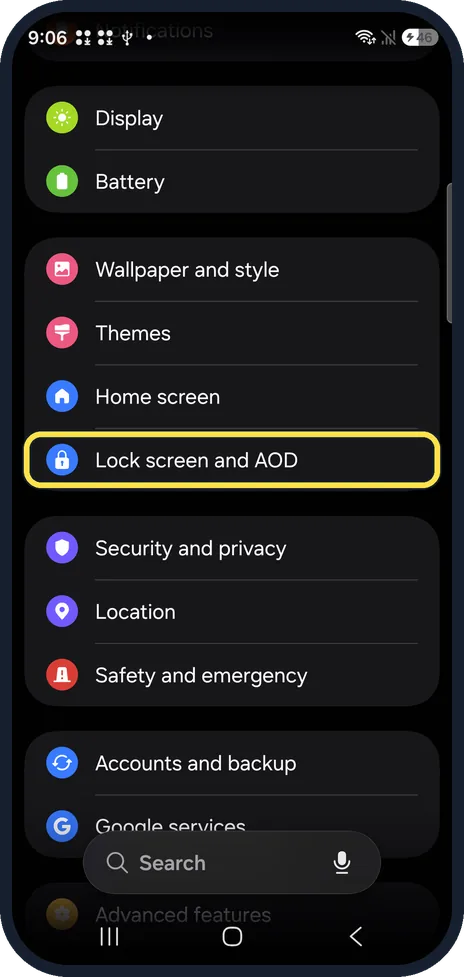
Open Lock screen and AOD
Open Settings and tap Lock screen and AOD.
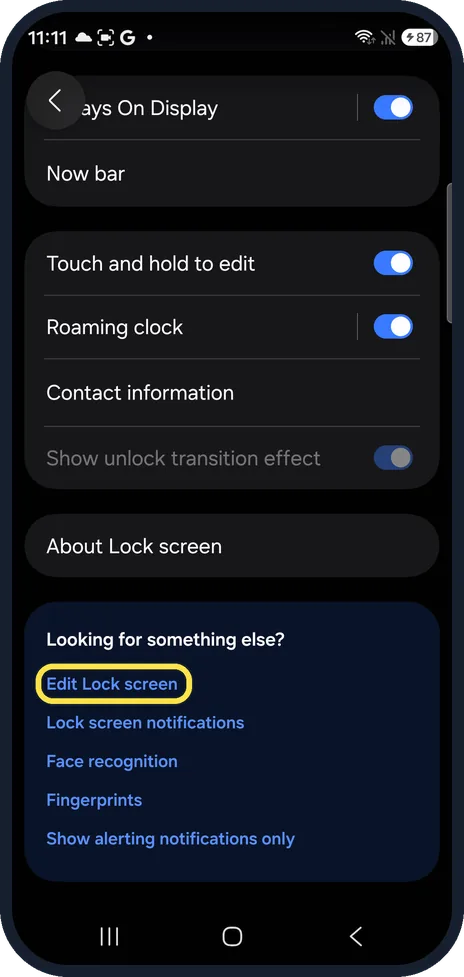
Tap Edit Lock screen
It is at the bottom of the page, under Looking for something else? Touch and hold to edit, on the same page, lets you open the editor from the lock screen itself.
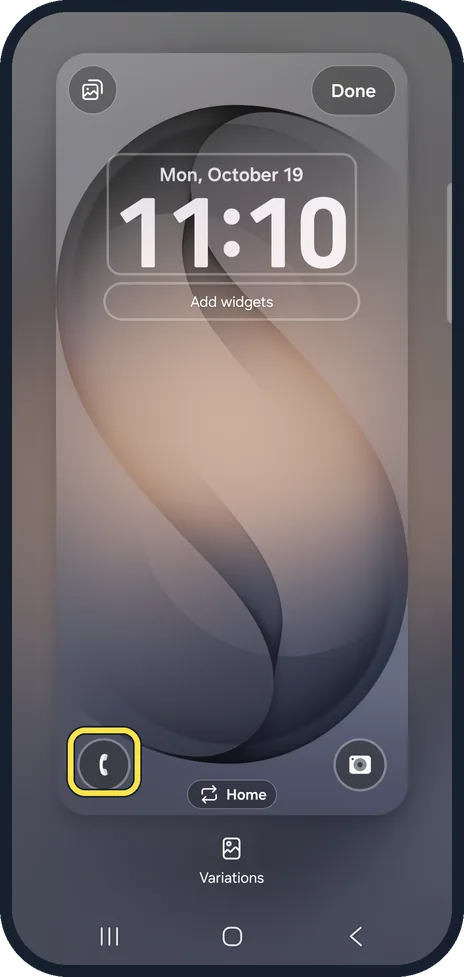
Tap the left shortcut
The editor shows your lock screen. Tap the round icon at the bottom left.
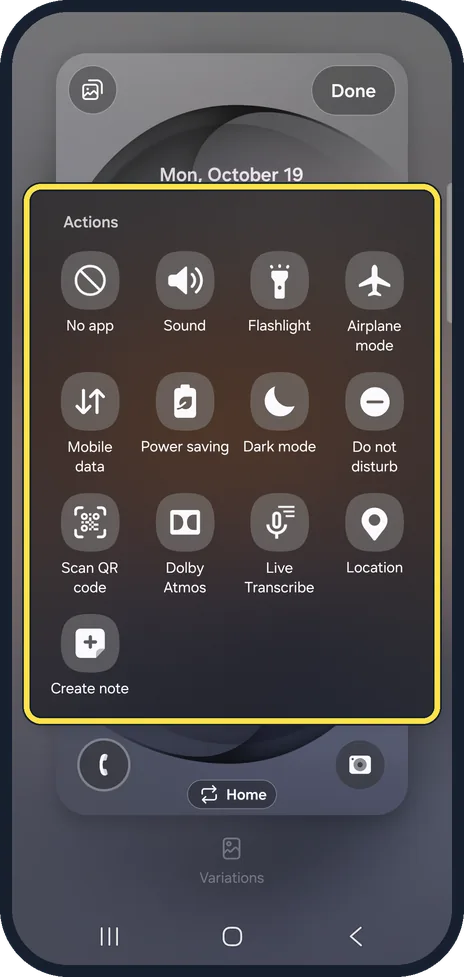
Pick an action
A panel opens with Actions, such as No app, Sound, Flashlight, Airplane mode, Do not disturb, Scan QR code and Create note. No app removes the shortcut.
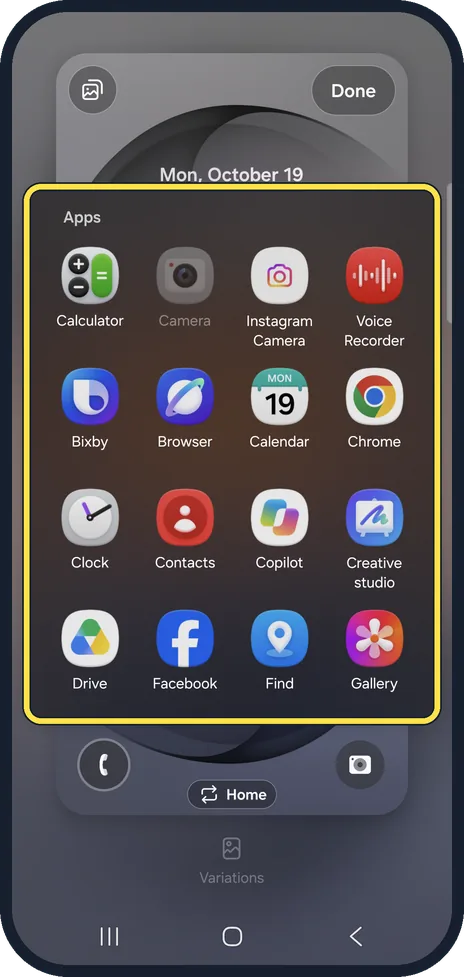
Or scroll to Apps
Below the actions, Apps lists your apps, such as Calculator, Voice Recorder, Calendar and Clock. We picked Phone again.
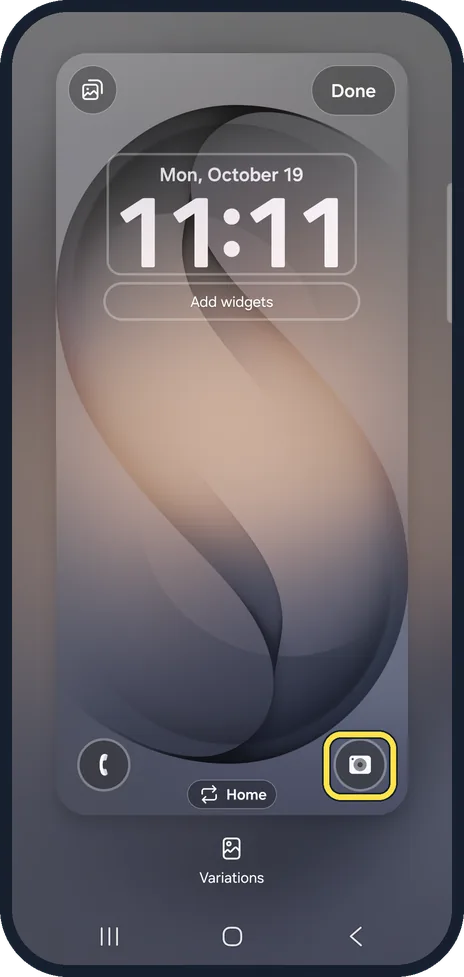
Change the right shortcut the same way
Tap the round icon at the bottom right and pick from the same panel. Ours stayed on Camera.
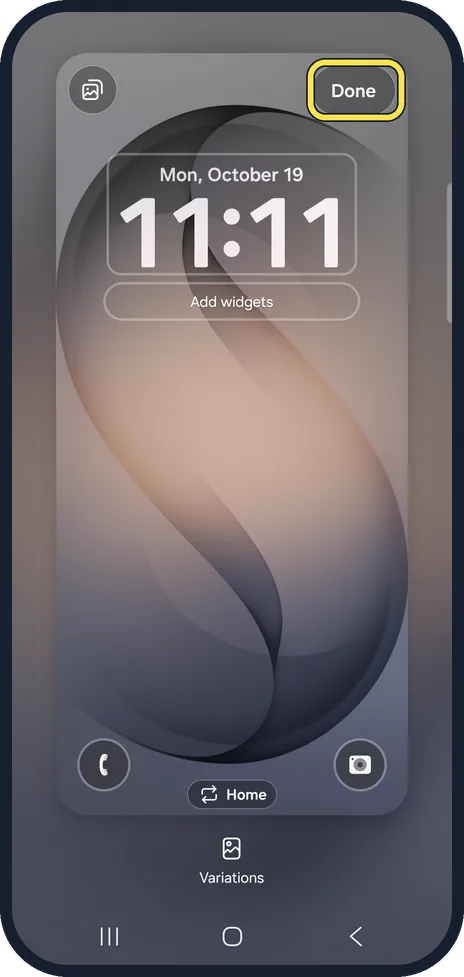
Tap Done
Done is at the top right. Lock the phone to check the new shortcuts.
What changed: every step re-shot on our own Galaxy S26 (Korean model SM-S942N) on One UI 9, dark mode, with the steps rewritten for the One UI 9 screens.
If you do not see this option
- Touching and holding the lock screen does nothing Check Touch and hold to edit on the Lock screen and AOD page; it was on on ours. Or use Edit Lock screen in Settings.
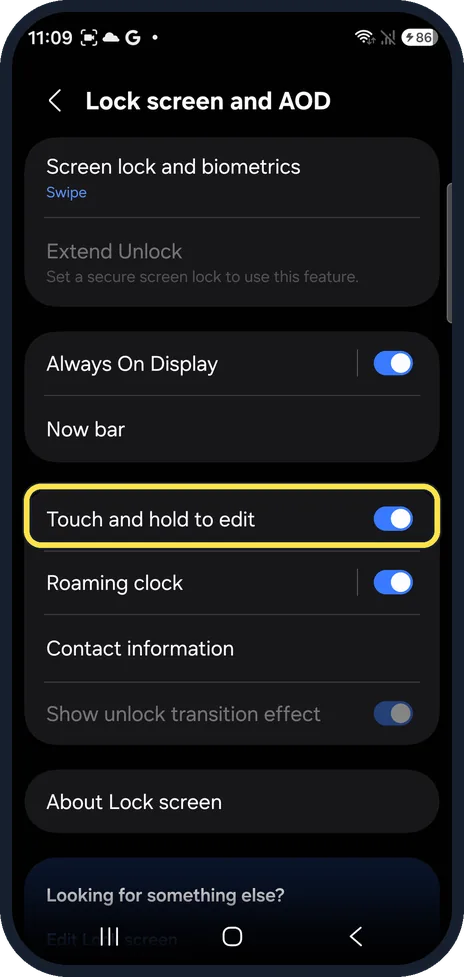
- No Edit Lock screen link Touch and hold the lock screen instead, with Touch and hold to edit switched on.
If this does not work
- You want no shortcut on one side Tap that shortcut in the editor and pick No app, the first action in the panel.
- The change is not saved Tap Done at the top right before you leave the editor.
About this guide
A Galaxy lock screen has two shortcuts at the bottom, the phone on the left and the camera on the right by default. You can swap either for an app or action you use more, such as the flashlight or a voice recorder.
The screenshots are from our Samsung Galaxy S26, the Korean model SM-S942N, with One UI 9 and Android 17 (build S942NKSS4BZIG), in Dark mode. Menus can differ on models sold in other regions. We opened both shortcut pickers and kept Phone and Camera.
Good to know
In the same editor you can change the clock and tap Add widgets under it.
More lock screen options: how to customise the Always On Display on a Samsung Galaxy.
In short: Settings, Lock screen and AOD, Edit Lock screen: tap a bottom shortcut, pick an action or app, Done.
Links checked in October 2026. Menus and features can change after software updates. These steps match the version named at the top.
📷 See real photos from the Galaxy S26 in our Camera Lab, next to 10 other phones.
Did this guide work for you?
Sorry about that. What happened?