GOOGLE PIXEL
How to change the device name on a Google Pixel (Android 17)

In short
Open Settings, About phone and tap Device name, the first row. Type the new name and tap OK. A second box says the name is visible to apps and may be seen over Bluetooth, Wi-Fi or a hotspot; tap OK again. About phone then shows the new name.
6 of 6 steps show a real screenshot from our Pixel 10a. Each step was checked against the maker's own instructions, linked at the end.
Steps
- 1
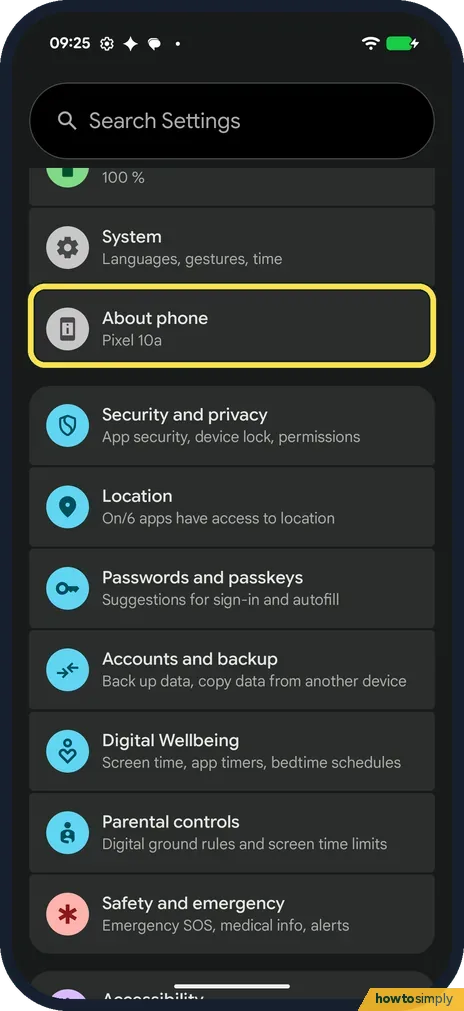
Open About phone
Open Settings and scroll down. About phone is below System, and shows the current name: Pixel 10a on ours. Tap it.
- 2
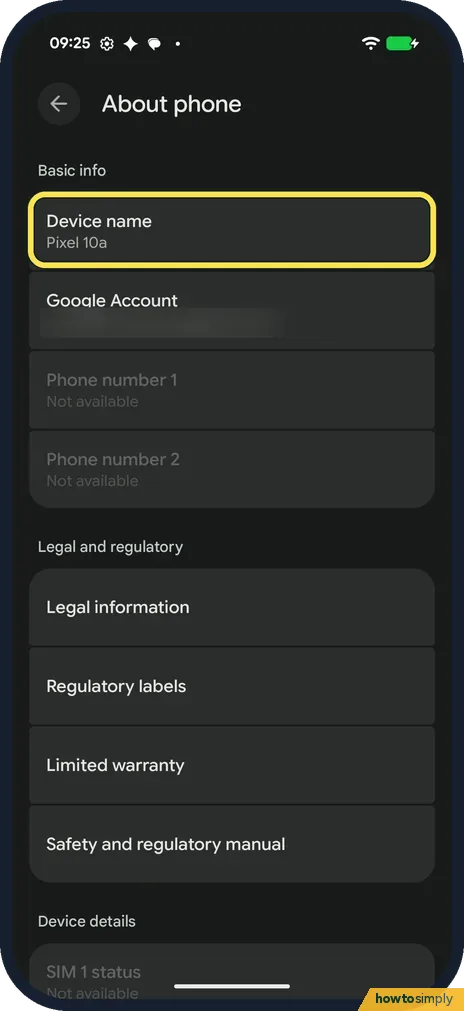
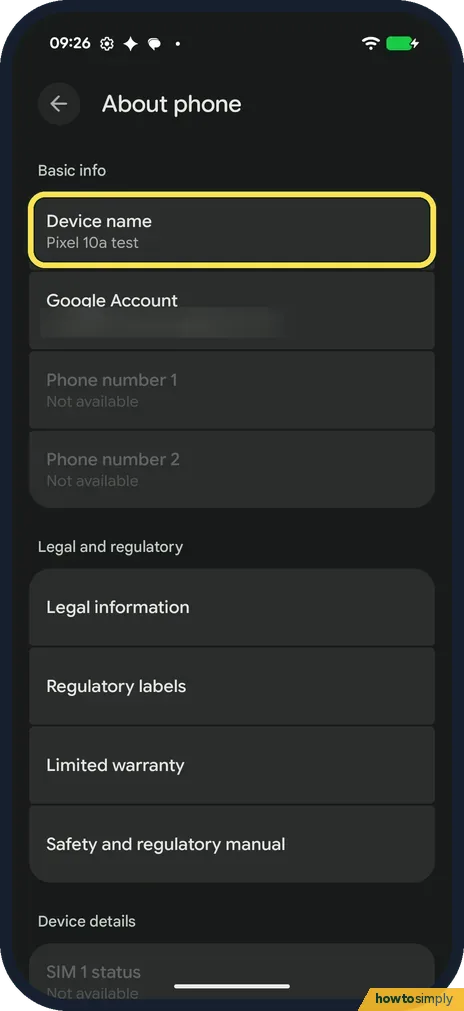
Tap Device name
Device name is the first row under Basic info. Tap it.
- 3
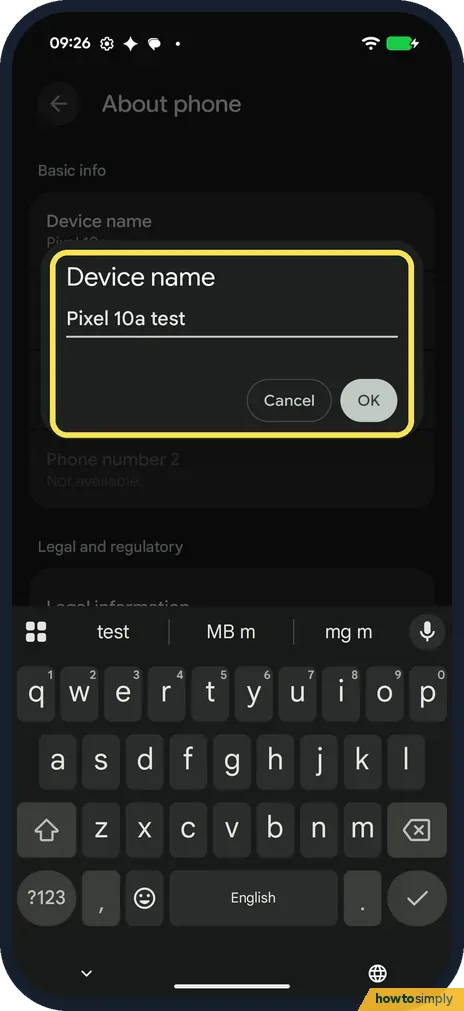
Type the name and tap OK
A Device name box opens with the current name and the keyboard. Delete the old name, type the new one and tap OK. We typed Pixel 10a test. Cancel keeps the old name.
- 4
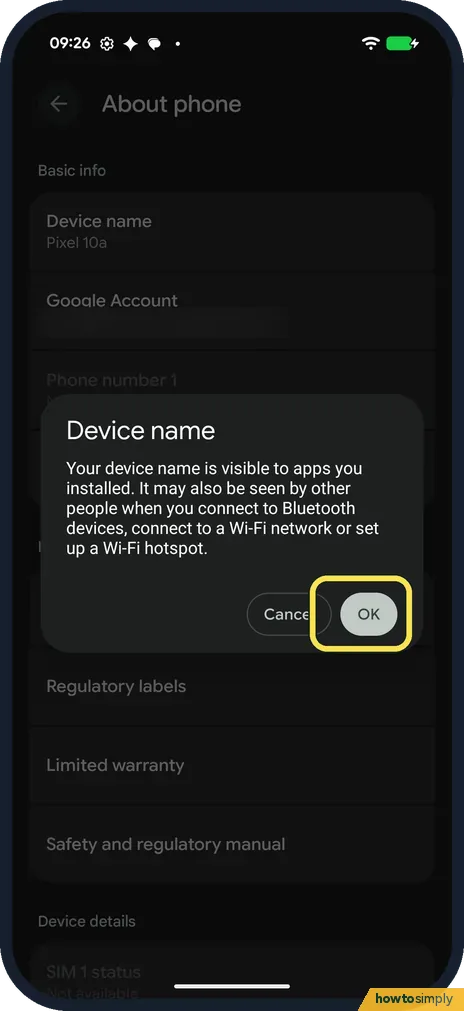
Tap OK again
A second Device name box says: Your device name is visible to apps you installed. It may also be seen by other people when you connect to Bluetooth devices, connect to a Wi-Fi network or set up a Wi-Fi hotspot. Tap OK to keep the new name.
- 5
Check the new name
Back on About phone, Device name showed Pixel 10a test on ours.
- 6
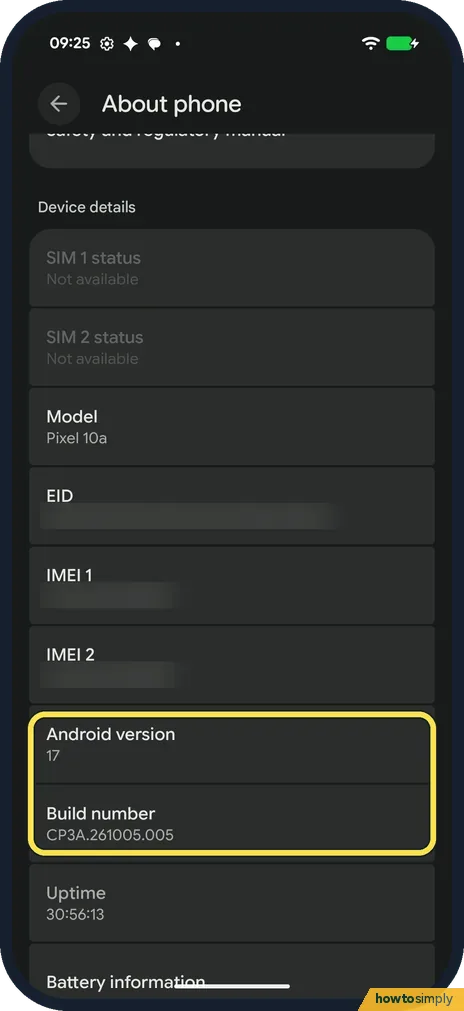
Find the Android version
Further down, Device details shows Android version 17 and Build number CP3A.261005.005 on ours. Model, above them, still said Pixel 10a: the device name is a separate setting.
If you do not see this option
- Renaming from Bluetooth instead? Google gives a second way: Settings, Connected devices, Connection preferences, Bluetooth, Device name. There you enter a new name and tap Rename. Source: Connect through Bluetooth on your Pixel phone
- Wanted to rename headphones or a watch? That is a different setting. Google says to open the accessory's own settings from the Bluetooth list and tap Edit at the top. Source: Connect through Bluetooth on your Pixel phone
- On a Xiaomi? There it is Settings, About phone, Device name, saved with a tick instead of OK. See our guide on how to change the device name on a Xiaomi phone.
If this does not work
- Car still shows the old name? Google's fix for a car that won't pair starts with restarting both devices, then forgetting the device on the phone and clearing the phone from the car's memory before pairing again.
- Other device can't find your Pixel? Google says nearby devices can find your phone while its Bluetooth settings are open. Open them, then look for the new name on the other device.
- Want the old name back? Do the same steps again and type the old name. We changed ours back to Pixel 10a this way.
- Two phones with the same name? If your household has two Pixel 10a phones, both may show as Pixel 10a in a car or on a laptop. Give each a different name so you pick the right one when pairing or sharing.
Good to know
Your hotspot has its own name and password: how to turn on the Wi-Fi hotspot on a Google Pixel.
Apps you installed can read it too, as the box in step 4 says, so avoid anything private such as your address or phone number. Renaming does not touch your files or accounts, and you can change it as often as you like.
About this guide
- Device
- Android
- Shown on
- Google Pixel 10a, Android 17 (build CP3A.261005.005)
- App
- Settings
- Path
- Settings › About phone › Device name
- Real screenshots
- 6 of 6 steps
- Checked
- October 2026
- Sources
- 2 official, linked below
Sources
Links checked October 2026. Menus and features can change with updates.Spotted a mistake? Menus change with updates, and we want every step to match your screen. Email us about this page or use the contact form. We read every report, and fixes are listed on What changed.
Liked this guide?
Follow us for new guides and short how-to videos.
Did this guide work for you?
Sorry about that. What happened?