ONEPLUS
How to change Private DNS on a OnePlus (OxygenOS 16)

In short
Search Settings for Private DNS; on our Nord 5 it is under Mobile network, More settings. Choose Off, Auto or Specified DNS. Auto was selected on ours: it encrypts transmissions automatically if supported by the server.
4 of 4 steps show a real screenshot from our Nord 5. Each step was checked against the maker's own instructions, linked at the end.
Steps
- 1
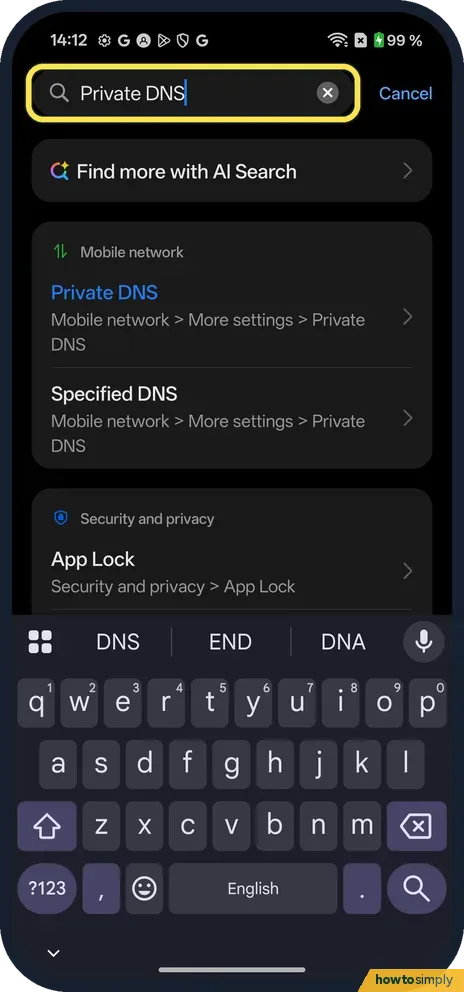
Search Settings
Open Settings, tap the search box at the top and type Private DNS.
- 2
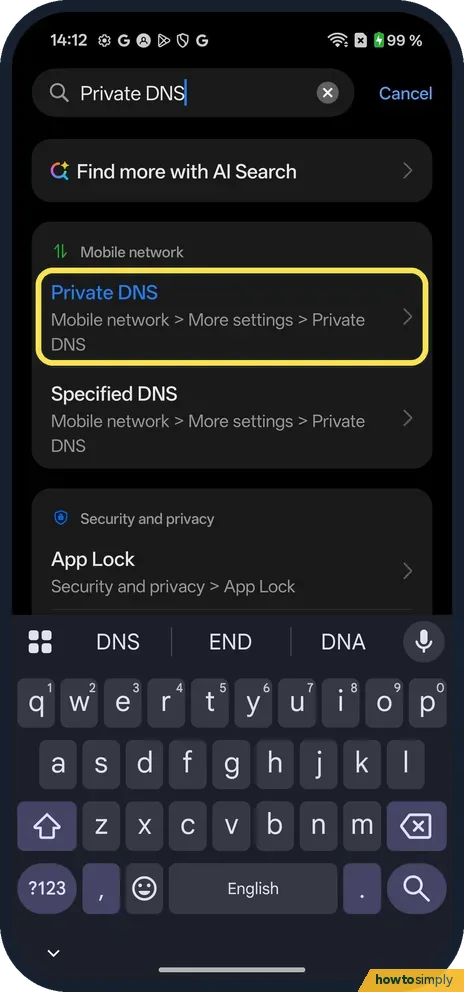
Tap the Private DNS result
Ours found it under Mobile network, with the path Mobile network > More settings > Private DNS. Tap it.
- 3
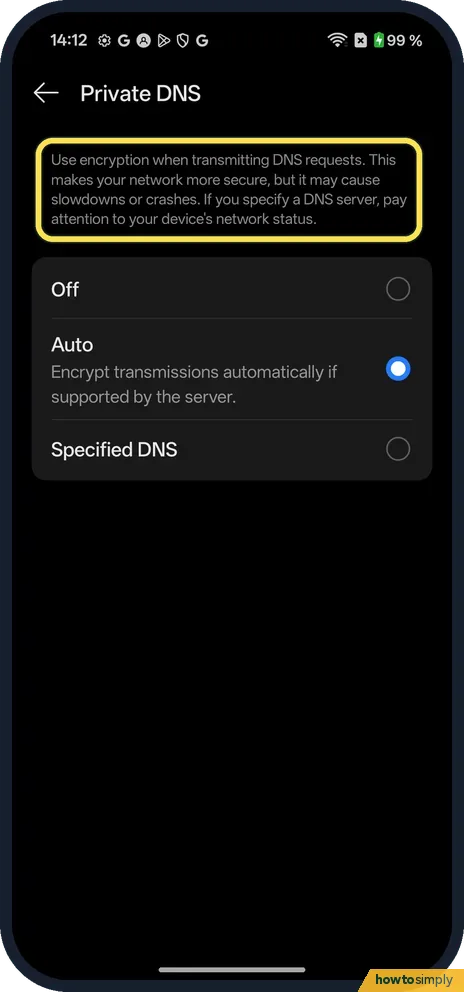
Read the note
The page says encryption makes your network more secure, but it may cause slowdowns or crashes. If you specify a DNS server, pay attention to your device's network status.
- 4
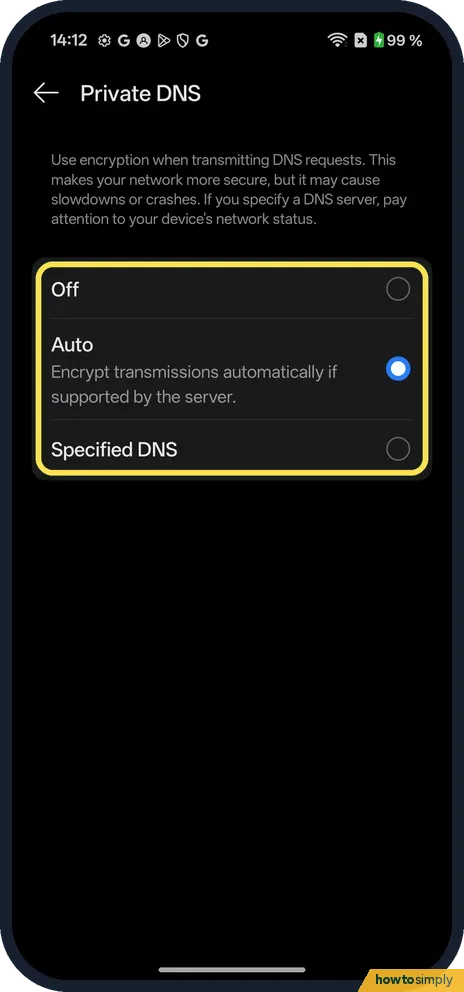
Choose Off, Auto or Specified DNS
Tap a choice. Auto, selected on ours, says: Encrypt transmissions automatically if supported by the server. We did not open Specified DNS.
If you do not see this option
- Using a provider such as Google? Google's Public DNS page says to choose Private DNS provider hostname, enter dns.google and save, on Android 9 or higher. On ours the matching choice looks like Specified DNS, but we did not open it. Source: Get started (Android)
- Under Mobile network? That is where our search result pointed: Mobile network, More settings, Private DNS. Google's general Android help says Network & internet, Private DNS instead. Source: Manage advanced network settings on your Android phone
If this does not work
- Websites slow or failing? The page warns that Private DNS may cause slowdowns or crashes, and to watch the network status if you specify a server. Go back to Auto.
- Not sure which to pick? Google recommends keeping Private DNS on. Auto was already selected on ours.
- Can't find it? Google says to search Settings for Private DNS, and to get help from your device maker if it still isn't there.
- Using a VPN? Google's Public DNS guide notes that VPN apps can override Private DNS. If a VPN is on, check the VPN app's own DNS settings instead.
- Hotel or café Wi-Fi login page will not open? Some public Wi-Fi networks show a sign-in page before letting you online. If it will not appear with a Specified DNS server, switch back to Auto, sign in to the Wi-Fi, then set your server again if you want it.
Good to know
Google says Private DNS helps secure only DNS questions and answers and can't protect anything else.
On other phones: Private DNS on a Google Pixel or on a Xiaomi phone.
The choice applies to every network the phone uses, both Wi-Fi and mobile data, from the moment you save it. With Auto, the phone uses encrypted DNS where the network's server supports it and falls back quietly where it does not. With Specified DNS, every lookup goes to the server you named, so if that server is down or blocked, websites and apps can stop loading even though you have signal.
To undo, open Private DNS again and choose Auto. Off sends DNS requests without encryption, and Google recommends keeping Private DNS on. Some family filtering services work through DNS, so a Specified DNS server may be set on purpose; if you set one up for someone else, note it down so you can explain later why some sites do not load.
About this guide
- Device
- Android
- Shown on
- OnePlus Nord 5 (CPH2709), OxygenOS 16.0.5.1201, Android 16
- App
- Settings
- Path
- Settings › Search: Private DNS
- Real screenshots
- 4 of 4 steps
- What we did
- Observed: looked at each screen, changed nothing
- Checked
- October 2026
- Sources
- 2 official, linked below
Sources
Links checked October 2026. Menus and features can change with updates.Spotted a mistake? Menus change with updates, and we want every step to match your screen. Email us about this page or use the contact form. We read every report, and fixes are listed on What changed.
Liked this guide?
Follow us for new guides and short how-to videos.
Did this guide work for you?
Sorry about that. What happened?