ONEPLUS
How to change icon shape and system colours on a OnePlus (OxygenOS 16)

In short
Pinch in with two fingers on the home screen to edit it and tap Wallpapers & style. In the tabs at the bottom, System colours sets the accent colours and Icons (swipe the tabs left) sets the shape: Classic, Flux, Radiance, Shadow, Material and more. Tap Apply.
6 of 6 steps show a real screenshot from our Nord 5. Each step was checked against the maker's own instructions, linked at the end.
Steps
- 1
Open the home screen editor
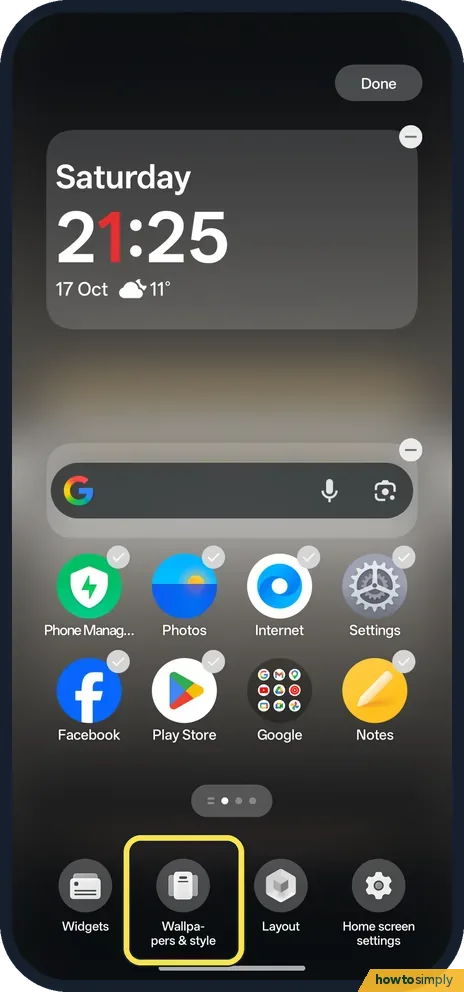
Pinch in with two fingers on the home screen, or touch and hold an empty spot (what we did). Tap Wallpapers & style at the bottom.
- 2
See the tabs
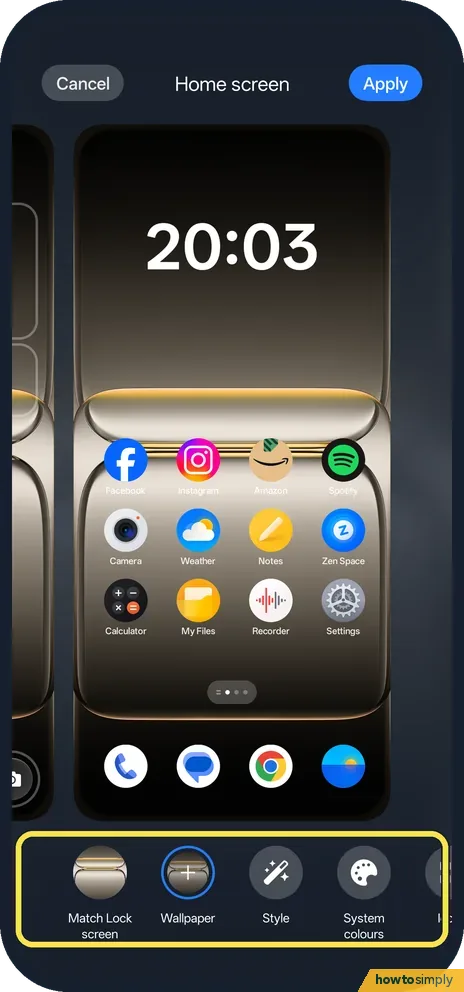
A Home screen preview opens with tabs at the bottom: Match Lock screen, Wallpaper, Style, System colours, then Icons. Swipe the tabs left to reach Icons.
- 3
Pick an icon shape
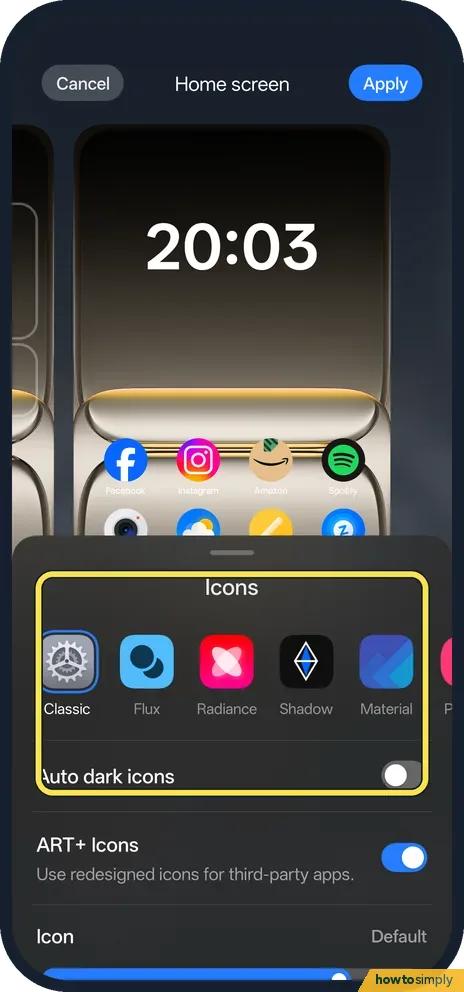
Tap Icons. Choose Classic (ours), Flux, Radiance, Shadow, Material or more. Auto dark icons and ART+ Icons are below.
- 4
Check the preview
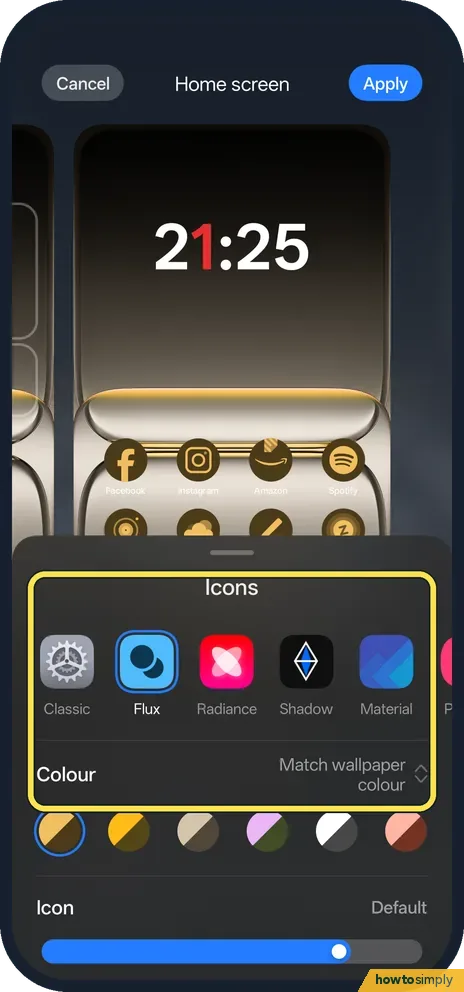
We tapped Flux: the preview icons changed at once, before Apply.
- 5
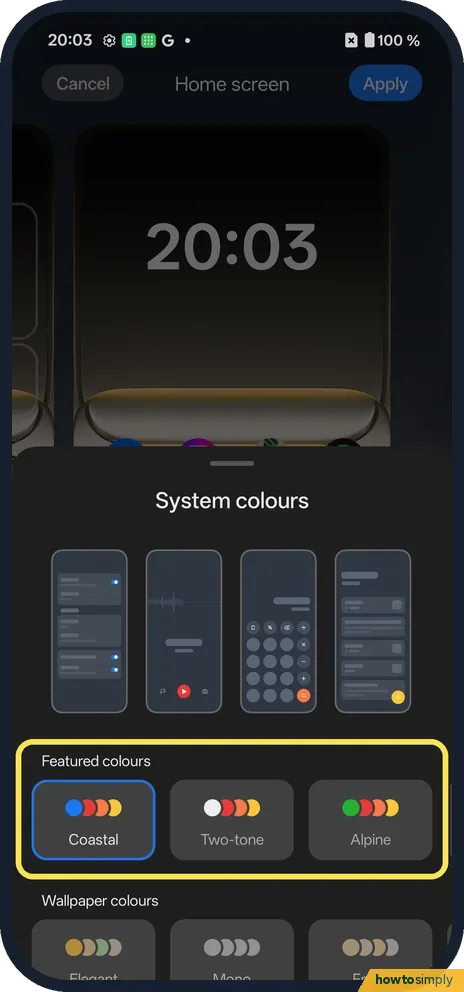
Pick system colours
Tap System colours. Featured colours: Coastal (ours), Two-tone, Alpine; Wallpaper colours are below.
- 6
Apply or Cancel
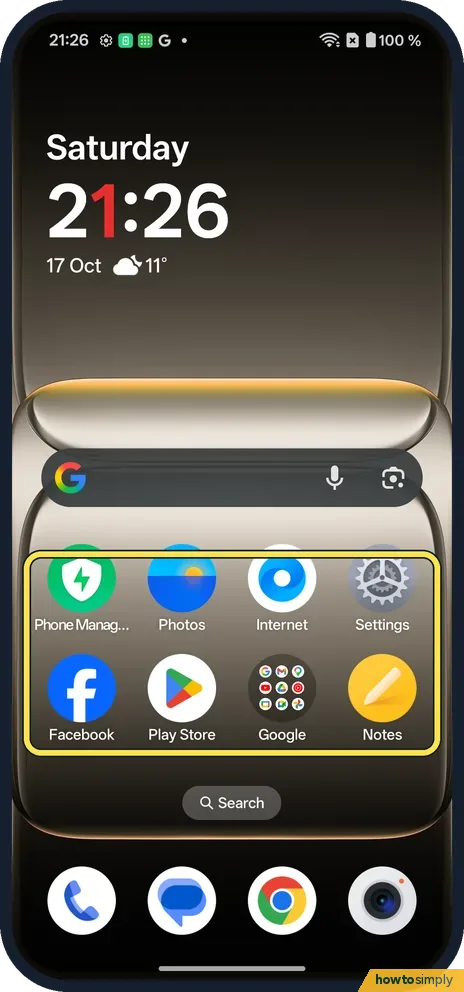
Apply, at the top right, keeps it. We tapped Cancel, then Discard: the home screen kept its Classic icons: Phone Manager, Photos, Internet, Settings, Facebook, Play Store, Google and Notes looked as before.
If you do not see this option
- Older OxygenOS? OnePlus's OxygenOS 14 manual puts colours at Settings, Wallpapers & style, Colors. On our OxygenOS 16 phone they are the System colours tab in the home screen editor. Source: OxygenOS 14.0 User Manual
- Bigger icons? The Icon slider (Default on ours) is at the bottom of the Icons panel.
- Colours from your wallpaper? Use Wallpaper colours, under Featured colours. Source: OxygenOS 14.0 User Manual
- App names or icon size? The OxygenOS 14 manual says the icon page can also change icon size, app name font size and whether app names show. On ours the Icon slider sits at the bottom of the Icons panel. Source: OxygenOS 14.0 User Manual
If this does not work
- Nothing changed? Tap Apply at the top right.
- Some app icons look different? ART+ Icons redesigns third-party icons. Turn it off to keep the app's own.
- Wallpaper colours option not working? OnePlus's manual says colours can only be picked from a static wallpaper, not a live one. Switch to a still wallpaper first, then try Wallpaper colours again.
- Icons changed back after a theme? The manual says a theme changes the lock screen wallpaper, Always-On Display style, ringtones and icons all at once. Applying a theme can undo your icon choice, so set Icons again afterwards.
- One app's icon ignores the shape? Some app icons are drawn in a way the system cannot fully reshape. ART+ Icons redesigns third-party icons if you want them to match.
Good to know
Change the grid: home screen layout.
Darker look: Dark mode on a OnePlus.
Icon shapes only change how app icons look on the home screen and in the app list. Apps, folders and their places stay the same. System colours tint switches, buttons and some highlights across Settings and Quick Settings. Neither affects battery or data.
If you like a wallpaper's colours, Wallpaper colours under Featured colours builds the system colours from it. For a fresh background first, see change the wallpaper on a OnePlus.
About this guide
- Device
- Android
- Shown on
- OnePlus Nord 5 (CPH2709), OxygenOS 16.0.5.1201, Android 16
- Starts in
- Home screen
- Real screenshots
- 6 of 6 steps
- Checked
- October 2026
- Sources
- 1 official, linked below
Sources
Links checked October 2026. Menus and features can change with updates.Spotted a mistake? Menus change with updates, and we want every step to match your screen. Email us about this page or use the contact form. We read every report, and fixes are listed on What changed.
Liked this guide?
Follow us for new guides and short how-to videos.
Did this guide work for you?
Sorry about that. What happened?