ONEPLUS
How to change app icon badges on a OnePlus (OxygenOS 16)

In short
Go to Settings, Notifications & Quick Settings and tap the App icon badges tile. Turn Show app icon badges on or off, tap Badges to pick Number or Dot, and switch badges off for single apps.
4 of 4 steps show a real screenshot from our Nord 5. Each step was checked against the maker's own instructions, linked at the end.
Steps
- 1
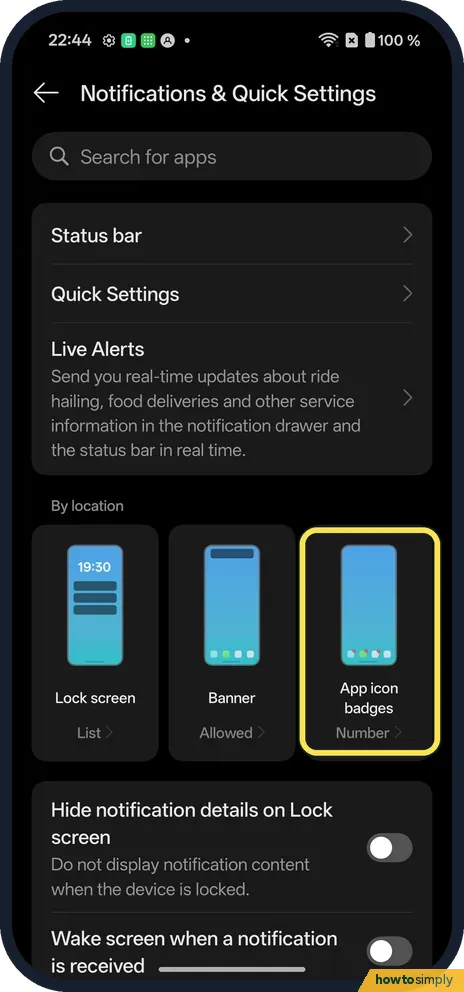
Tap App icon badges
It is the third tile under By location: Number on ours.
- 2
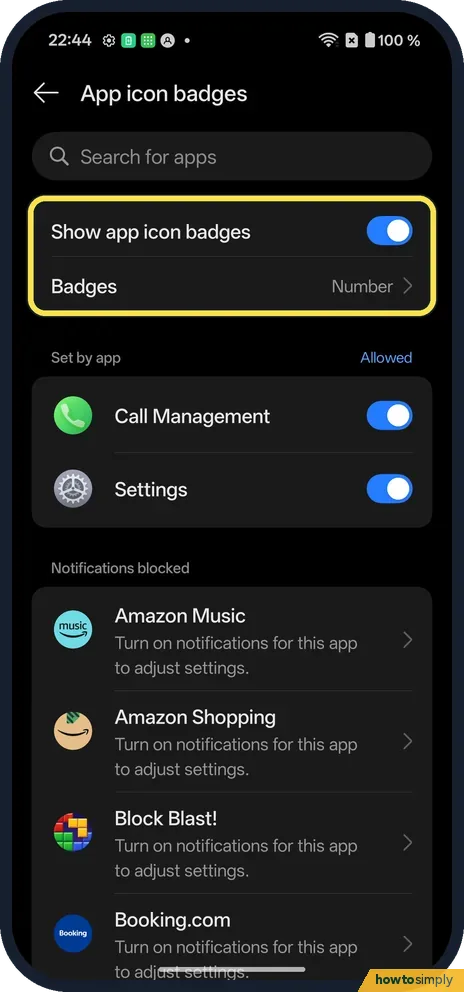
Turn badges on or off
Show app icon badges was on. Badges, just below, said Number.
- 3
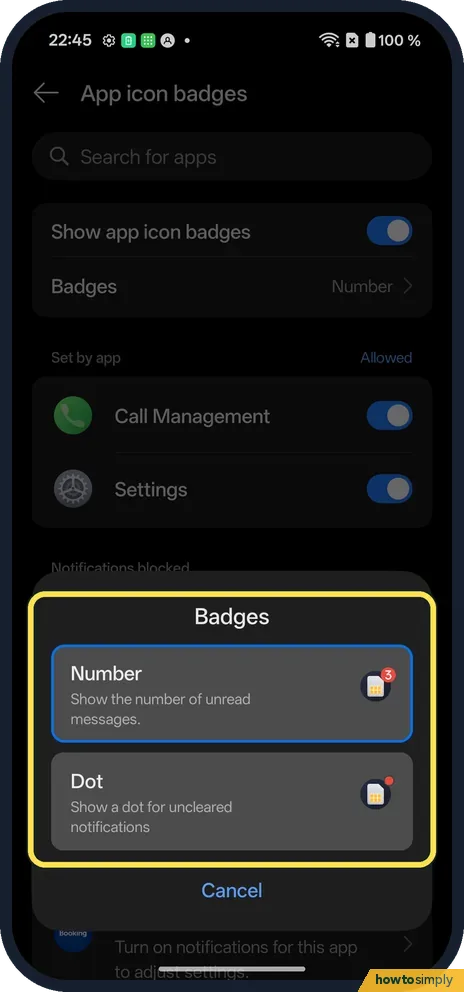
Pick a badge style
Tap Badges. Number shows the number of unread messages; Dot shows a dot for uncleared notifications.
- 4
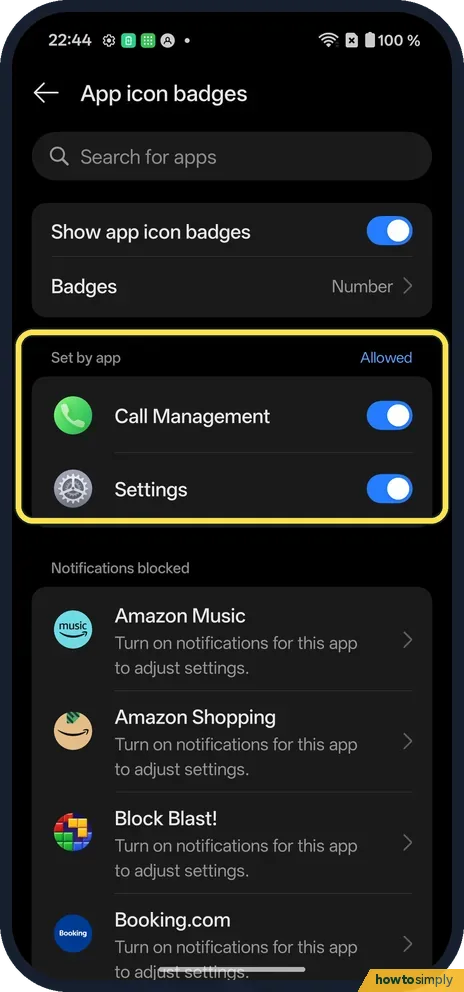
Switch off one app
Set by app lists apps with their own switch.
If you do not see this option
- App missing from the list? Apps with notifications blocked are under Notifications blocked.
If this does not work
- Badge won't clear? Open the app or clear its notification.
- No badge at all? The app's notifications may be off: notifications for one app.
- Badge number looks wrong? With Number selected, the count comes from what the app reports, which can differ from the notifications you can see. Open the app and read the waiting messages; if the number still sticks, clear the app's notifications from the notification shade.
- Badge back after you cleared it? Some apps post a fresh notification when they sync, so the badge returns. Check whether new mail or messages have arrived, or switch badges off for that app under Set by app.
- Badges vanished after an update? Open App icon badges again and check that Show app icon badges is still on and the app has not been switched off under Set by app.
Good to know
Turn on notification snoozing on a OnePlus.
Badges change only how icons look on the Home screen and in the app drawer. They have no real effect on battery or data, and changing the style from Number to Dot or back takes effect straight away. To undo anything, return to App icon badges and switch Show app icon badges or the app's own switch back on. The OxygenOS 14 manual also lists notifications on the lock screen and banner notifications as the other two forms an app's alerts can take, so if you are tidying up alerts, check those as well, for example to hide notifications on the lock screen.
A badge is a quiet reminder that something is waiting. If you want fewer reminders without missing anything, Dot is a good middle ground: it tells you an app needs attention without a growing number pulling you back in.
About this guide
- Device
- Android
- Shown on
- OnePlus Nord 5 (CPH2709), OxygenOS 16.0.5.1201, Android 16
- App
- Settings
- Path
- Settings › Notifications & Quick Settings › App icon badges
- Real screenshots
- 4 of 4 steps
- Checked
- October 2026
- Sources
- 2 official, linked below
Sources
Links checked October 2026. Menus and features can change with updates.Spotted a mistake? Menus change with updates, and we want every step to match your screen. Email us about this page or use the contact form. We read every report, and fixes are listed on What changed.
Liked this guide?
Follow us for new guides and short how-to videos.
Did this guide work for you?
Sorry about that. What happened?