XIAOMI REDMI
How to turn on the app drawer on a Xiaomi phone (HyperOS 3)
Go to Settings, Home screen, Home screen, and choose With App drawer. Swipe up on the home screen to open the drawer, which has tabs such as All, Communication and Entertainment and a search bar. Classic puts every app on the home screens instead.

4 of 4 steps show a real screenshot from our Redmi Note 15 Pro 5G. Each step was checked against the maker's own instructions, linked at the end.
Steps
- 1
Open Home screen settings
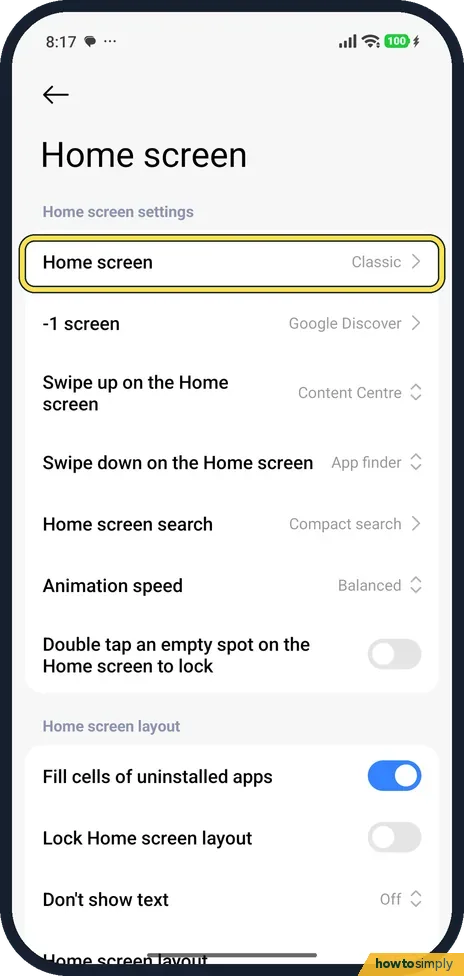
Go to Settings, Home screen. The first row, Home screen, read Classic on ours. Tap it.
- 2
See the layouts
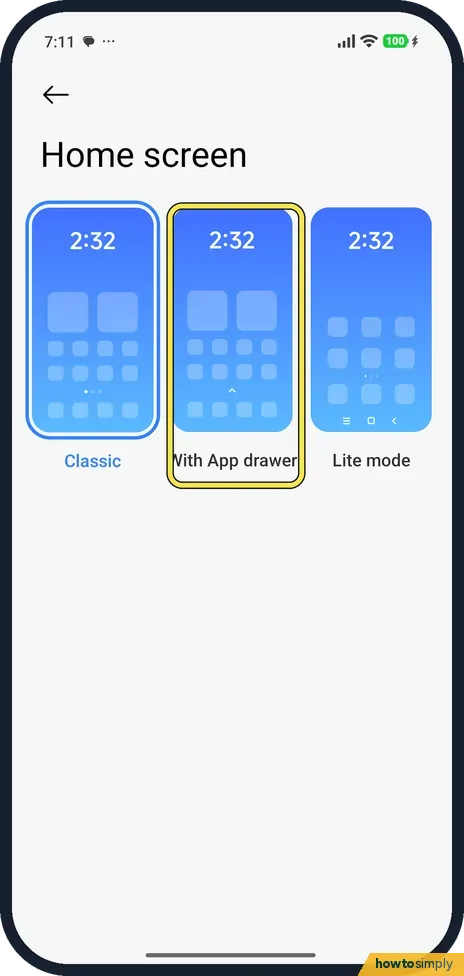
Three layouts are shown: Classic, With App drawer and Lite mode. Classic was selected on ours.
- 3
Choose With App drawer
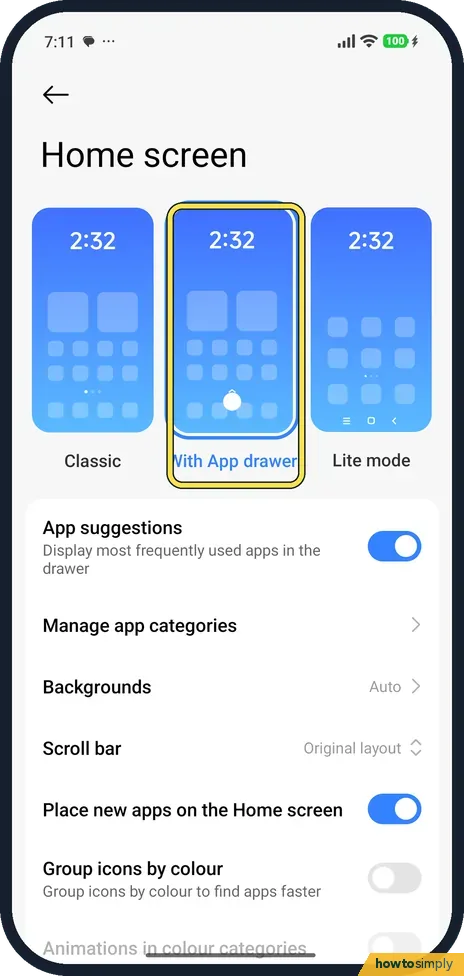
Tap With App drawer. New options appear below it. On ours App suggestions was on, Backgrounds Auto, Scroll bar Original layout, and Place new apps on the Home screen on.
- 4
Swipe up for the drawer
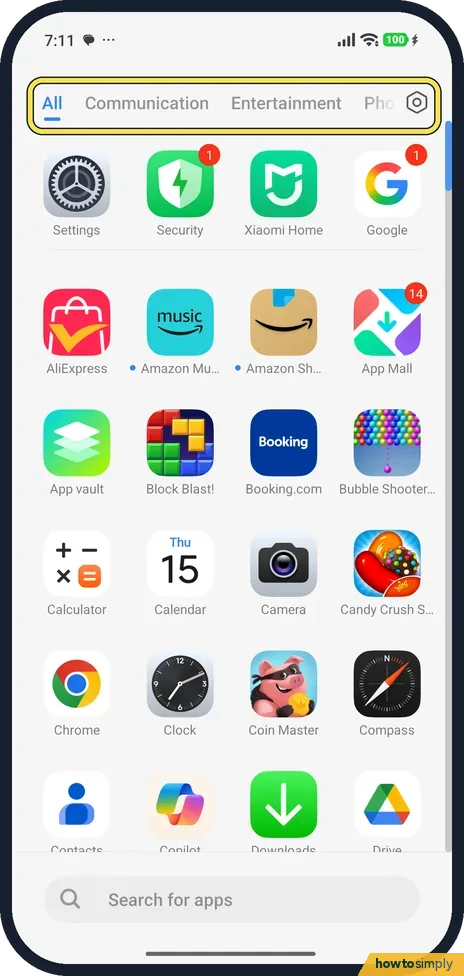
Go to the home screen and swipe up. The drawer opens with category tabs at the top (All, Communication, Entertainment) and Search for apps at the bottom.
If you do not see this option
- No category tabs? The tabs come from Manage app categories, which appears with With App drawer. Group icons by colour is a separate switch on the same page; it was off on ours.
- Using another launcher? These layouts are for Xiaomi's own home screen. Home app was System launcher on ours.
If this does not work
- New apps still land on the home screen? With App drawer has Place new apps on the Home screen, which was on on ours. Turn it off to keep new apps in the drawer only.
- Want it back how it was? Choose Classic on the same page.
- Want bigger icons and text instead? Lite mode, the third choice, gives bigger UI elements. Xiaomi says it also gives more accessible calling and enhanced security.
- Swiping up opens something else? With gestures, a swipe from the very bottom edge goes home or to recent apps. Start the swipe a little higher, in the middle of the home screen, to open the drawer.
- Stuck in Lite mode by mistake? Xiaomi's user guide says to turn off Lite mode, open Settings and tap the area under the search bar.
- Home screen icons vanished after switching? Nothing was uninstalled. Swipe up and every app is in the drawer under All, or use Search for apps at the bottom.
Good to know
Tidy the swipe-down menu too: how to edit Control Centre.
With the drawer on, the home screens become optional shortcuts. You can keep only the apps you use most there and leave the rest in the drawer. Nothing is uninstalled and no app data changes.
The same Home screen settings page also holds Home screen layout, where Xiaomi's guide lists 4x6, 4x7 or 5x9 grids, and Animation speed. For more on rearranging pages, see change the home screen layout on a Xiaomi phone.
About this guide
- Device
- Android
- Shown on
- Xiaomi Redmi Note 15 Pro 5G (25080RABDG), HyperOS 3.0.308.0, Android 16
- App
- Settings
- Path
- Settings › Home screen › Home screen › With App drawer
- Real screenshots
- 4 of 4 steps
- Checked
- October 2026
- Sources
- 1 official, linked below
Sources
Links checked October 2026. Menus and features can change with updates.Spotted a mistake? Menus change with updates, and we want every step to match your screen. Email us about this page or use the contact form. We read every report, and fixes are listed on What changed.
Liked this guide?
Follow us for new guides and short how-to videos.
Did this guide work for you?
Sorry about that. What happened?