GOOGLE PIXEL
How to allow installing apps from unknown sources (APK) on a Google Pixel (Android 17)

In short
Open Settings, Apps, Special app access, Install unknown apps. Tap the app you open the APK with, such as Chrome or Files by Google, and turn on Allow from this source. It is set app by app. Turn it off again when you're done.
5 of 5 steps show a real screenshot from our Pixel 10a. Each step was checked against the maker's own instructions, linked at the end.
Steps
- 1
Open Special app access
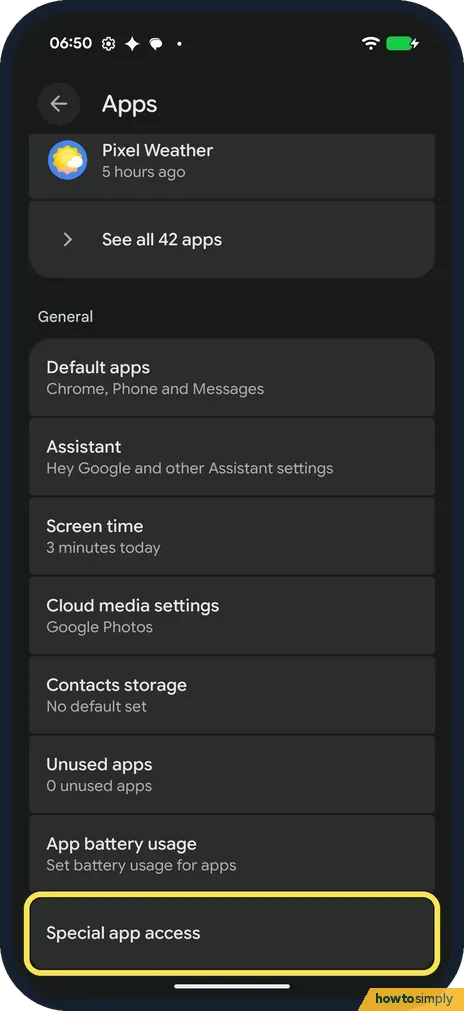
Open Settings and tap Apps. Scroll to the bottom and tap Special app access.
- 2
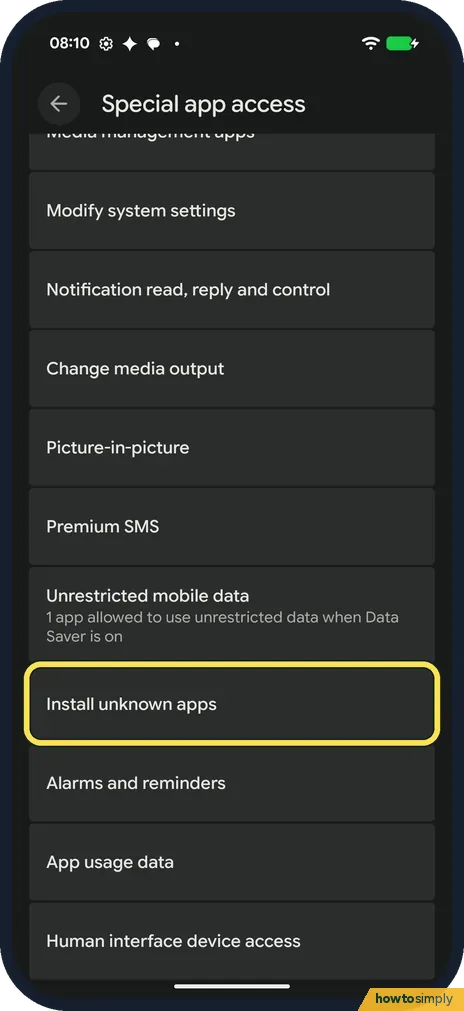
Tap Install unknown apps
Install unknown apps is near the bottom of the list, below Unrestricted mobile data.
- 3
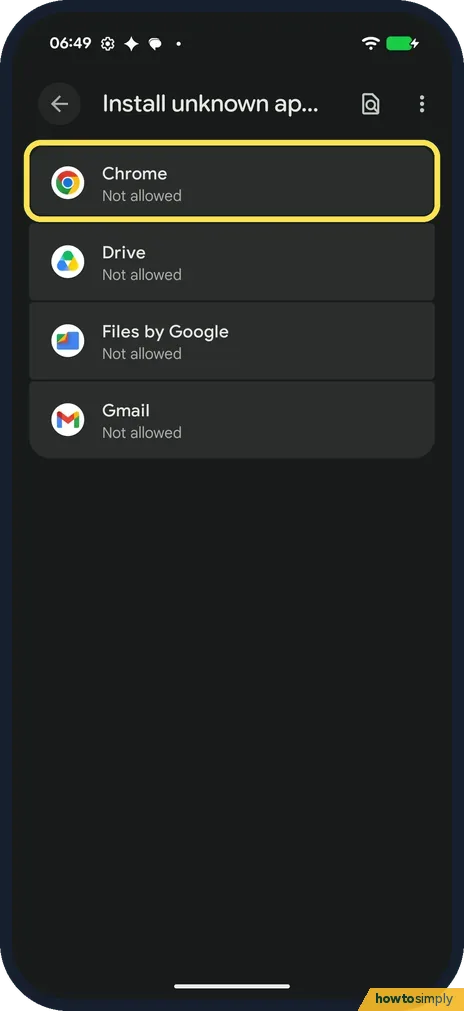
Pick the app that has the APK
The list shows apps that can install other apps. Ours had Chrome, Drive, Files by Google and Gmail, all Not allowed. Tap the one you'll open the APK with; for a download from the web that is usually Chrome.
- 4
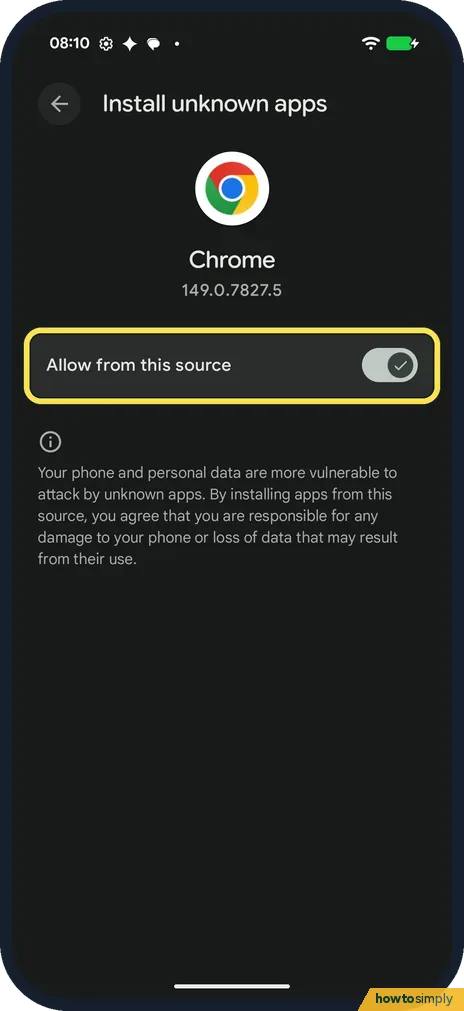
Turn on Allow from this source
Turn on Allow from this source. On ours the switch simply turned on, with no extra pop-up. We turned it off again straight after.
- 5
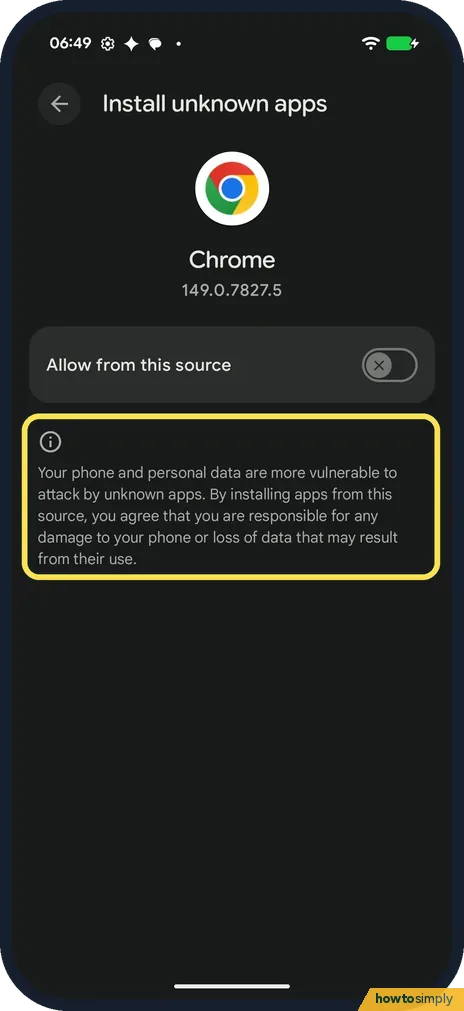
Read the warning
The page says your phone and personal data are more vulnerable to attack by unknown apps, and that you are responsible for any damage or loss of data.
If you do not see this option
- No "Unknown sources" switch for the whole phone? There isn't one on our Pixel. The permission is set app by app, under Install unknown apps. Google says some of these steps only work on Android 8.0 and up. Source: Download apps to your Android device
- Switch blocked by Advanced Protection? Google says that with Advanced Protection on, installing apps from unknown sources is blocked, and so are updates to apps installed that way. It is turned on and off under Security and privacy. Source: Improve device security with Advanced Protection for Android
If this does not work
- Play Protect warns or blocks the install? Google says Play Protect checks apps when you install them and may block an app that is known to be harmful. Don't install it. To check your phone, see how to scan for harmful apps with Play Protect.
- Warned about an unverified developer? Google says you first turn on Allow apps from unverified developers in Developer options, which has a 24-hour delay, then tap Install anyway. See how to turn on Developer options.
- Still blocked after allowing Chrome? Allow the app that actually opens the APK. If you open it from Files by Google, allow that app too. It was on our list.
- Play Protect asks to send the app? Google says Play Protect may ask you to send an unknown app to Google, or suggest scanning an app it has never assessed. That sends the app's details to Google for review. You can say no, but the check is there to protect you.
- An installed app was disabled? Google says Play Protect may disable a harmful app until you uninstall it, or remove it automatically, usually with a notification. Don't reinstall that APK.
Good to know
Google warns that apps from unknown sources can put your device and personal information at risk. Only install APKs from a source you trust, then turn the switch off again.
Keep your other apps up to date: how to update a Google Pixel and its apps.
Google says that when you install apps from outside Google Play, your device can send Google information about those apps, to help guard against threats. Play Protect's own switch, Scan apps with Play Protect, is in the Play Store app: tap your profile icon, then Play Protect and Settings. Leave it on.
About this guide
- Device
- Android
- Shown on
- Google Pixel 10a, Android 17 (build CP3A.261005.005)
- App
- Settings
- Path
- Settings › Apps › Special app access › Install unknown apps
- Real screenshots
- 5 of 5 steps
- What we did
- Performed: we made the change on our device and show the result
- Checked
- October 2026
- Sources
- 4 official, linked below
Sources
Links checked October 2026. Menus and features can change with updates.Spotted a mistake? Menus change with updates, and we want every step to match your screen. Email us about this page or use the contact form. We read every report, and fixes are listed on What changed.
Liked this guide?
Follow us for new guides and short how-to videos.
Did this guide work for you?
Sorry about that. What happened?