
macOS 27 compared with macOS 26: We rewrote this guide on macOS 27.0.1 (MacBook Neo): it now has 5 steps instead of 7. The macOS 26 page keeps the steps and screenshots as they were.
howtosimply.com/guides/how-to-airplay-from-an-iphone-to-a-mac/ · Checked October 2026 · MacBook Neo (macOS 27.0.1) and iPhone 17e (iOS 27.0.1)
In this guide
On the Mac, open System Settings, General, AirDrop & Continuity and switch on AirPlay Receiver. On the iPhone, open the photo, tap Share, tap AirPlay and choose the Mac. To show the whole iPhone screen instead, use Screen Mirroring in Control Center.
5 of 5 steps with real screenshots · 2 official sources below
- Device
- iPhone
- Shown on
- macOS 27.0.1 (MacBook Neo), iOS 27.0.1 (iPhone 17e)
- App
- System Settings
- Real screenshots
- 5 of 5 steps
- Checked
- October 2026
- Sources
- 2 official, linked below
Step by step
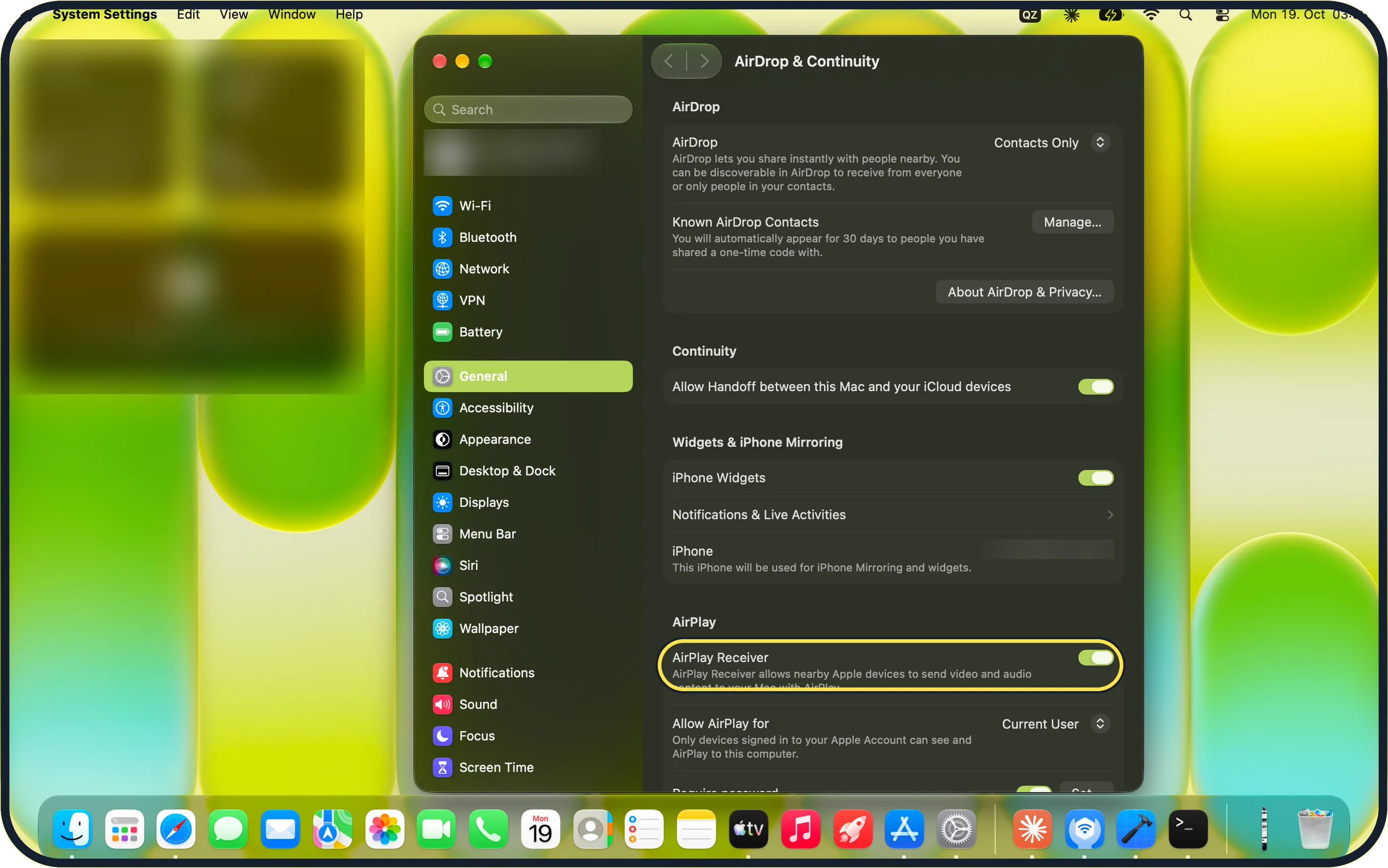
Zoomed in on the setting. Tap to see the whole screenTap the picture to see it full size Mac: switch on AirPlay Receiver
Open System Settings, click General in the sidebar, then AirDrop & Continuity.
Under AirPlay, switch on AirPlay Receiver. On our MacBook Neo it was already on.
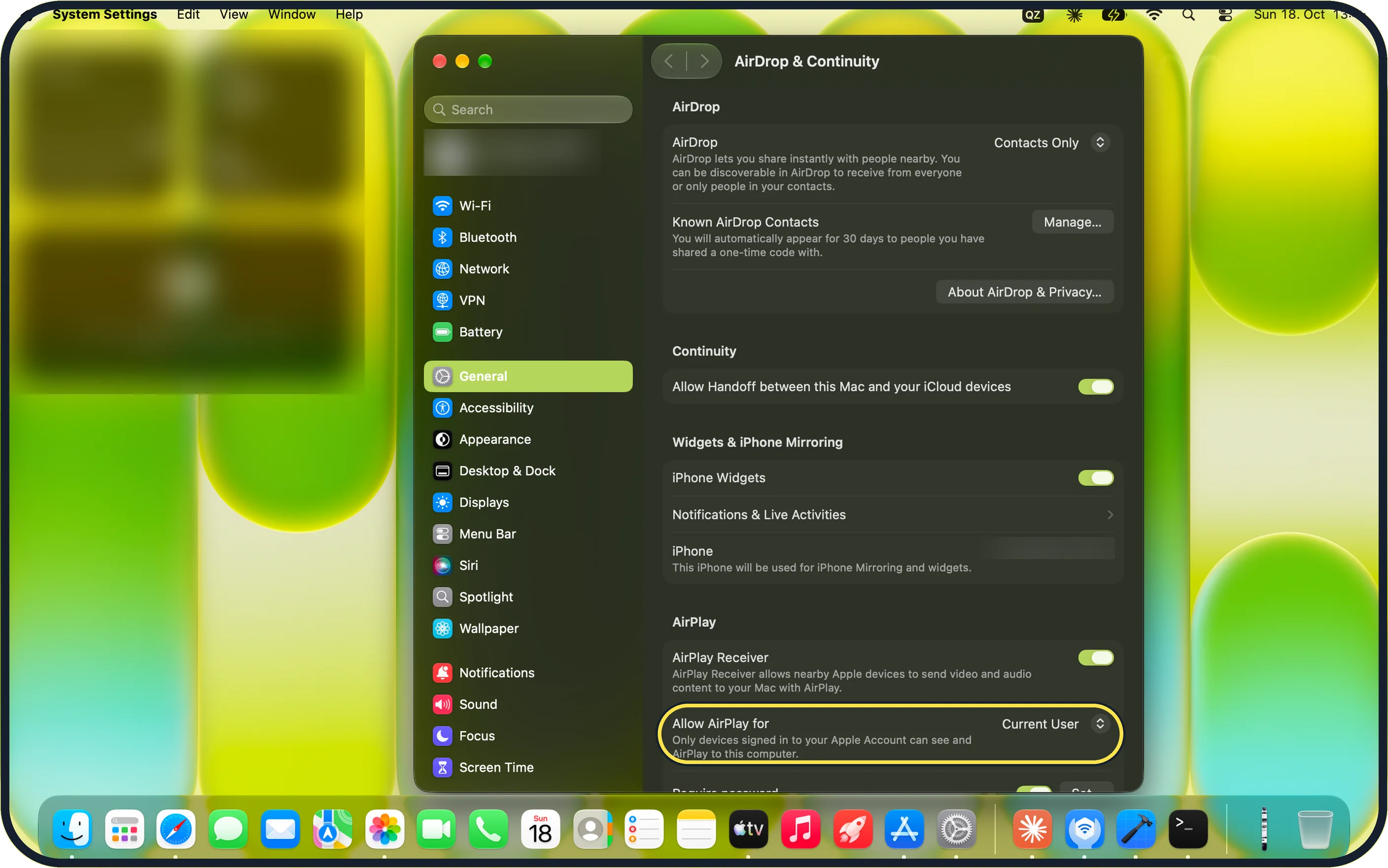
Zoomed in on the setting. Tap to see the whole screenTap the picture to see it full size Choose who may send
Next to Allow AirPlay for, pick Current User, Anyone on the Same Network or Everyone.
Ours was set to Current User. The note under it says only devices signed in to your Apple Account can see and AirPlay to this computer.
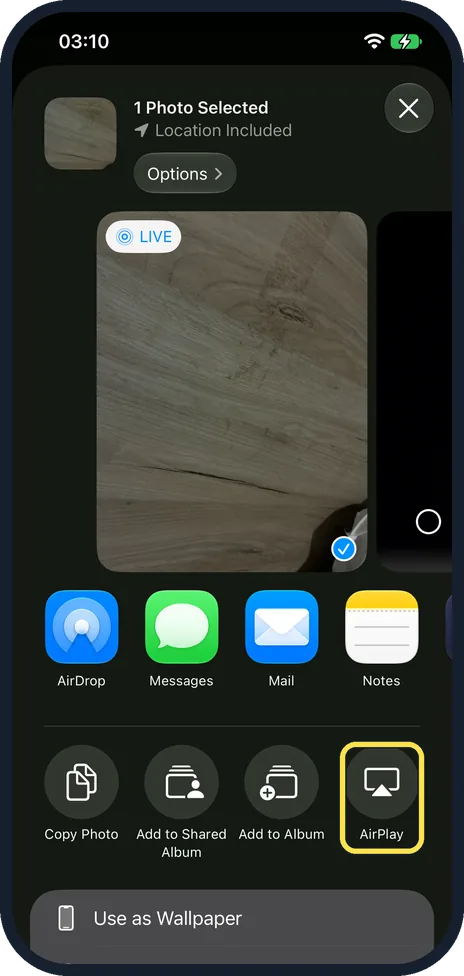
iPhone: open the photo, tap Share, then AirPlay
In Photos, open the photo and tap the Share button.
Tap AirPlay. On our iPhone 17e it was in the row of round buttons under the apps, after Copy Photo, Add to Shared Album and Add to Album.
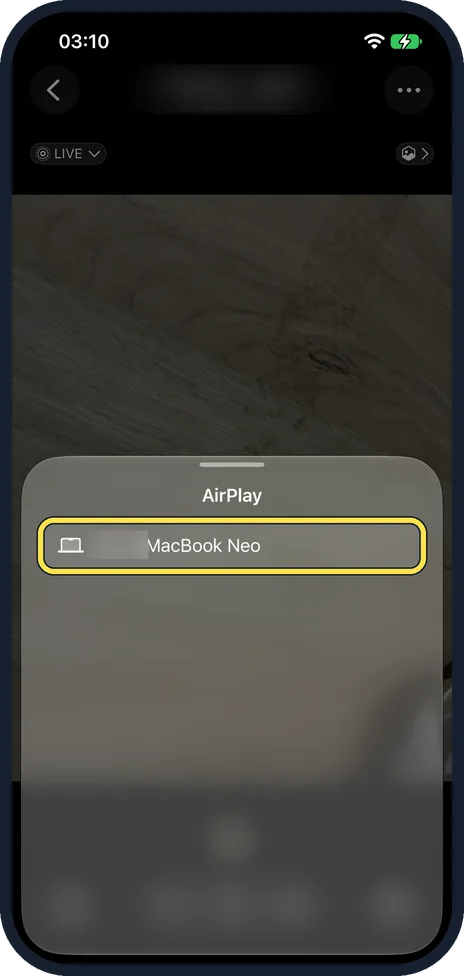
Choose the Mac
A list called AirPlay opens. Tap the name of your Mac; ours was listed as MacBook Neo.
Apple says you may need to enter a password on the iPhone.

Zoomed in on the setting. Tap to see the whole screenTap the picture to see it full size Look at the Mac
The photo fills the Mac screen on a black background.
Apple says to use the controls on the iPhone while it plays.
If you do not see this option
- There is no AirPlay Receiver switch Apple says it is in System Settings, General, AirDrop & Continuity, and that the Mac must meet the minimum system requirements for AirPlay to Mac. On our MacBook Neo it was the first row under AirPlay. Source: Stream video and audio with AirPlay (Mac User Guide, macOS 27)
- AirPlay is not in the share sheet On our iPhone 17e it was not among the app icons but in the row of round buttons below them. Apple says some apps need a different button first, such as Share. Source: Stream video and audio with AirPlay (Mac User Guide, macOS 27)
- The Mac is not in the AirPlay list Apple says both devices need Wi-Fi on and the same network. With Current User, the iPhone must be signed in to the same Apple Account as the Mac; Anyone on the Same Network or Everyone lets other devices in. Source: Stream video and audio with AirPlay (Mac User Guide, macOS 27) · Source: Use AirPlay to stream video or mirror the screen of your iPhone or iPad
If this does not work
- You are asked for a password Apple says you may need to enter a password on the iPhone. It is the one set under Require password in the Mac's AirDrop & Continuity settings. Source: Stream video and audio with AirPlay (Mac User Guide, macOS 27)
- The photo stays on the Mac On the iPhone, tap the AirPlay button and Turn Off AirPlay (Apple). Esc on the Mac closed it too. Source: Stream video and audio with AirPlay (Mac User Guide, macOS 27)
About this guide
A Mac can be the big screen for photos and videos from an iPhone. The Mac has to accept AirPlay first, and both devices need Wi-Fi on and the same network.
Screenshots: iPhone 17e with iOS 27.0.1 and MacBook Neo with macOS 27.0.1, both in dark mode.
Good to know
To stop, Apple says to tap the AirPlay button on the iPhone, then Turn Off AirPlay. On our MacBook Neo, pressing Esc also closed the photo.
To show the whole iPhone screen, open Control Center on the iPhone, tap Screen Mirroring and choose the Mac. If a code appears on the Mac, Apple says to enter it on the iPhone. To stop, open Screen Mirroring again and tap Stop Mirroring.
For a video, tap the AirPlay button in the video app and choose the Mac. Apple says some apps do not support AirPlay.
On a Mac managed by an employer, the AirPlay Receiver option may be switched off by the organisation.
Handing work from one device to the other works differently: how to use Handoff between a Mac and an iPhone.
In short: Mac: System Settings > General > AirDrop & Continuity > AirPlay Receiver on. iPhone: photo > Share > AirPlay > your Mac. Press Esc on the Mac to close it.
- Apple Support: Stream video and audio with AirPlay (Mac User Guide, macOS 27)
- Apple Support: Use AirPlay to stream video or mirror the screen of your iPhone or iPad
Links checked in October 2026. Menus and features can change after software updates. These steps match the version named at the top.
Did this guide work for you?
Sorry about that. What happened?