
What changed: the screenshots are now our own iPhone 17e on iOS 27.0.1, dark mode, and the wording is checked against those screens and Apple's iOS 27 guide.
howtosimply.com/guides/how-to-play-background-sounds-like-rain-on-an-iphone/ · Checked October 2026 · iPhone 17e · iOS 27.0.1
In this guide
Open Settings, tap Accessibility, then Audio & Visual, then Background Sounds, and switch on Background Sounds. Tap Sound to pick a sound such as Rain and set the volume with the slider. Apple says you can also control it with the Accessibility Shortcut or from Control Centre.
5 of 5 steps with real screenshots · 1 official source below
- Device
- iPhone
- Shown on
- iOS 27.0.1 (iPhone 17e)
- App
- Settings
- Path
- Settings › Accessibility › Audio & Visual › Background Sounds
- Real screenshots
- 5 of 5 steps
- Checked
- October 2026
- Sources
- 1 official, linked below
Step by step
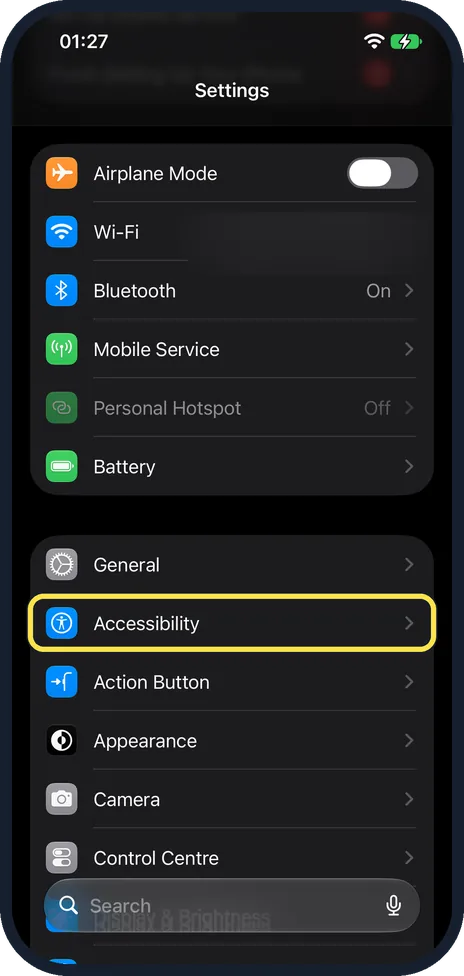
Open Settings, then Accessibility
On our iPhone 17e with iOS 27, Accessibility was in the second group of the main Settings list, just below General.
Watch these steps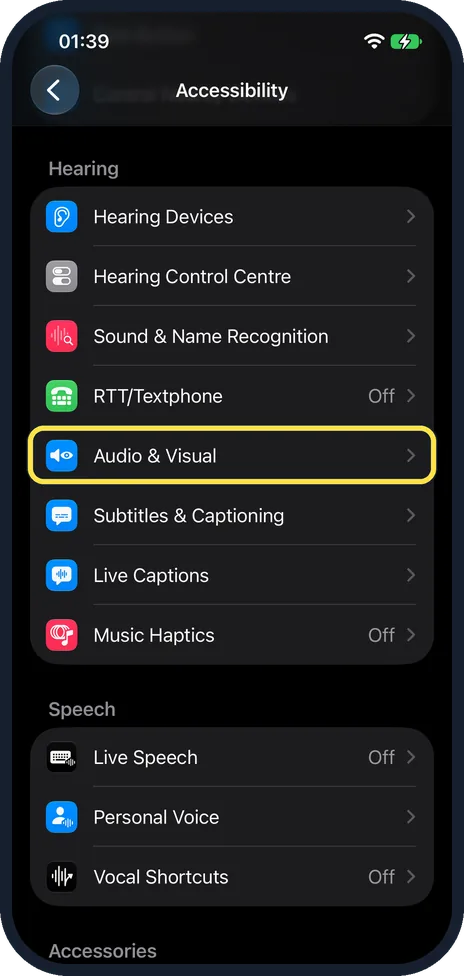
Scroll down and tap Audio & Visual
It is in the Hearing group of the Accessibility page. On our iPhone 17e with iOS 27, Audio & Visual sat between RTT/Textphone and Subtitles & Captioning, below Hearing Devices, Hearing Control Centre and Sound & Name Recognition.
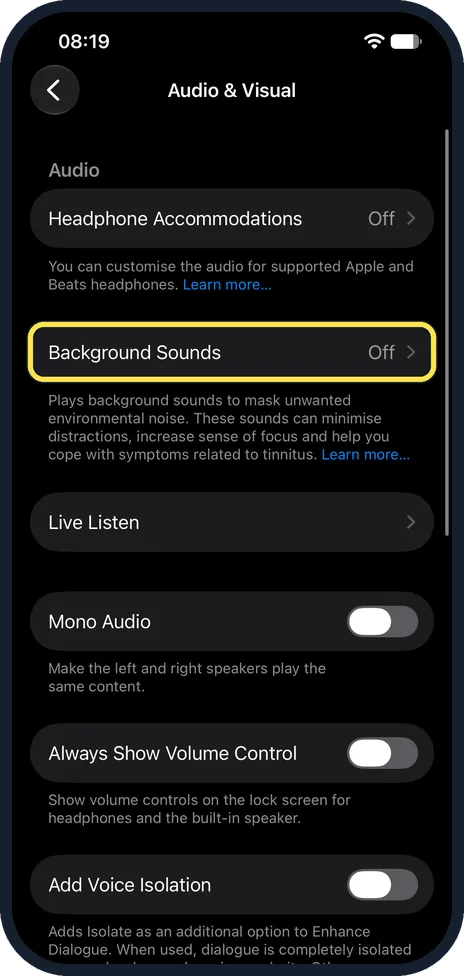
Tap Background Sounds
On our iPhone 17e it was the second row of Audio & Visual, under Headphone Accommodations, and showed Off.
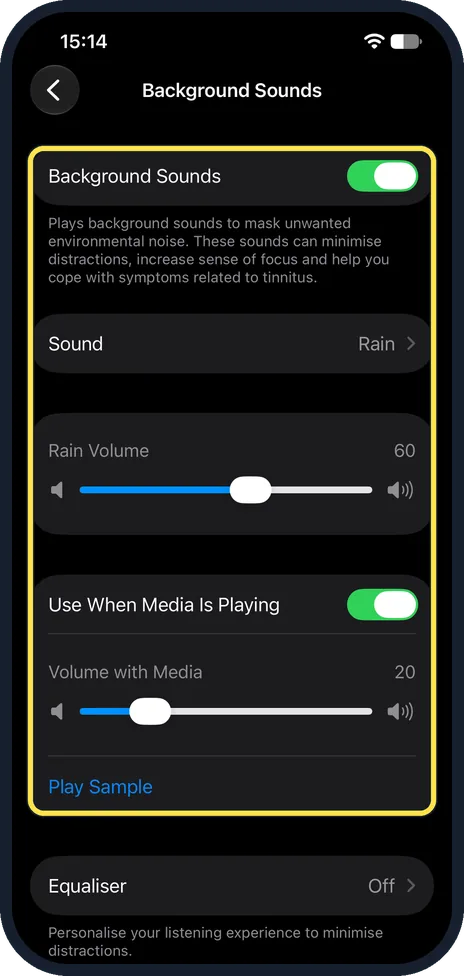
Switch on Background Sounds and choose the sound
Apple's path ends with: turn on Background Sounds. Switch it off on the same page. Tap Sound to pick another one, and drag the volume slider below it. Apple says that with Use When Media Is Playing on, Background Sounds plays while other media is playing, and the Volume with Media slider sets its volume then. On our iPhone 17e with iOS 27, Background Sounds was switched on, Sound read Rain, Rain Volume was at 60, Use When Media Is Playing was on with Volume with Media at 20, and Play Sample sat below that slider.
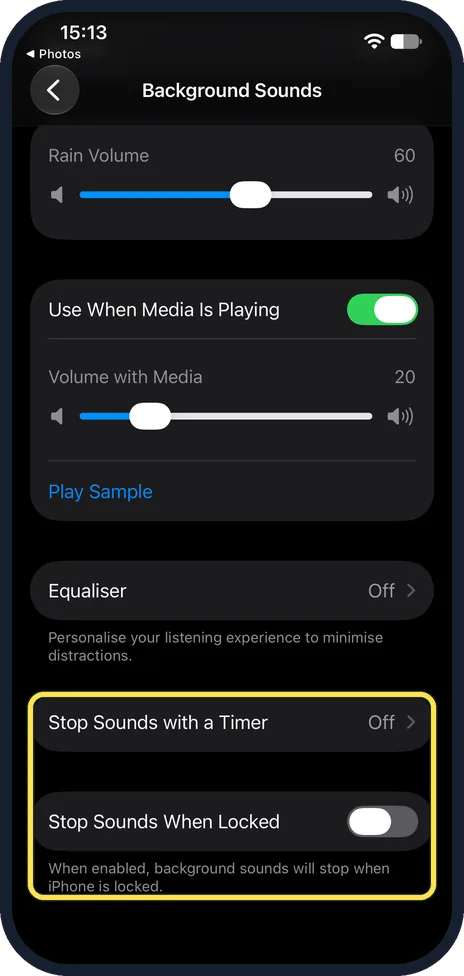
Optional: stop it with a timer or when the iPhone locks
Scroll down the Background Sounds page. Apple says Stop Sound with a Timer lets you choose a specific time or an amount of time, and Stop Sounds When Locked turns it off when the iPhone locks. On our iPhone 17e with iOS 27 the rows read Stop Sounds with a Timer (Off) and Stop Sounds When Locked (off), with the note: When enabled, background sounds will stop when iPhone is locked.
What changed: the screenshots are now our own iPhone 17e on iOS 27.0.1, dark mode, and the wording is checked against those screens and Apple's iOS 27 guide.
Watch these steps
If you do not see this option
- Background Sounds is not under Sounds & Haptics. Apple's path is Settings, Accessibility, Audio & Visual, Background Sounds. On our iPhone 17e it was the second row of Audio & Visual, below Headphone Accommodations. Source: Play background sounds on iPhone
- You cannot find Tone and Balance. Apple says they only appear after you tap Equalizer and turn it on. On our iPhone 17e the row is spelt Equaliser and showed Off. Source: Play background sounds on iPhone
If this does not work
- The sound stops when music or a video plays. Turn on Use When Media Is Playing, as Apple describes, and raise the Volume with Media slider. On our iPhone 17e it was on, with Volume with Media at 20. Source: Play background sounds on iPhone
- It keeps playing when you do not want it. Turn on Stop Sounds When Locked, or set a time under Stop Sounds with a Timer, as in step 5. On our iPhone 17e both were off. Source: Play background sounds on iPhone
- Going through Settings each time is slow. Apple says you can control Background Sounds with the Accessibility Shortcut or from Control Centre. Sources: Play background sounds on iPhone, Quickly turn accessibility features on or off on iPhone
About this guide
Background Sounds plays steady noise such as rain to mask the sounds around you. The note on the iPhone says these sounds can minimise distractions, increase sense of focus and help you cope with symptoms related to tinnitus. Apple adds that they can help you rest.
The screenshots are our own, taken on an iPhone 17e running iOS 27.0.1.
Good to know
Below the volume settings there is an Equaliser row, which is off on our iPhone.
Adding and moving buttons in Control Centre: how to customise Control Centre on an iPhone.
The same feature on a Mac: how to play background sounds like rain on a Mac.
In short: Settings, Accessibility, Audio & Visual, Background Sounds, switch on, choose a Sound. Apple says you can also control it from Control Centre.
Links checked in October 2026. Menus and features can change after software updates. These steps match the version named at the top.
📷 See real photos from the iPhone 17e in our Camera Lab, next to 10 other phones.
Did this guide work for you?
Sorry about that. What happened?