
What changed: the screenshots are now our own iPhone 17e on iOS 27.0.1, dark mode, and the wording is checked against those screens and Apple's iOS 27 guide.
howtosimply.com/guides/how-to-make-text-bigger-on-an-iphone/ · Checked October 2026 · iPhone 17e · iOS 27.0.1
In this guide
On iOS 27, open Settings, tap Appearance, then Text Size, and drag the slider to the right. Bold Text is on the same page. For even bigger text, open Accessibility, Display & Text Size, Larger Text. On iOS 26, Text Size is under Display & Brightness.
6 of 6 steps with real screenshots · 5 official sources below
- Device
- iPhone
- Shown on
- iOS 27.0.1 (iPhone 17e)
- App
- Settings
- Path
- Settings › Appearance › Text Size
- Real screenshots
- 6 of 6 steps
- Checked
- October 2026
- Sources
- 5 official, linked below
Step by step
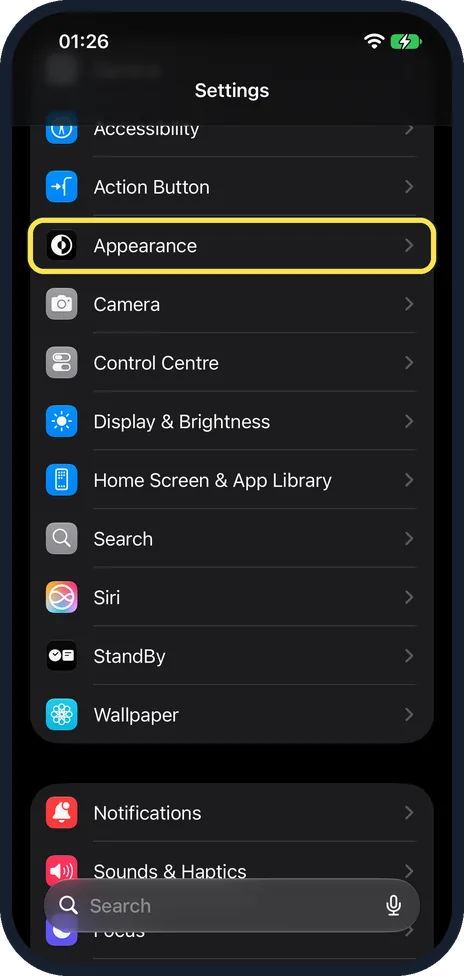
Open Settings and tap Appearance
On iOS 27, scroll down in Settings to find Appearance. It is in the group that starts with General, below Action Button. On iOS 26, tap Display & Brightness instead.
Watch these steps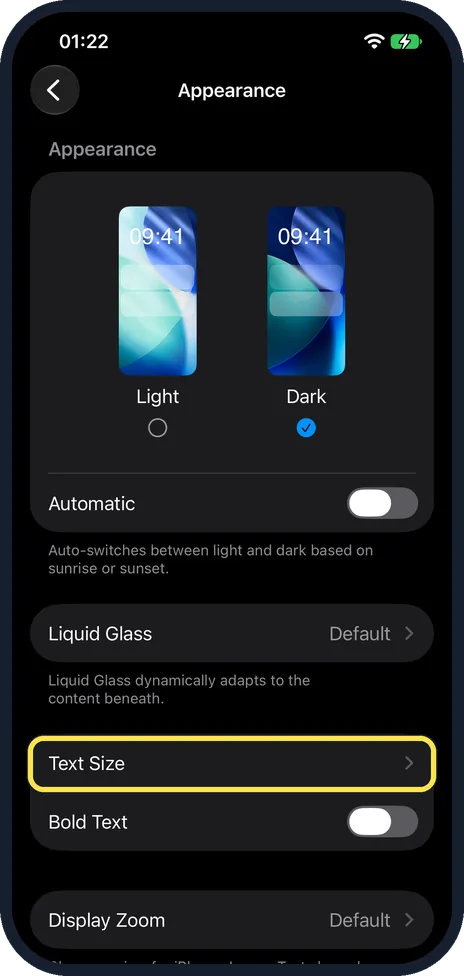
Tap Text Size
It is below Liquid Glass on the Appearance page, with Bold Text right under it.
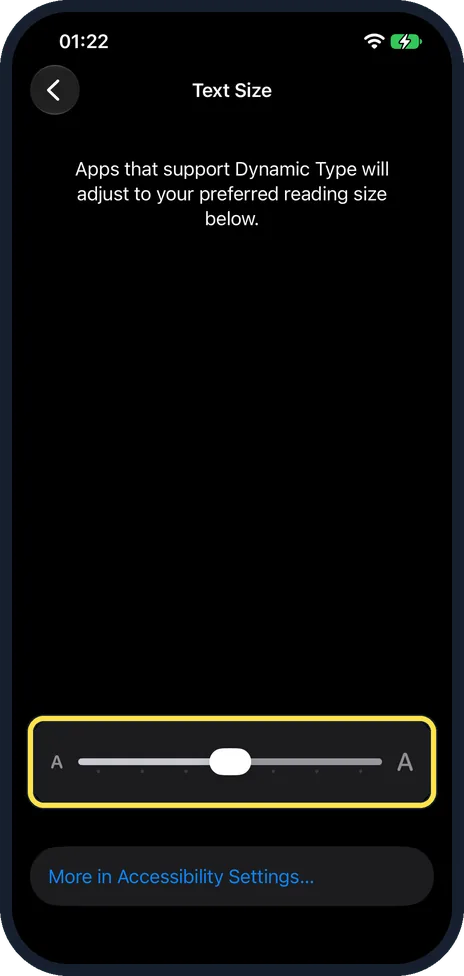
Drag the slider to the right
Each step to the right makes the text a little bigger. On our iPhone 17e the slider sat in the middle. Under it there is a link, More in Accessibility Settings… The note at the top of the page reads: Apps that support Dynamic Type will adjust to your preferred reading size below.
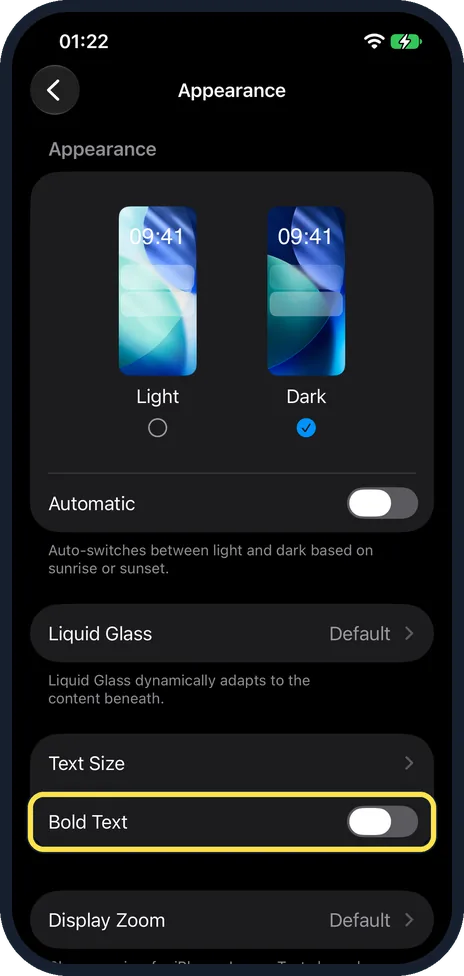
Switch on Bold Text if you like
Go back one page. Bold Text is the switch below Text Size. On our iPhone 17e it was off. The same switch is also at the top of Accessibility, Display & Text Size. Thicker letters are easier to read for many people.
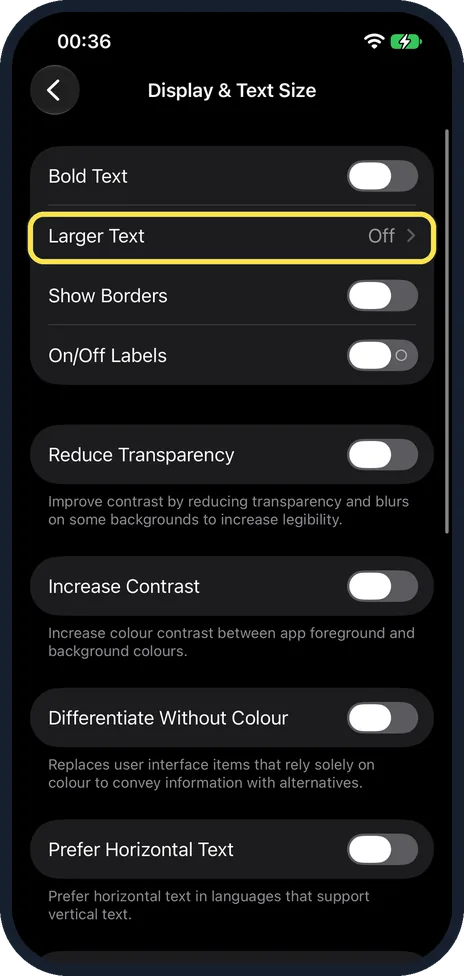
Need it bigger still? Open Accessibility, Display & Text Size
Go to Settings, Accessibility and tap Display & Text Size, then Larger Text. This path is the same on iOS 26 and iOS 27. On our iPhone 17e Larger Text showed Off.
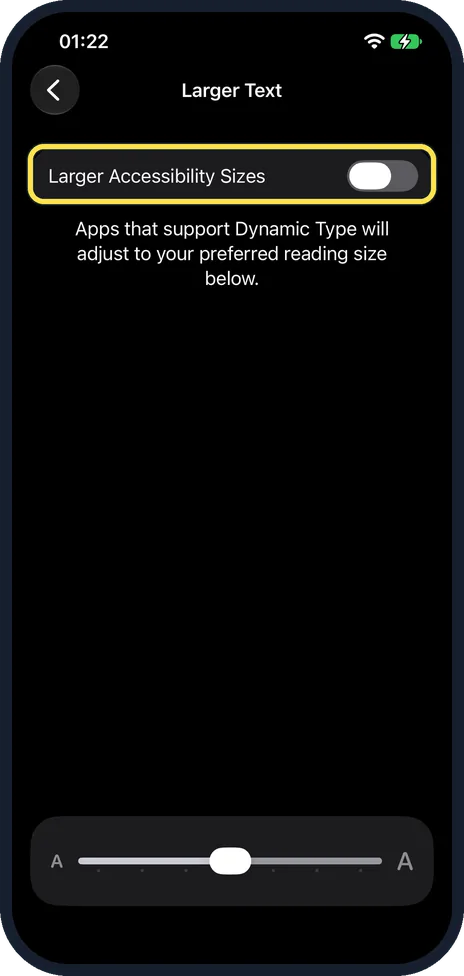
Switch on Larger Accessibility Sizes
With the switch at the top of Larger Text on, the slider gains more steps; Apple calls them additional text sizes. On our iPhone 17e Larger Accessibility Sizes was off.
What changed: the screenshots are now our own iPhone 17e on iOS 27.0.1, dark mode, and the wording is checked against those screens and Apple's iOS 27 guide.
Watch these steps
What we saw on our device
- Drag the slider to the right: On our iPhone 17e the slider sat in the middle.
- Switch on Bold Text if you like: On our iPhone 17e it was off.
- Need it bigger still? Open Accessibility, Display & Text Size: On our iPhone 17e Larger Text showed Off.
- Switch on Larger Accessibility Sizes: On our iPhone 17e Larger Accessibility Sizes was off.
If you do not see this option
- No Appearance page You are on iOS 26. Apple's iOS 26 guide puts Text Size and Bold Text under Settings, Display & Brightness. Appearance is new in iOS 27. Apple's Support article on font size also still gives Display & Brightness, Text Size, but on our iOS 27 iPhone 17e it is under Appearance. Source: Adjust iPhone display and text settings (iOS 26) · Source: Adjust iPhone display and text settings (iOS 27) · Source: Change the font size on your iPhone
If this does not work
- Some apps do not change Only apps that support Dynamic Type adjust, as the Text Size page says. Other apps keep their own size. Source: Change the font size on your iPhone
- Buttons are hard to tap after the change Apple warns that making the text too large might make it hard to tap buttons. If that happens, go back and adjust the font size. Source: Change the font size on your iPhone
About this guide
If you find yourself squinting at messages or holding the phone at arm's length, a larger text size helps straight away. It changes Messages, Mail, Settings and most other apps at once.
On iOS 27, Text Size and Bold Text are on the new Appearance page. Screenshots: iPhone 17e, iOS 27.0.1, dark mode.
Good to know
The Text Size slider on the Appearance page offers the normal range. The extra-large steps need Larger Accessibility Sizes switched on. To change the size while you are in an app, Apple suggests the Text Size control in Control Centre: if it is not there, tap Add a Control and choose Text Size.
Display Zoom makes everything bigger, including buttons and icons. On iOS 27 it is below Bold Text on the Appearance page, on iOS 26 on the Display & Brightness page: how to change Display Zoom on an iPhone.
To make one web page bigger in Safari, tap the left side of the address bar, tap Page Zoom and tap the large A.
In short: iOS 27: Settings, Appearance, Text Size, drag the slider. Bigger: Accessibility, Display & Text Size, Larger Text.
- Apple Support: Change the font size on your iPhone
- Apple iPhone User Guide: Adjust iPhone display and text settings (iOS 27)
- Apple iPhone User Guide: Adjust iPhone display and text settings (iOS 26)
- Apple iPhone User Guide: Make text easier to read on iPhone
- Apple iPhone User Guide: Customize your Safari settings on iPhone
Links checked in October 2026. Menus and features can change after software updates. These steps match the version named at the top.
Did this guide work for you?
Sorry about that. What happened?