
What changed: steps that look different now show our own iPhone 14 Pro on iOS 27.0.1, with the wording checked against that screen.
howtosimply.com/guides/how-to-show-full-names-instead-of-short-names-on-an-iphone/ · Checked October 2026 · iPhone 14 Pro · iOS 27.0.1
In this guide
Open Settings, tap Apps, then Contacts, scroll down and tap Short Name. Switch off Short Name to see full names, or choose which short form is used: first name and last initial, first initial and last name, first name only or last name only.
4 of 6 steps with real screenshots · 1 official source below
- Device
- iPhone
- Shown on
- iOS 27.0.1 (iPhone 14 Pro)
- App
- Settings
- Path
- Settings › Apps › Contacts › Short Name
- Real screenshots
- 4 of 6 steps
- Checked
- October 2026
- Sources
- 1 official, linked below
Step by step
Open Settings and tap Apps
Apps is near the bottom of the main Settings list.
Tap Contacts
The apps are in alphabetical order, so Contacts is near the top, under C.
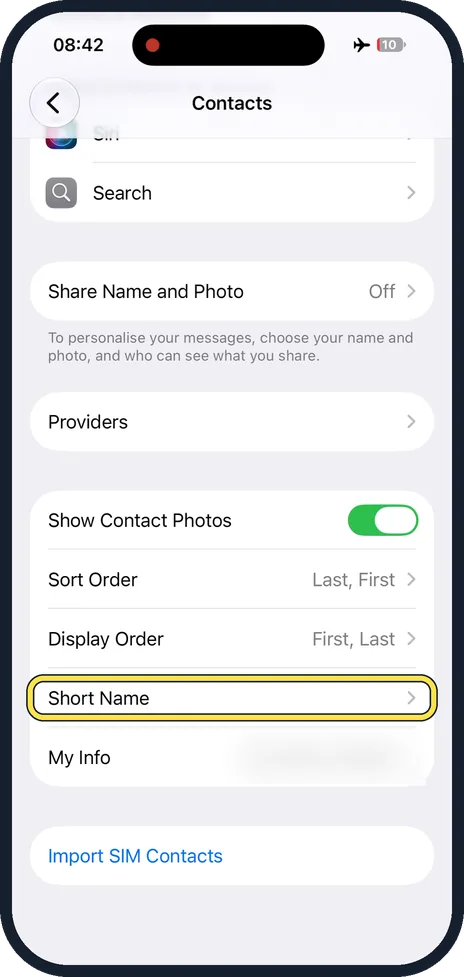
Scroll down and tap Short Name
It is below Display Order, above My Info.
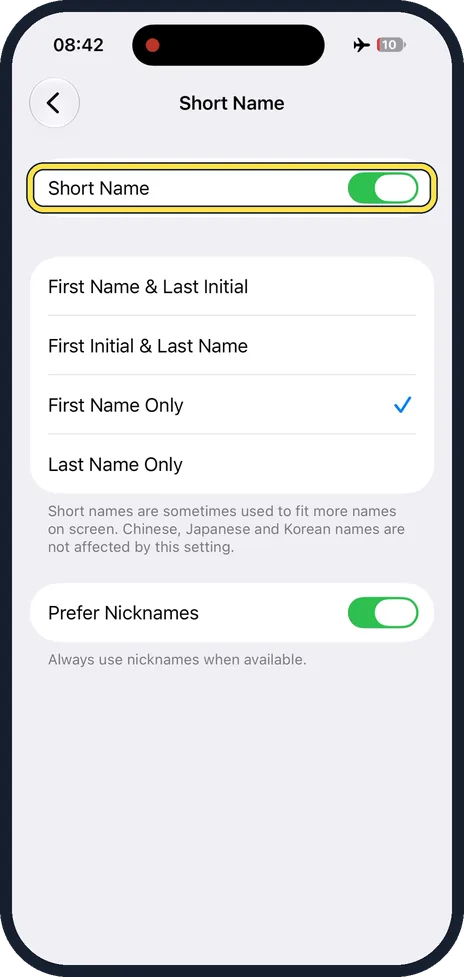
Switch off Short Name, or keep it on
The switch at the top is on at first. Leave it on if you only want a different short form.
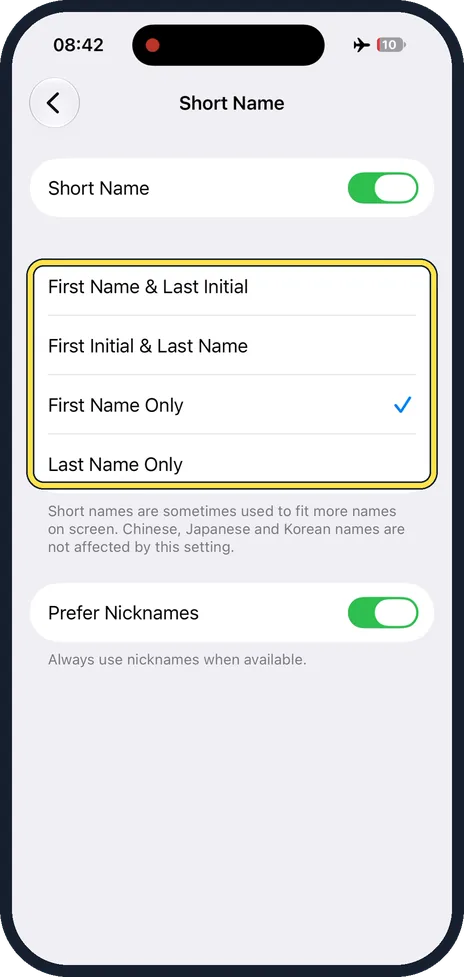
Choose the short form
There are four: First Name & Last Initial, First Initial & Last Name, First Name Only and Last Name Only. The tick is on First Name Only at first. The note below says Chinese, Japanese and Korean names are not affected.
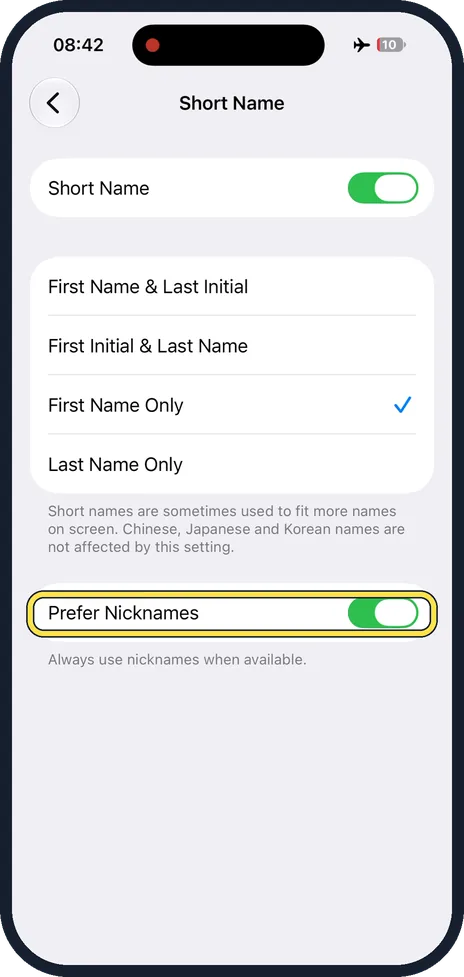
Decide about nicknames
Prefer Nicknames is on at first. With it on, the iPhone always uses a nickname when a contact has one.
What changed: steps that look different now show our own iPhone 14 Pro on iOS 27.0.1, with the wording checked against that screen.
About this guide
Apps like Mail, Messages and Phone sometimes shorten the names of your contacts to fit more on the screen. At first the iPhone shows the first name only. With two people called Anna, that is not enough. The Short Name page lets you pick another form or switch the shortening off.
Good to know
The order of first and last name is set one row higher: how to show last names first in Contacts on an iPhone.
In short: Settings, Apps, Contacts, Short Name, switch off or choose a form.
Links checked in October 2026. Menus and features can change after software updates. These steps match the version named at the top.
Did this guide work for you?
Sorry about that. What happened?