
What changed: the screenshots are now our own iPhone 17e on iOS 27.0.1, dark mode, and the wording is checked against those screens and Apple's iOS 27 guide.
howtosimply.com/guides/how-to-reduce-the-liquid-glass-effect-on-an-iphone/ · Checked October 2026 · iPhone 17e · iOS 27.0.1
In this guide
On iOS 27, open Settings, tap Appearance, then Liquid Glass, and drag the slider towards Tinted. Menus and buttons become less see-through and easier to read. On iOS 26.1 and later, choose Tinted under Settings, Display & Brightness, Liquid Glass.
5 of 5 steps with real screenshots · 1 official source below
- Device
- iPhone
- Shown on
- iOS 27.0.1 (iPhone 17e)
- App
- Settings
- Path
- Settings › Appearance › Liquid Glass
- Real screenshots
- 5 of 5 steps
- Checked
- October 2026
- Sources
- 1 official, linked below
Step by step
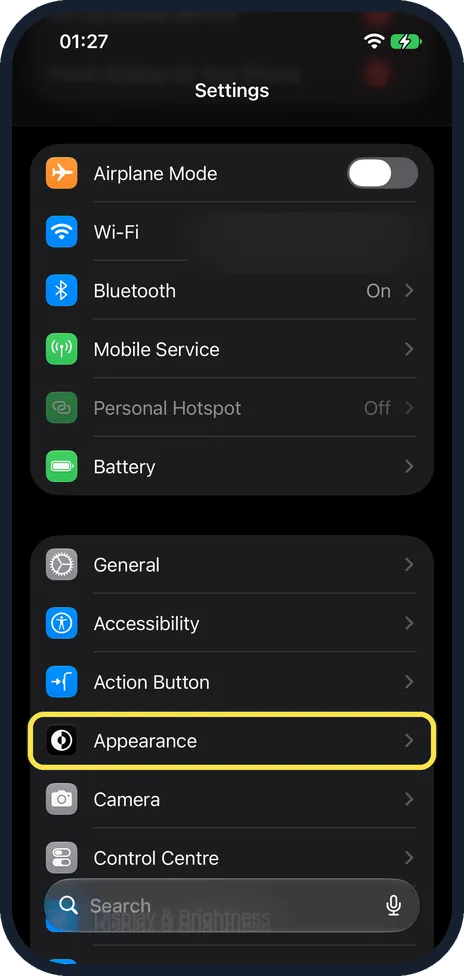
Open Settings and tap Appearance
On iOS 27 Appearance is in the main Settings list. On our iPhone 17e it is in the group that starts with General, below Accessibility and Action Button.
Watch these steps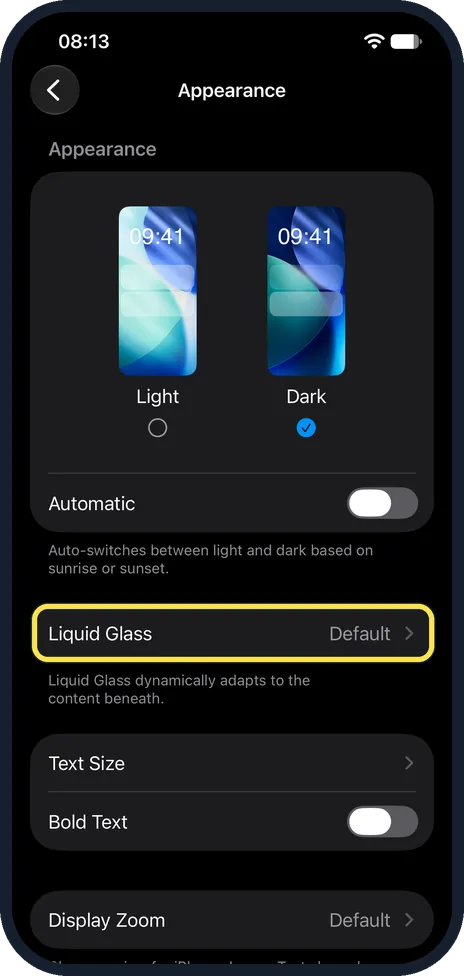
Tap Liquid Glass
It is below Light, Dark and Automatic. The row shows the current setting: Default on our iPhone 17e with iOS 27.
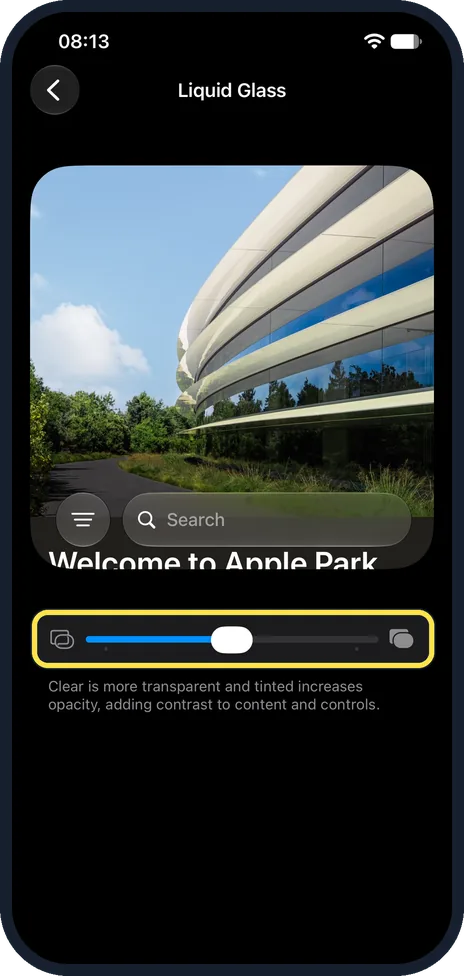
Drag the slider towards Tinted
The icon on the right stands for tinted. The further right, the more opaque buttons and bars become. Apple says to drag it to the right to increase the tint. On our iPhone 17e with iOS 27 the slider sat in the middle, and the note below reads: Clear is more transparent and tinted increases opacity, adding contrast to content and controls.
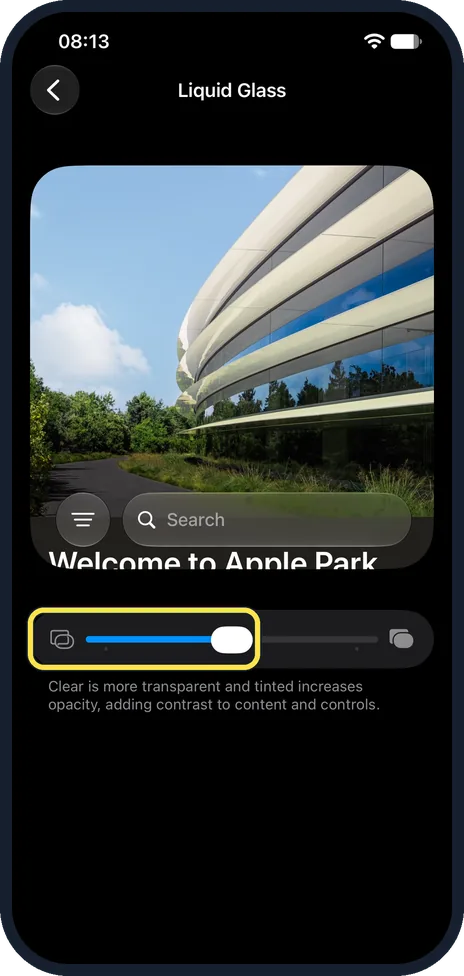
Or drag it back towards Clear
Apple says dragging to the left makes Liquid Glass more clear. On our iPhone 17e the left end of the slider has the clear icon, and the preview above shows a search bar over a photo.
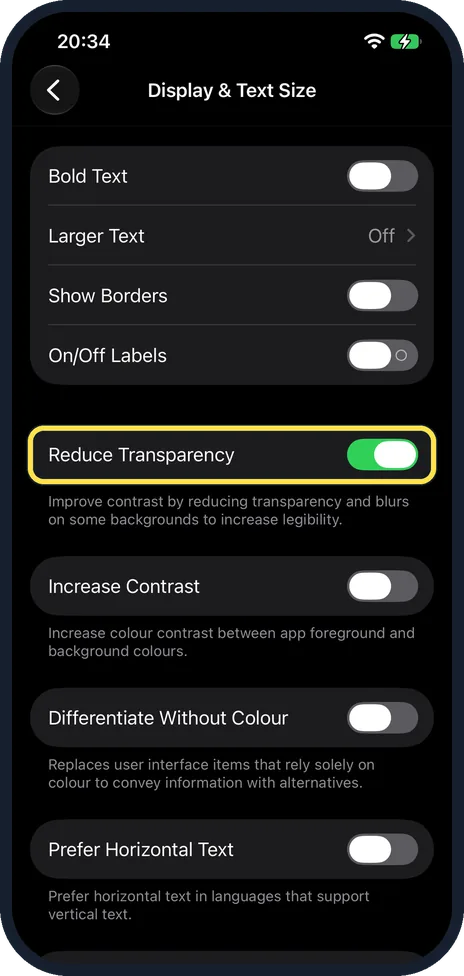
Still hard to read? Turn on Reduce Transparency
Go back to Settings, tap Accessibility, then Display & Text Size, and switch on Reduce Transparency. On our iPhone 17e the note under it reads: Improve contrast by reducing transparency and blurs on some backgrounds to increase legibility. Increase Contrast, just below, increases colour contrast between app foreground and background colours. Apple notes that while either is on, you need to turn it off to change the look of Liquid Glass again.
What changed: the screenshots are now our own iPhone 17e on iOS 27.0.1, dark mode, and the wording is checked against those screens and Apple's iOS 27 guide.
Watch these steps
If you do not see this option
- No Liquid Glass row under Appearance Apple's iOS 26 steps put it under Settings, Display & Brightness, Liquid Glass, as a choice between Clear and Tinted. On our iPhone 17e with iOS 27 it is on Appearance, below Light, Dark and Automatic. Sources: Adjust iPhone display and text settings (iOS 26), Adjust iPhone display and text settings (iOS 27)
- No Appearance in the Settings list Apple's iOS 27 steps use Settings, Appearance; its iOS 26 steps use Display & Brightness instead. On our iPhone 17e with iOS 27, Appearance sits below Accessibility and Action Button. Sources: Adjust iPhone display and text settings (iOS 27), Adjust iPhone display and text settings (iOS 26)
If this does not work
- Moving the slider changes nothing Apple notes that if Reduce Transparency or Increase Contrast is on in Accessibility settings, you need to turn them off to change the look of Liquid Glass. Source: Adjust iPhone display and text settings (iOS 27)
- Menus are still hard to read over photos Turn on Reduce Transparency under Accessibility, Display & Text Size, as in step 5. On our iPhone 17e its note reads: Improve contrast by reducing transparency and blurs on some backgrounds to increase legibility. Source: Change display colors on iPhone to make it easier to see what’s onscreen
About this guide
Liquid Glass is the see-through look of buttons, menus and bars that arrived with iOS 26. Over a busy photo or web page it can make text hard to read. Our iPhone 17e with iOS 27 has no switch to turn it off, but a slider makes it more opaque.
The screenshots are our own, taken on an iPhone 17e running iOS 27.0.1. On iOS 27 the setting is a slider on the new Appearance page. On iOS 26.1 to 26.x it was a choice between Clear and Tinted.
Good to know
On iOS 26.1 and later versions of iOS 26, the setting is under Settings, Display & Brightness, Liquid Glass, with two choices: Clear, the default, and Tinted.
On iOS 26.0 there is no Liquid Glass setting. Update the iPhone, or use Reduce Transparency: how to update an iPhone.
Reduce Motion also tones down the moving effects of Liquid Glass: how to turn on Reduce Motion on an iPhone.
The setting changes how the whole system looks, not one app. Apps that draw their own menus may look the same.
In short: iOS 27: Settings, Appearance, Liquid Glass, slider towards Tinted. iOS 26.1+: Display & Brightness, Liquid Glass, Tinted.
Links checked in October 2026. Menus and features can change after software updates. These steps match the version named at the top.
📷 See real photos from the iPhone 17e in our Camera Lab, next to 10 other phones.
Did this guide work for you?
Sorry about that. What happened?