
You are viewing the macOS 26 version of this guide, recorded on macOS Tahoe 26 (MacBook Pro) on 2 October 2026. It is kept as it was and not updated. See the macOS 27 version.
howtosimply.com/guides/how-to-airplay-from-an-iphone-to-a-mac/ · Checked 2 October 2026 · MacBook Pro · macOS Tahoe 26
In this guide
On the Mac, open System Settings, General, AirDrop & Handoff and switch on AirPlay Receiver. On the iPhone, open Control Center, tap Screen Mirroring and choose the Mac. To send only a video or music, tap the AirPlay button in the app and choose the Mac.
2 of 7 steps with real screenshots · 2 official sources below
- Device
- iPhone
- Shown on
- macOS Tahoe 26 (MacBook Pro)
- App
- System Settings
- Real screenshots
- 2 of 7 steps
- Checked
- 2 October 2026
- Sources
- 2 official, linked below
Step by step
Check the Mac
The Mac needs macOS Monterey or later, and it has to be one of the models from about 2018 on that support receiving AirPlay.
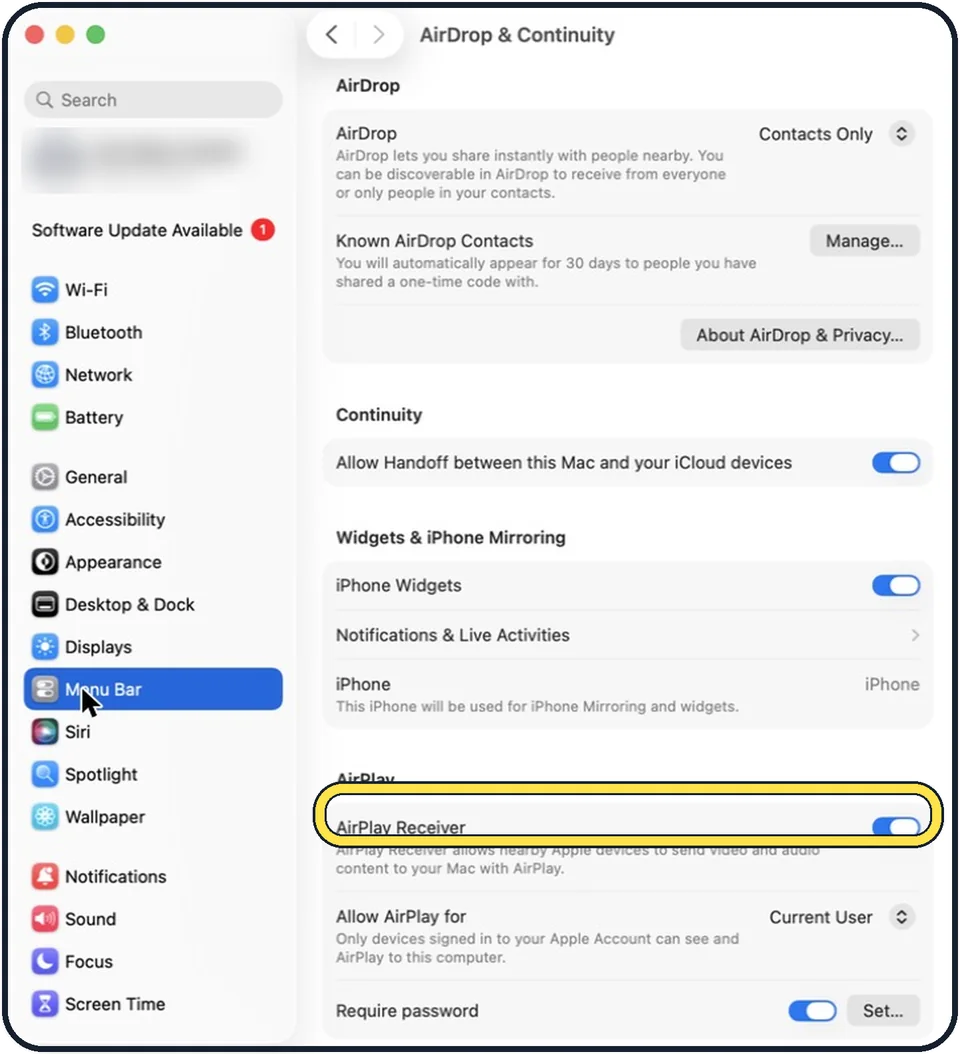
Tap the picture to see it full size Turn on AirPlay Receiver
Choose Apple menu, System Settings, click General and then AirDrop & Handoff. Switch on AirPlay Receiver. On macOS Monterey the switch is in System Preferences under Sharing.
Choose who may send
Under Allow AirPlay for, pick Current user (only devices signed in to your Apple Account), Anyone on the same network, or Everyone. Current user is the safe choice at home.
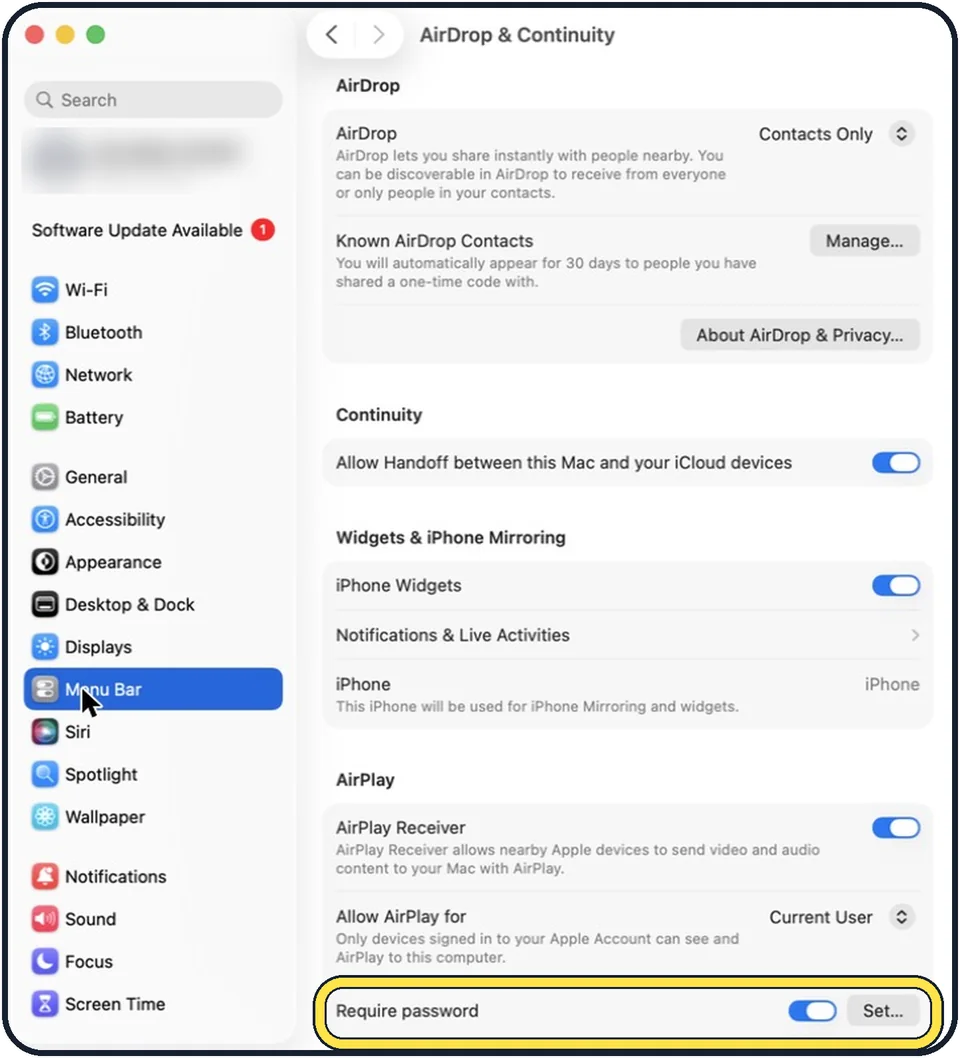
Tap the picture to see it full size Add a password if others are around
Switch on Require password and set one, so nobody in a shared office or flat can put something on your screen.
Mirror the iPhone screen
On the iPhone, swipe down from the top right corner to open Control Center, tap the Screen Mirroring button and tap the name of the Mac. The first time, enter the code shown on the Mac.
Send only a video or music
In the app that plays it, tap the AirPlay button, the rectangle with the triangle (for music: the circles with the triangle), and choose the Mac.
Stop
On the iPhone, open Screen Mirroring again and tap Stop Mirroring. On the Mac you can also press Escape.
What we saw on our device
- Mac: switch on AirPlay Receiver: On our MacBook Neo it was already on.
- Choose who may send: Ours was set to Current User.
- iPhone: open the photo, tap Share, then AirPlay: On our iPhone 17e it was in the row of round buttons under the apps, after Copy Photo, Add to Shared Album and Add to Album.
About this guide
A Mac can act like an Apple TV: its screen and speakers become the target for video, photos, music or the whole screen of an iPhone or iPad. It is handy for showing holiday pictures on the larger display or for using the Mac's better speakers.
Menu names are from recent versions of macOS, where the settings app is called System Settings.
Good to know
Both devices should be on the same Wi-Fi network, with Wi-Fi and Bluetooth switched on. With Current user, they also need the same Apple Account.
On a Mac managed by an employer, the AirPlay Receiver option may be switched off by the organisation.
The other direction, from the Mac to a television: how to mirror a Mac screen to a TV with AirPlay. From the phone to a TV: how to mirror an iPhone screen to a TV.
To control the iPhone from the Mac instead of only showing it: how to use iPhone Mirroring on a Mac.
In short: Mac: System Settings > General > AirDrop & Continuity > AirPlay Receiver on. iPhone: photo > Share > AirPlay > your Mac. Press Esc on the Mac to close it.
Links checked in October 2026. Menus and features can change after software updates. These steps match the version named at the top.
Did this guide work for you?
Sorry about that. What happened?