XIAOMI REDMI
How to update a Xiaomi phone and check the HyperOS version (HyperOS 3)
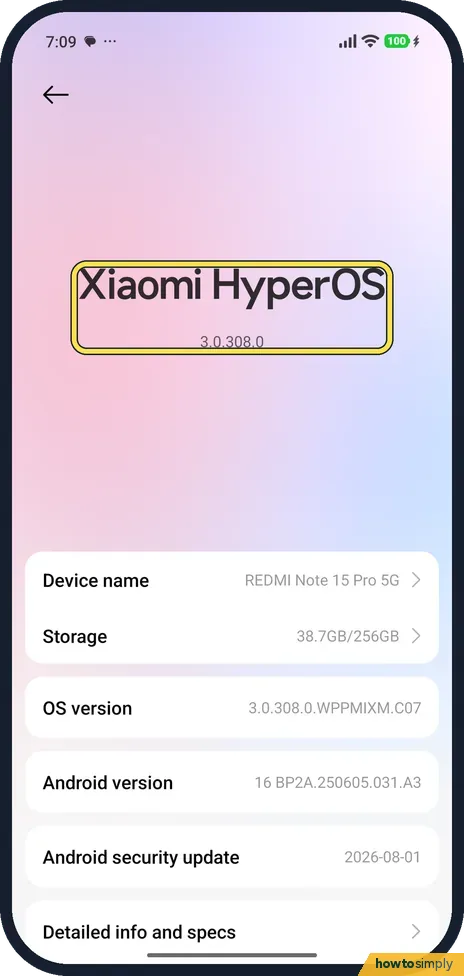
Go to Settings, About phone, and tap the Xiaomi HyperOS tile. The update page shows your version and the notes for it. On our up-to-date phone it had no Check for updates button: the three-dot menu has Download latest package, and Settings, where Automatic updates was on and Download using mobile data off.

4 of 4 steps show a real screenshot from our Redmi Note 15 Pro 5G. Each step was checked against the maker's own instructions, linked at the end.
Steps
- 1
Tap the HyperOS tile
Go to Settings, About phone, and tap the Xiaomi HyperOS tile at the top. Ours read 3.0.308.0.
- 2
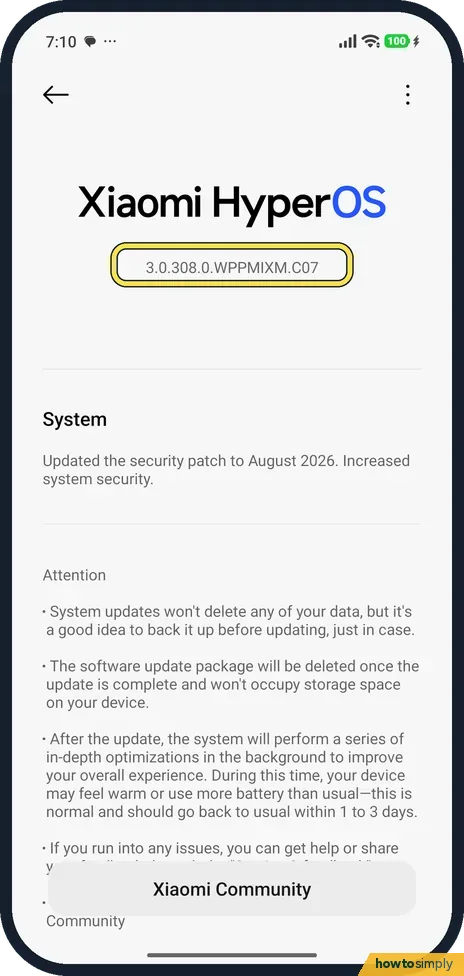
Read your version
The update page shows the full version, 3.0.308.0.WPPMIXM.C07 on ours, and the notes for it: Updated the security patch to August 2026. Our phone was up to date and the page showed no Check for updates button, only the notes and a Xiaomi Community button.
- 3
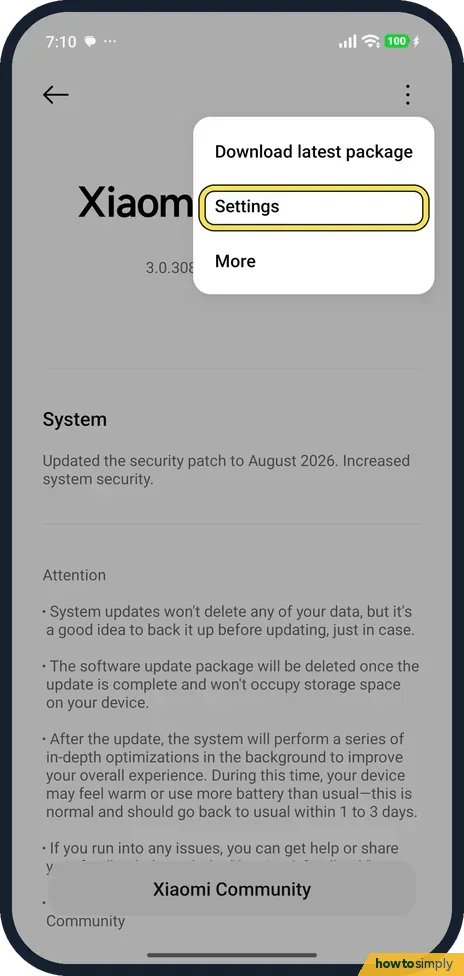
Open the menu
Tap the three dots at the top right. The menu has Download latest package, Settings and More. Download latest package fetches the newest version; we did not tap it. Tap Settings.
- 4
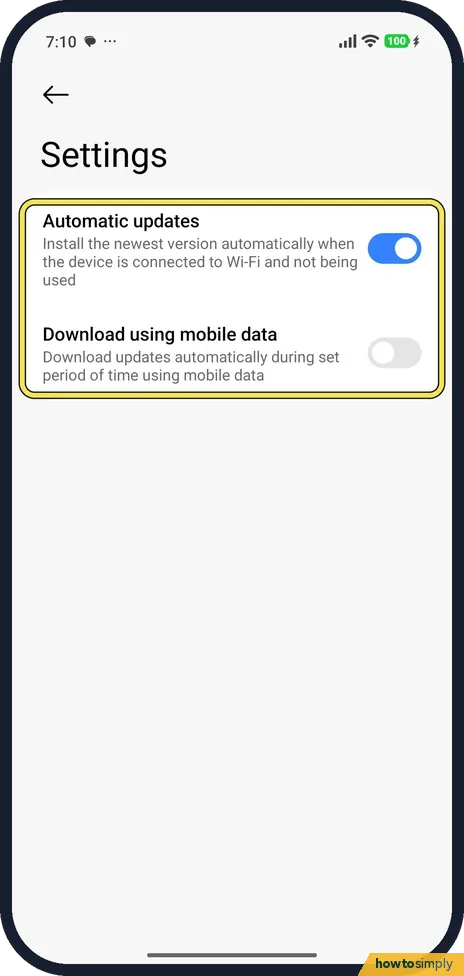
Check the update settings
Automatic updates was on: it installs a new version when the phone is on Wi-Fi and not being used. Download using mobile data was off.
If you do not see this option
- No Check for updates button? Xiaomi's guide says to tap Check for updates on this page. Our up-to-date phone showed no such button, so use Download latest package in the three-dot menu. Source: Generic User Guide for HyperOS 3.0
- No System update row? There isn't one on our phone. The update page opens from the HyperOS tile in About phone, or, Xiaomi says, from the update notification. Source: Generic User Guide for HyperOS 3.0
If this does not work
- Worried about your data? The update page itself says system updates won't delete your data, but to back up first just in case. See how to back up a Xiaomi phone.
- Phone warm after an update? The same page says the phone optimises in the background after an update and may feel warm or use more battery for 1 to 3 days.
- Update won't download on mobile data? Download using mobile data was off on ours. Turn it on in the update settings, or connect to Wi-Fi.
- Not enough space for the update? The page says the update package is deleted once the update is complete. Free space first: Xiaomi storage full.
- Download failed or stopped? Google's help says a failed download is retried automatically over the next few days, with a notification when it does. Stay on Wi-Fi and leave enough charge so the retry can finish.
- Built-in apps still old after the update? System apps are updated separately. Xiaomi's HyperOS 3 guide puts them under Settings, Apps, System apps updater, where you can check and update them.
- A friend got the update first? Google says update schedules vary by device, manufacturer and mobile carrier. A phone of a different model or region can get the same version weeks apart.
Good to know
Phone feels slow after the update? Xiaomi phone slow or lagging.
After an update, the version on the HyperOS tile changes and the notes describe what is new. If Automatic updates is on, future versions install on Wi-Fi while you are not using the phone, so you may simply notice a restart. Turning it off means you have to come back to this page yourself. To check the security patch on its own, see how to check the security patch level.
About this guide
- Device
- Android
- Shown on
- Xiaomi Redmi Note 15 Pro 5G (25080RABDG), HyperOS 3.0.308.0, Android 16
- App
- Settings
- Path
- Settings › About phone › Xiaomi HyperOS
- Real screenshots
- 4 of 4 steps
- Checked
- October 2026
- Sources
- 2 official, linked below
Sources
Links checked October 2026. Menus and features can change with updates.Spotted a mistake? Menus change with updates, and we want every step to match your screen. Email us about this page or use the contact form. We read every report, and fixes are listed on What changed.
Liked this guide?
Follow us for new guides and short how-to videos.
Did this guide work for you?
Sorry about that. What happened?