 Illustration
You are viewing the macOS 26 version of this guide, recorded on macOS Tahoe 26 (MacBook Pro) on 4 October 2026. It is kept as it was and not updated. See the macOS 27 version.
howtosimply.com/guides/spotlight-search-not-working-on-a-mac-how-to-rebuild-the-index/ · Checked 4 October 2026 · MacBook Pro · macOS Tahoe 26
In this guide
Open System Settings, click Spotlight and click Search Privacy at the bottom. Add your disk, usually Macintosh HD, to the list with the plus button, wait a few seconds and remove it again with the minus button. Spotlight then builds its index from scratch.
5 of 6 steps with real screenshots · 1 official source below
- Device
- Mac
- Shown on
- macOS Tahoe 26 (MacBook Pro)
- App
- System Settings
- Real screenshots
- 5 of 6 steps
- Checked
- 4 October 2026
- Sources
- 1 official, linked below
Find the likely cause
- If files you know are there do not show up in results, rebuild the index with Search Privacy… (steps 3 to 8).
- If only one folder is missing from results, add that folder instead of the whole disk (step 4).
- If one kind of item, such as apps, never shows up, check the results switches, as "If this does not work" explains.
- If an error appears when you add the disk, see "If you do not see this option" for the permissions fix.
Step by step
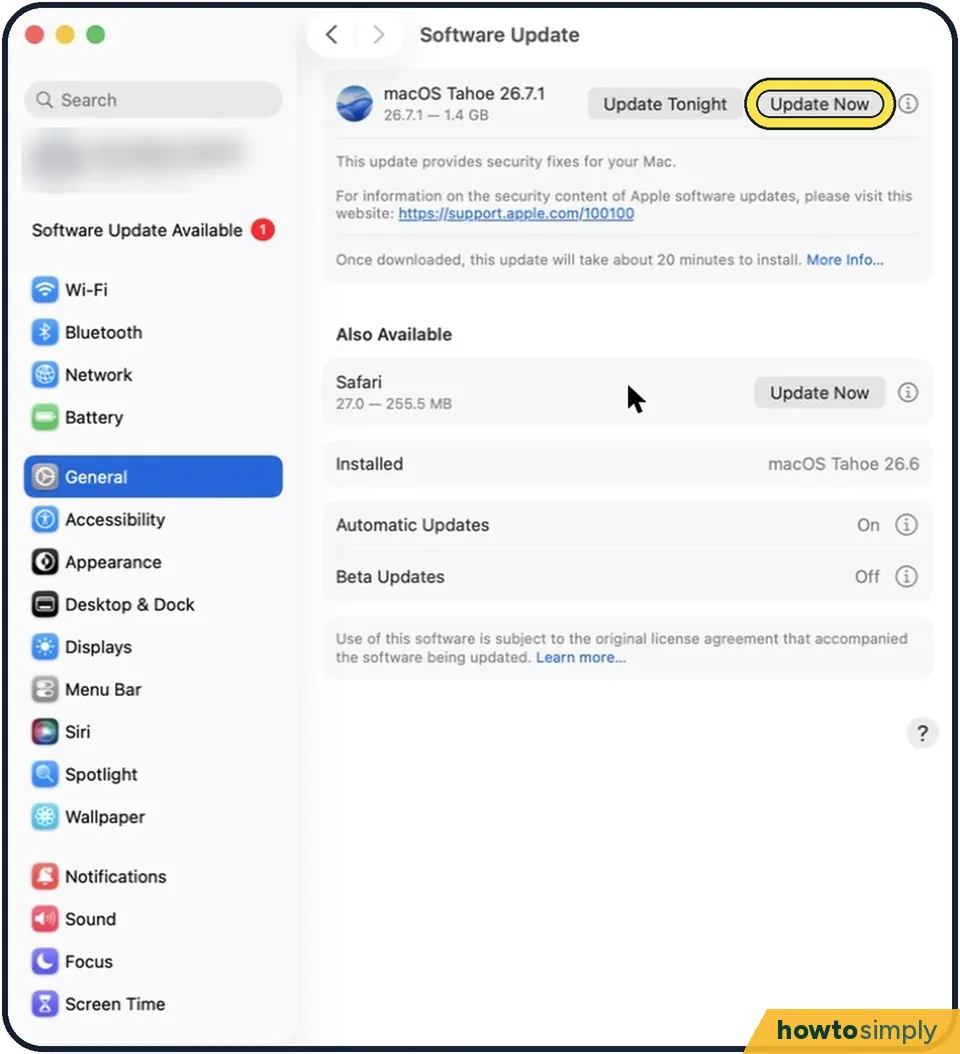
Tap the picture to see it full size Install updates first
Open System Settings, General, Software Update and install what is offered. Search problems are sometimes fixed by an update alone.
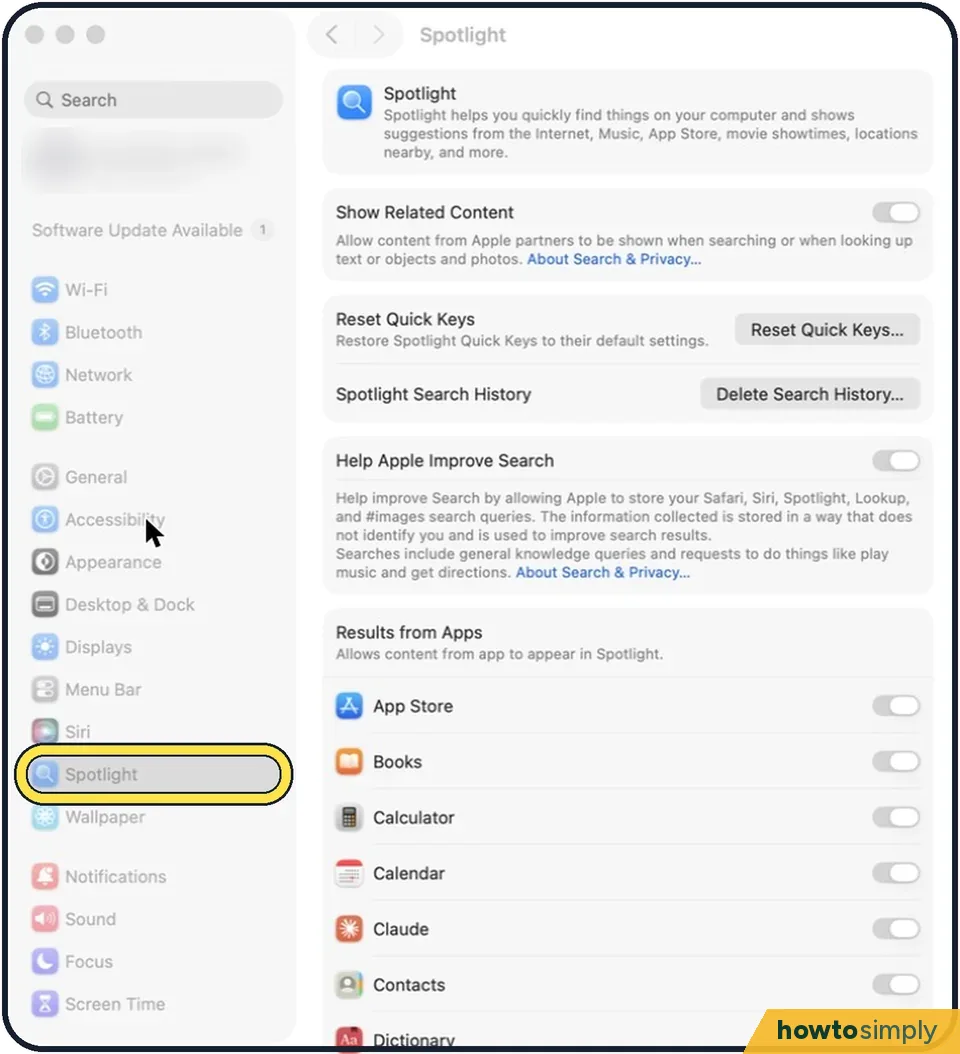
Tap the picture to see it full size Open System Settings and click Spotlight
On older versions the entry is called Siri & Spotlight.
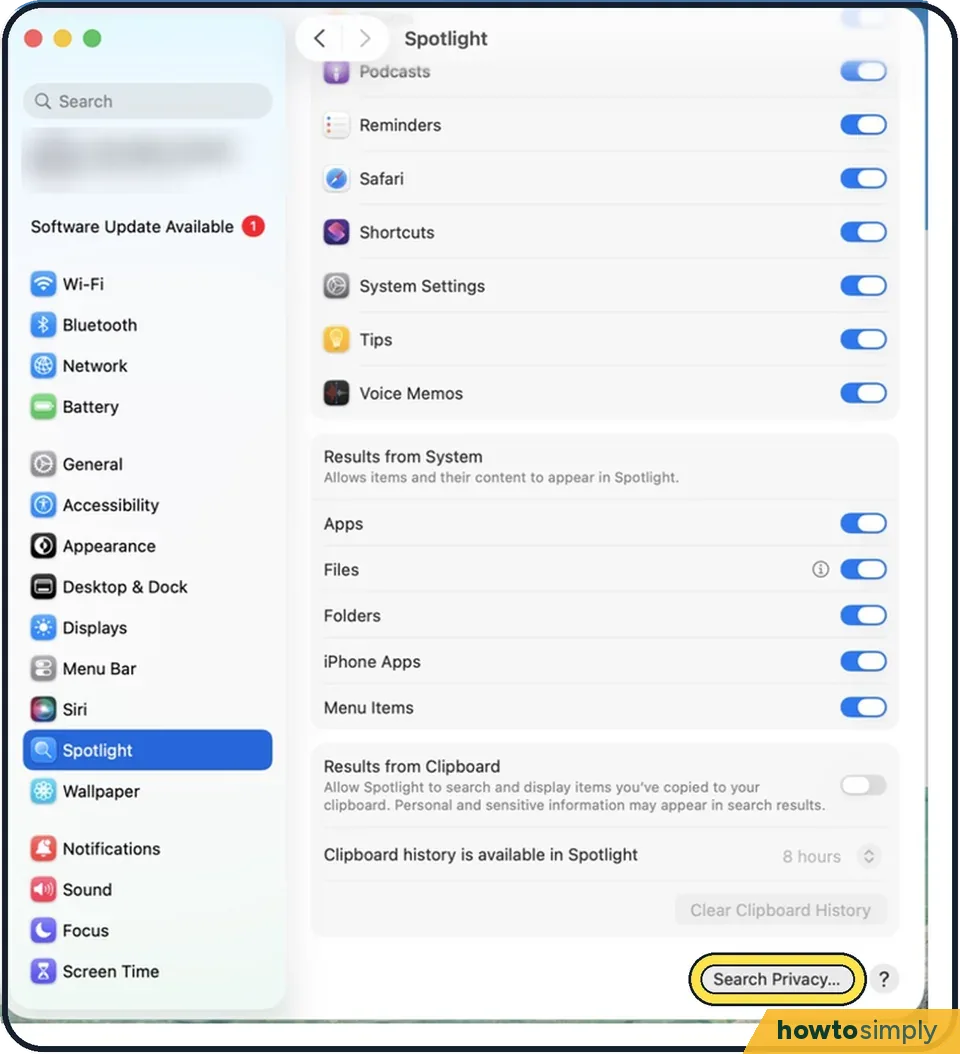
Tap the picture to see it full size Click Search Privacy
The button is at the bottom of the page. On older versions it is called Spotlight Privacy.
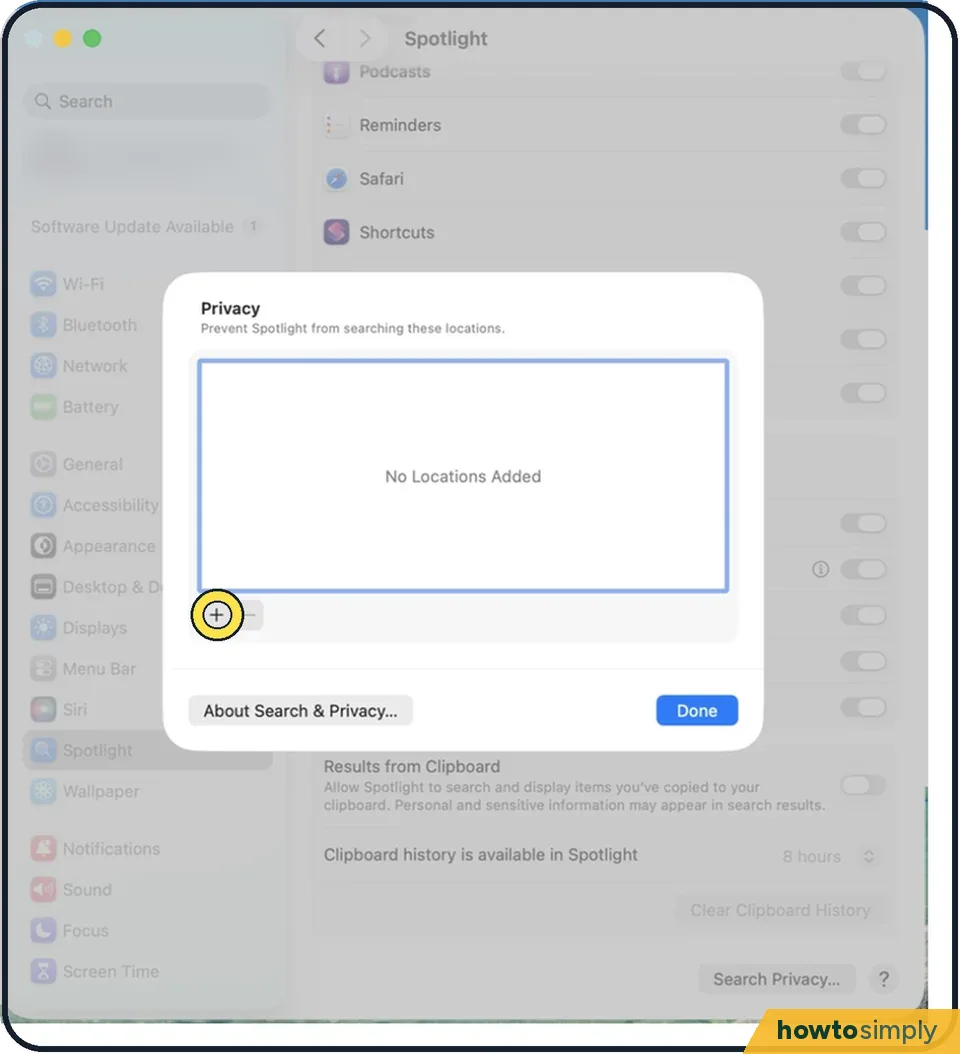
Tap the picture to see it full size Add your disk to the list
Click the plus button and choose the disk, usually Macintosh HD, or drag the disk into the list. To rebuild the index for one folder only, add that folder instead. Confirm the question.
Wait, then remove it again
Wait a few seconds. Select the disk in the list and click the minus button.
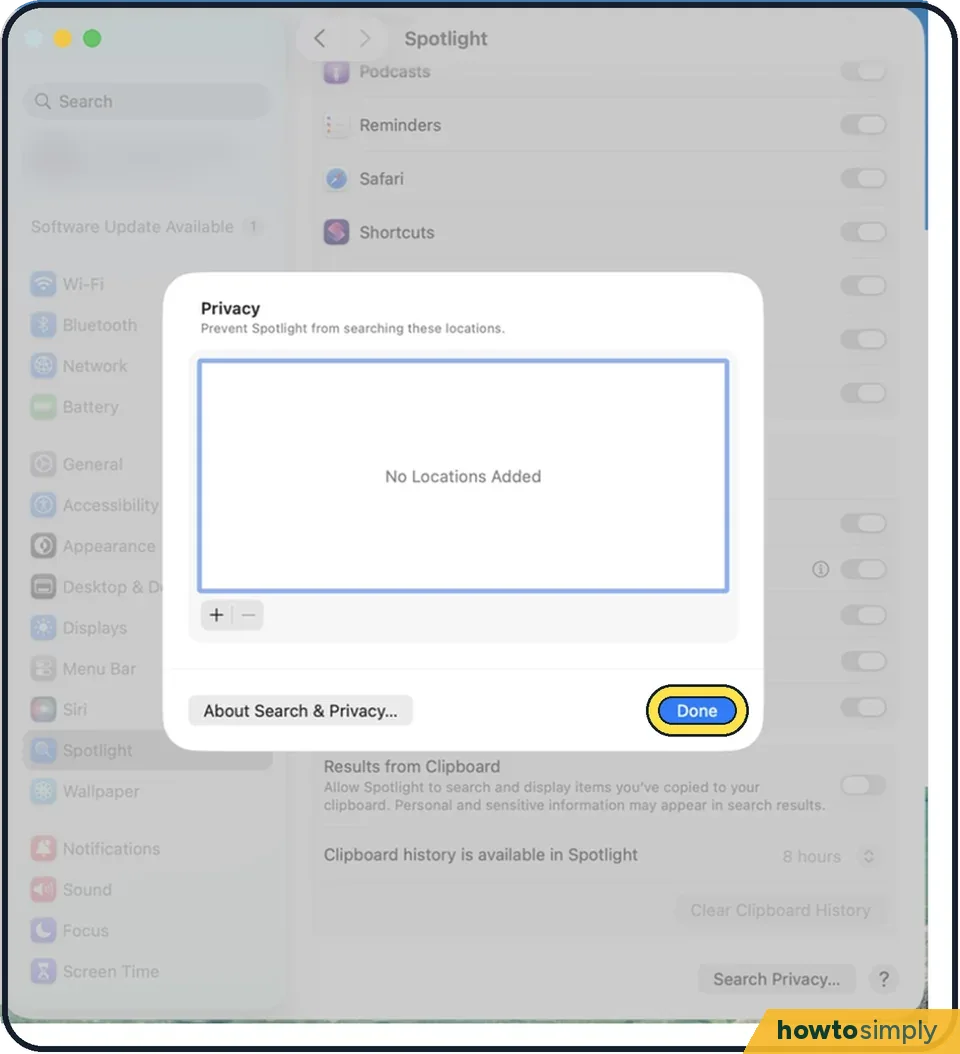
Tap the picture to see it full size Click Done and close System Settings
Spotlight now indexes the disk again. Search works a little while this runs, and results fill in as it goes.
About this guide
Spotlight finds files through an index, a kind of catalogue of everything on the disk. When search results are missing or wrong, the index is usually damaged. Apple's fix is to make the Mac throw the index away and build a new one.
Menu names are from recent versions of macOS, where the settings app is called System Settings.
Good to know
Reindexing a whole disk takes time. Apple says the first indexing can take hours or even days. It is fastest when the Mac is not in use, plugged in and on Wi-Fi.
You can only reindex items your user account owns. If macOS reports a permissions error, use an administrator account.
The Search Privacy list is meant for places Spotlight should never search. Check that the folder you are missing is not on that list for good.
How to use the search well: how to use Spotlight search on a Mac.
In short: System Settings…, Spotlight, Search Privacy…, + to add Macintosh HD, Choose, OK, wait, – to remove it, Done.
Links checked in October 2026. Menus and features can change after software updates. These steps match the version named at the top.
📷 Camera Lab: the same 6 scenes photographed with 11 phones, side by side.
Did this guide work for you?
Sorry about that. What happened?